Guides › Home cards
The Apple TV Performance card
Theatrium ProWorks with: Any Apple TVAbout 1 minute to set up
How hard this Apple TV is working, processor, memory, storage and network, straight from the device.
What it shows
Dials or lines for the Apple TV's processor, memory, storage and network traffic, with a green dot when all is well and the model of Apple TV named at the foot. Nothing here comes from your smart home; the Apple TV measures itself.
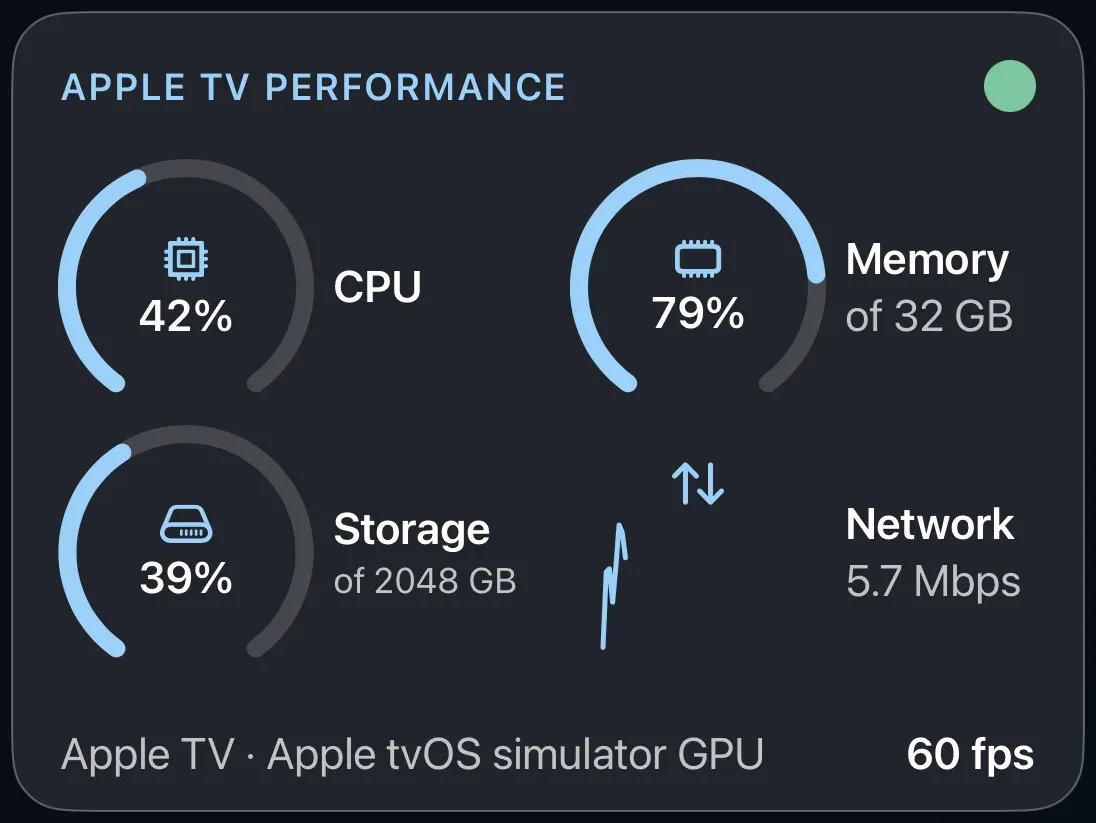
Add the card
Every card is added the same way. If you have done this before, skip ahead.
- On the dashboard, move to a card you want to replace. Press and hold the center of the remote's pad for about a second. The card dims and a Modify button appears on it.
Hold the center of the pad on the card you want to change. - Press the center once to choose Modify. The Choose a card screen opens.

The Choose a card screen. The list down the left side narrows the cards by group. - On the left, choose Home, then move right and choose Apple TV Performance. (You can also leave the list on All and scroll; it is in alphabetical order.)
- Tick the figures you want (processor, memory, storage, network) and choose a style: Dials, Line graphs over the last two minutes, or Numbers only for a small panel.
- Finish with the button at the foot of the setup screen, which is named for the card, such as Add Calendar Card. A card that needs no setup is added the moment you select it. You return to the dashboard with the new card in place.
Good to know
- Display only. Dials need room; in a small panel the card shows fewer of them rather than squashing.
- It is a curiosity for most people and a useful check if the visualizer ever looks jerky: a processor dial pinned high explains why.