The Theatrium manual
Short, plain guides with pictures. Each one tells you what a feature is for, how to set it up step by step, and what to do if something looks wrong. Start at the top if Theatrium is new to you. For step-by-step setup walkthroughs, see the Setup guides.
77 of 82 guides ready · written for Theatrium 1.9 · updated 03 October 2026
Getting started
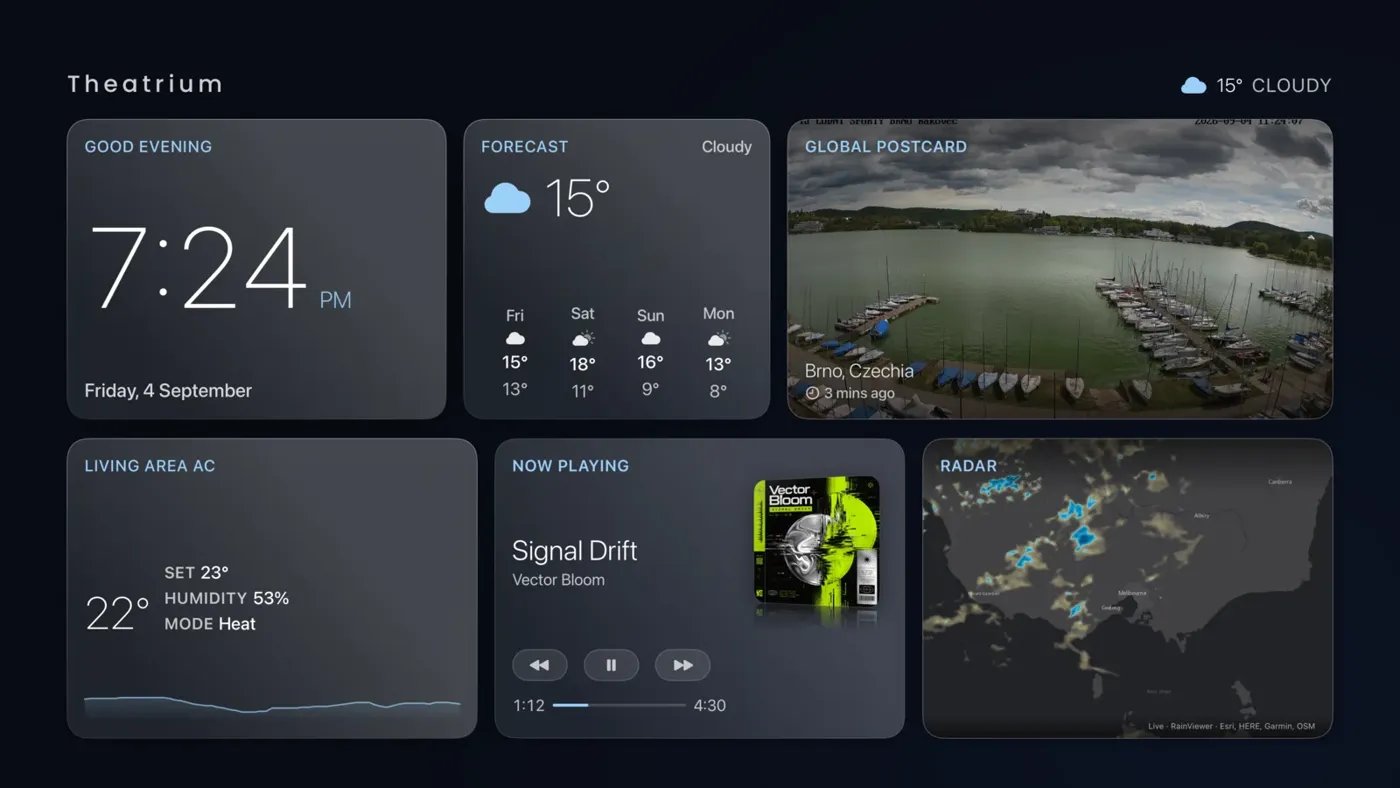
Meet TheatriumWhat Theatrium is, what you need, and the handful of remote presses that run all of it.
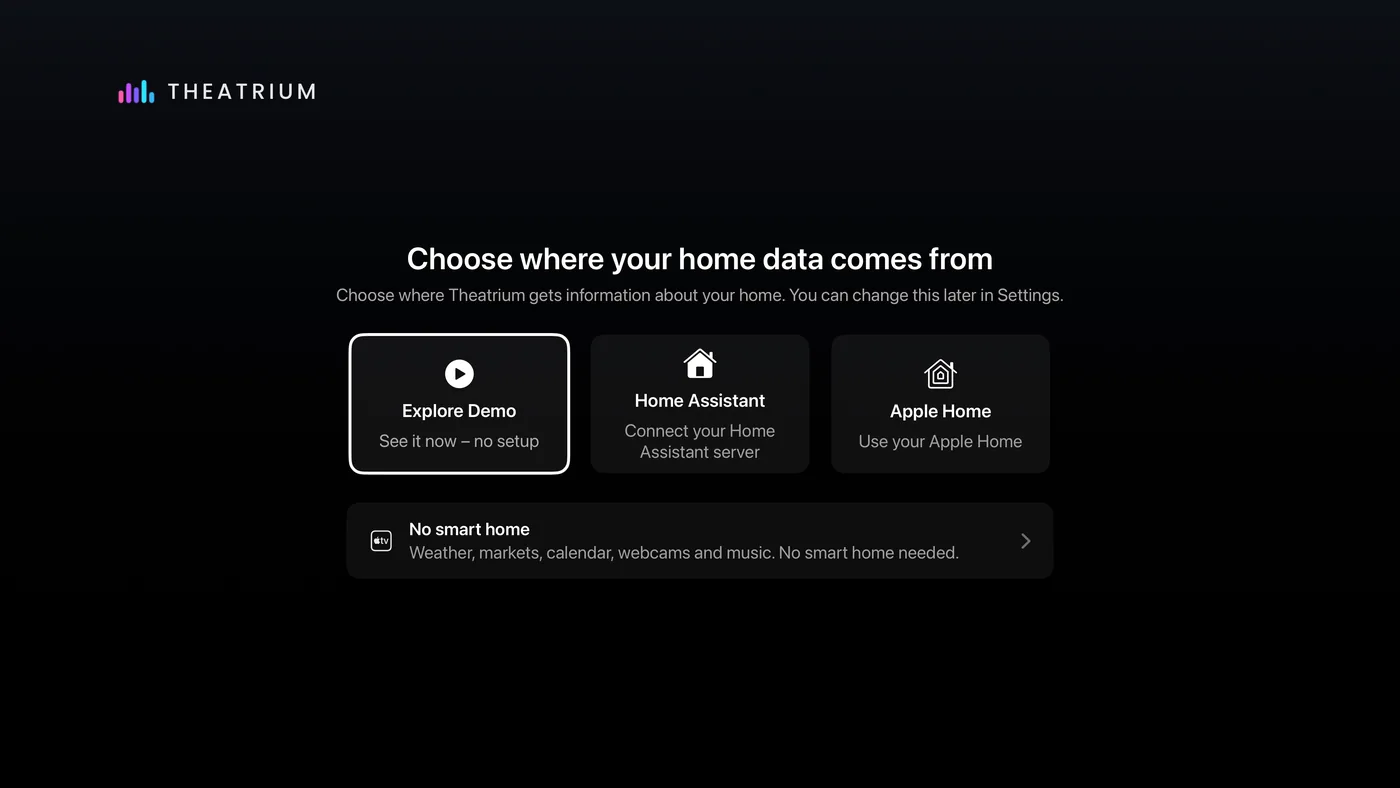
First setupThe first time you open Theatrium it asks one question, where your home information comes from. Here is how to answer it.
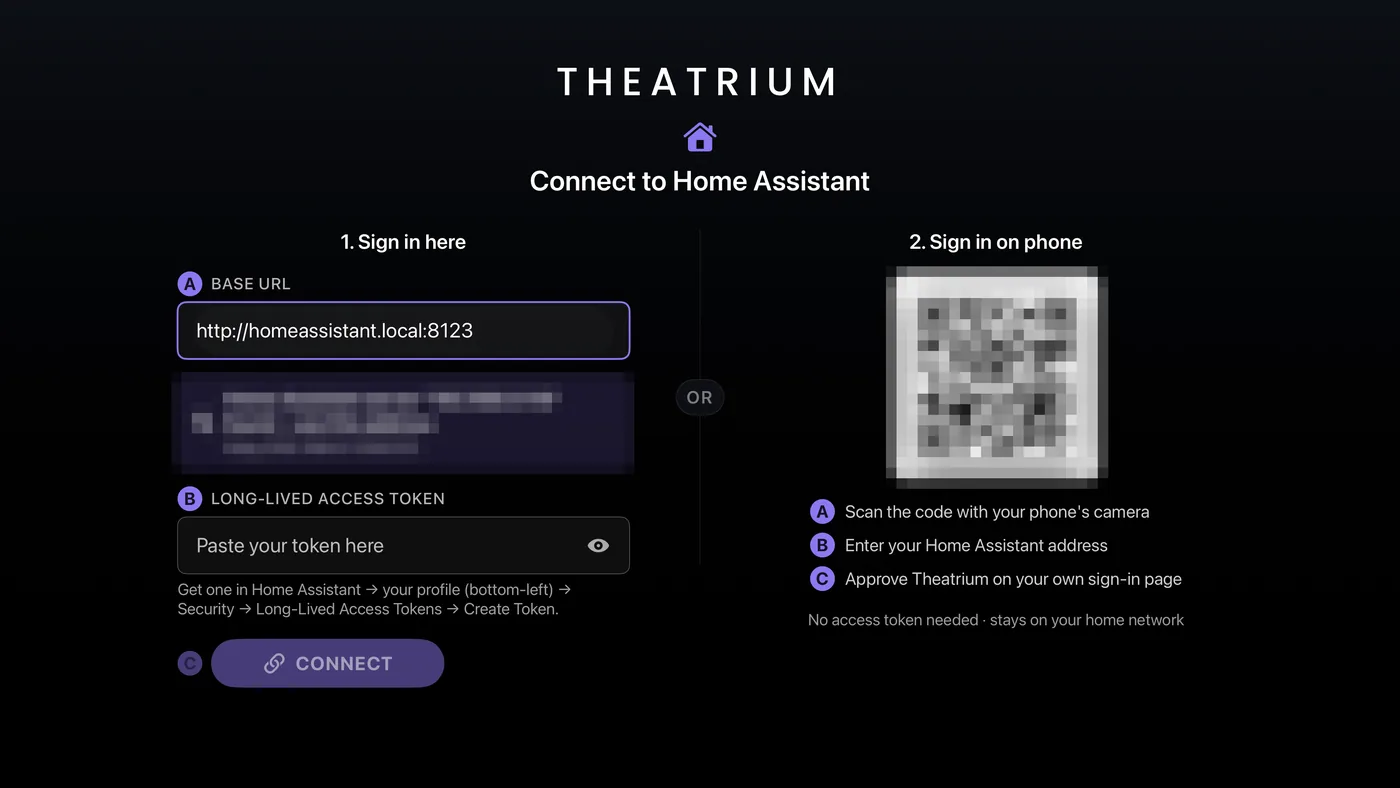
Connect Home AssistantJoin Theatrium to your Home Assistant server, either by scanning a code with your phone or by typing an address and a token on the TV.
Connect Apple HomeIf you use the Home app on your iPhone, your lights, thermostats, locks and cameras can appear in Theatrium with one tap of approval.
Using Theatrium with no smart homeNo Home Assistant, no Apple Home, no problem. Theatrium still fills your screen with weather, news, a calendar, webcams, markets and your music.
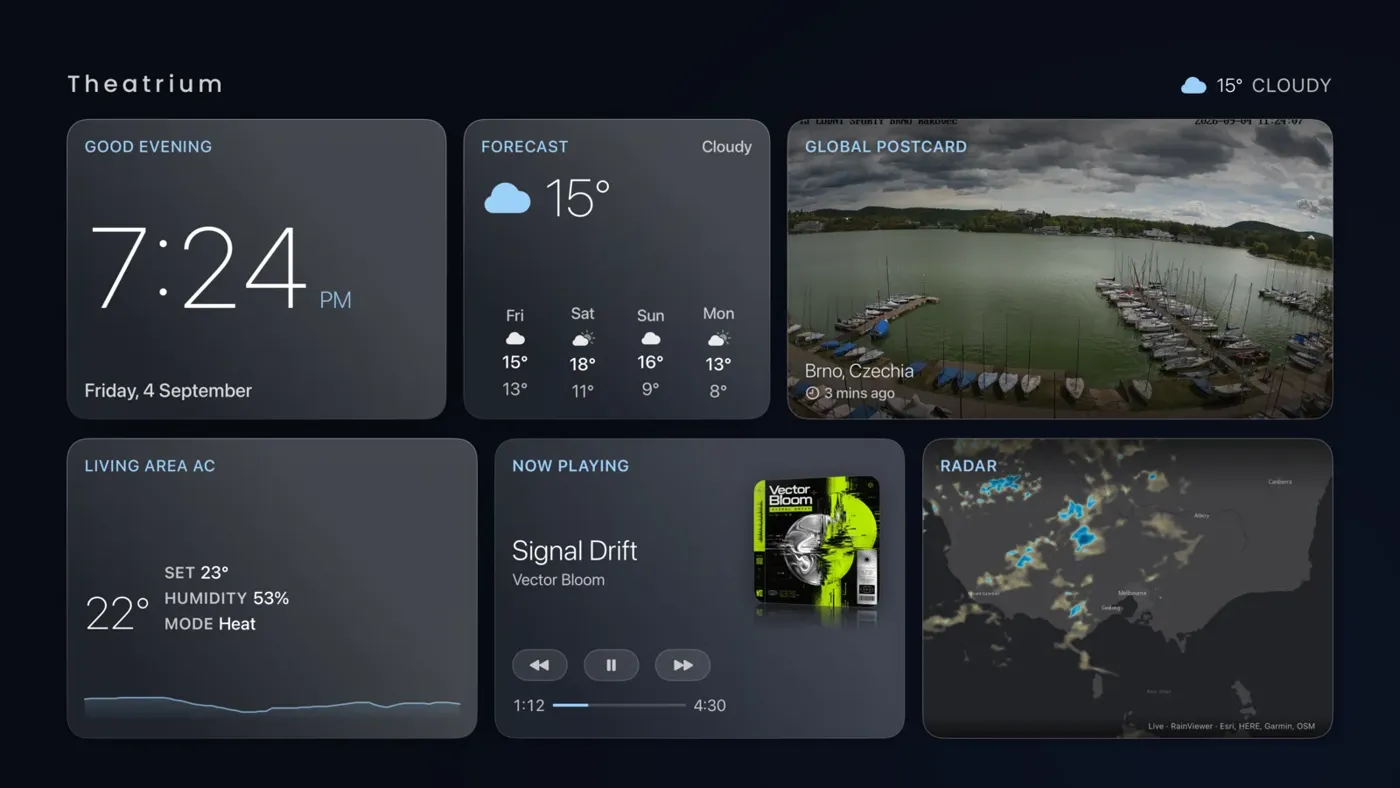
Explore DemoA full dashboard with made-up data, so you can look around before connecting anything.
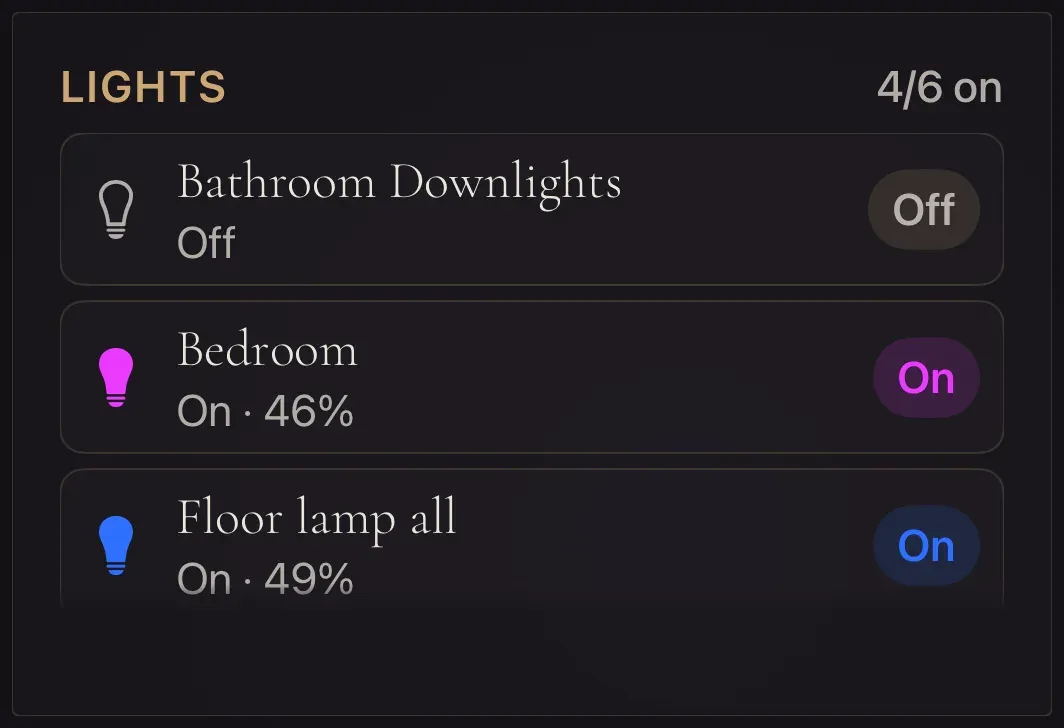
Getting your lights ready for TheatriumWhich smart lights work, how to get them into Apple Home or Home Assistant, and how to name and group them so they are easy to use from the TV.
What you needWhich Apple TV Theatrium runs on, which models get the full-detail music visualizer, and what the companion iPhone app is for.
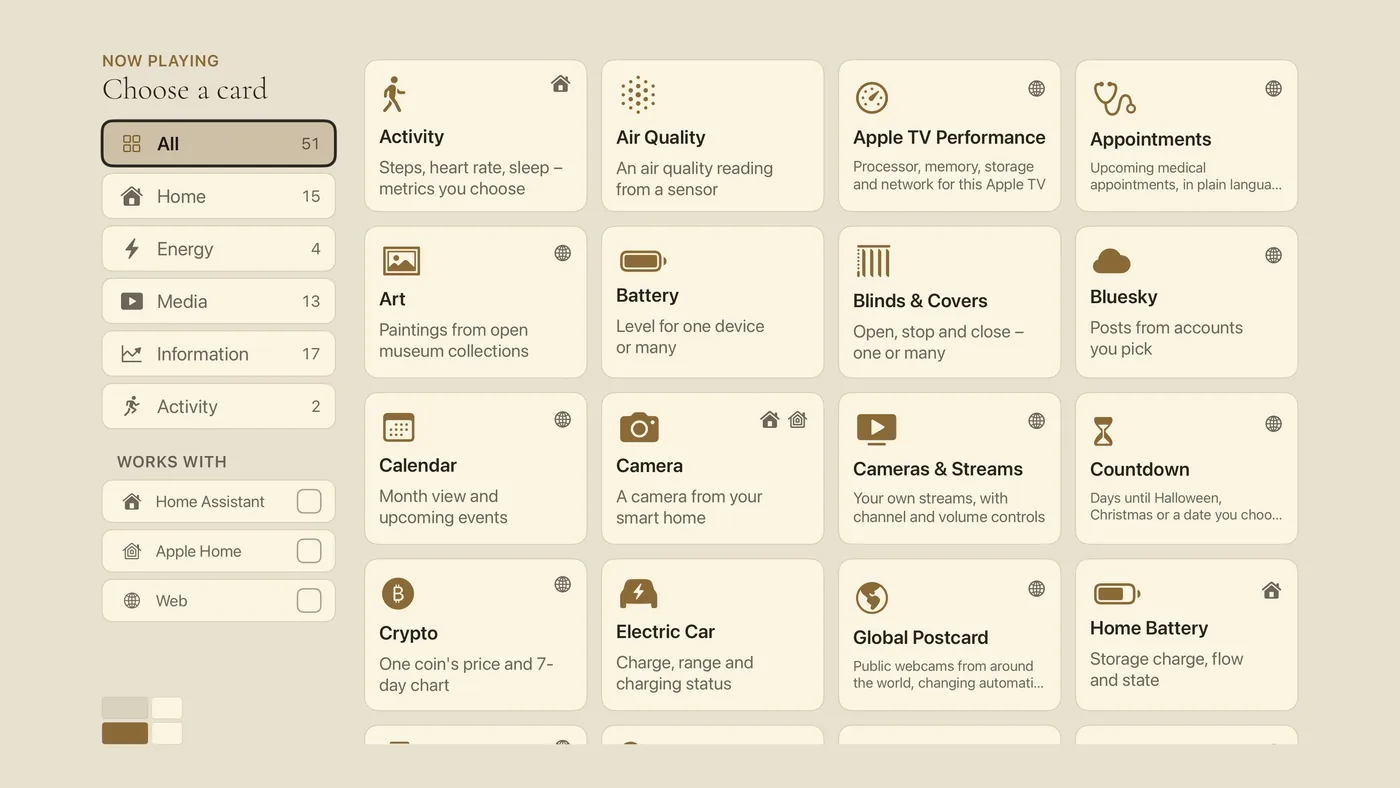
Questions and fixesPortrait screens, restoring Pro, removing the app and getting help.
Your dashboard
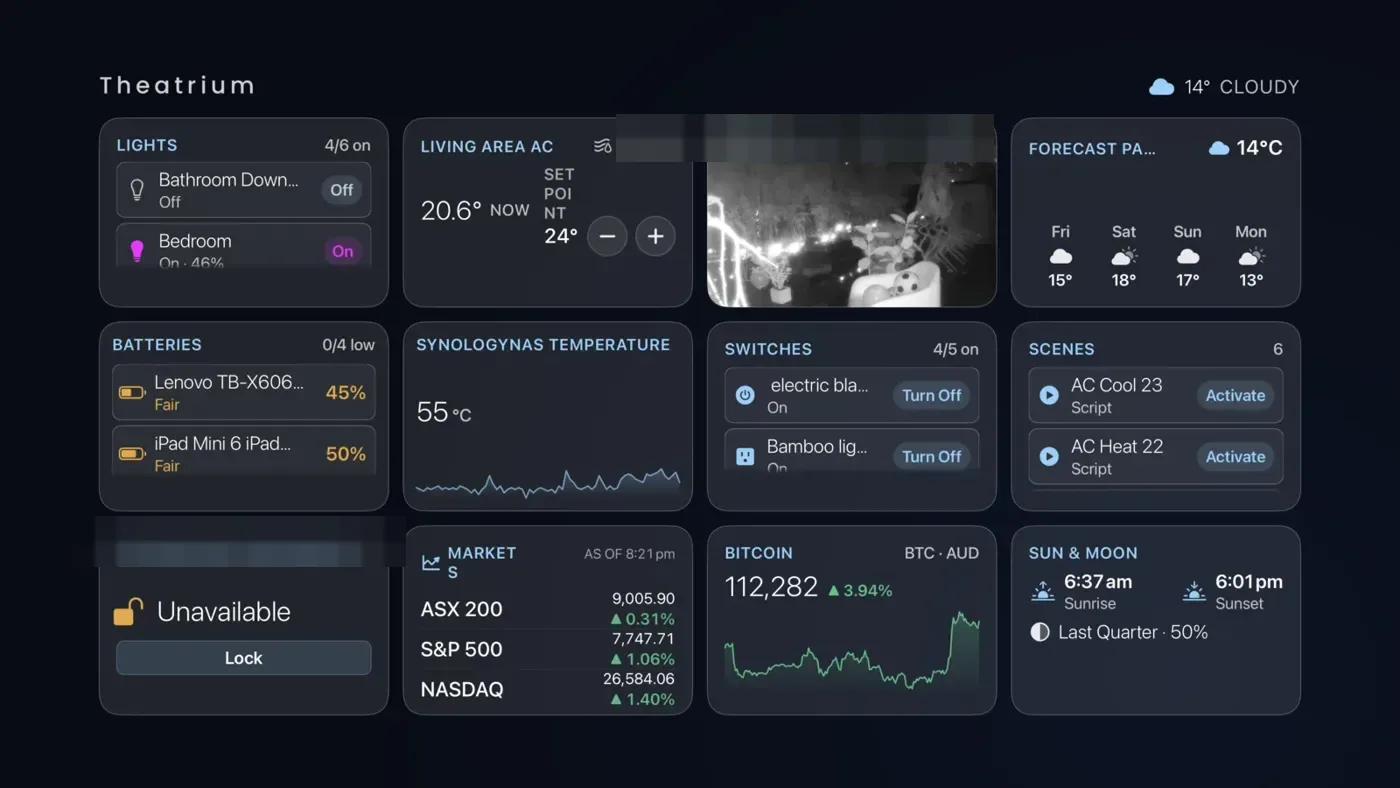
Getting around the dashboardThe buttons along the top, how to open a card, how to reach the second page and the music room, and how to get back.
Change a cardSwap any card on the dashboard for another one in under a minute, with a preview of exactly how it will look in that spot.
The second pageUp to twelve more panels one step to the right, for the cards you want but not all day.
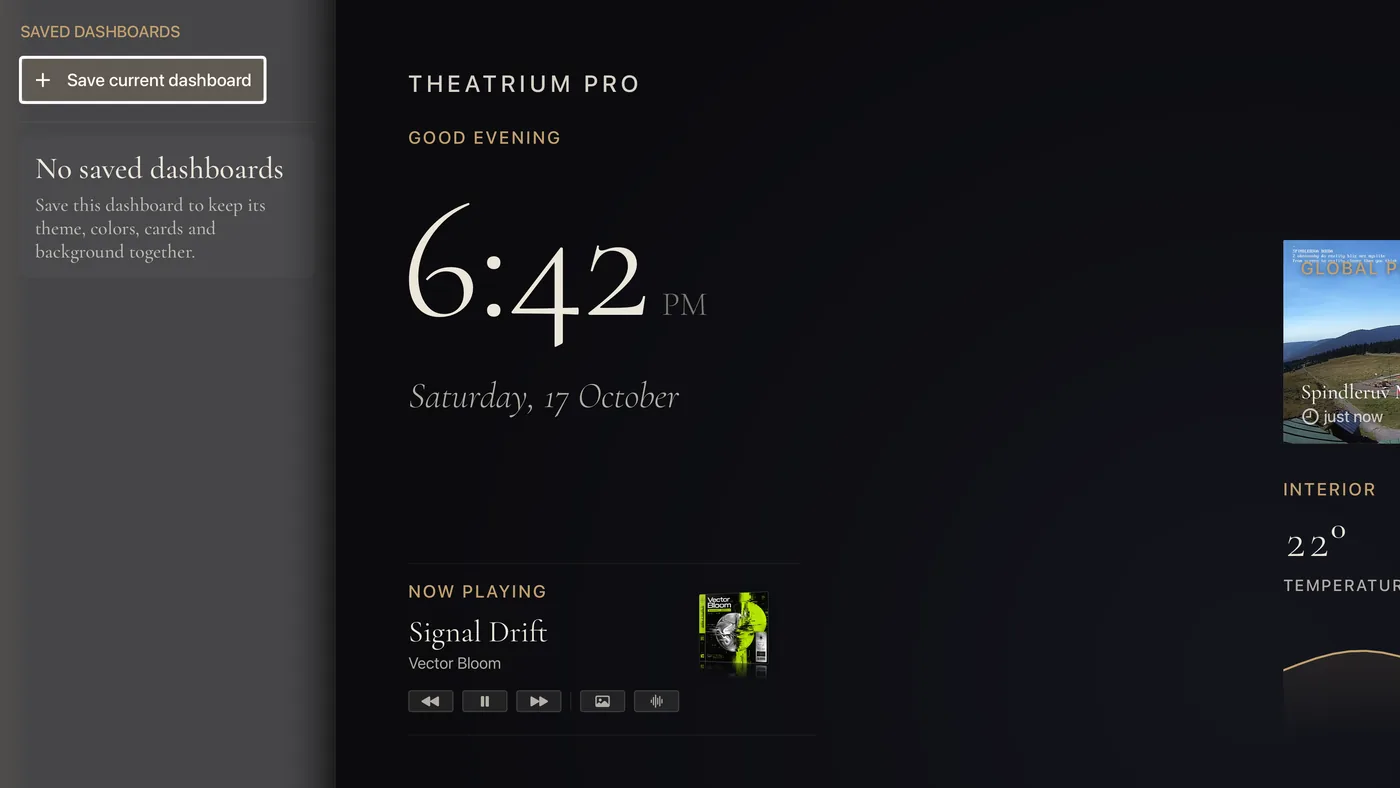
Saved DashboardsSave a whole dashboard — its theme, colors, cards and background — and switch between your saved dashboards in a press.
The Quick Access barA strip of your most-used lights and scenes, plus All Off, one press away at the bottom of the screen.
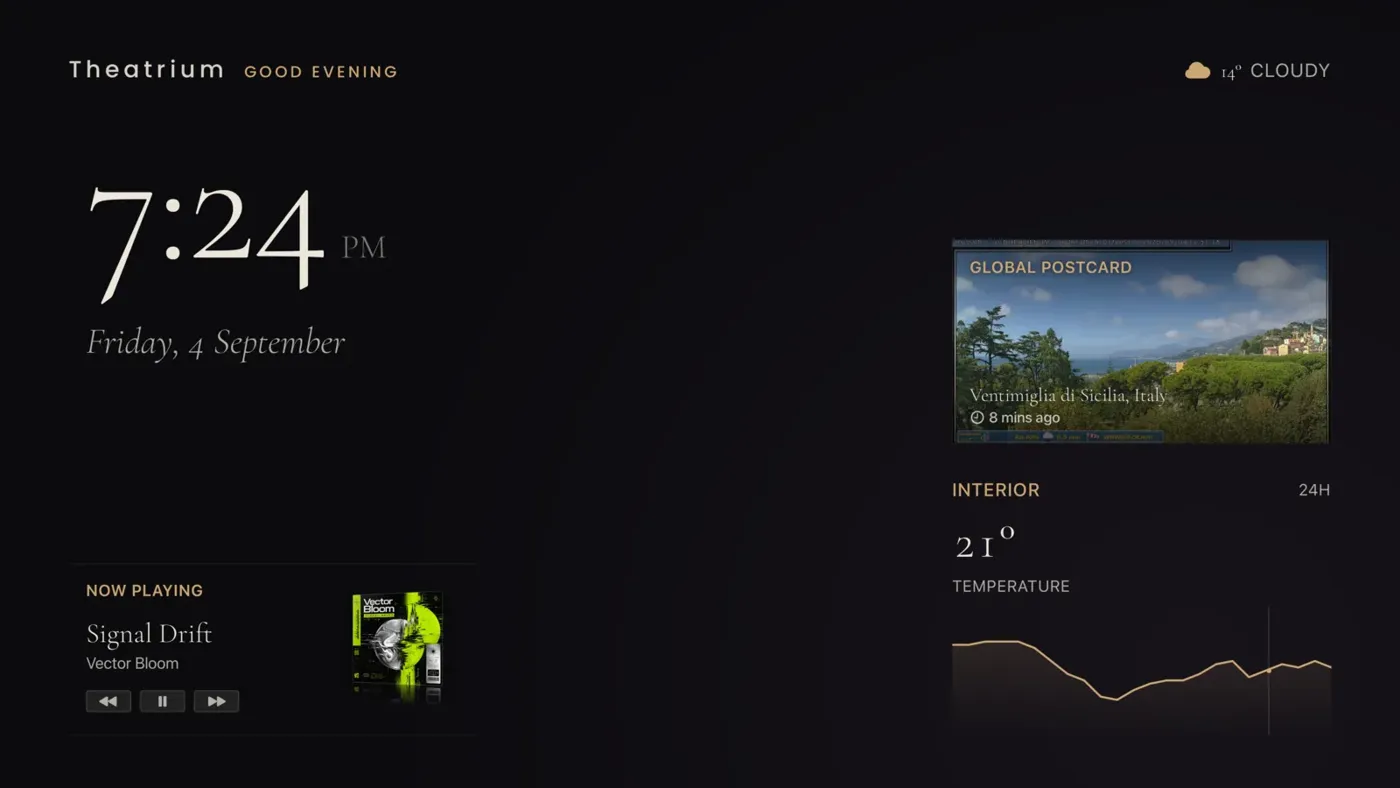
ThemesFour looks for the same dashboard. Glass is free; Estate, Bento and Boardroom come with Theatrium Pro. Every one has a light and a dark version, and any theme can wear any theme's colors.
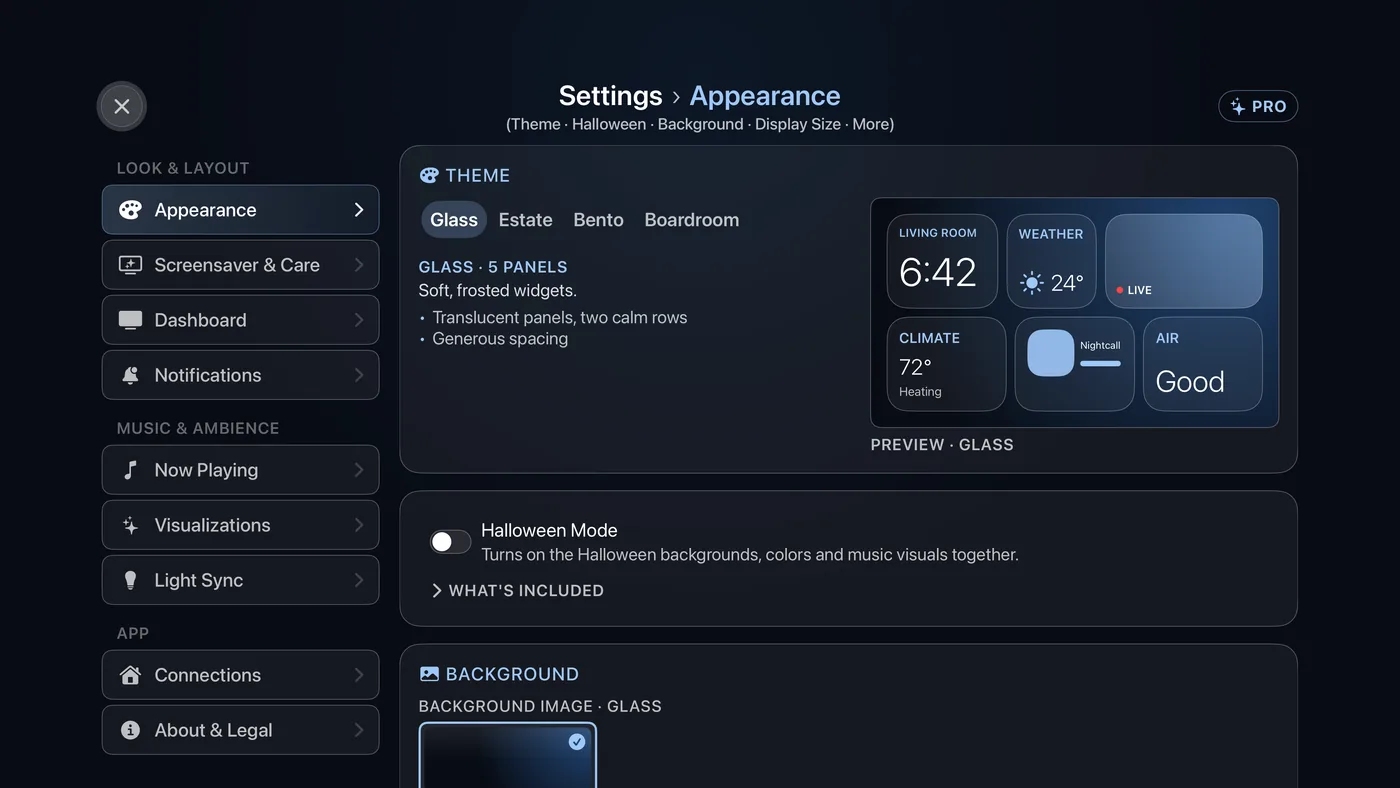
Appearance settingsYour theme and background, bigger text, color palettes, your preferred units, and colors that follow the time of day.
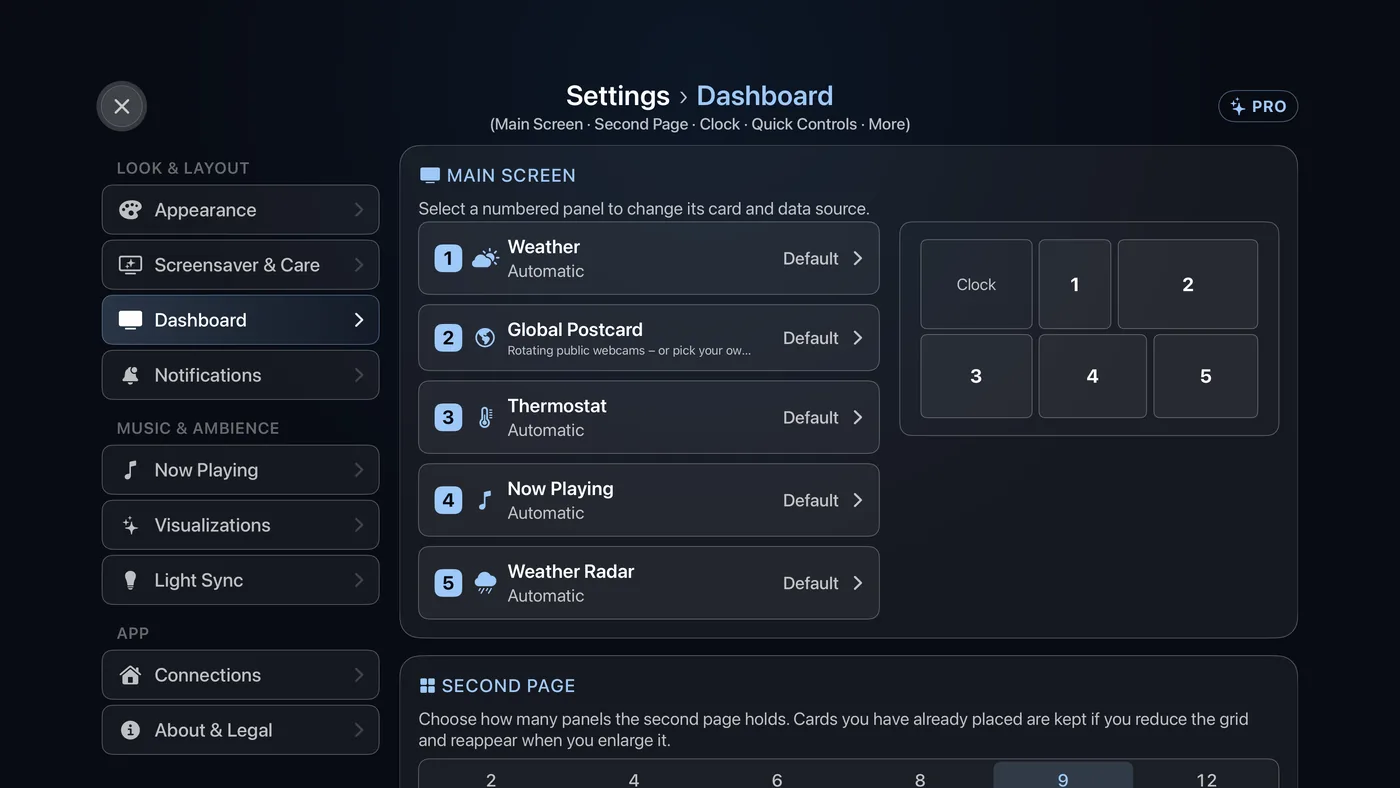
Dashboard settings and the clockChange any panel by number, set how many panels page two holds, shape the clock and the Quick Access bar, and put your own name at the top.
Cards: your home
The Light cardTurn one light or a whole room on and off from the sofa, and set brightness and color on lights that allow it.
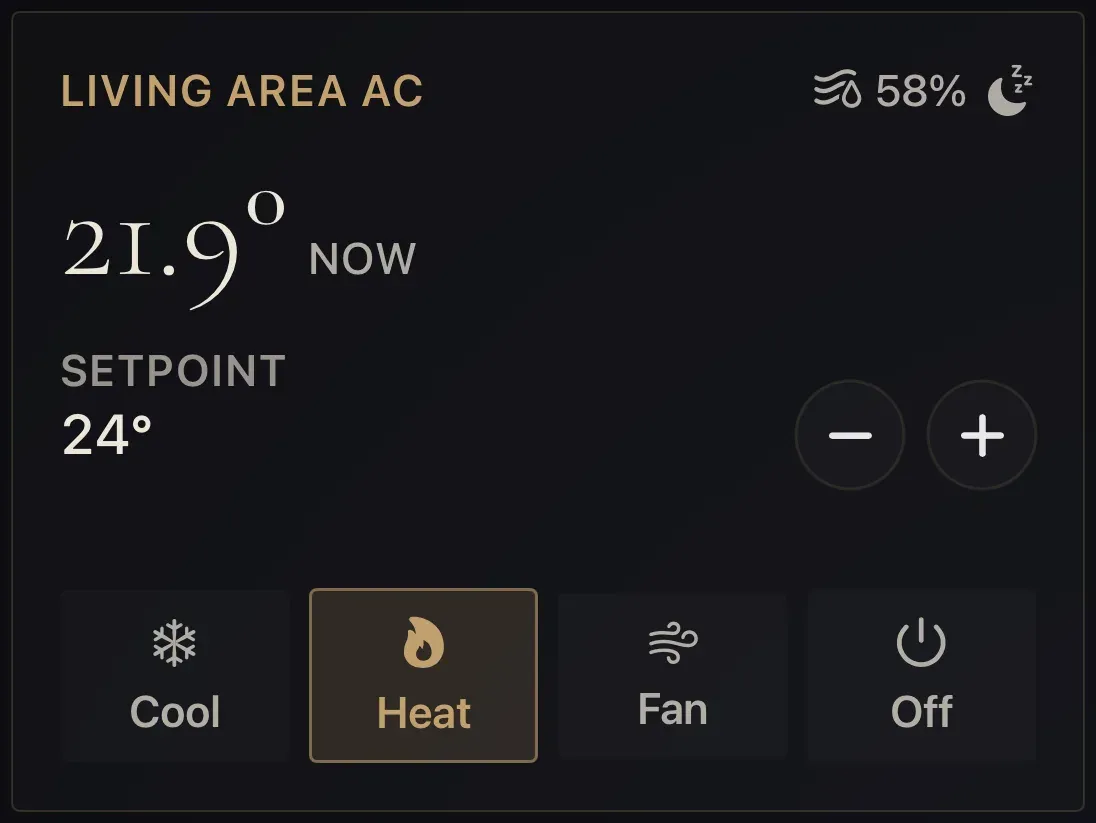
The Thermostat cardSee the room temperature, nudge the setting up or down, and change between heating, cooling and off.
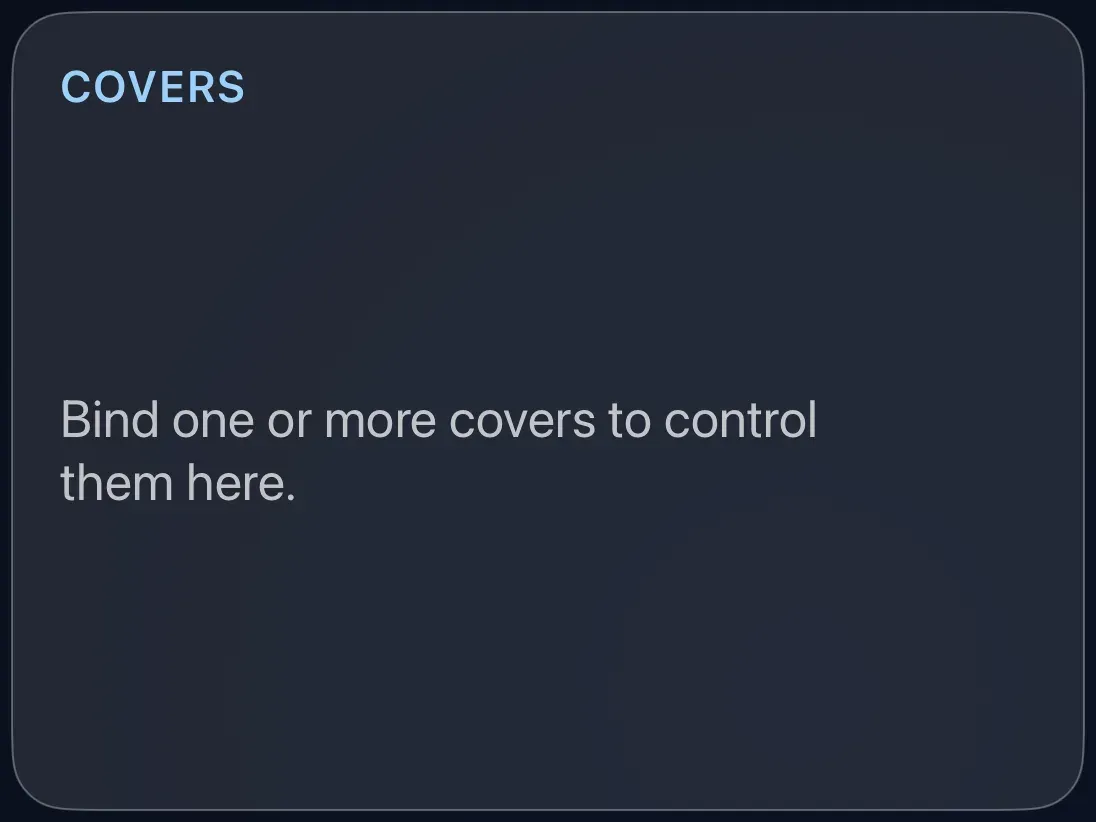
The Blinds and Covers cardOpen, stop and close blinds, curtains, garage doors and gates, one at a time or all together.
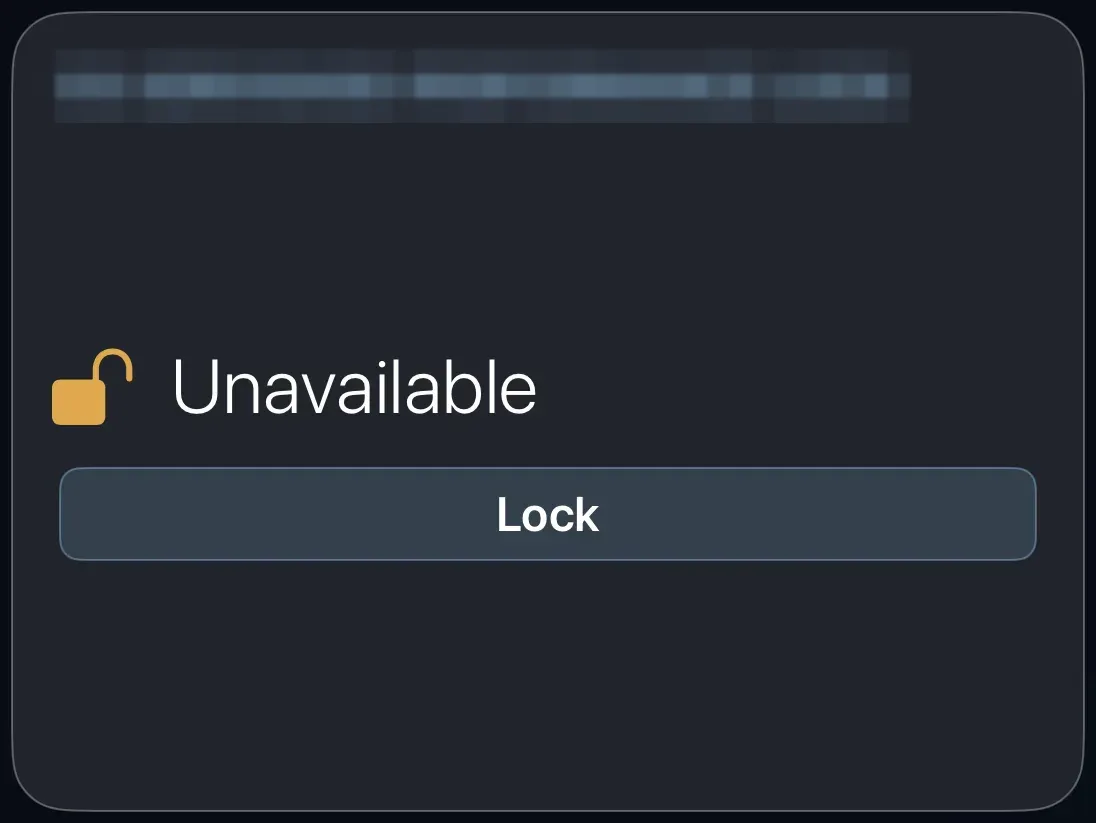
The Lock cardSee at a glance whether the doors are locked, and lock or unlock them from the sofa.
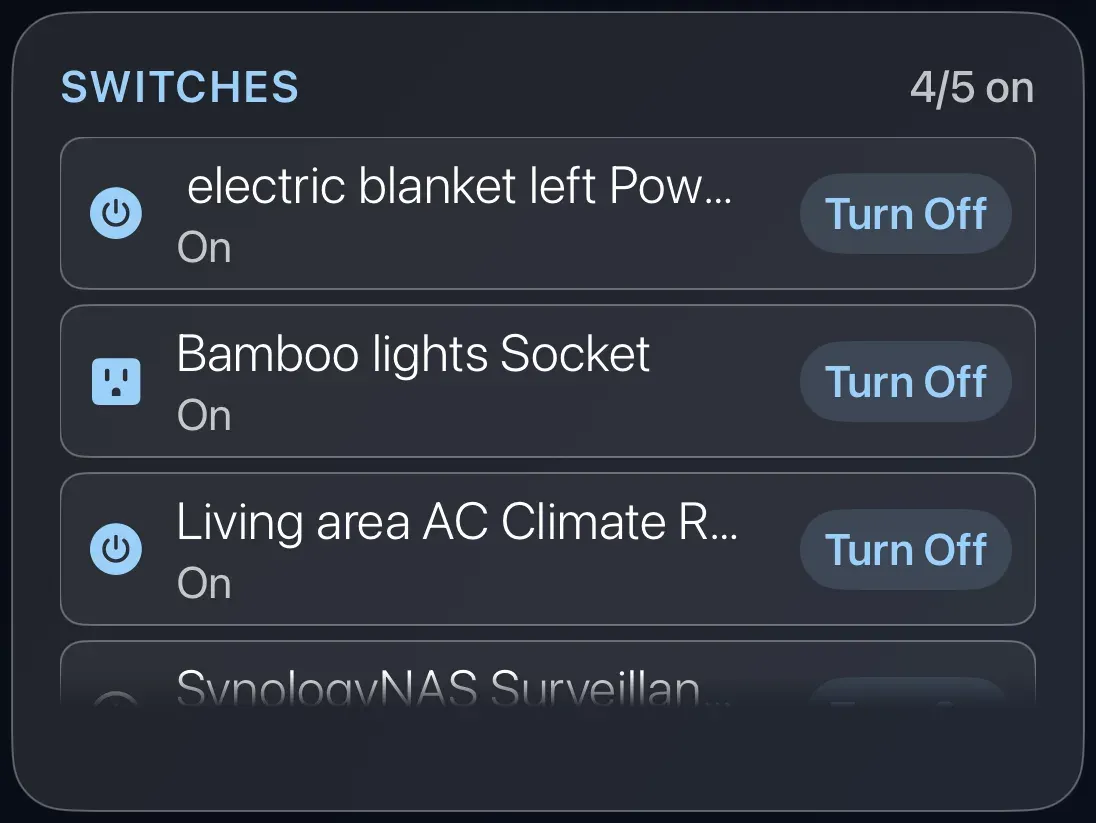
The Switch cardTurn plugs, sockets and switches on and off, one or many.
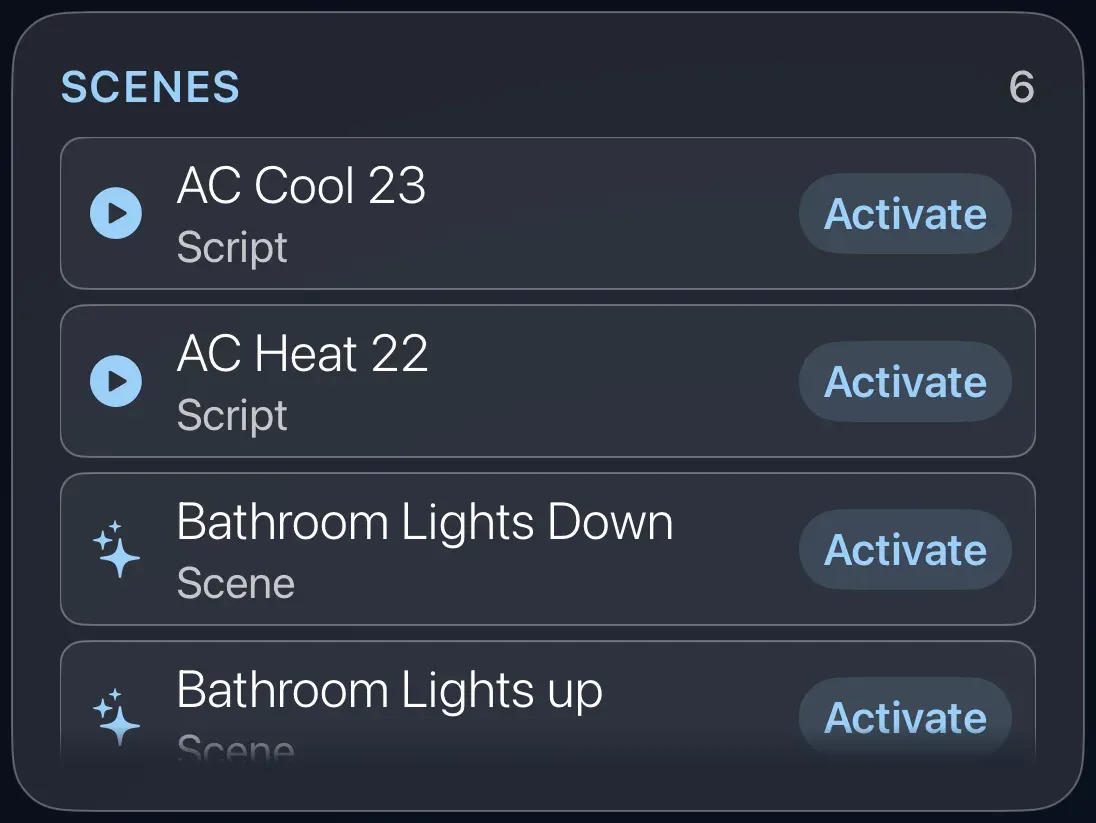
The Scene cardOne button for "Movie night", "Good morning" or any scene you have set up in your smart home.
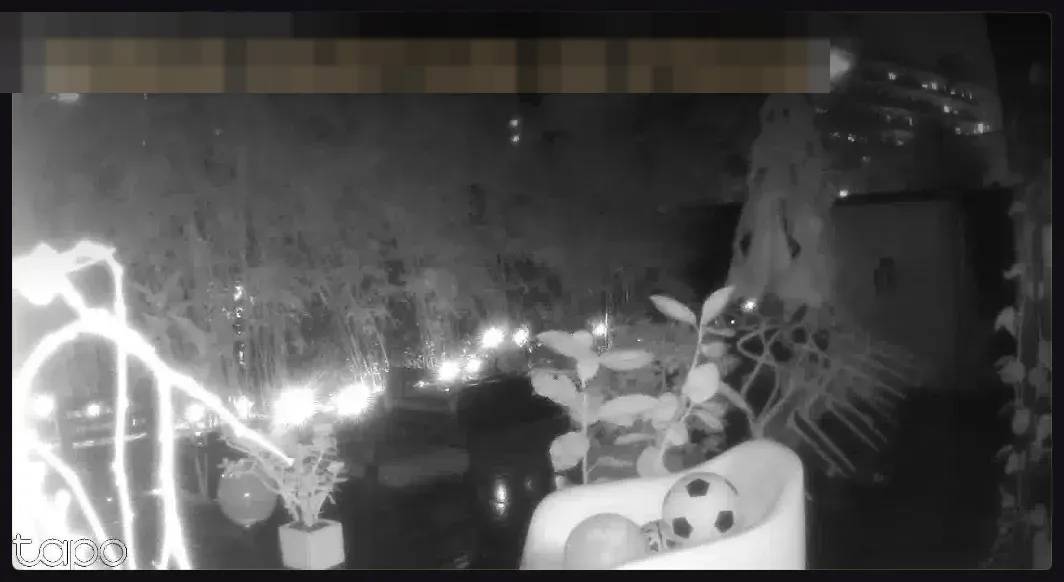
The Camera cardA live picture from one of your cameras, right on the dashboard.
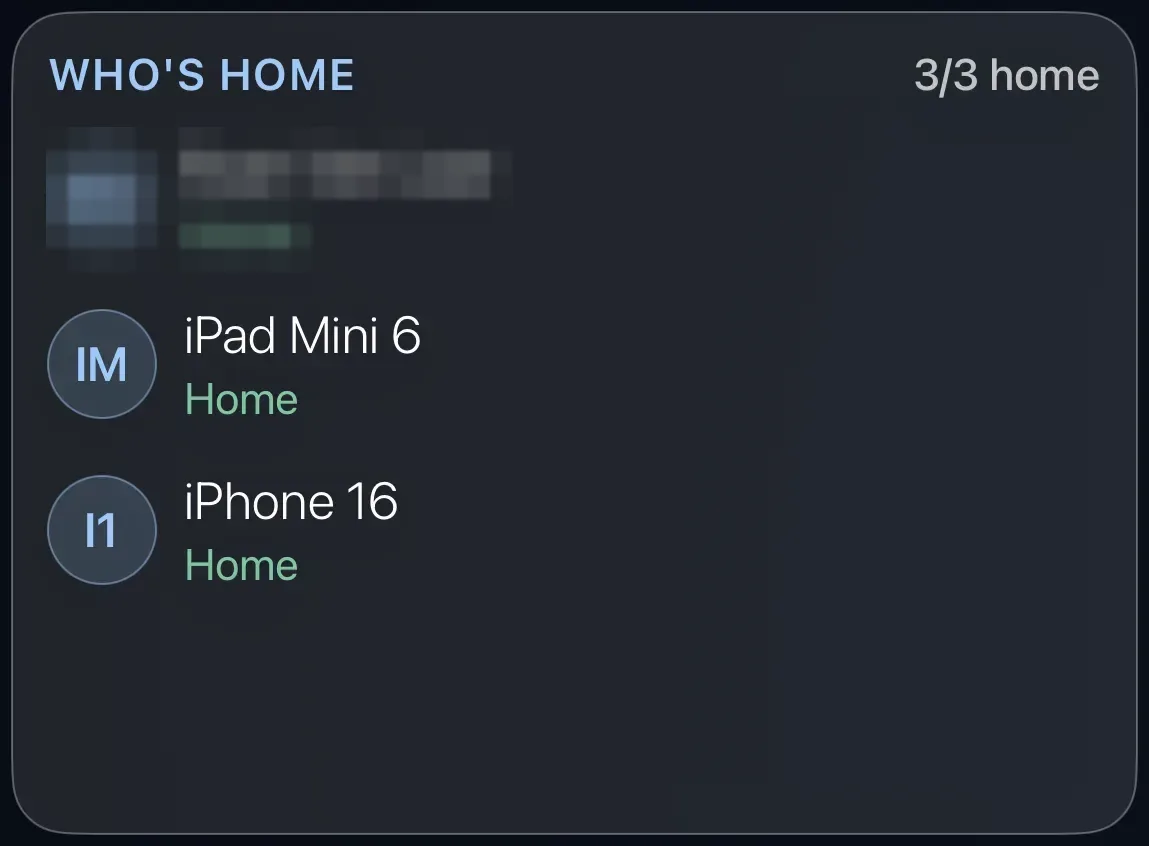
The Who's Home cardA list of the people in your household and whether each is home or away.
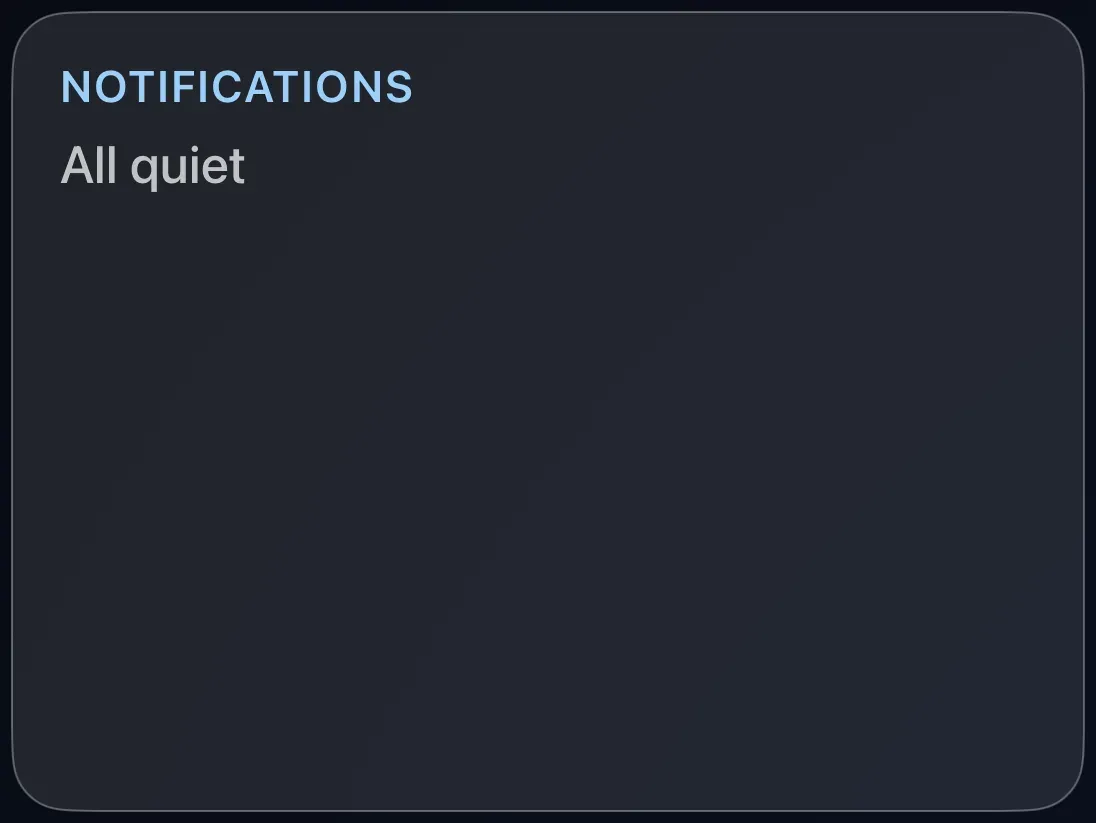
The Notifications cardA running list of the alerts Theatrium has shown, motion, doorbell, and anything your automations send, so you can catch up on what you missed.
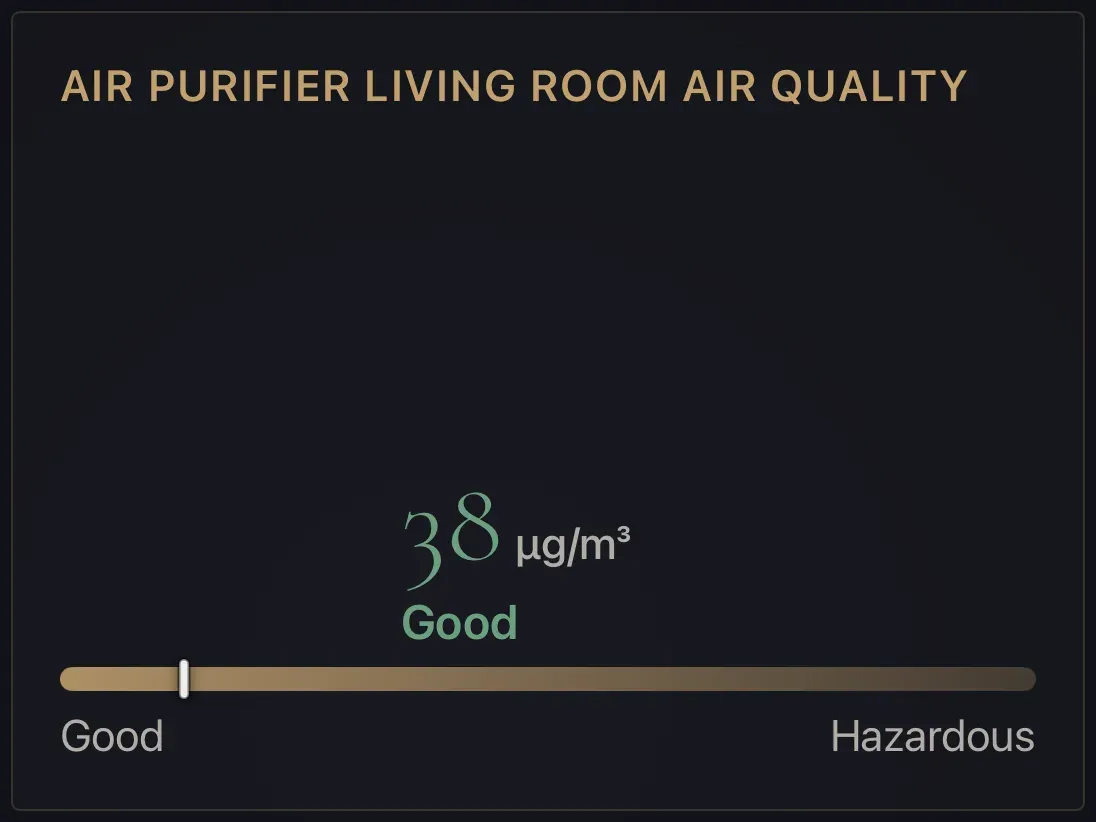
The Air Quality cardThe reading from an air-quality sensor in your home, with a plain-language rating from Good to Hazardous.
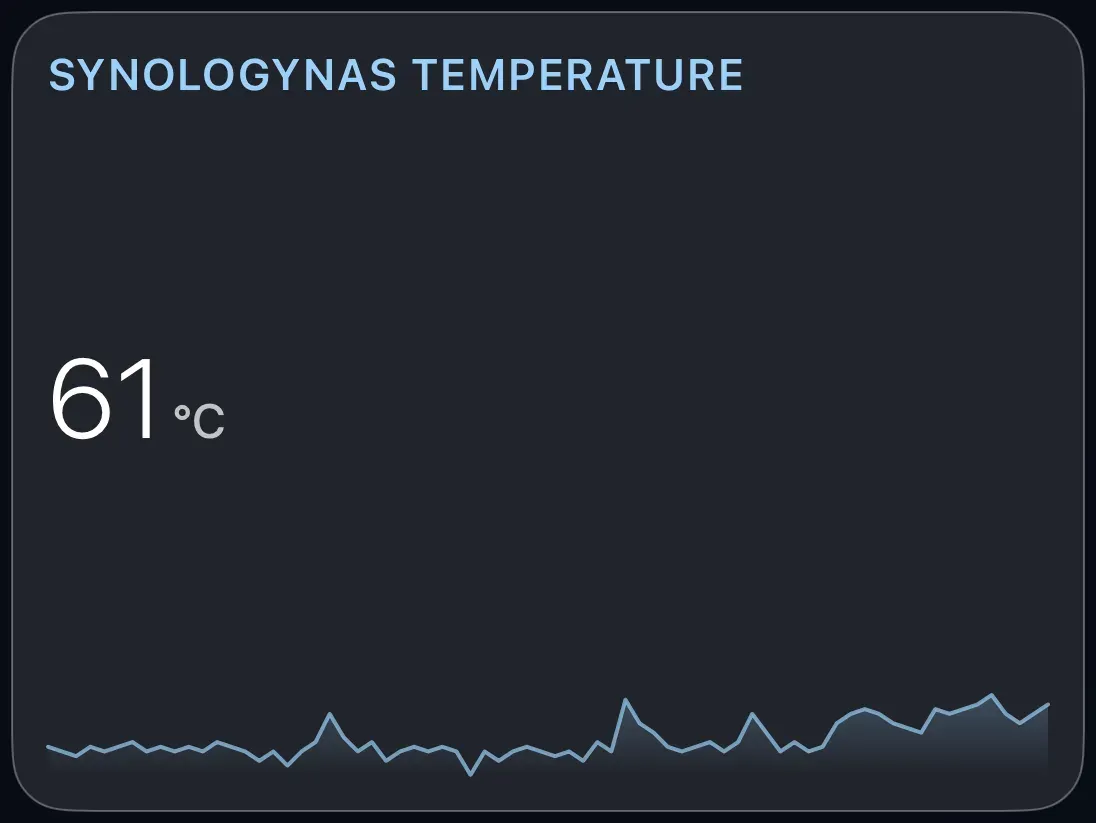
The Sensor cardThe current value from any sensor, temperature, humidity, power, a door open or closed, with a line showing how it has changed.
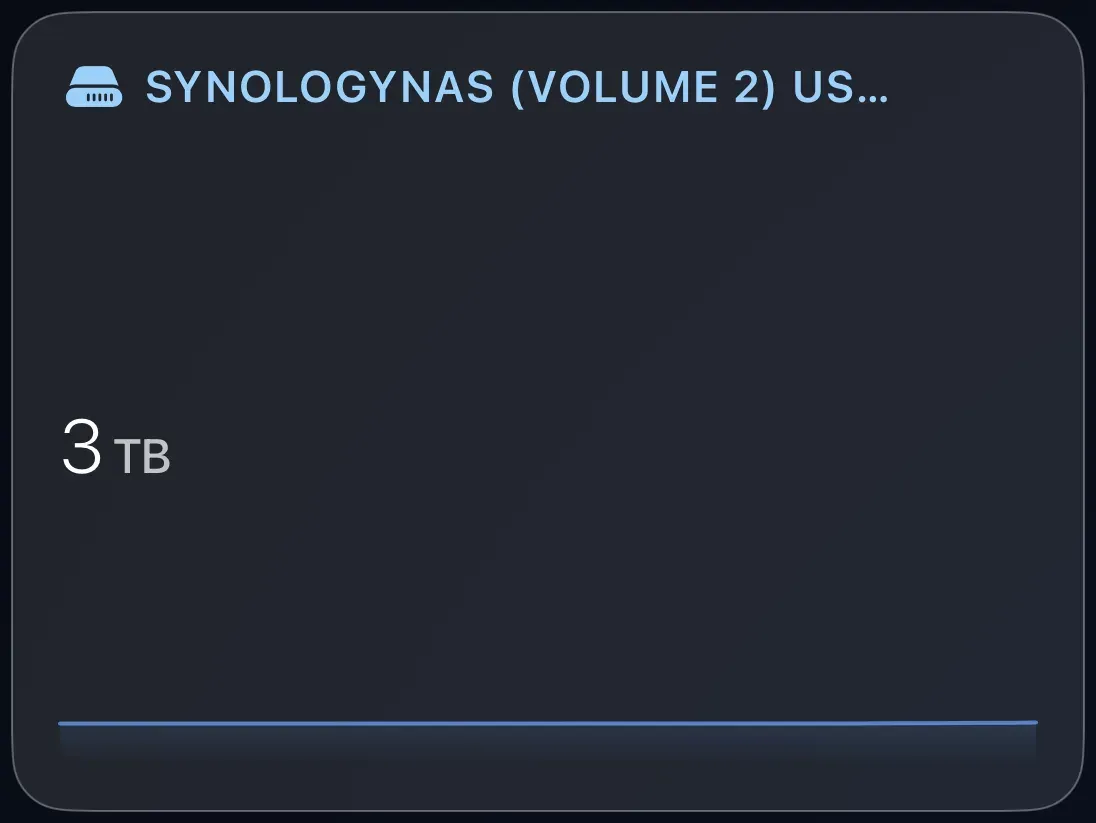
The Storage cardHow full a disk or NAS drive is, used and free.
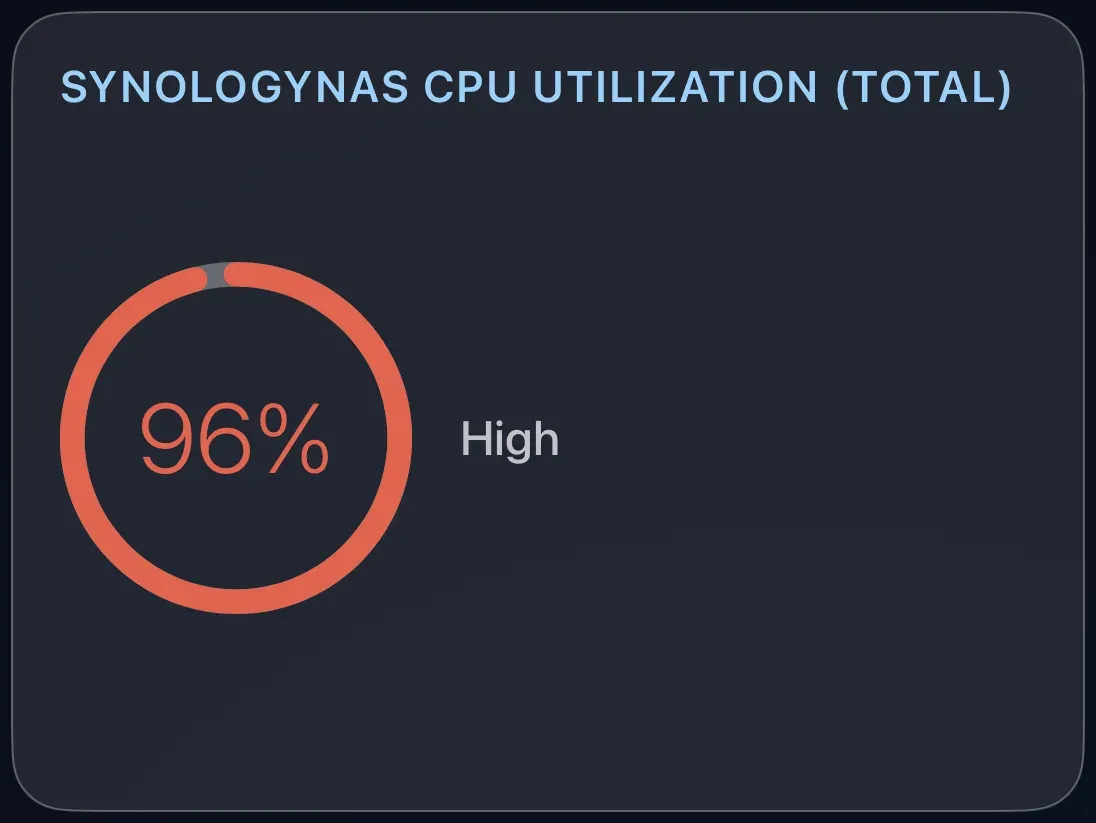
The System Metrics cardA round gauge for any percentage, processor load, memory, humidity, from a Home Assistant sensor.
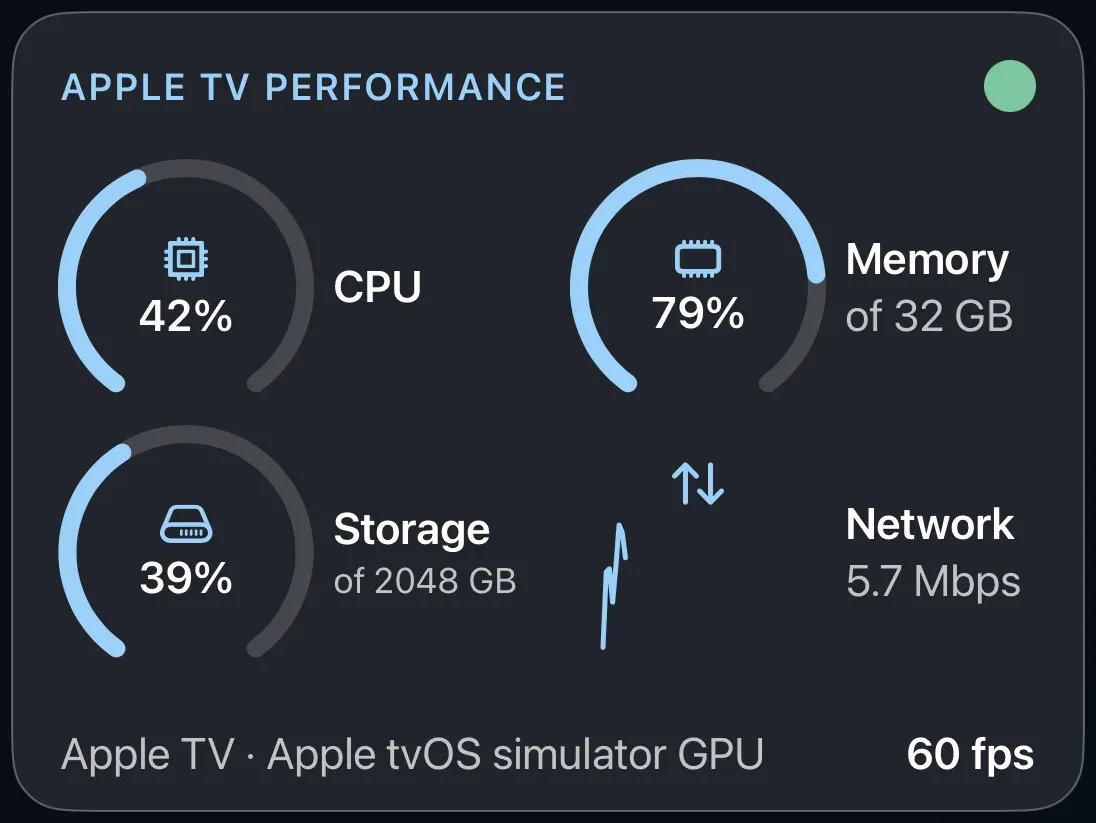
The Apple TV Performance cardHow hard this Apple TV is working, processor, memory, storage and network, straight from the device.
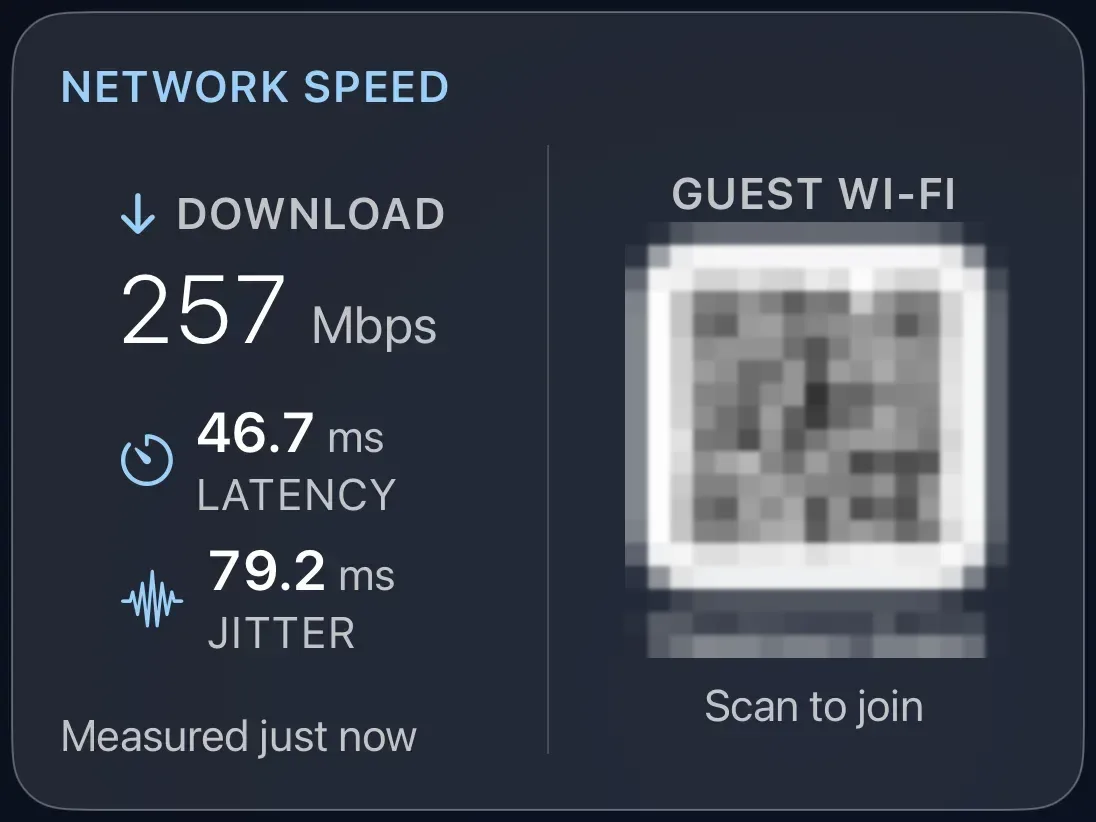
The Network Speed cardYour internet speed, measured from the Apple TV every fifteen minutes, with an optional code guests can scan to join your Wi-Fi.
Cards: energy and cars
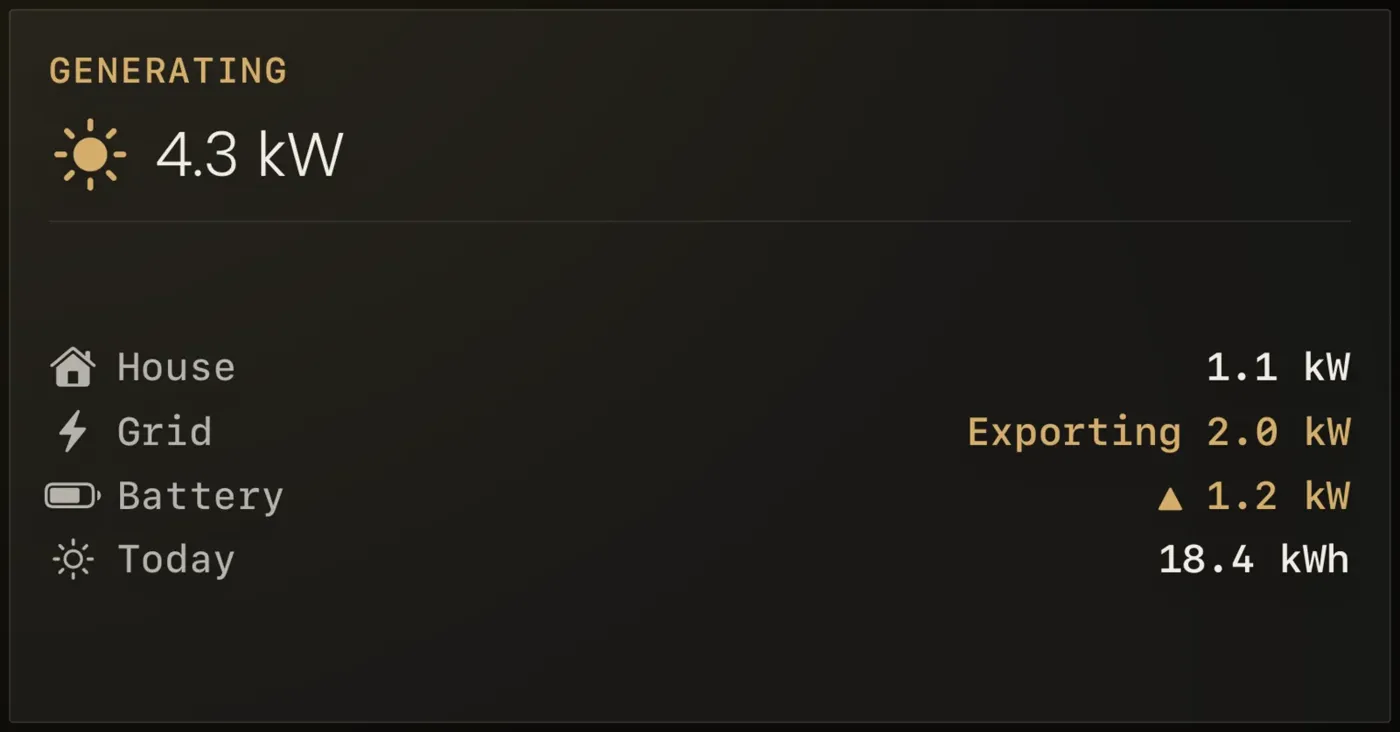
The Solar cardWhat your solar panels are making right now, what the house is using, what is going to or coming from the grid, and today's total.
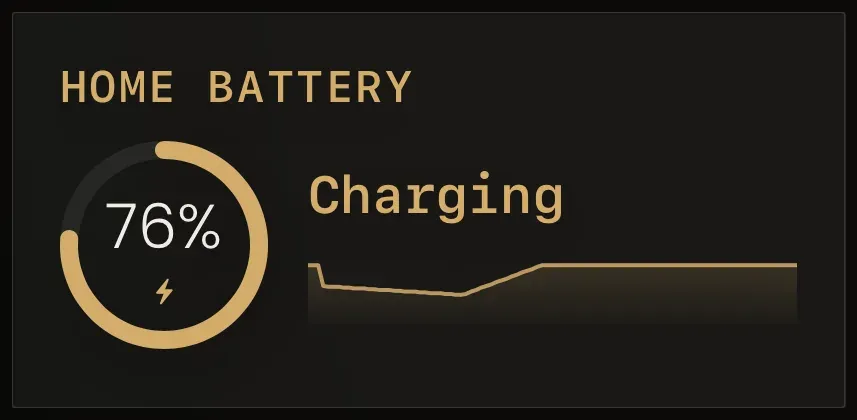
The Home Battery cardHow full your home battery is, whether it is charging or delivering, and how much has gone in and out today.
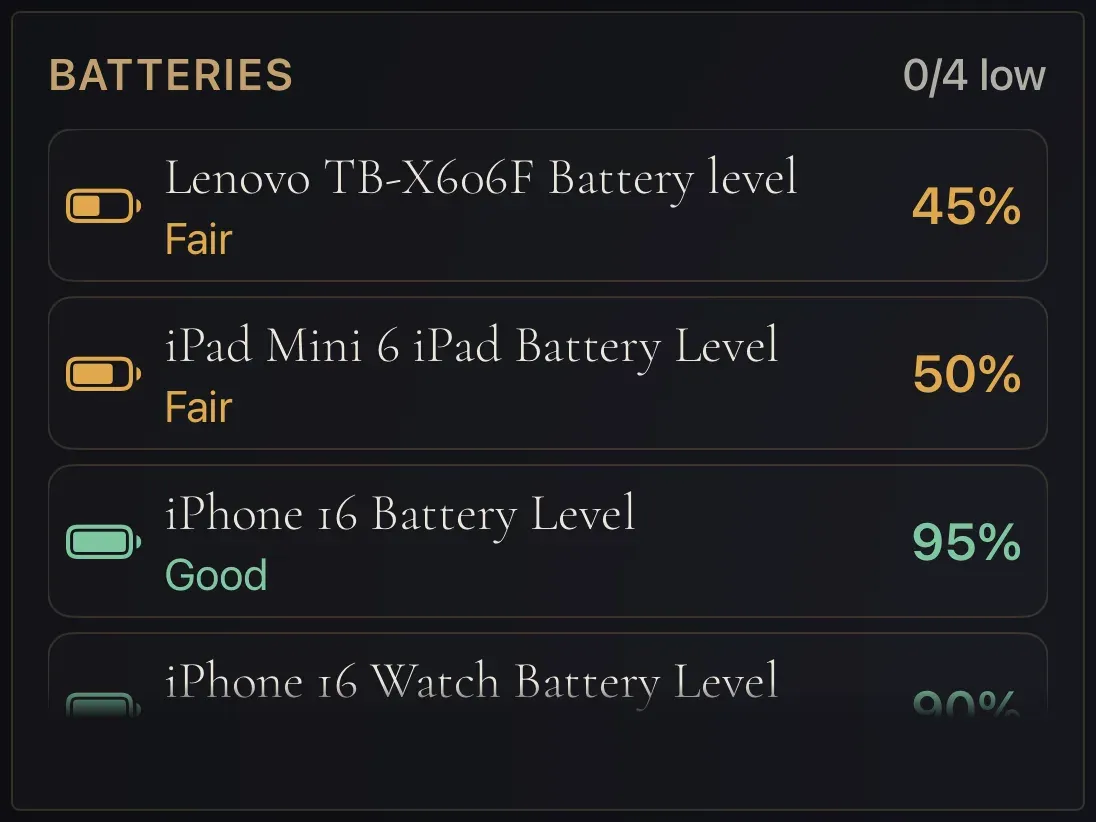
The Battery cardThe battery level of your phones, tablets, remotes, sensors and anything else that runs on a battery, in one list.
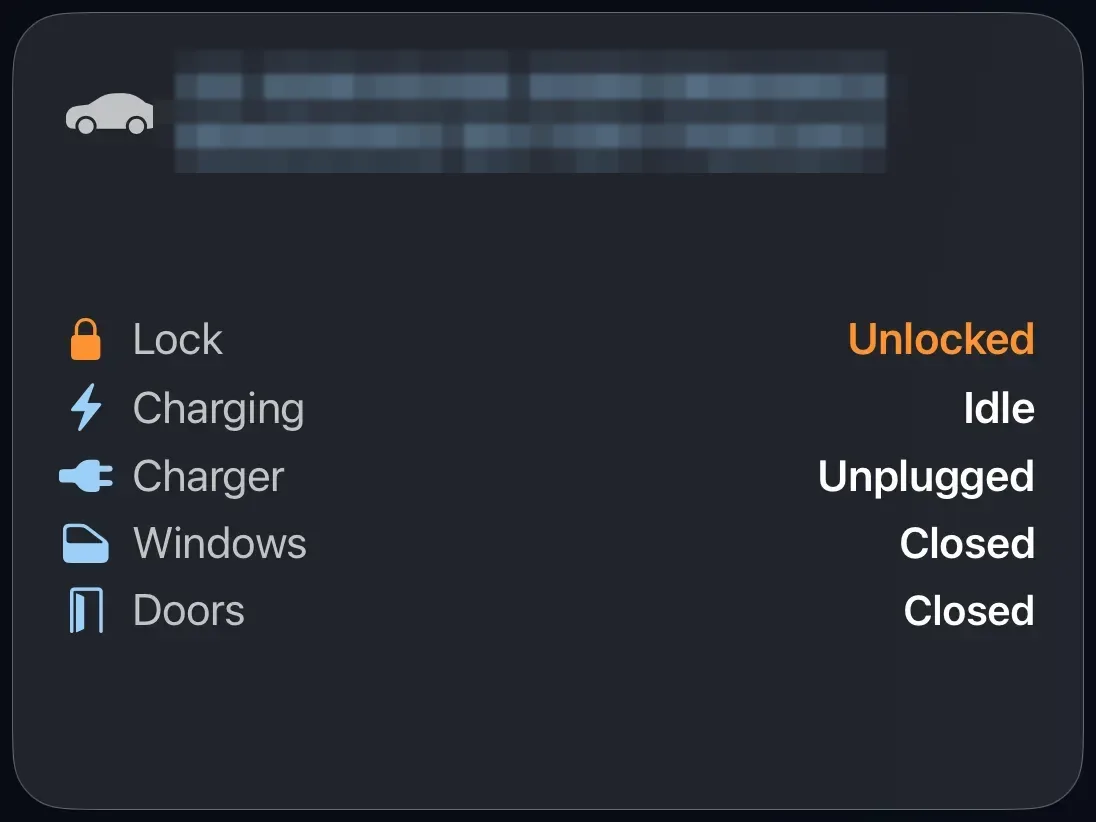
The Electric Car cardYour car's charge, range and charging status, plus whether it is locked and the doors, windows and boot are shut.
Cards: pictures, video and Plex
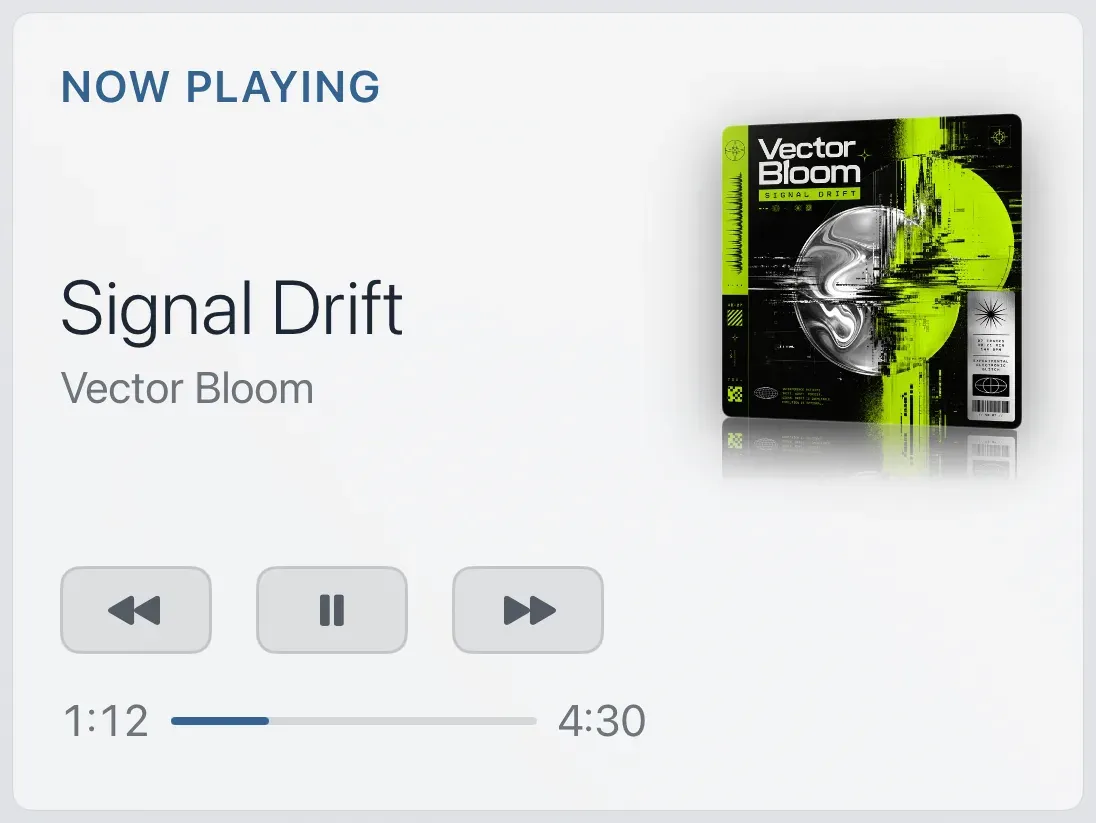
The Now Playing cardThe song playing right now and its cover, with playback buttons where the source allows them, and two buttons that open album art and the visualizer. It follows whichever app or speaker the music comes from.
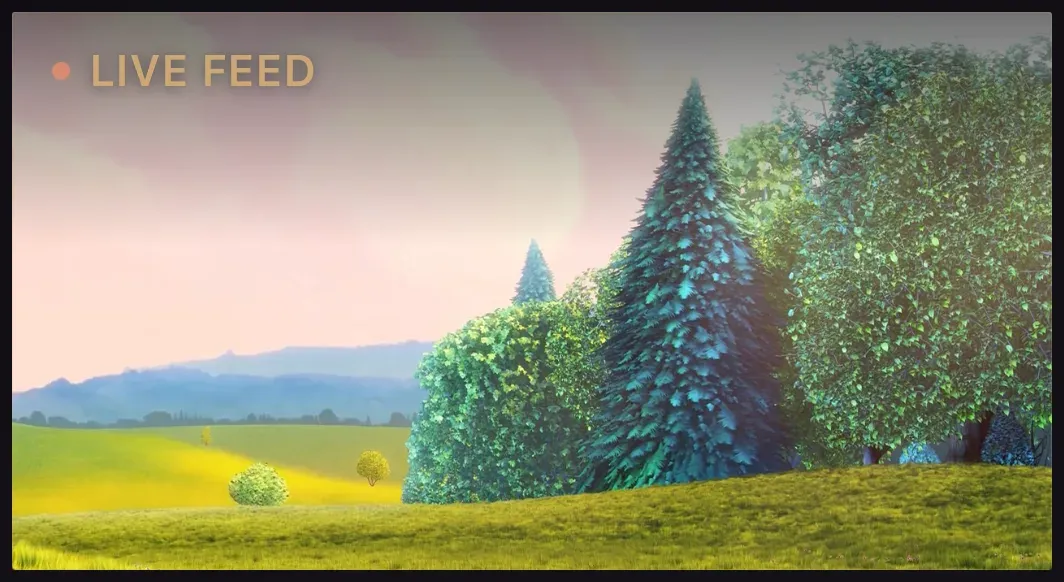
The Cameras & Streams cardYour own cameras and streams on the dashboard: add several, step between them like channels, and open a full-screen view. Set them up on the TV or from your iPhone.

The Global Postcard cardA live picture from a public webcam somewhere in the world, changing every few minutes, a window that is always somewhere else.
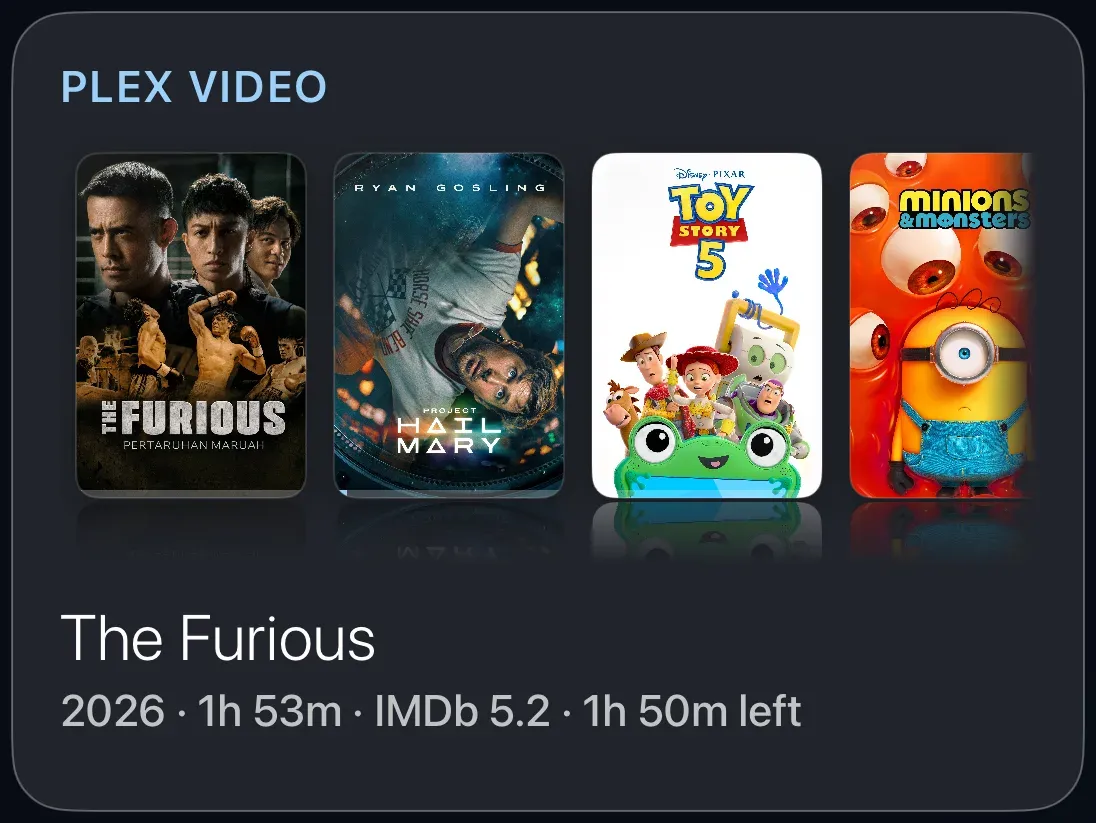
The Plex Player cardBrowse the films and shows on your Plex server as a shelf of posters, open a film's page, and play it on the TV.
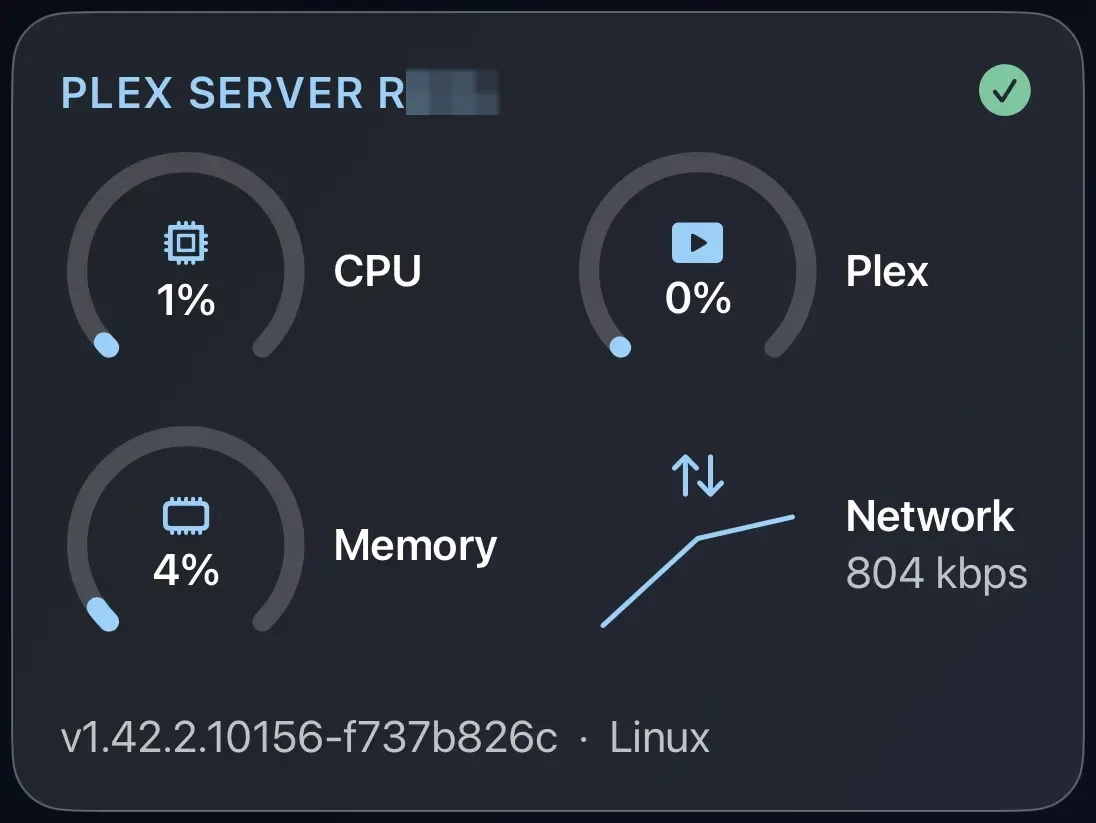
The Plex Server cardWhether your Plex server is up, and how hard the machine is working: processor, memory, Plex's own share, and network.
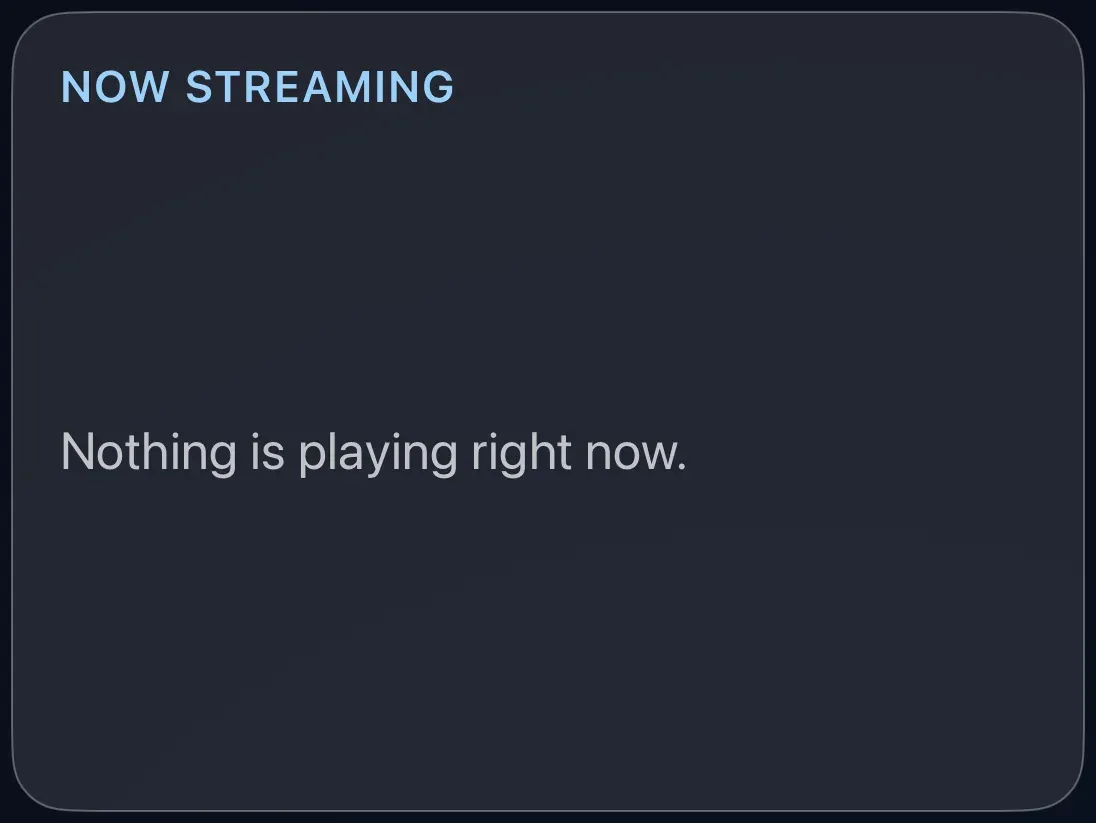
The Plex Now Streaming cardWho is watching what on your Plex server right now, and on which device.
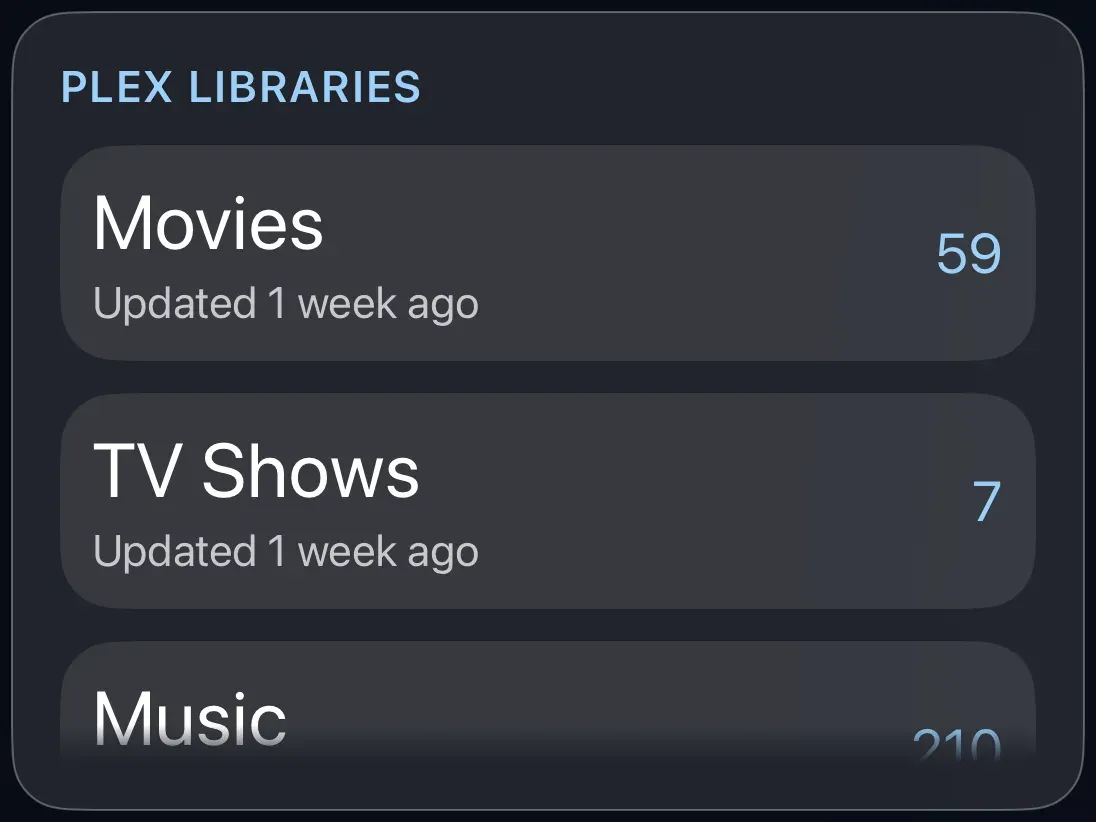
The Library Stats cardHow many films, shows and albums your server holds, how big each library is, and when it was last updated.
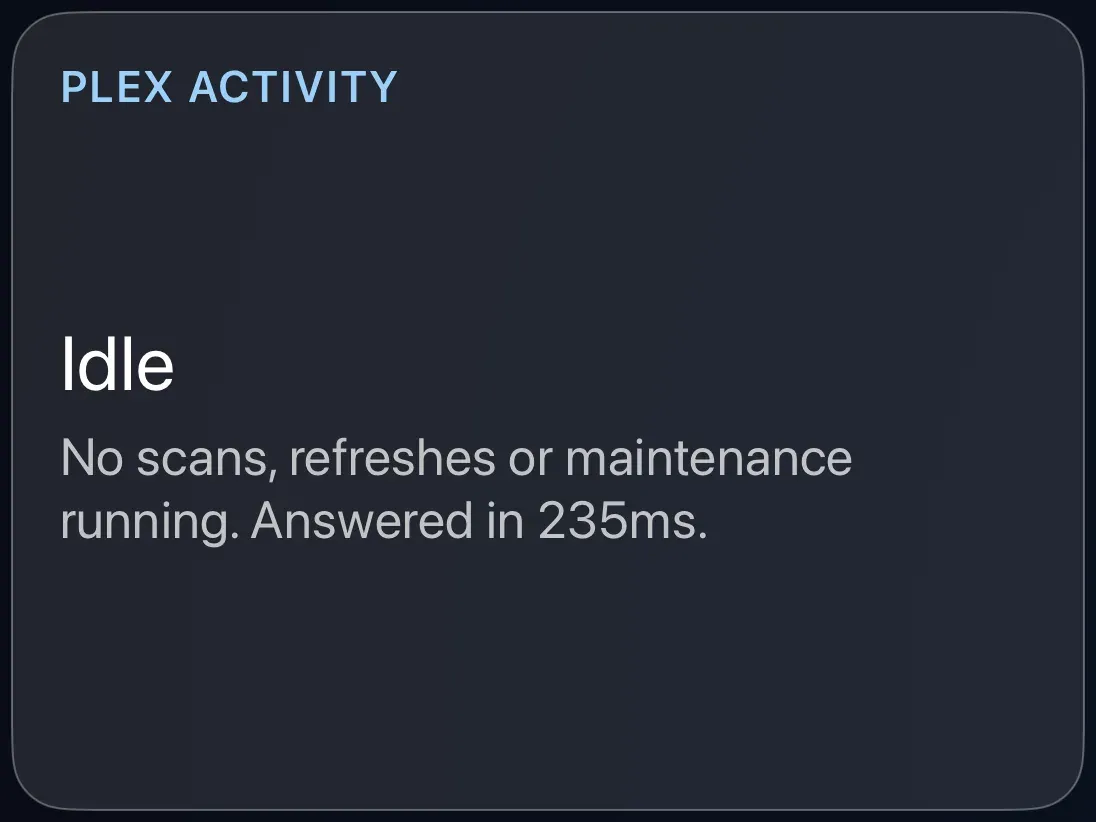
The Plex Activity cardWhat your Plex server is busy doing behind the scenes: library scans, refreshes and conversions.
The Plex Top Charts cardYour household's most watched titles, who watches most, or which libraries are busiest, over the last week, month or quarter.
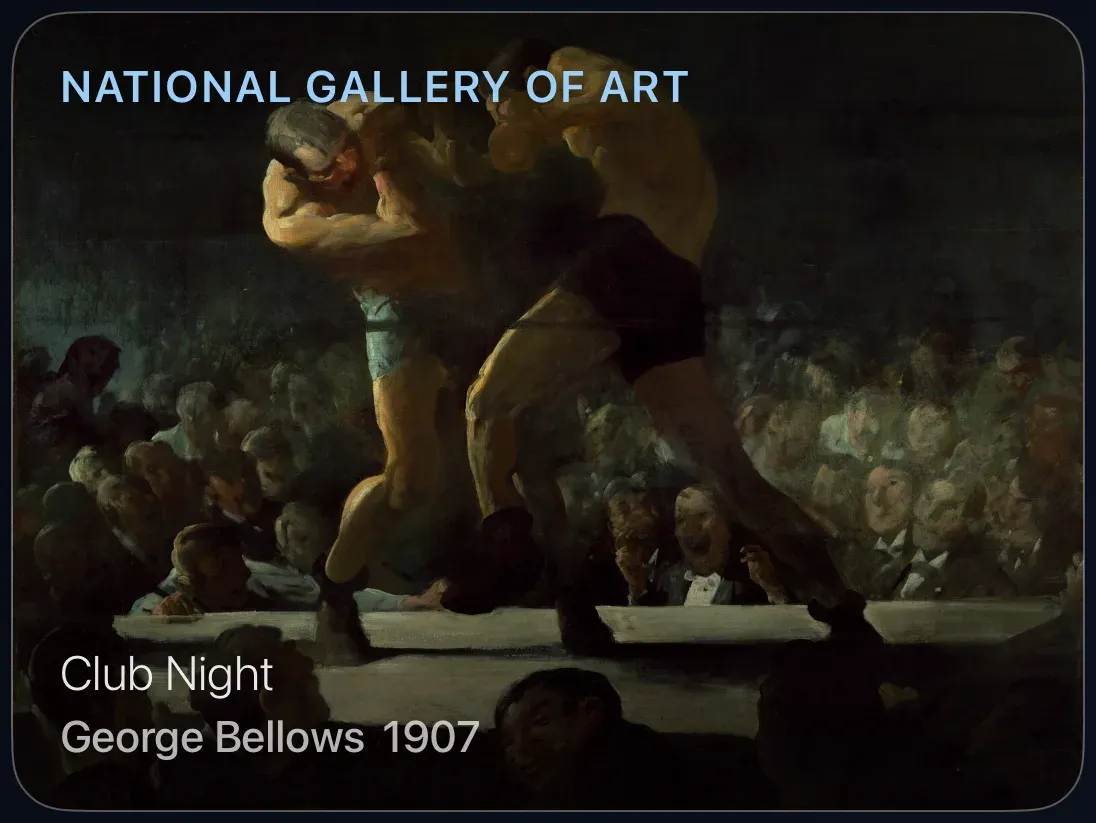
The Art cardPaintings from the world's great museums, changing through the day, with the title and artist quietly at the foot.
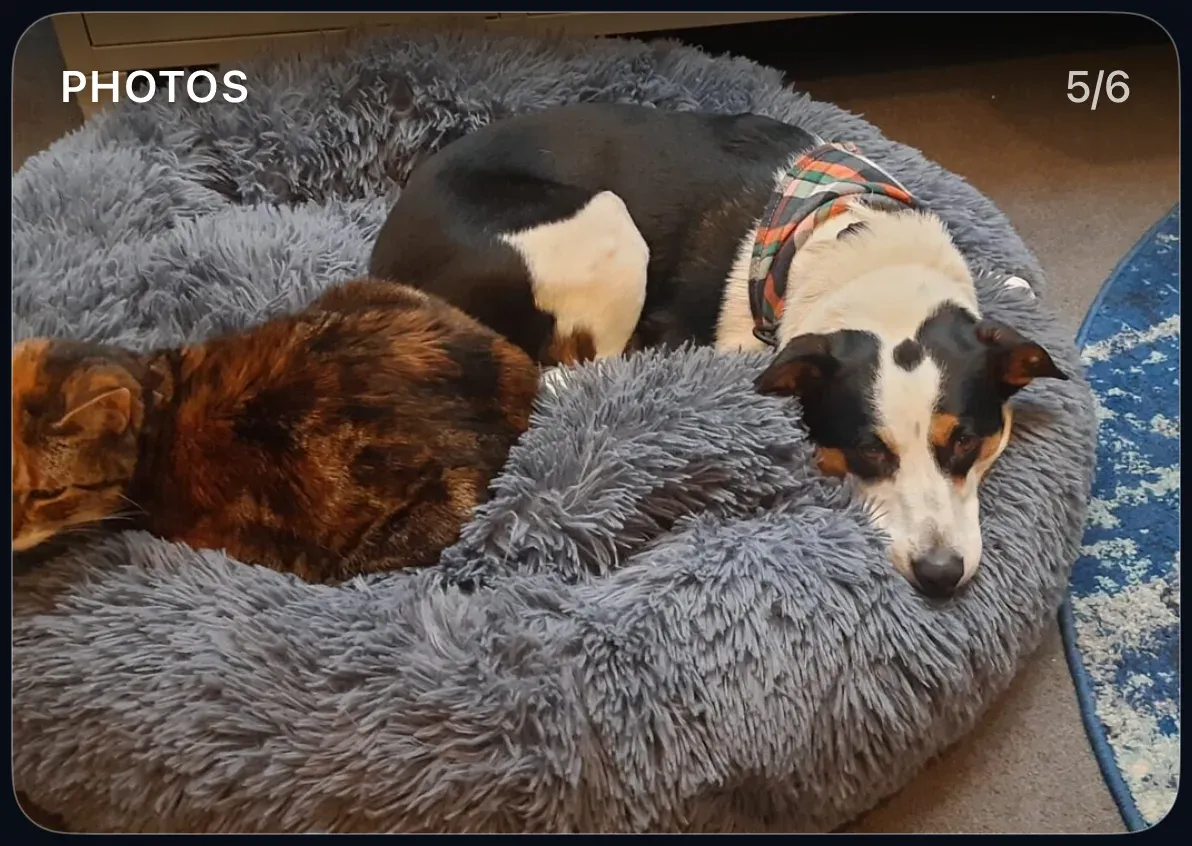
The Photo Album cardYour own photos, from an album on this Apple TV, changing as often as you choose.
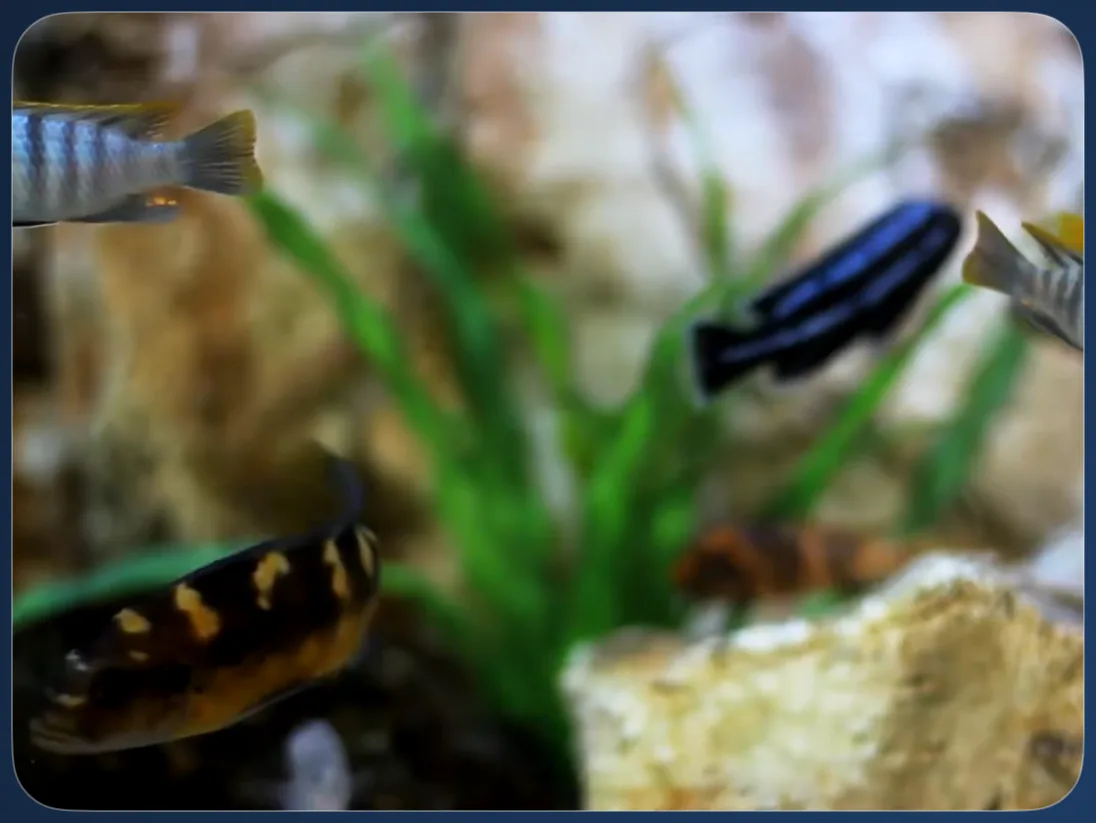
The Relaxing Scenes cardCalm, silent video of water, fire, forests and skies, looping on your dashboard.
Cards: weather, dates, money and news
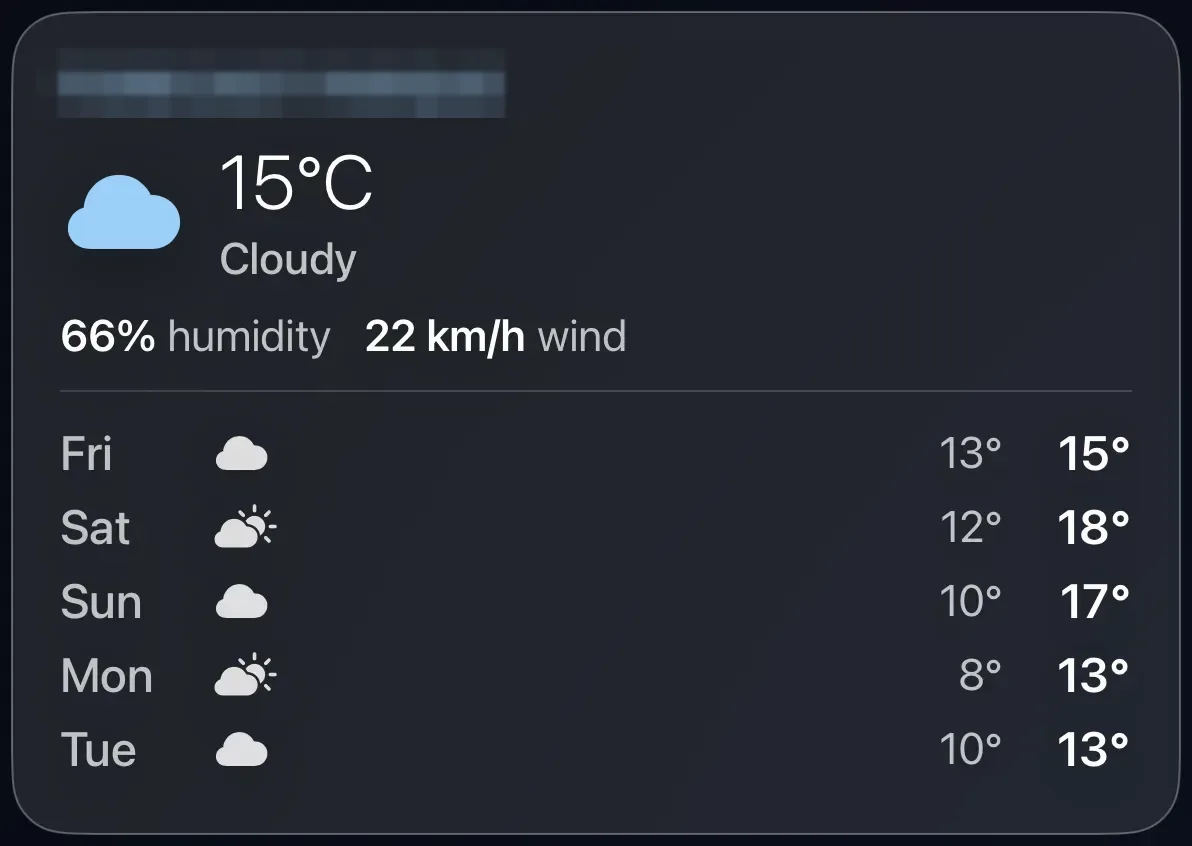
The Weather cardToday's conditions and the days ahead, for where you live.
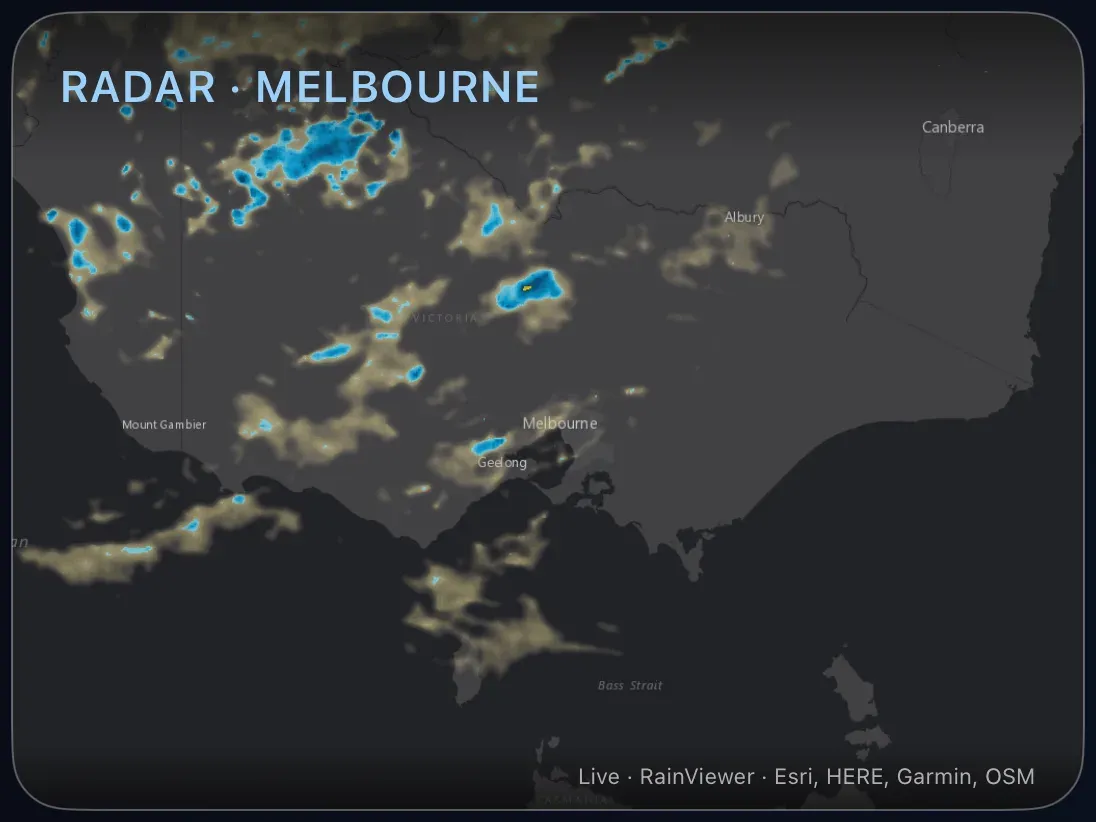
The Weather Radar cardA live rain map centered on your home, so you can see the shower coming before it arrives.
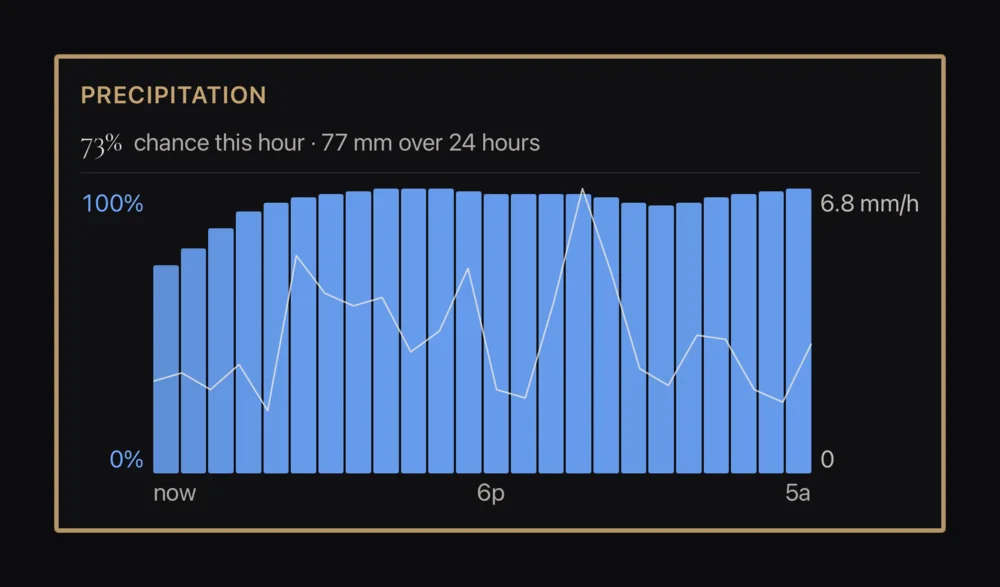
The Precipitation cardThe chance of rain hour by hour, a labelled rainfall graph and a five-day outlook, for where you live.
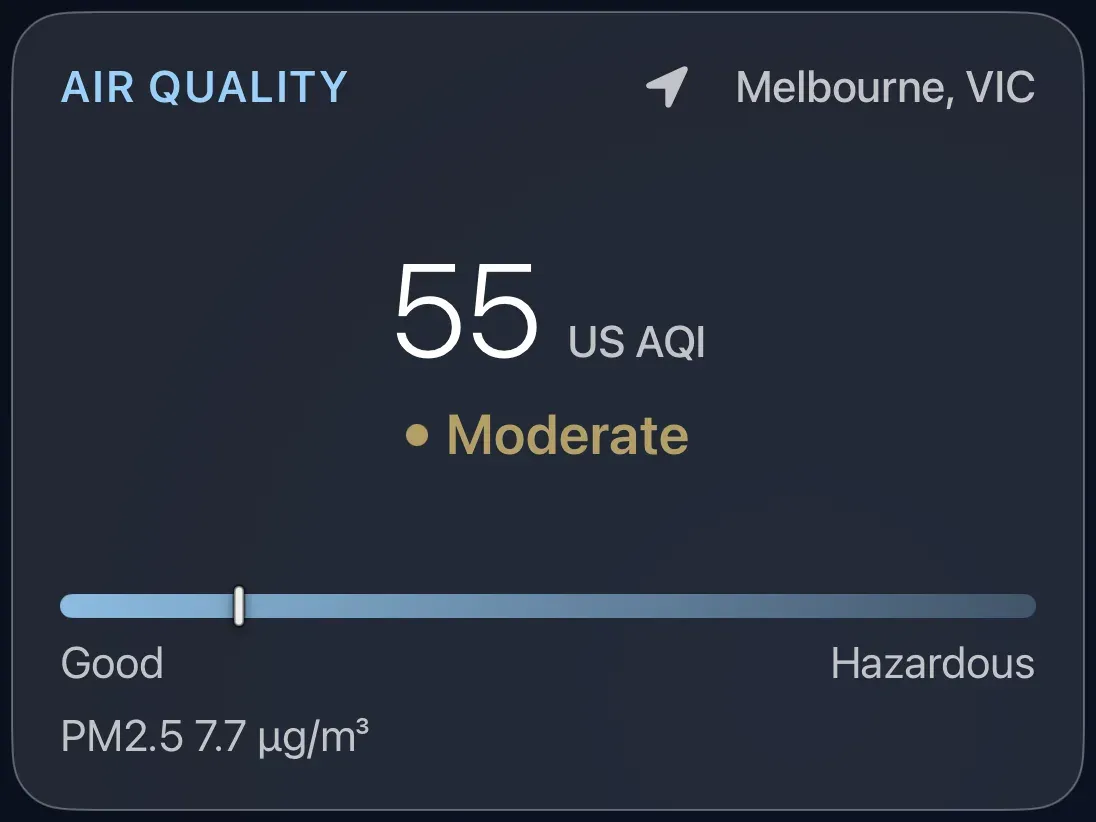
The Outdoor Air Quality cardThe air quality outside, for your location, on the US AQI scale, with no sensor of your own needed.
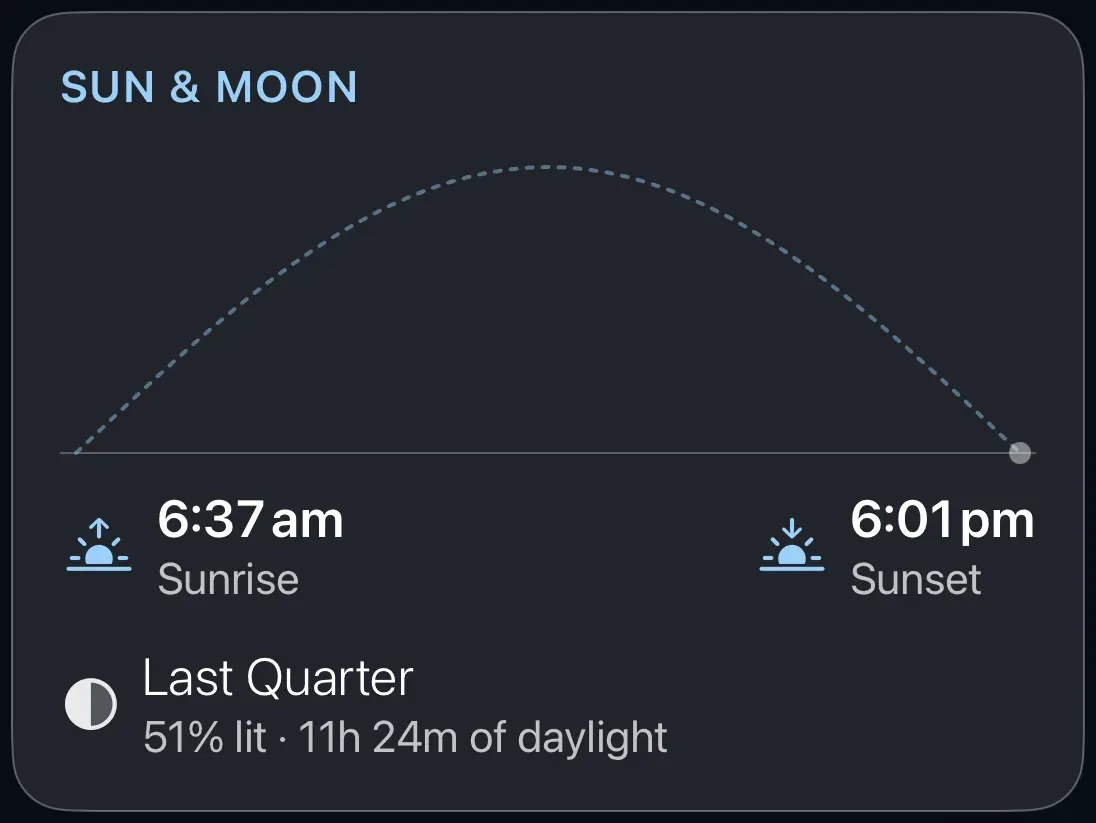
The Sun and Moon cardSunrise, sunset, the hours of daylight and tonight's moon.
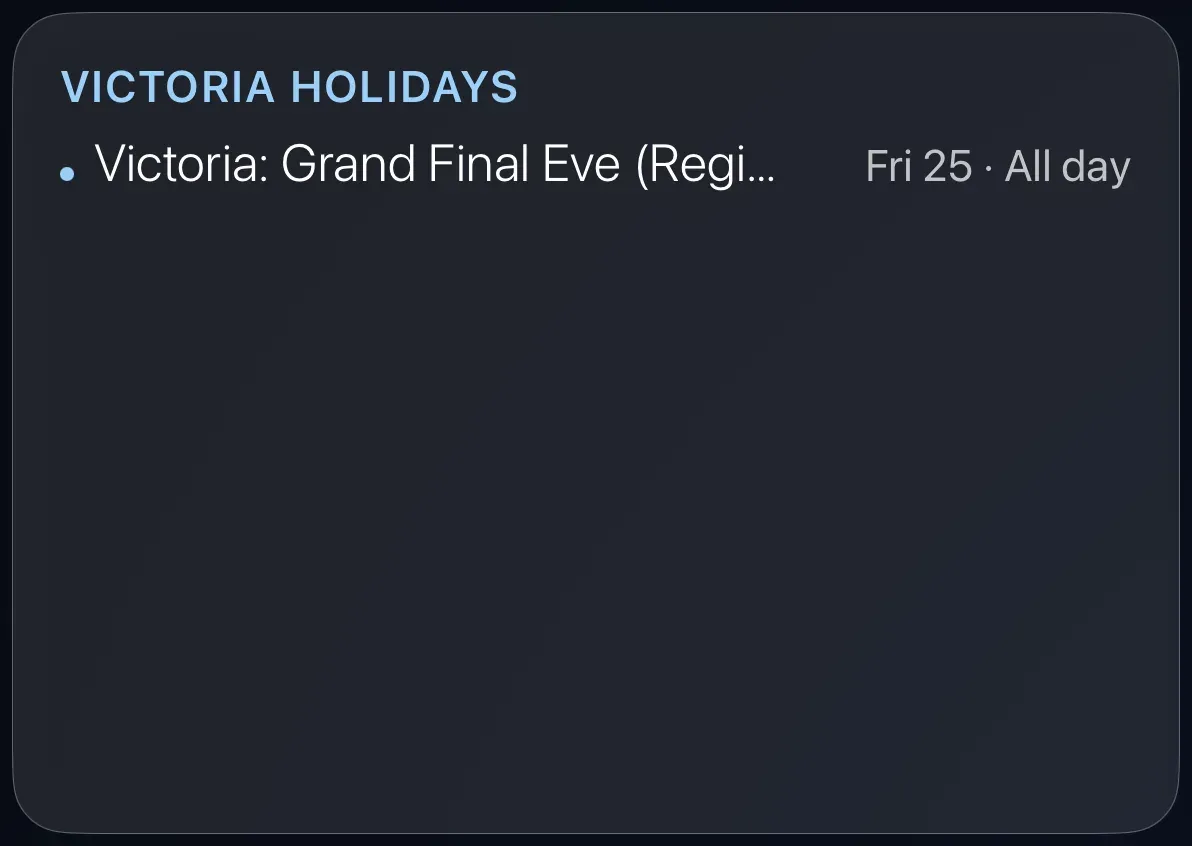
The Calendar cardYour appointments and family events on the television, from the calendar you already keep on your phone or computer.
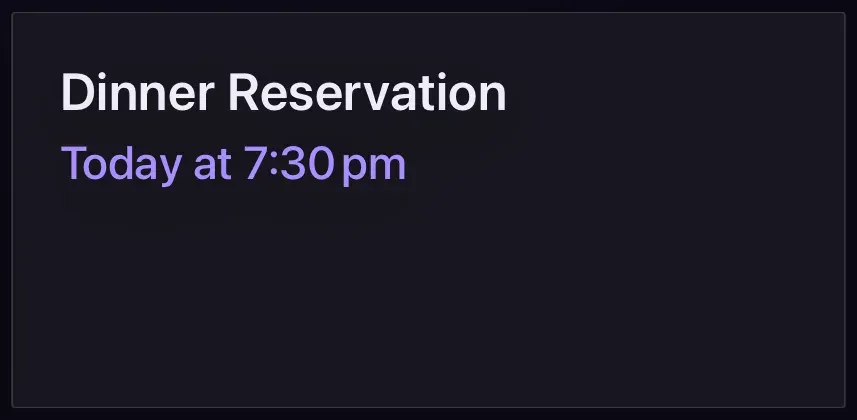
The Appointments cardUpcoming medical appointments in large, plain language: what, when, where, and what to bring.
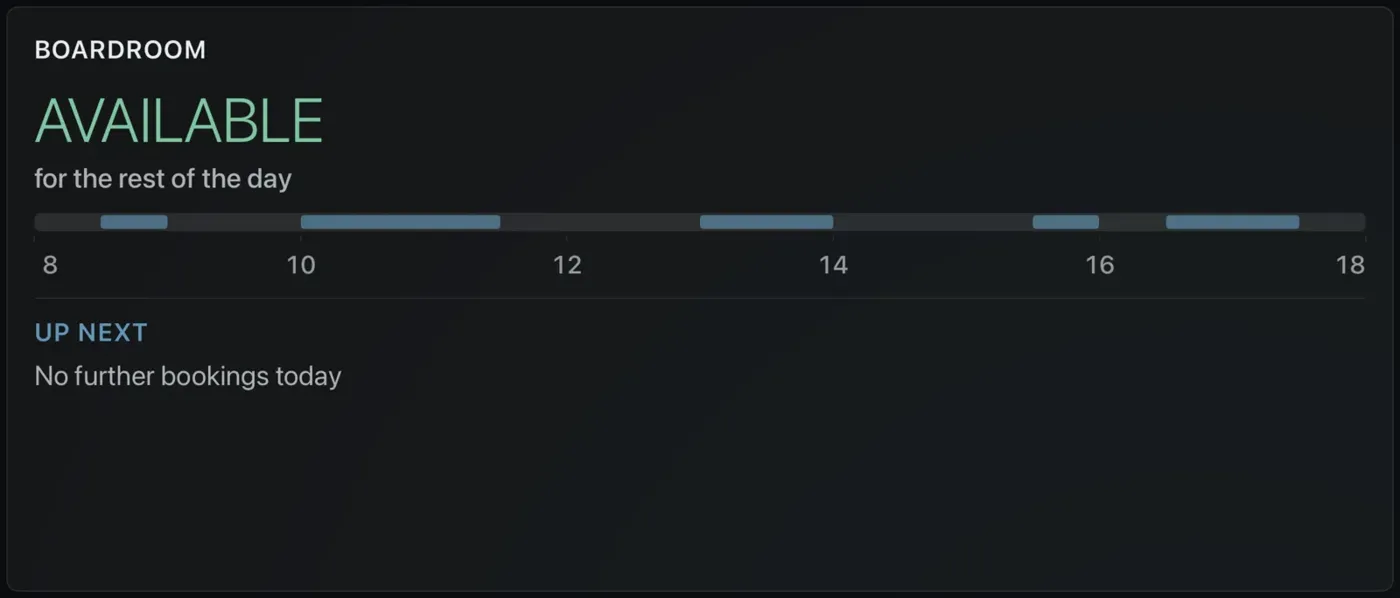
The Meeting Room cardAn availability board for a meeting room: AVAILABLE or IN USE, what is on now, when it ends, and what is next.
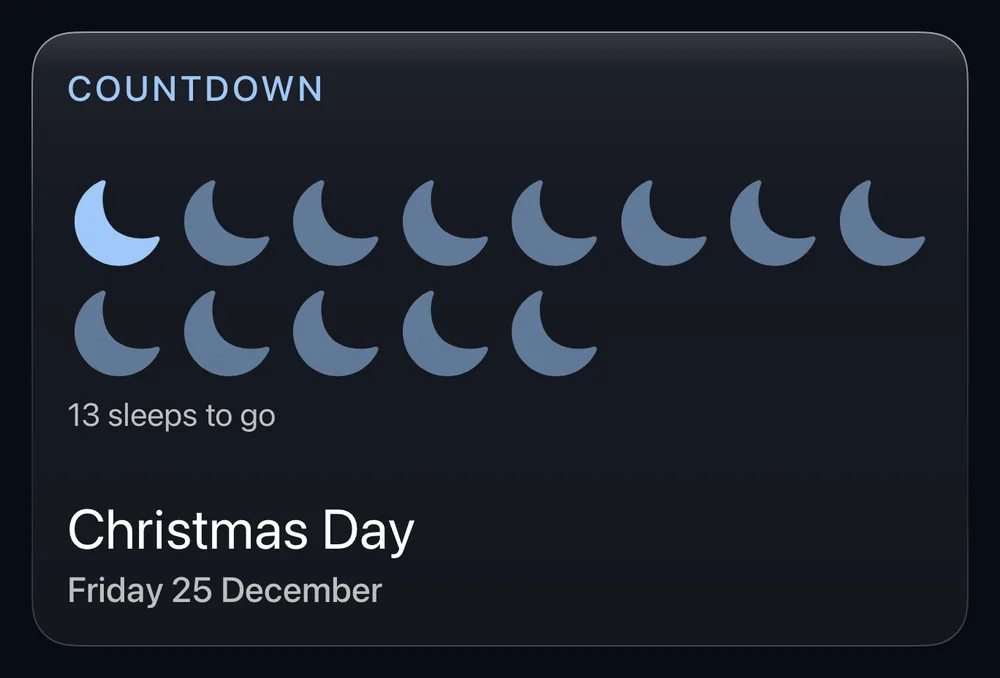
The Countdown cardDays until Halloween, Christmas or a birthday, as a ring or a row of moons. Add your own dates from your iPhone.
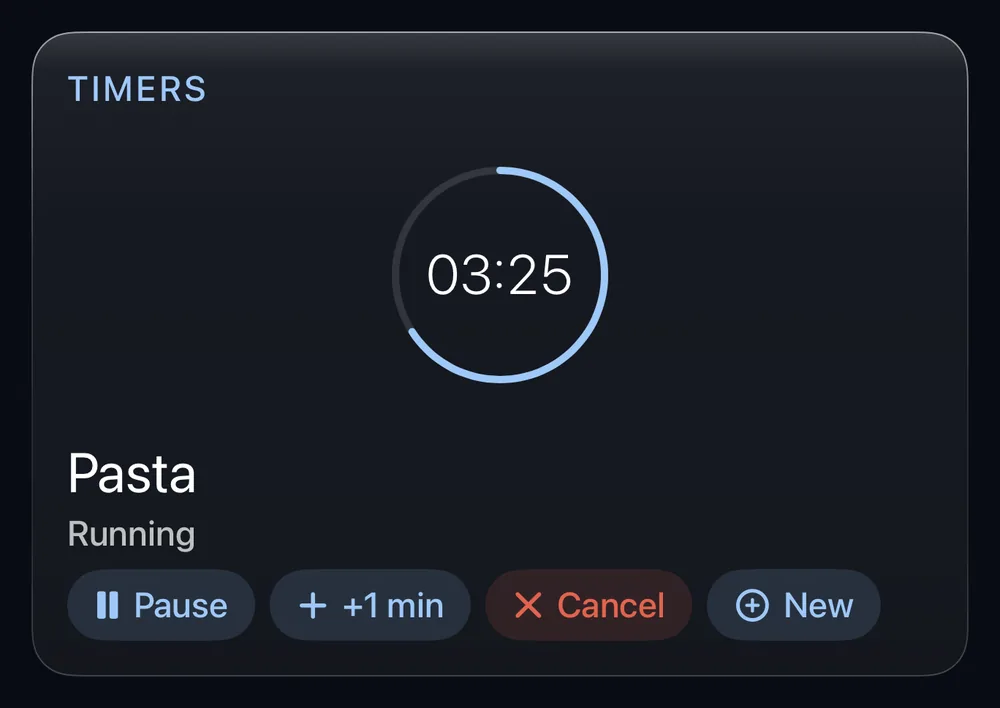
The Timers cardStart a timer on the TV or from your iPhone, and show your Home Assistant timers beside it.
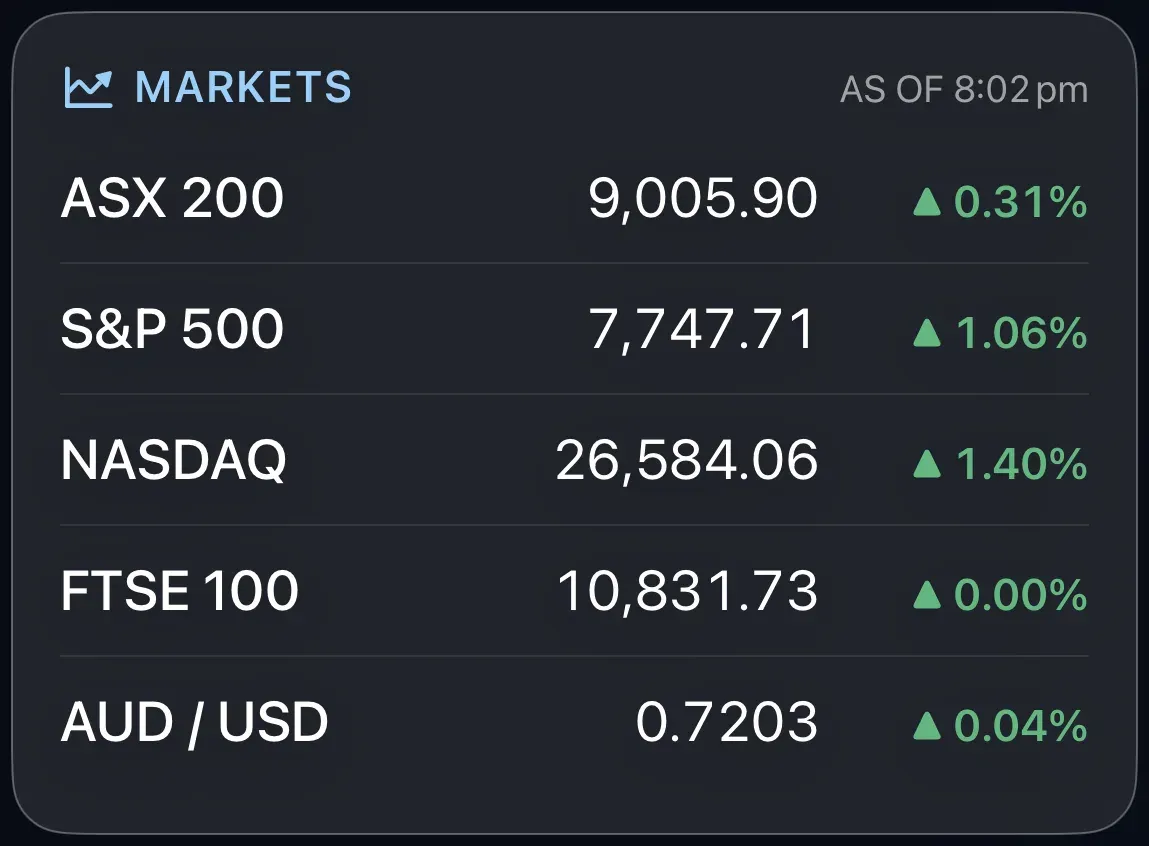
The Markets cardThe main share indexes and exchange rates at a glance.
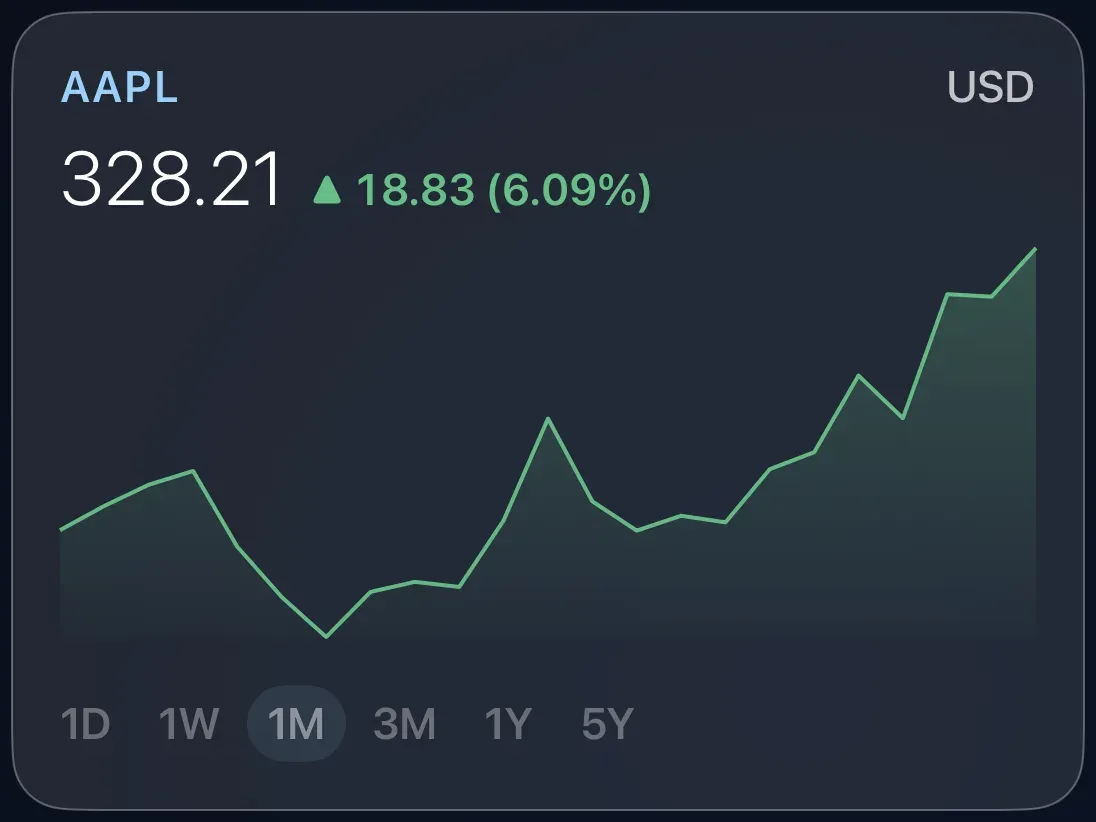
The Stock cardOne share, index or currency pair, with its price and a chart you can flick between one day and five years.
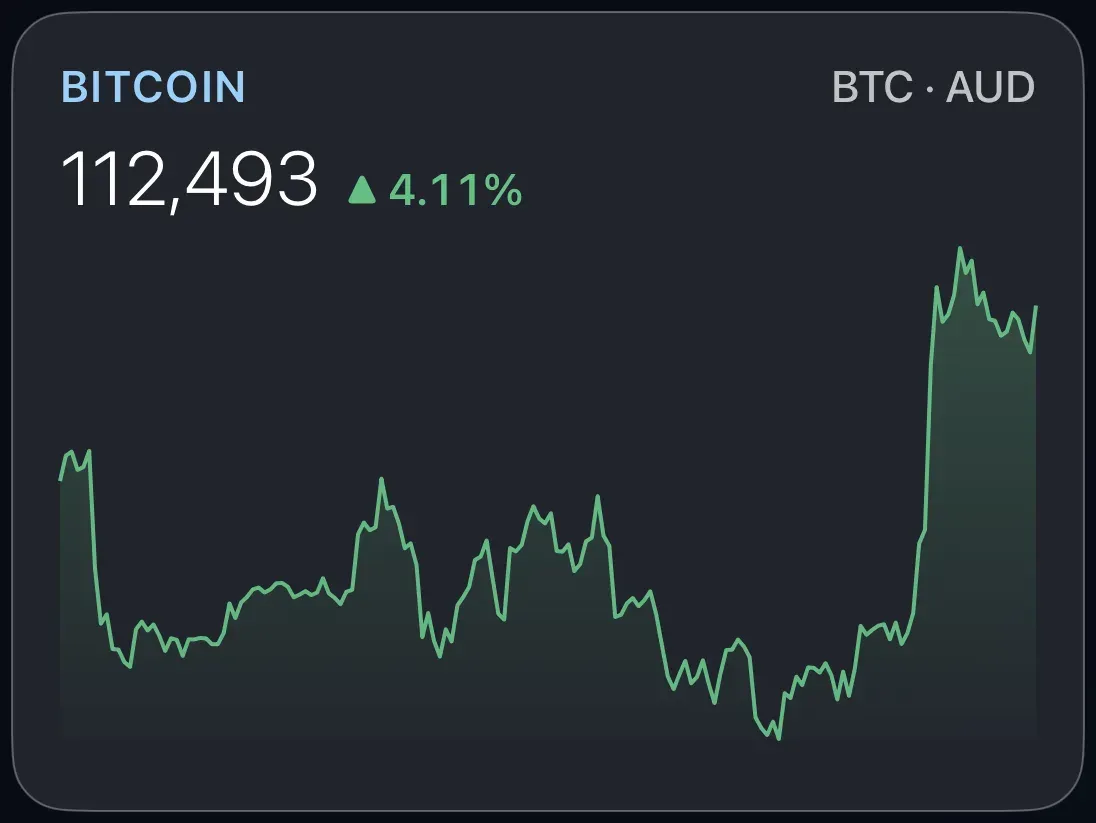
The Crypto cardOne coin's price in your currency, with the last seven days drawn as a line.
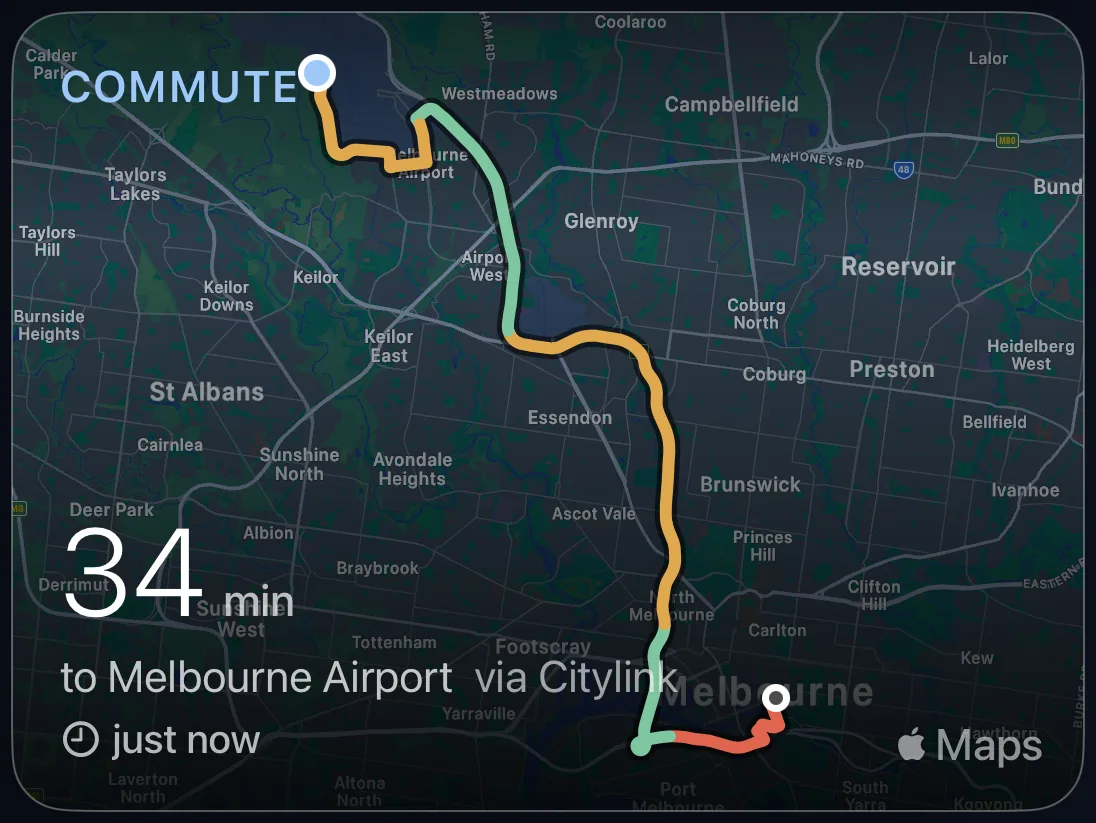
The Traffic cardHow long the drive to work will take right now, or a live traffic map around a place you choose.

The News cardHeadlines with pictures from the news sources you pick, changing every few seconds.
The Bluesky cardPosts from the Bluesky accounts you pick, rotating one at a time the same way the News card does.
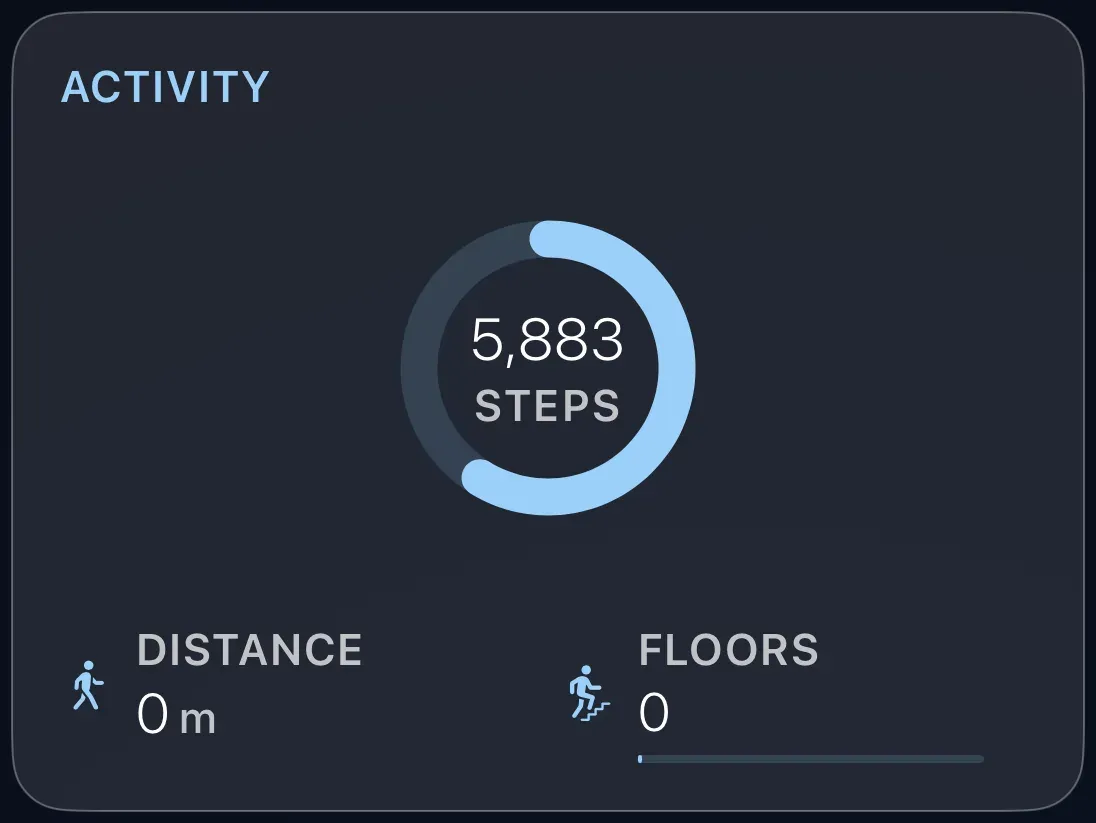
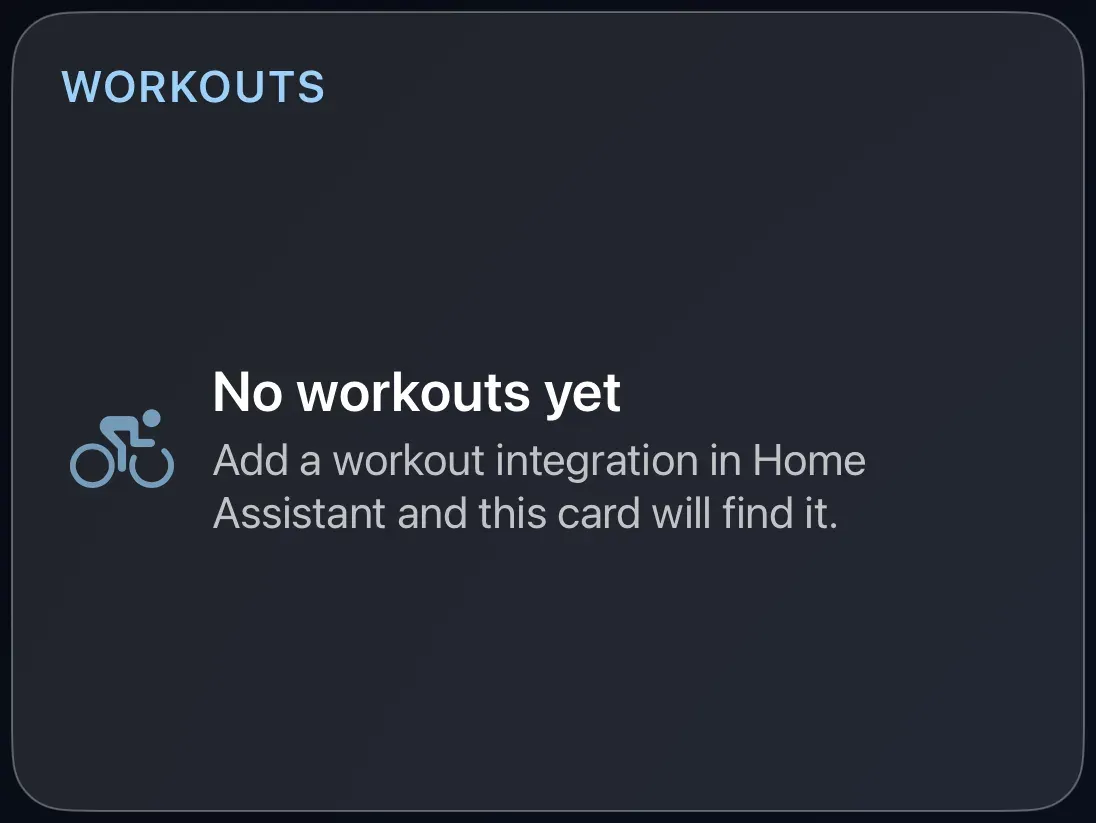
Cards: health and activity
Music, visuals and room lights
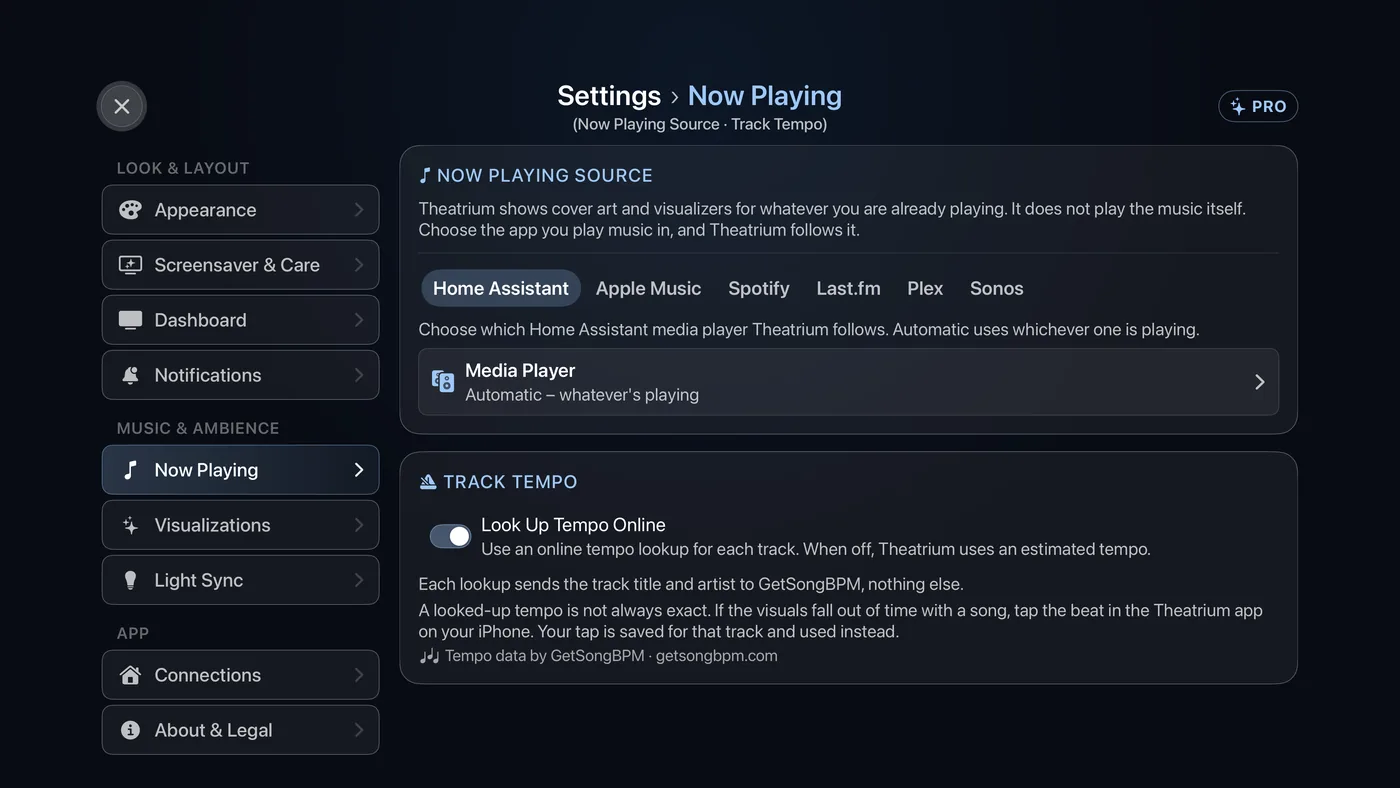
Where your music comes fromTell Theatrium which app or speaker you listen with, and the TV follows along with cover art, visuals and room lights. With Spotify, the TV can play the music as well.
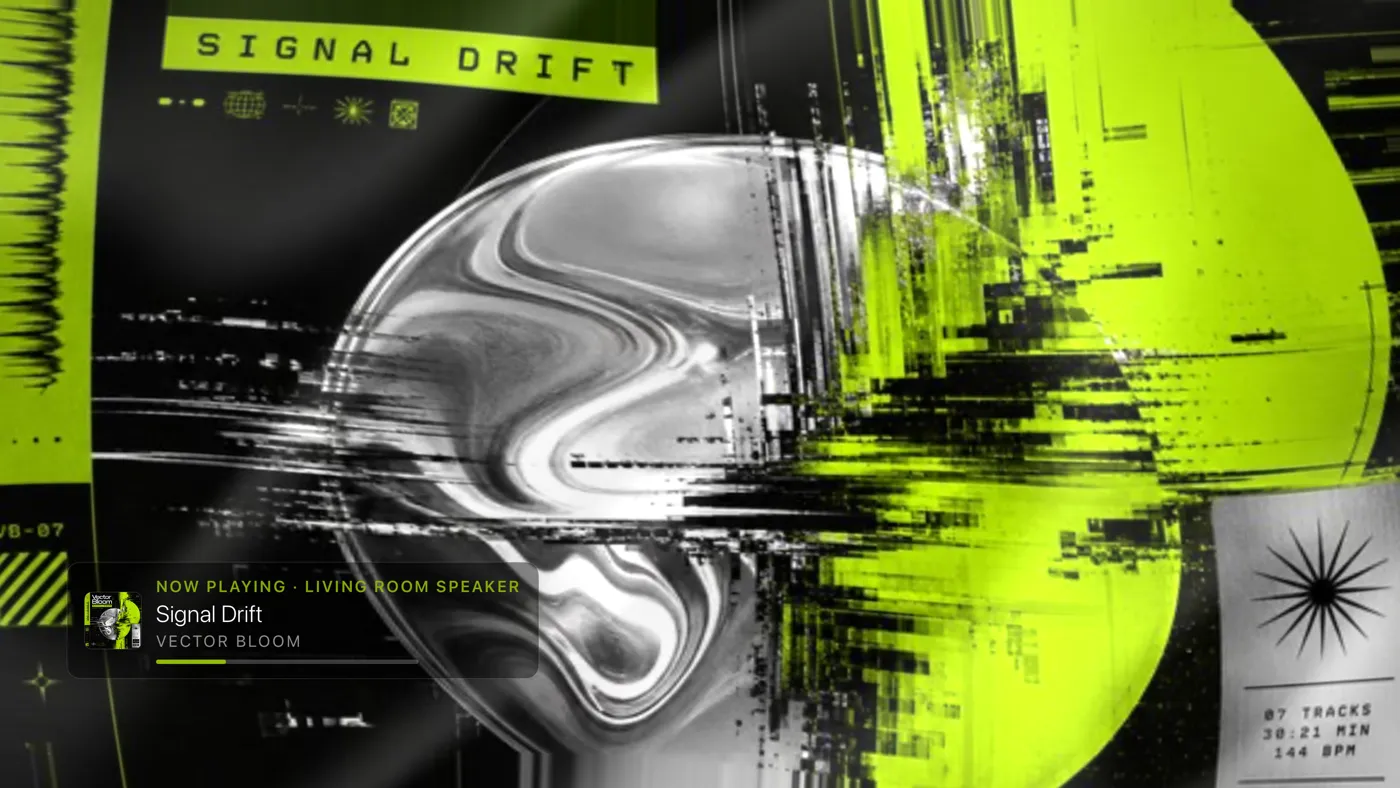
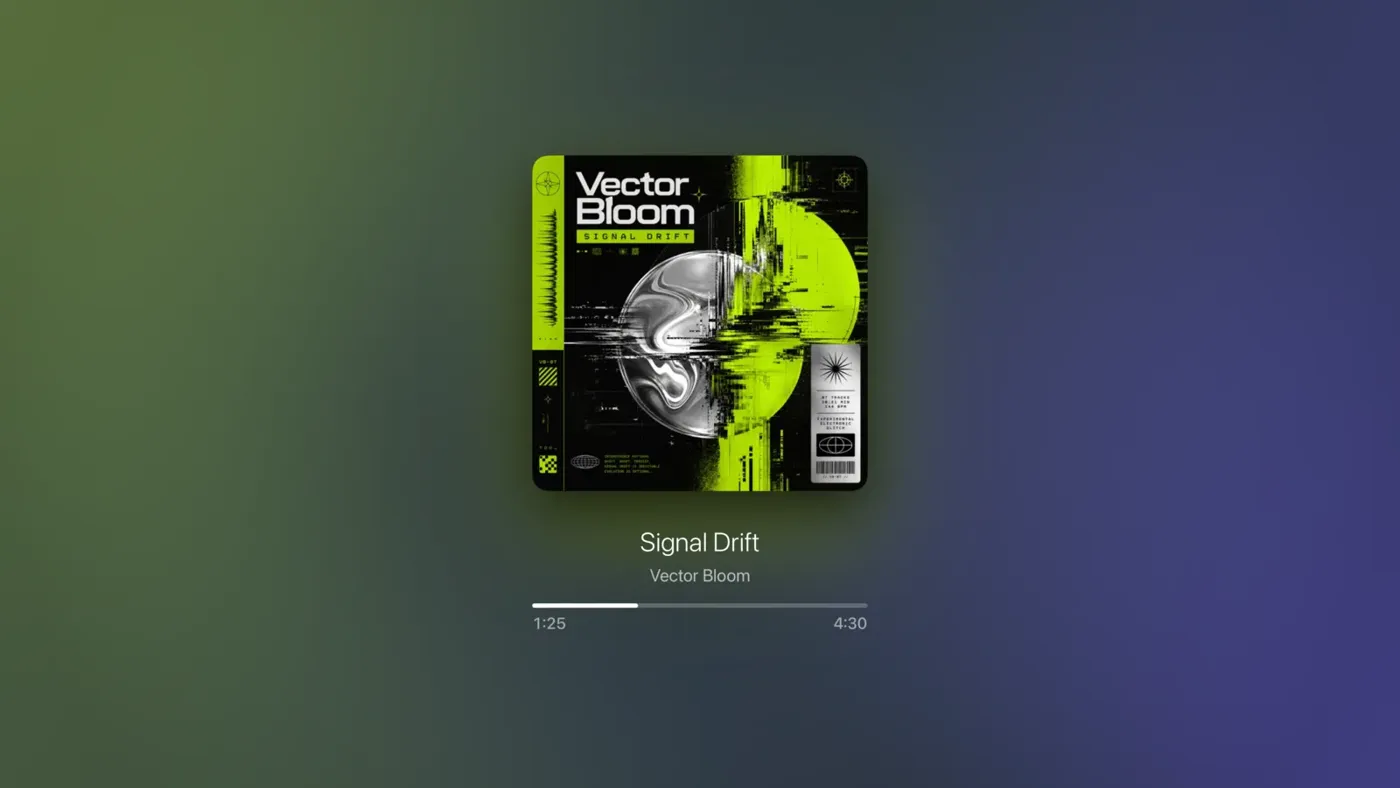
The music room and the visualizerBig album art, moving pictures that follow the song, and the room lights joining in. One button from the dashboard.
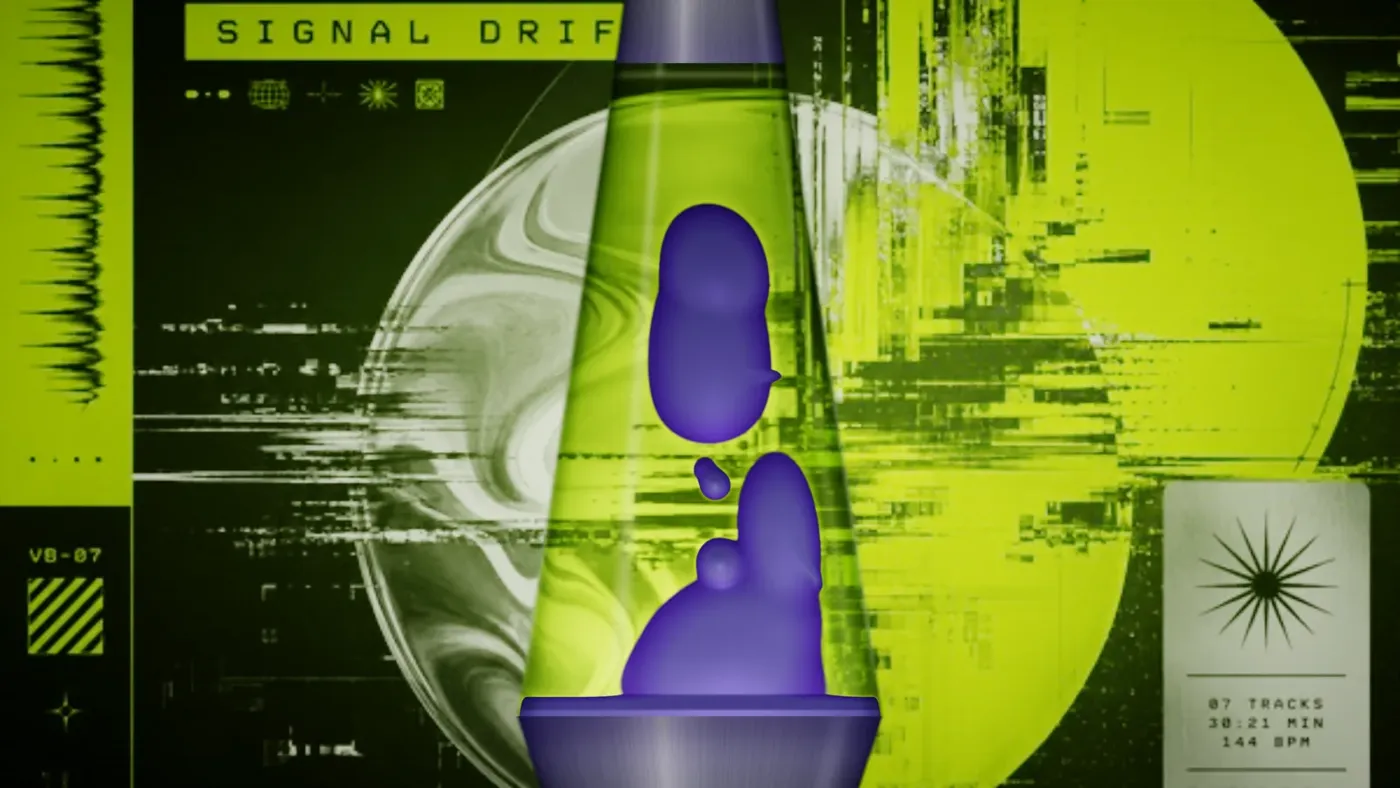
The visuals, one by oneEvery visualizer style with a picture of each, which ones are free, and how to choose the set that plays.
Room Light SyncYour smart lights take on the colors of the screen while music plays, gently, never a flash.
The Music Visualizer cardThe same generative visuals as the full-screen music room, playing inside one card on your dashboard.
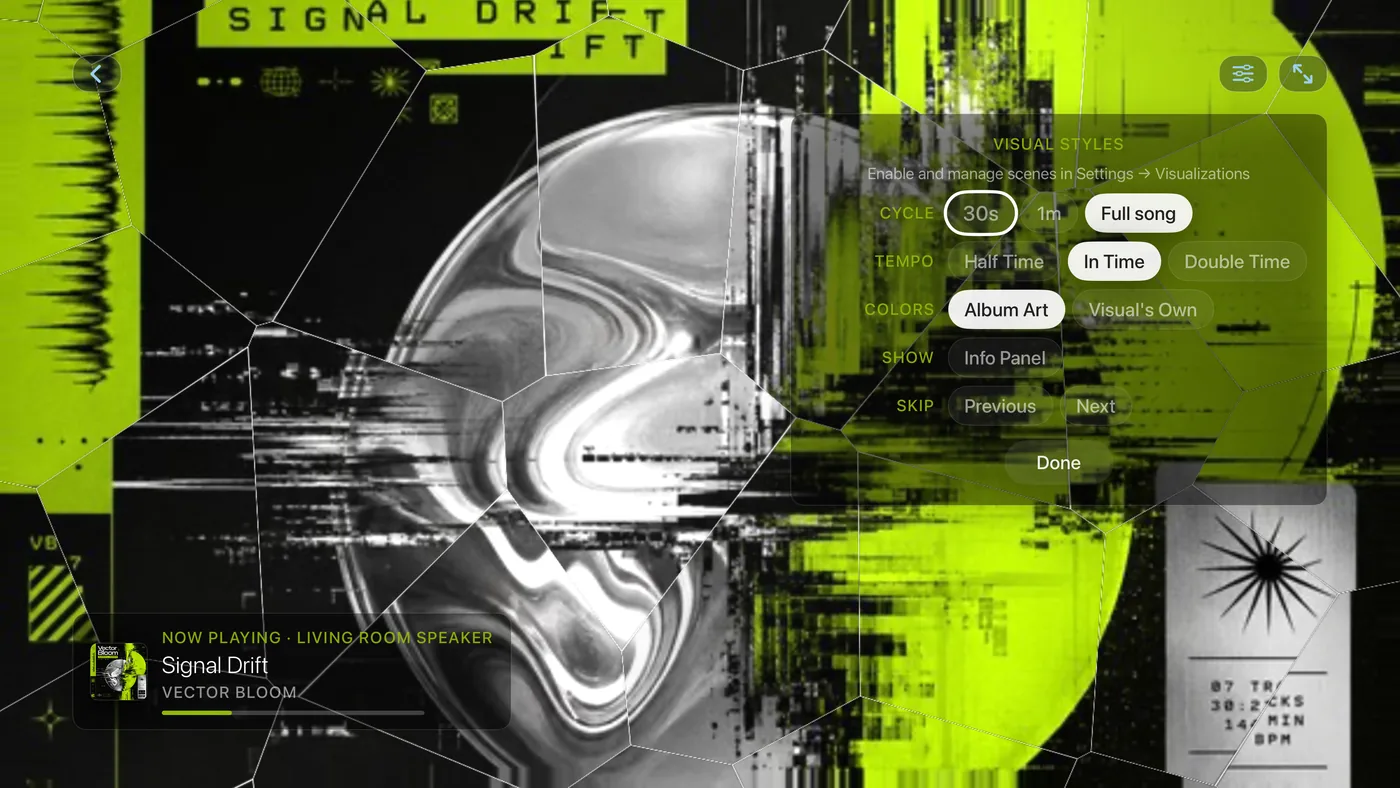
How the visualizer keeps timeWhy the visuals follow the song’s tempo, and how to make them move faster.
Screensavers, alerts and the Apple TV home screen

ScreensaversWhen you have stopped watching, Theatrium hands the screen to a screensaver: a drifting logo, paintings on a mat board, your visuals, or your Plex posters.
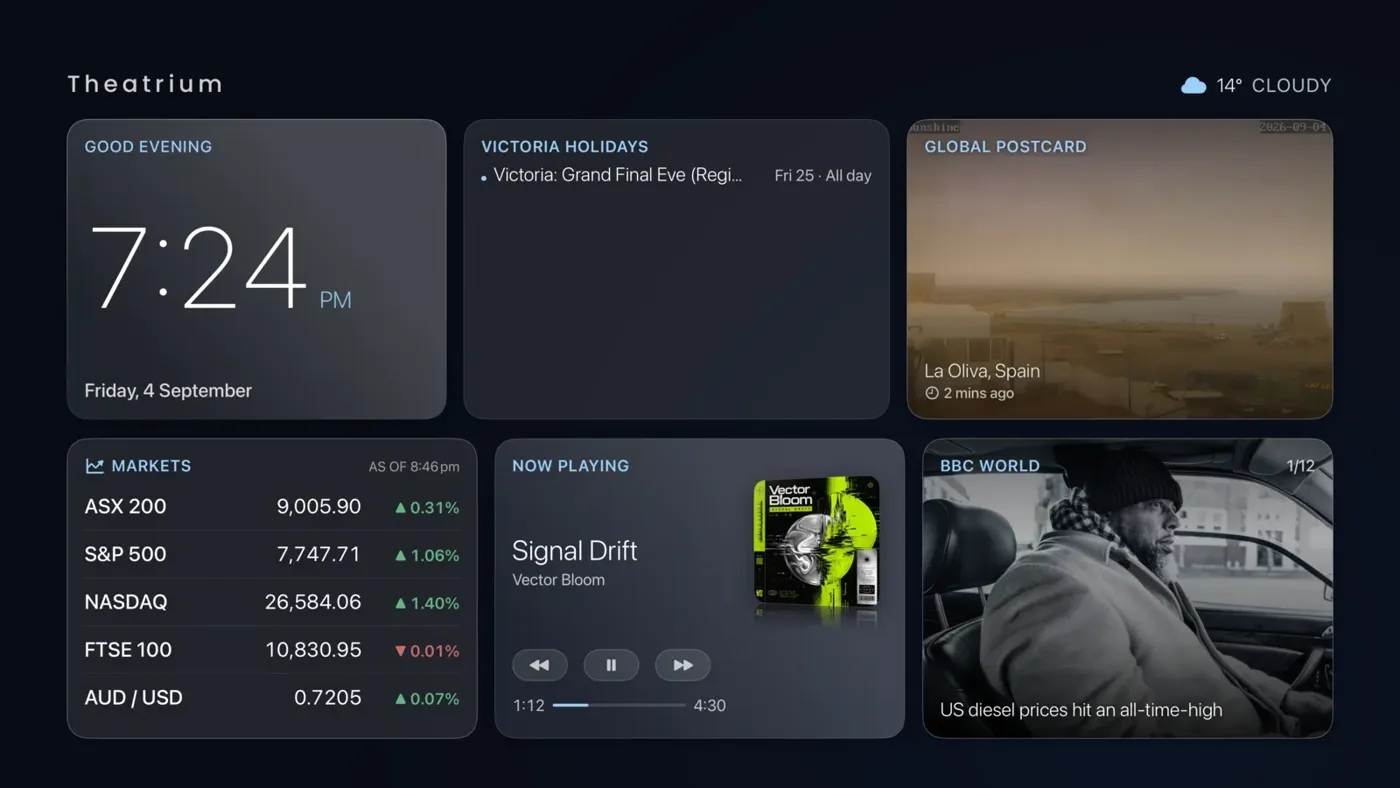
Alerts on your TVSomeone at the door, motion in the garden, the washing finished: a pop-up on the TV with a camera picture, while Theatrium is open.
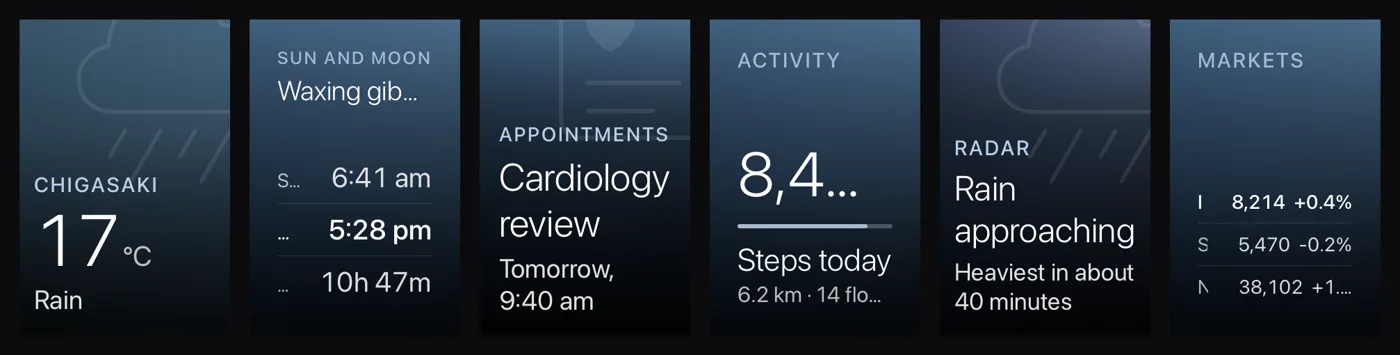
The Top ShelfPut Theatrium in the top row of the Apple TV home screen and the shelf above it shows today's weather, your next appointment, what is playing and more, before you even open the app.
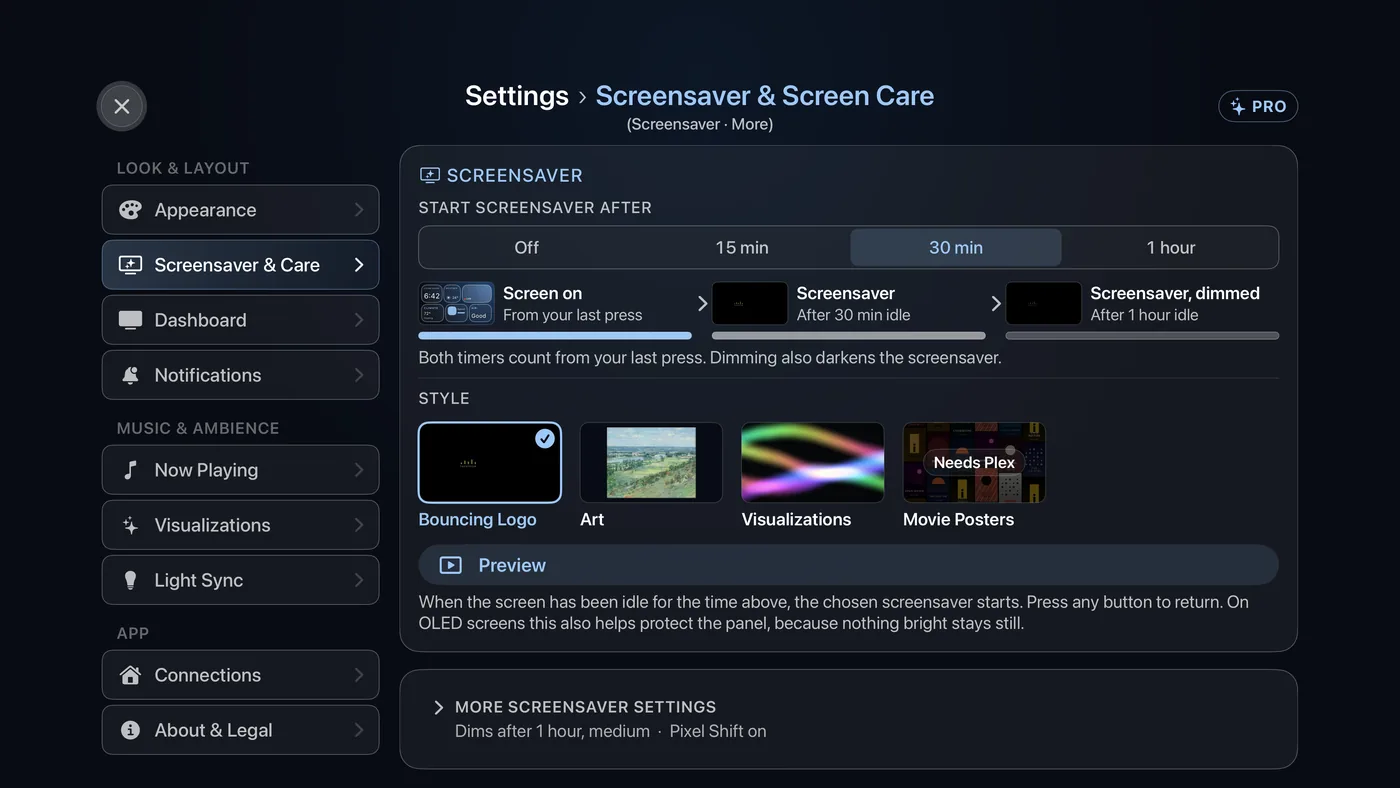
Screen Dimming, Pixel Shift and burn-inA dashboard that stays on all evening is exactly what some televisions dislike. Screen Dimming fades the picture when you stop using the remote; two more settings back it up.
Short Stay, the phone app and Theatrium Pro
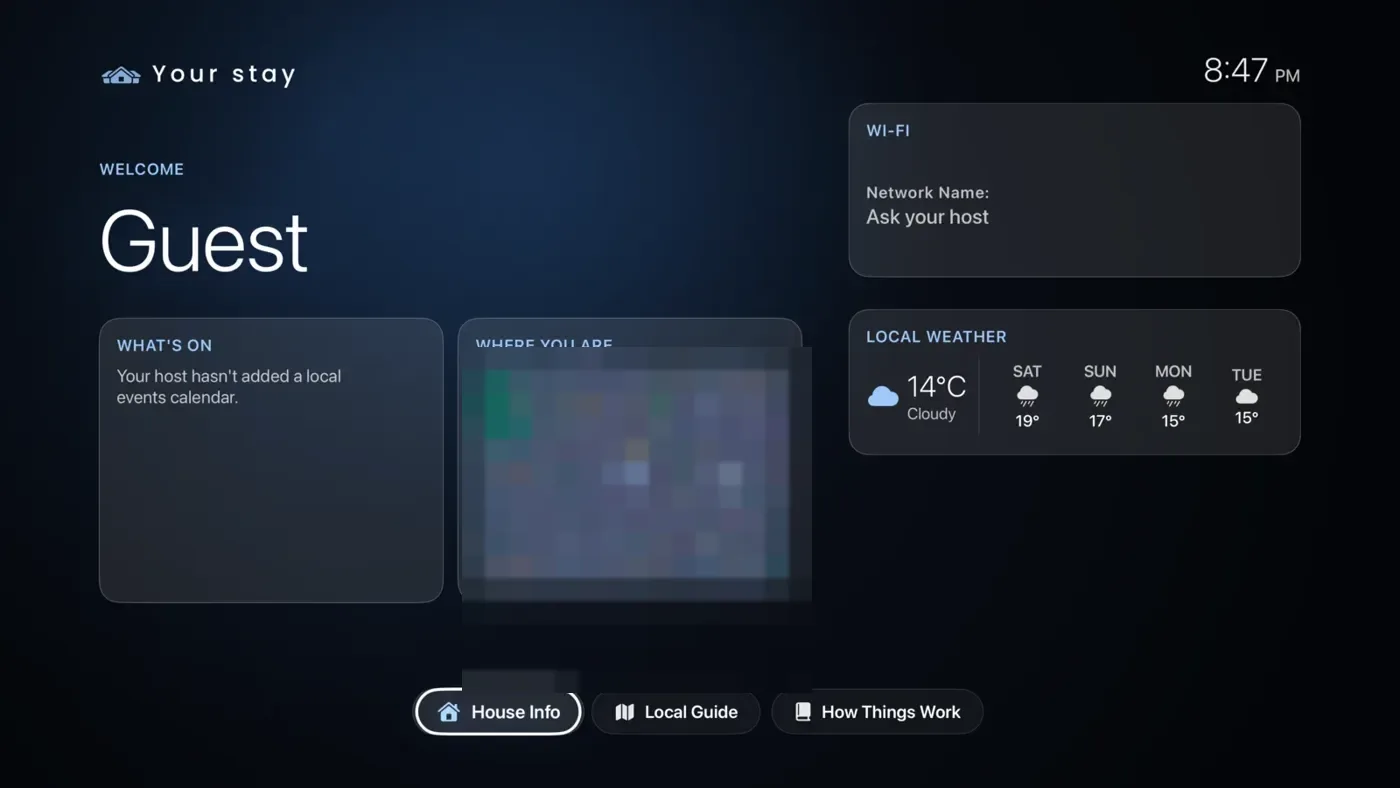
Short Stay: a welcome screen for guestsFor a holiday let or a guest room. The TV greets guests by name, shows the Wi-Fi, door code, parking and check-out time, and your house guide.
The Theatrium app for iPhone and iPadA free companion app that finds your Apple TV and lets you switch visuals, control lights and music, start timers, add countdowns, and type settings on a real keyboard.
iCloud Sync between Apple TVsTwo or more Apple TVs? Set your themes and cards up once and let iCloud carry them to the others.
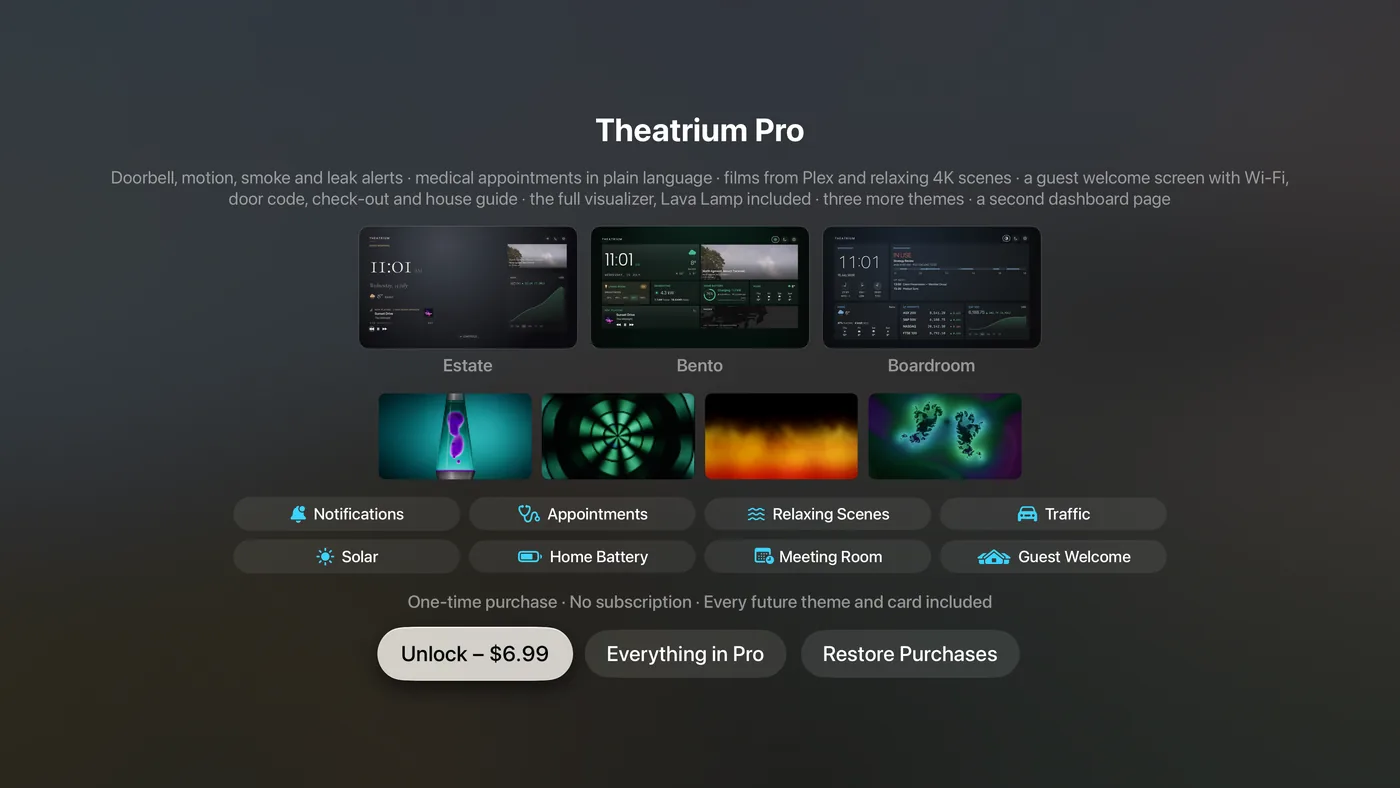
Theatrium ProOne purchase, not a subscription, that unlocks every theme, the full set of visuals, a second dashboard page, alerts, the specialist cards and the Halloween pack.
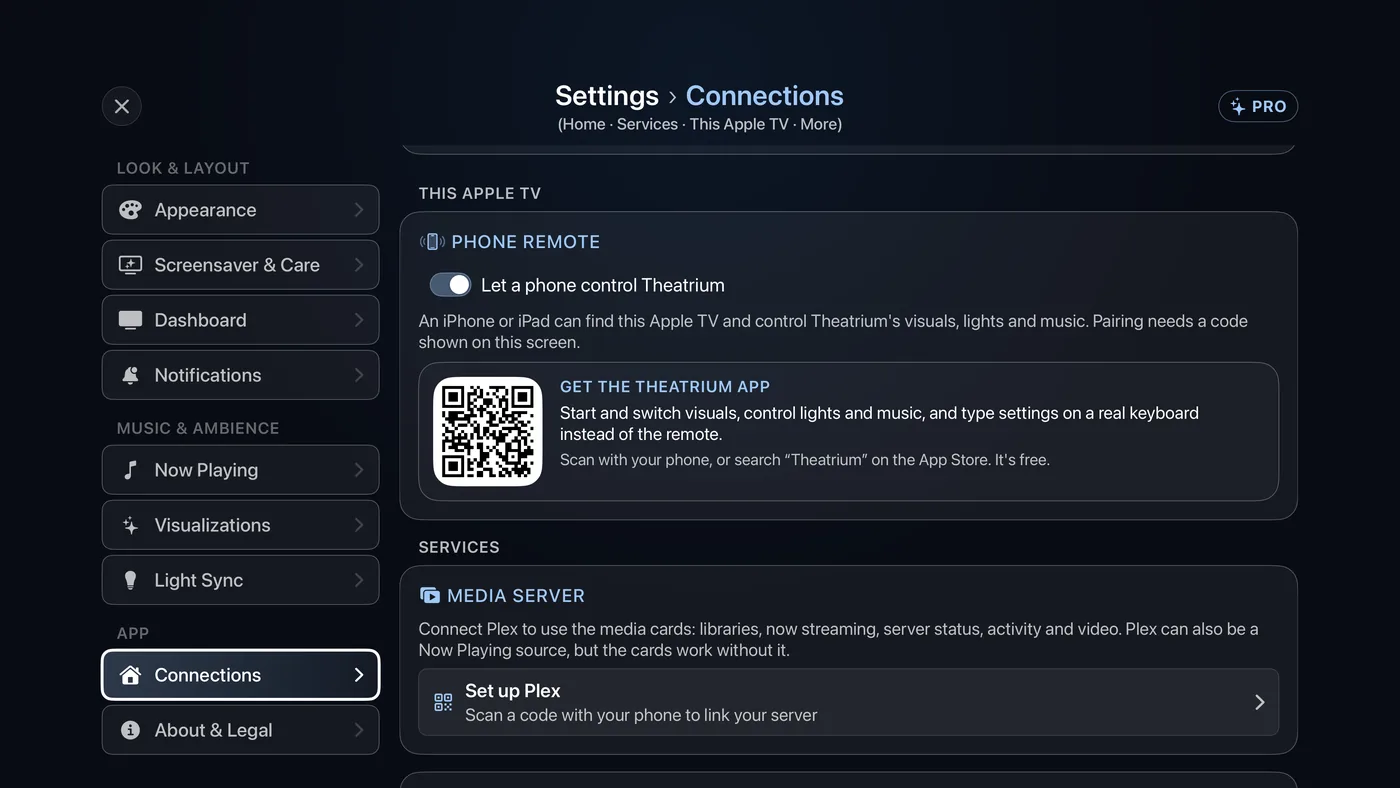
Connect your Plex serverLink your media server once and six cards appear: browse and play films, see who is watching, watch the server's health.
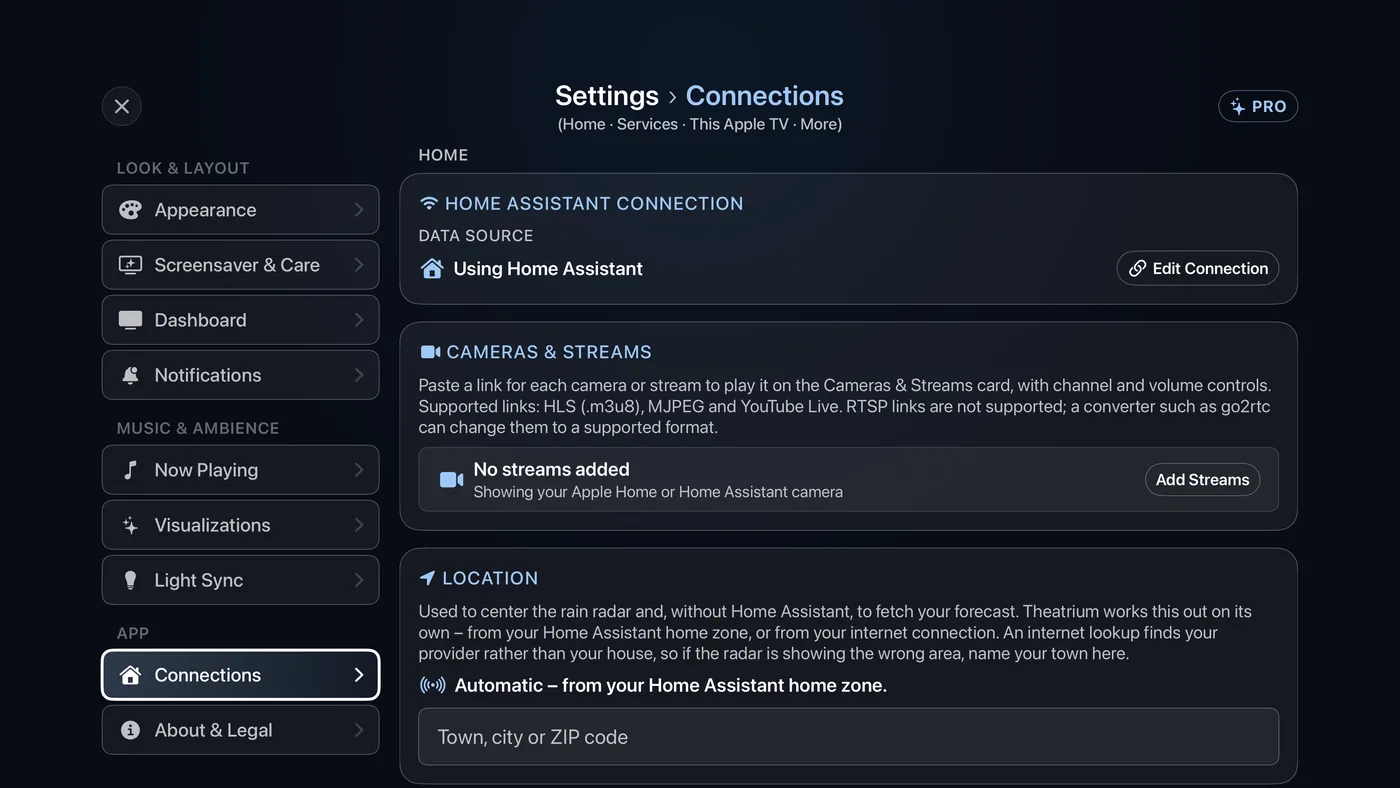
Settings › Connections, explainedEvery outside thing Theatrium talks to lives on one page: your smart home, cameras and streams, your location, calendars, your media server, your phone, iCloud and your car.