Guides › Home cards
The Network Speed card
Theatrium ProWorks with: Any Apple TVAbout 2 minutes to set up
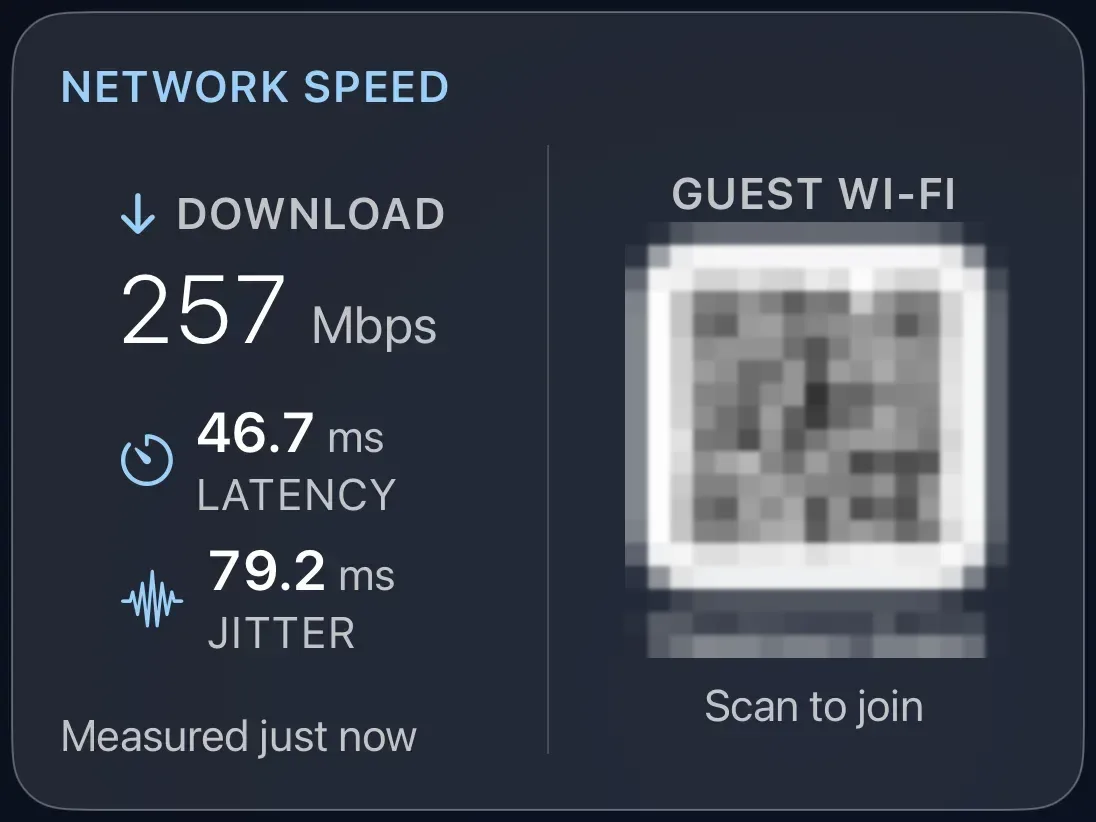
Your internet speed, measured from the Apple TV every fifteen minutes, with an optional code guests can scan to join your Wi-Fi.
What it shows
Download speed, latency (the delay before data starts arriving) and jitter (how steady that delay is), and when they were last measured. Fill in your Wi-Fi details and the right-hand side becomes a Guest Wi-Fi square code: a visitor points their phone camera at the TV and joins.
Add the card
Every card is added the same way. If you have done this before, skip ahead.
- On the dashboard, move to a card you want to replace. Press and hold the center of the remote's pad for about a second. The card dims and a Modify button appears on it.
Hold the center of the pad on the card you want to change. - Press the center once to choose Modify. The Choose a card screen opens.

The Choose a card screen. The list down the left side narrows the cards by group. - On the left, choose Home, then move right and choose Network Speed. (You can also leave the list on All and scroll; it is in alphabetical order.)
- There is nothing to set up for the speeds. To add the guest code, type your Wi-Fi network name exactly as it appears on a phone, choose the security type (almost always the plain password kind), and type the Wi-Fi password. Leave these empty for speeds only.
- Finish with the button at the foot of the setup screen, which is named for the card, such as Add Calendar Card. A card that needs no setup is added the moment you select it. You return to the dashboard with the new card in place.
Good to know
- The password is kept in the Apple TV's secure storage and never sent anywhere. It is shown as you type so you can check it against your router.
- The card measures once when added, then every fifteen minutes. "Measuring now" appears while a test runs.
- If your network is hidden (does not broadcast its name), turn on This network does not broadcast its name so the code still works.