Guides › Information cards
The Calendar card
FreeWorks with: Any Apple TVAbout 5 minutes to set up
Your appointments and family events on the television, from the calendar you already keep on your phone or computer.
What it shows
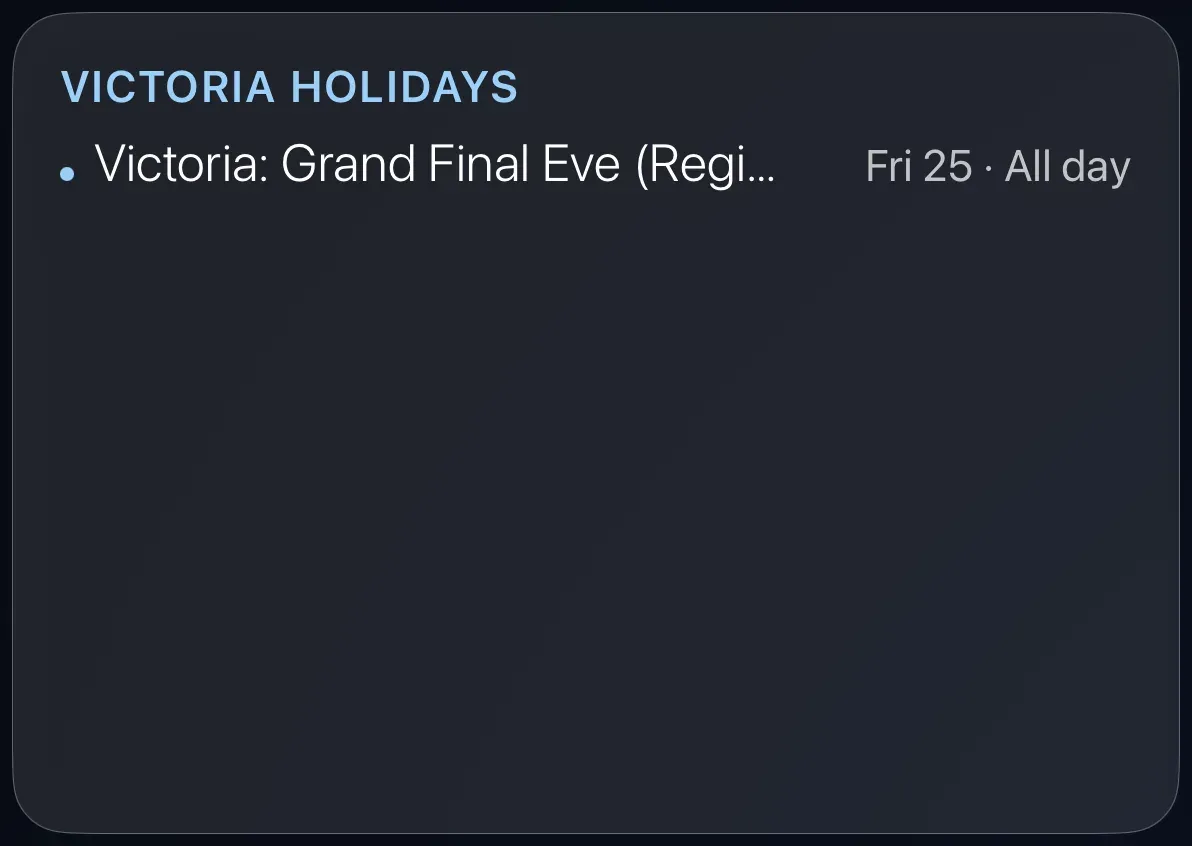
Either Month + Up Next (the month at a glance with the coming events listed) or Today (just today's events and their times, all-day events first). Each card can have its own name and its own calendar, so a work calendar and the family calendar can sit side by side.
Before you start: get your calendar's address
Theatrium reads a calendar through a private web address that ends in .ics. Every major calendar can give you one. It is long, so do this on a computer or phone and have it ready.
- Google Calendar: on a computer, open Google Calendar settings, choose the calendar, scroll to Integrate calendar, and copy the Secret address in iCal format.
- Apple iCloud: in Calendar on a Mac, right-click the calendar, choose Share Calendar, select Public Calendar, and copy the link. A link starting
webcal://works exactly as it is. - Outlook / Microsoft 365: in Outlook on the web, open Settings › Calendar › Shared calendars, publish the calendar, and copy the ICS link.
- Home Assistant: no address needed. Leave it blank and Theatrium reads your Home Assistant calendars.
Setting the calendar once, for every card
- Open Settings › Connections and find the Calendar card.
- Choose the link field and type or paste the
.icsaddress. If your iPhone is nearby, tvOS offers to let you type it there; accept, and it arrives on the TV. As soon as it’s in, Theatrium checks the link and shows right there whether it connected — the calendar’s name and its next few events, or a plain note if it couldn’t read it. - Press Back. Every Calendar card and the Meeting Room card can now use this calendar. The Appointments card keeps a separate calendar of its own.
Add the card
Every card is added the same way. If you have done this before, skip ahead.
- On the dashboard, move to a card you want to replace. Press and hold the center of the remote's pad for about a second. The card dims and a Modify button appears on it.
Hold the center of the pad on the card you want to change. - Press the center once to choose Modify. The Choose a card screen opens.
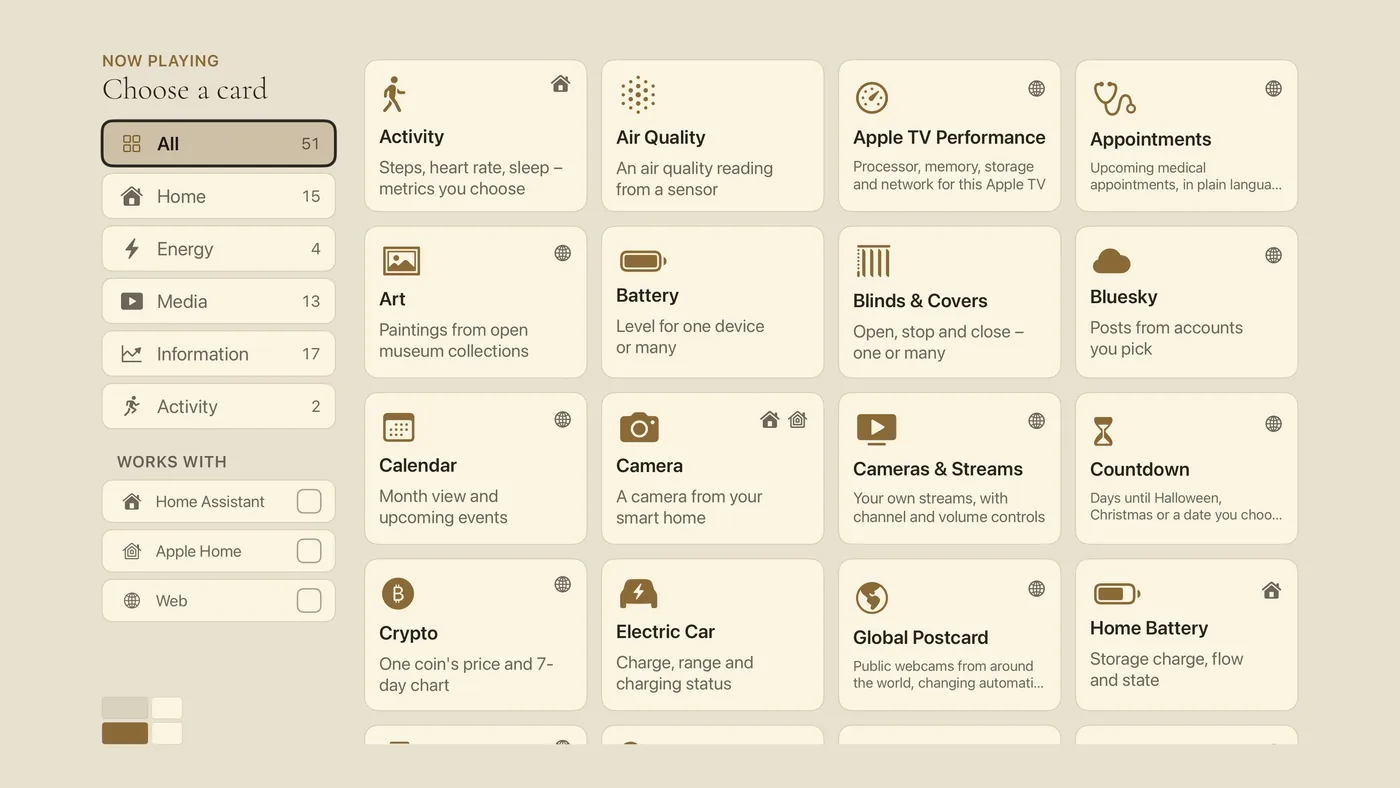
The Choose a card screen. The list down the left side narrows the cards by group. - On the left, choose Information, then move right and choose Calendar. (You can also leave the list on All and scroll; it is in alphabetical order.)
- Choose a layout: Month + Up Next, or Today. If Home Assistant is connected, the setup also lists its calendars: turn on exactly those this card shows, one or several, merged in time order. To show a different calendar on this card from the one in Settings, choose the row under Or, a calendar link, give it a name (Work, Family, Trash) and paste that calendar's own
.icsaddress. Leave both blank and it uses the calendar from Settings. - Finish with the Add Calendar Card button. You return to the dashboard with the new card in place.
Good to know
- Display only. The card re-reads the calendar every so often; a new event appears within a few minutes.
- A calendar that cannot be reached leaves its card empty rather than showing another calendar's events.