Guides › Information cards
The Appointments card
Upcoming medical appointments in large, plain language: what, when, where, and what to bring.
What it shows
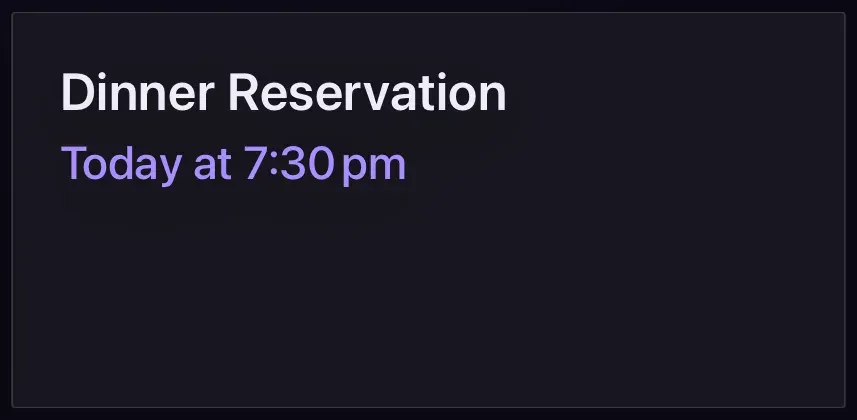
The next appointment in big, calm type, "Dinner Reservation, today at 7:30 pm", "Dr Patel, heart clinic, Thursday 10 am", and, if you choose, the ones after it underneath. It can also show the location and any notes from the calendar entry, such as "bring your medication list" or "someone will need to drive you home".
Before you start
Appointments come from a calendar, ideally one kept just for them so this card can be on the screen without showing everything else. Make a calendar called "Appointments" on your phone or computer, put the appointments in it with the place in the location field and any instructions in the notes, and get its .ics address. The Calendar card explains how to find the address for Google, iCloud and Outlook.
You can set that address once in Settings › Connections › More connection settings, under Appointments, or on the card itself. It is a separate calendar from the one in Settings › Connections › Calendar.
Add the card
Every card is added the same way. If you have done this before, skip ahead.
- On the dashboard, move to a card you want to replace. Press and hold the center of the remote's pad for about a second. The card dims and a Modify button appears on it.
Hold the center of the pad on the card you want to change. - Press the center once to choose Modify. The Choose a card screen opens.
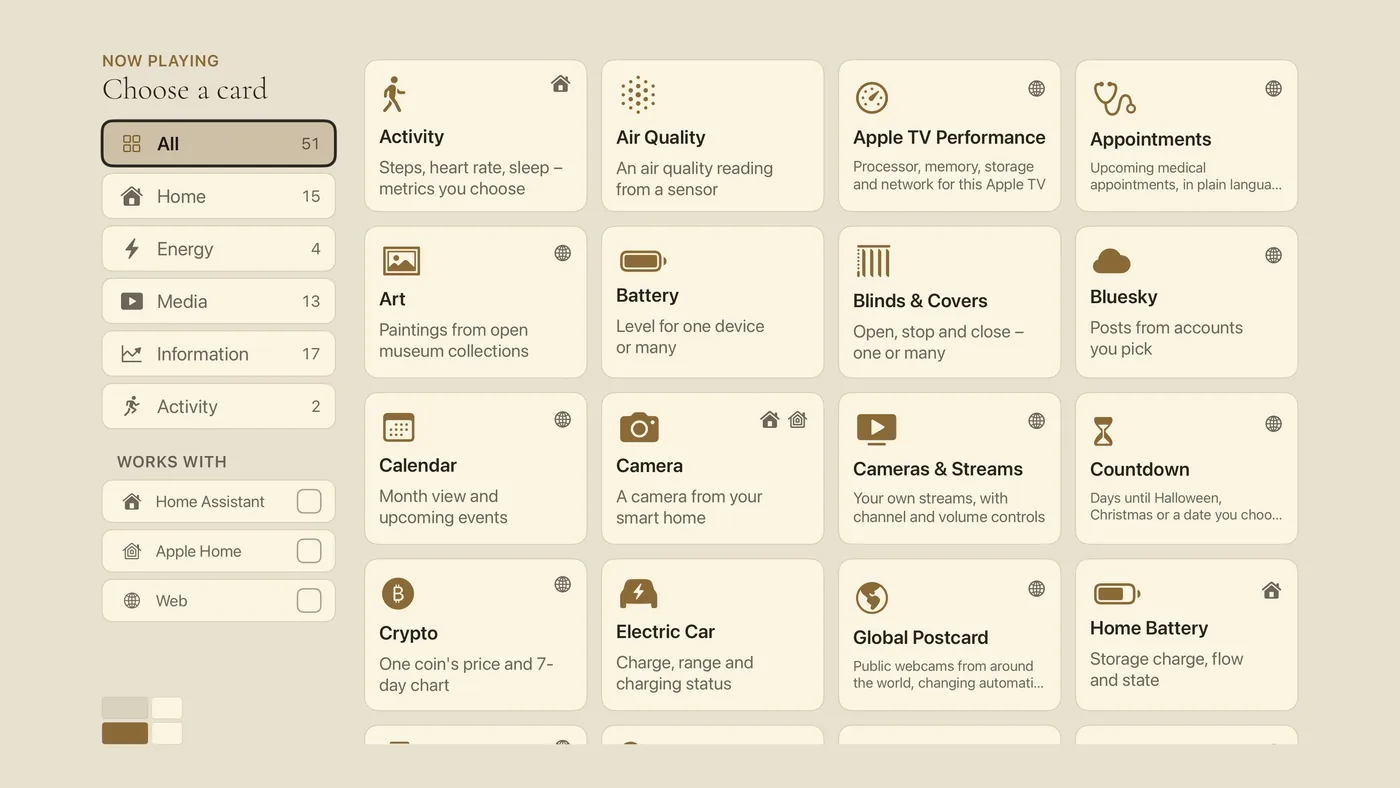
The Choose a card screen. The list down the left side narrows the cards by group. - On the left, choose Information, then move right and choose Appointments. (You can also leave the list on All and scroll; it is in alphabetical order.)
- Choose Only the next one (one appointment, as large as the card allows) or Next, then what follows. Choose Where, and what to bring or Just what and when (better if visitors see the screen). Paste the appointments calendar's
.icsaddress, and give the card a name if you like, "Appointments for Jim". - Finish with the Add Appointments Card button. You return to the dashboard with the new card in place.
Good to know
- Display only. Written for someone who finds a list hard to take in: one thing at a time, in words rather than codes.
- Appointments also appear on the Apple TV's home screen shelf; see The Top Shelf.