Guides › Getting started
Connect Home Assistant
Join Theatrium to your Home Assistant server, either by scanning a code with your phone or by typing an address and a token on the TV.
What this does
Home Assistant is the software that runs many people's smart homes. Once Theatrium is connected to it, your lights, thermostats, sensors, cameras, locks, blinds and scenes become cards on the TV, and Theatrium can show alerts from it too.
The connection is made on your own home network. Theatrium keeps the sign-in details in the Apple TV's secure storage; nothing goes through a Theatrium server.
Before you start
- Home Assistant must be running and on the same network as the Apple TV.
- You need its address. It usually looks like
http://192.168.1.20:8123. Find it in Home Assistant under Settings › System › Network, or look at the address bar in your browser when you open Home Assistant. - Have your phone ready if you would rather not type on the TV.
The easy way: finish on your phone
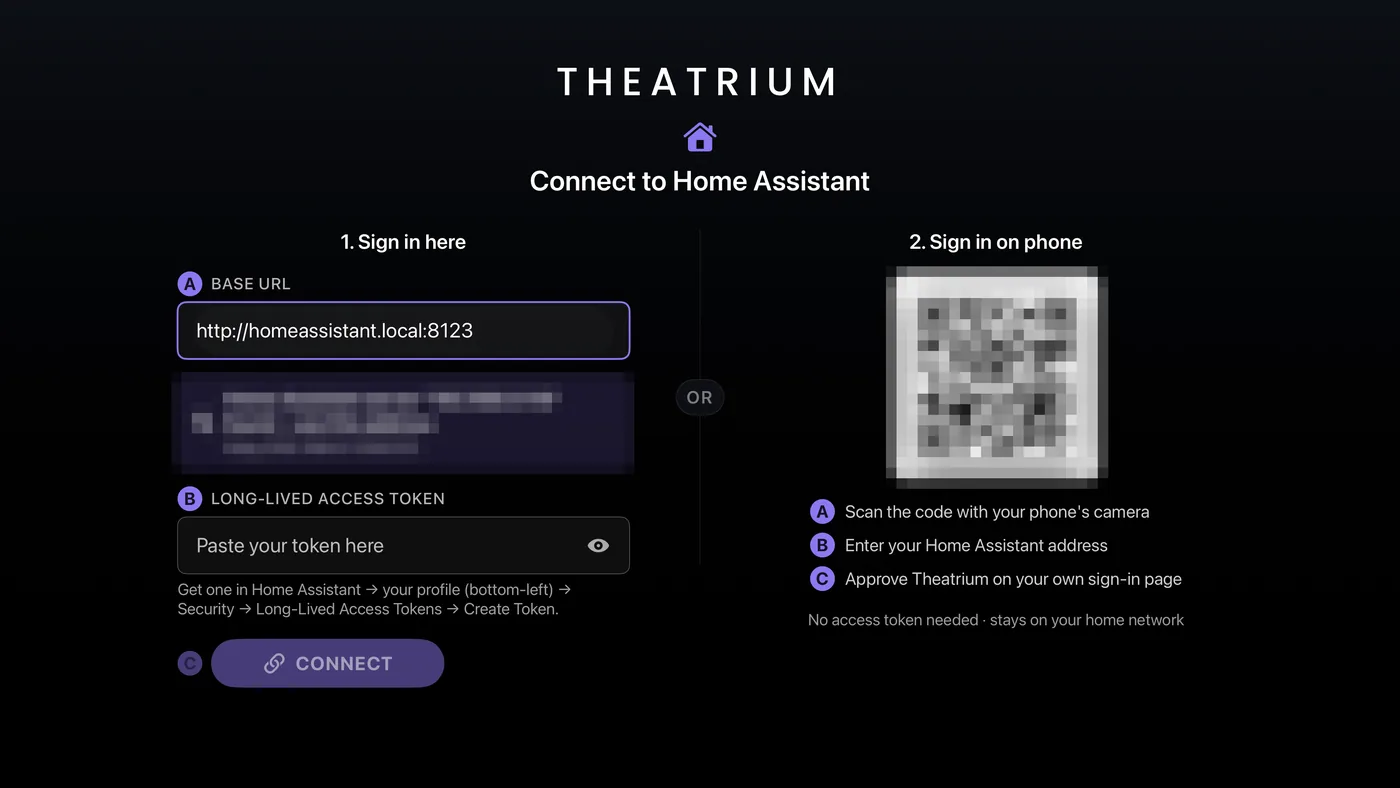
- On the TV, open the Home Assistant sign-in screen. It appears during first setup, or from Settings › Connections: select Edit Connection, or Connect Home Assistant if no server is connected yet.
- Point your phone's camera at the square code on the right of the screen and tap the link that pops up. A small page opens on the phone.
The square code sits on the right, under "2. Sign in on phone". - The page usually already shows your Home Assistant address, found on your network. If it is blank, type the address in. Tap Sign in with Home Assistant.
- Home Assistant's own sign-in page opens on your phone. Sign in with your usual Home Assistant username and password and approve Theatrium.
- Look at the TV. It says it is connected and moves on. Nothing else to do.
The other way: type on the TV
- Under 1. Sign in here, choose the Base URL box and type your Home Assistant address. If Theatrium has already found your server, its address is offered for you.
- In Home Assistant on a computer, click your name at the bottom left, open the Security tab, scroll to Long-Lived Access Tokens and choose Create Token. Give it any name, such as "Theatrium". Copy the long code it shows. It is shown only once.
- On the TV, choose the Long-Lived Access Token box and type the code in. The eye button shows what you have typed so you can check it.
- Choose Connect.
When it is connected
Your dashboard opens with a starter layout built from your home. From then on every card can read from Home Assistant. Cards marked with a small house symbol in the card chooser are the ones that need it.
If it does not connect
To change servers later, or to start again, open Settings › Connections and choose Edit Connection. Switch…, under More connection settings, changes to Apple Home or to no smart home; that re-runs setup.