Guides › Getting started
First setup
The first time you open Theatrium it asks one question, where your home information comes from. Here is how to answer it.
Before you start
Have the Apple TV remote in your hand. If you plan to connect Home Assistant, it also helps to have your phone nearby; there is a way to sign in from the phone instead of typing on the TV.
You will be asked to choose one of four options. You are not locked in. You can change your answer later in Settings › Connections.
| Option | Choose it if | What you get |
|---|---|---|
| Explore Demo | You want to look around first | A full dashboard with made-up data. Nothing to connect. |
| Home Assistant | You run Home Assistant at home | Every card, including notifications, energy and health cards. |
| Apple Home | You use the Home app on your iPhone | Your lights, thermostats, locks, blinds, scenes, sensors and cameras. |
| No smart home | You have no smart home | Weather, radar, news, calendar, webcams, markets and your music. |
Step by step
- Open Theatrium. The welcome screen, Set up your screen, says in three lines what is about to happen. Get Started is already highlighted; press the center of the pad.
Press the center of the pad - On Choose where your home data comes from, move to the option that fits you and press the center.
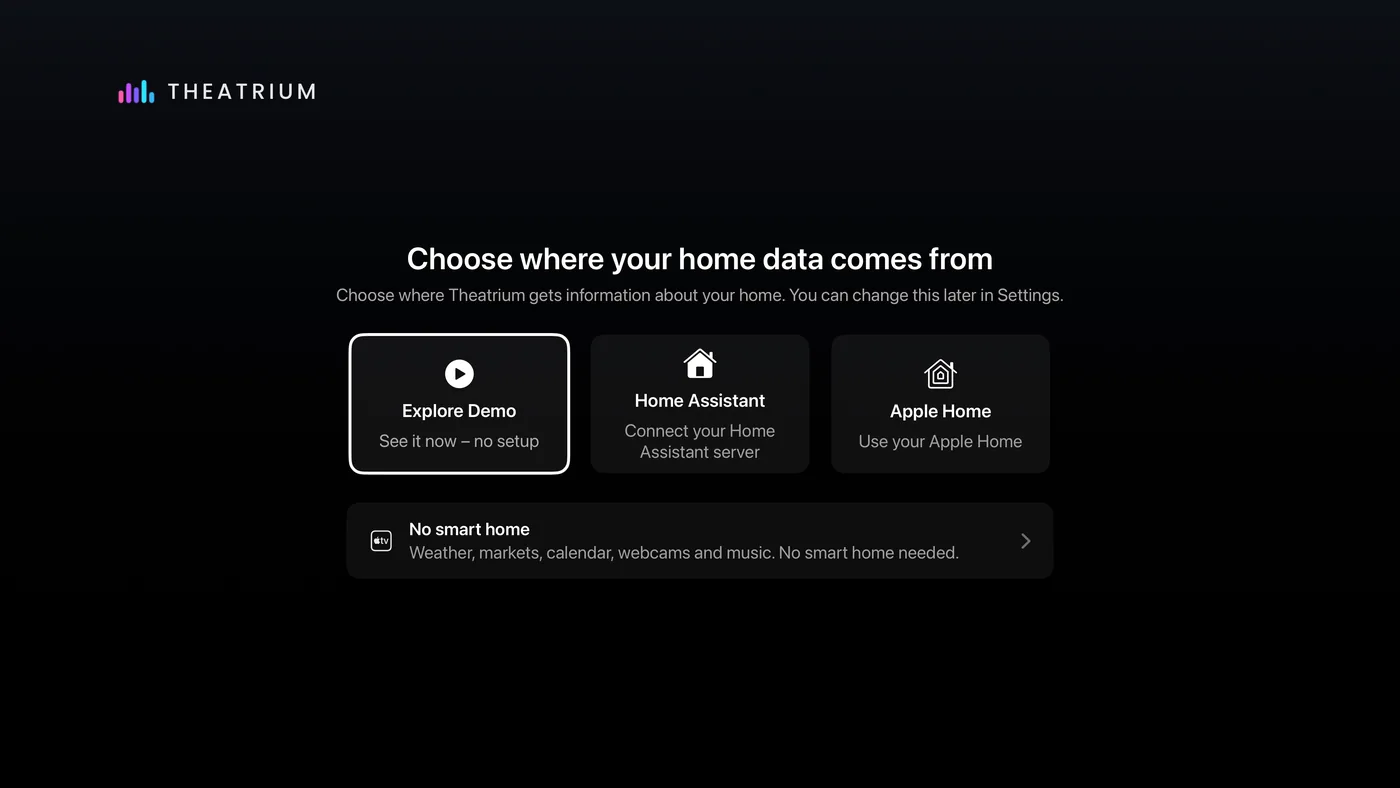
The four choices: Explore Demo, Home Assistant, Apple Home, No smart home. - If you chose Explore Demo or No smart home, your dashboard appears at once. There is nothing to connect.
- If you chose Home Assistant, a sign-in screen appears. Follow Connect Home Assistant for that screen. When it connects, your dashboard appears.
- If you chose Apple Home, select Continue. tvOS asks once whether Theatrium may use your Home data; choose Allow. The button then counts your accessories in while your home loads, and your dashboard follows. See Connect Apple Home if it stalls.
- Your dashboard opens with a starter layout that works on every setup. A few seconds later a pointer beside the gear at the top right reads Configure lights, music and cards here. It appears once and fades on its own.
- Make it yours, whenever you like. Choose where your music comes from in Settings › Now Playing: Apple Music, Spotify, Last.fm, Plex, Sonos or, with Home Assistant, one of its media players. Spotify plays on your Apple TV and needs Spotify Premium. See Where your music comes from. If you have smart lights, turn on Sync room lights with visuals in Settings › Light Sync and choose your lights; see Room Light Sync. To swap a card, hold the center of the pad on it and choose Modify.
That is the whole setup.
What happens next
The first load takes a few seconds while the cards fill in. A card that has not filled in yet is still fetching; give it a minute. From here, Getting around the dashboard shows what the buttons along the top do, and Change a card shows how to swap any card for another.