Guides › Media cards
The Photo Album card
Your own photos, from an album on this Apple TV, changing as often as you choose.
What it shows
Photos from one album, one after another, with the album's name at the top left and a counter at the top right ("5/6"). The grandchildren, the garden, last summer's holiday, whatever you put in the album.

Before you start
The Apple TV needs to see your photos. On the Apple TV, open Settings › Users and Accounts, make sure you are signed in with your Apple ID, and turn on iCloud Photos. Or share an album to this Apple ID from your iPhone: in Photos, open the album, tap Share, and share it with your own account or a family member's.
The album itself is made on your iPhone or Mac, in the Photos app. Make an album called, say, "For the TV", and put your favorites in it.
Add the card
Every card is added the same way. If you have done this before, skip ahead.
- On the dashboard, move to a card you want to replace. Press and hold the center of the remote's pad for about a second. The card dims and a Modify button appears on it.
Hold the center of the pad on the card you want to change. - Press the center once to choose Modify. The Choose a card screen opens.
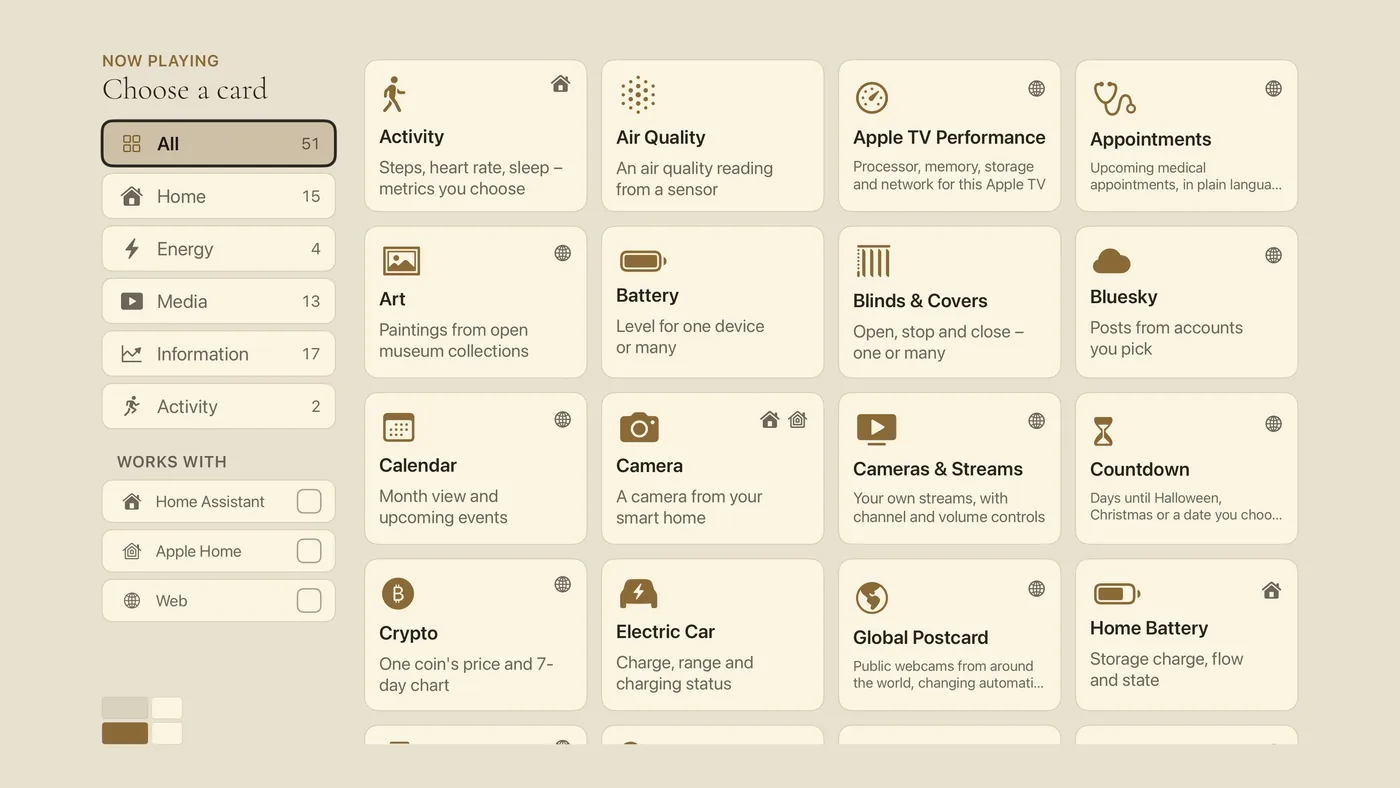
The Choose a card screen. The list down the left side narrows the cards by group. - On the left, choose Media, then move right and choose Photo Album. (You can also leave the list on All and scroll; it is in alphabetical order.)
- Choose an album from the list (it may take a moment to appear). Then set the order, In order or Shuffle; how often the photo changes, Change every 5 sec, 15 sec, 30 sec, 1 min, 5 min or 15 min; and the color, Full color or Tinted (shaded to the dashboard's color so photos sit with the theme).
- Finish with the Add Photo Album button. You return to the dashboard with the new card in place.
Good to know
- Photos change every 15 seconds unless you choose another time. The card is display only.
- Add to the album on your phone and the TV picks the new photos up by itself.