Guides › Media cards
The Art card
Theatrium ProWorks with: Any Apple TVAbout 2 minutes to set up
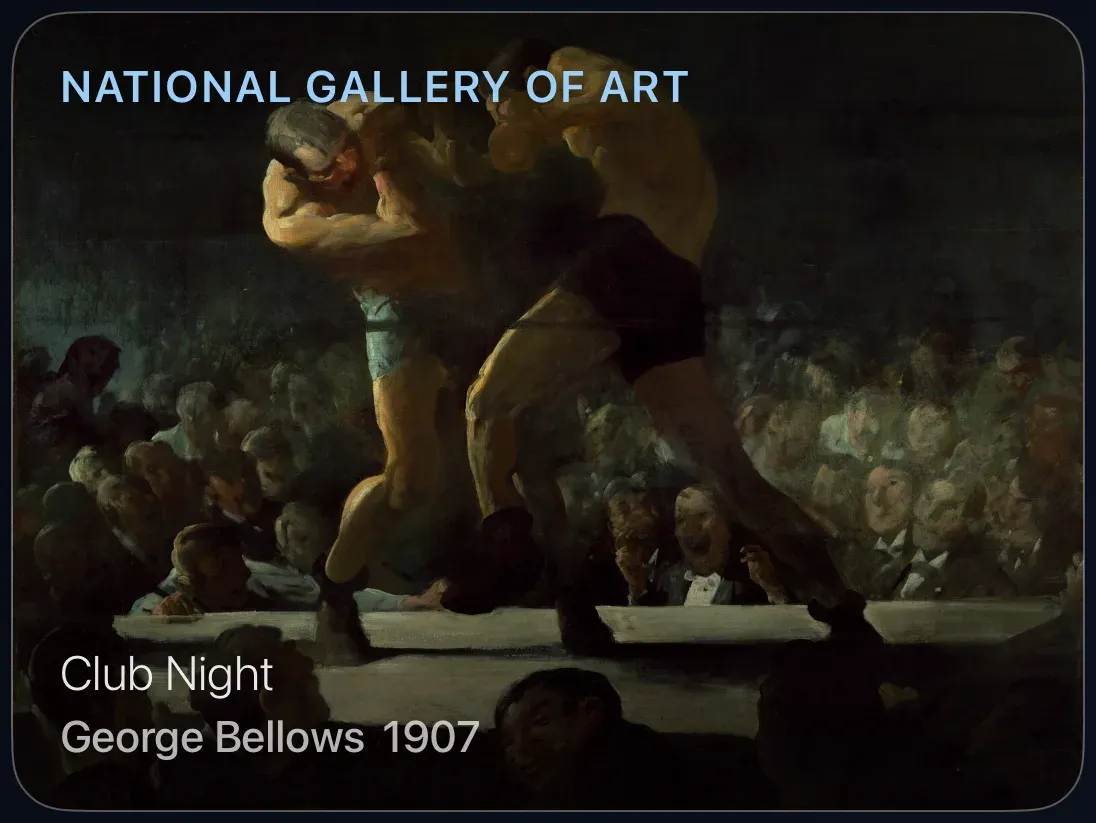
Paintings from the world's great museums, changing through the day, with the title and artist quietly at the foot.
What it shows
A painting, filling the card, from the open collections of museums such as the Art Institute of Chicago, the Met, the Rijksmuseum and the National Gallery of Art. Every work shown is one its museum has released for free use. The title, artist, year and museum sit over the foot of the picture, or can be turned off.
Add the card
Every card is added the same way. If you have done this before, skip ahead.
- On the dashboard, move to a card you want to replace. Press and hold the center of the remote's pad for about a second. The card dims and a Modify button appears on it.
Hold the center of the pad on the card you want to change. - Press the center once to choose Modify. The Choose a card screen opens.

The Choose a card screen. The list down the left side narrows the cards by group. - On the left, choose Media, then move right and choose Art. (You can also leave the list on All and scroll; it is in alphabetical order.)
- Choose collections: tick as many museums as you like; the card rotates through all of them. Then choose Still (the painting sits centered) or Slow drift (the view moves gently across it), and Title and details or Just the art.
- Finish with the button at the foot of the setup screen, which is named for the card, such as Add Calendar Card. A card that needs no setup is added the moment you select it. You return to the dashboard with the new card in place.
Good to know
- Nothing to press; the picture changes on its own.
- A whole-screen version exists too: the Art screensaver puts a painting on a mat board, lit by a light that changes through the day. See Screensavers.