Guides › Information cards
The Stock card
One share, index or currency pair, with its price and a chart you can flick between one day and five years.
What it shows
The symbol and current price, the change since yesterday, and a chart. Along the foot are period buttons: 1D, 1W, 1M, 3M, 1Y, 5Y.
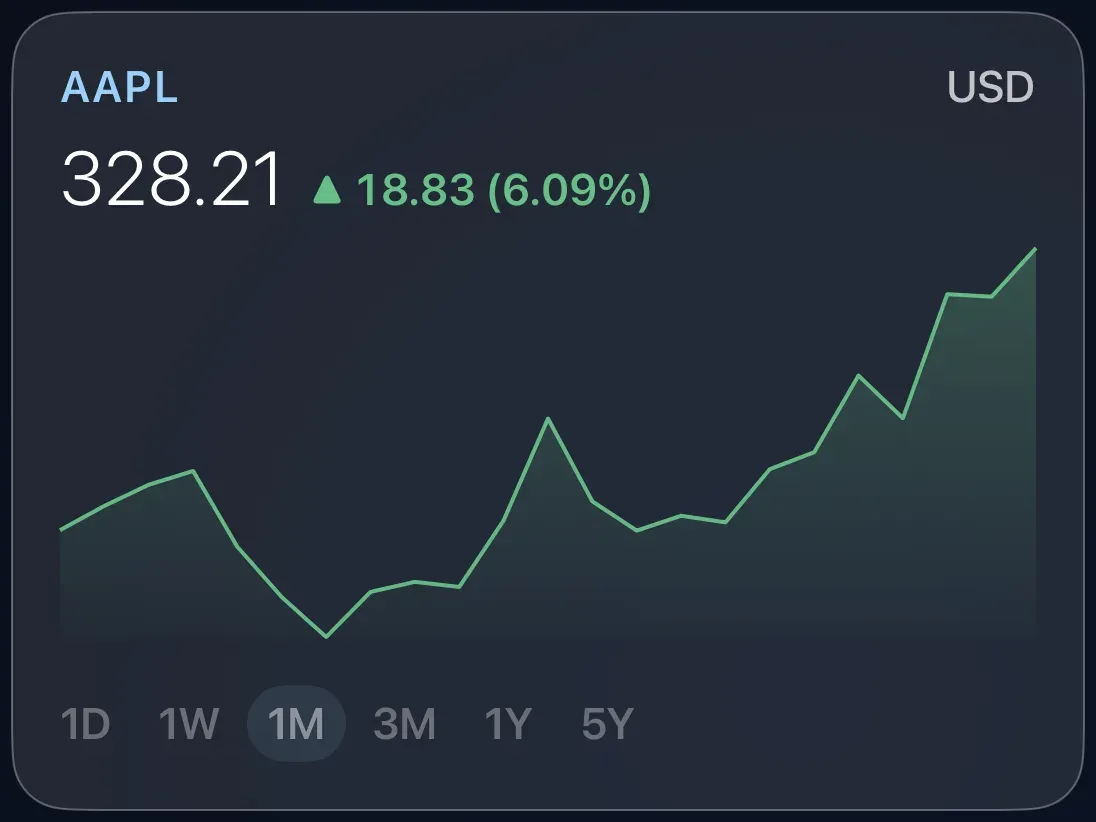
Add the card
Every card is added the same way. If you have done this before, skip ahead.
- On the dashboard, move to a card you want to replace. Press and hold the center of the remote's pad for about a second. The card dims and a Modify button appears on it.
Hold the center of the pad on the card you want to change. - Press the center once to choose Modify. The Choose a card screen opens.

The Choose a card screen. The list down the left side narrows the cards by group. - On the left, choose Information, then move right and choose Stock. (You can also leave the list on All and scroll; it is in alphabetical order.)
- Choose a symbol: type the code. US shares are just the code, such as AAPL for Apple. Shares on other exchanges add the exchange's ending: VGS.AX or CBA.AX for the Australian market, VOD.L for London, RY.TO for Toronto. Indexes start with a caret (^AXJO for the ASX 200, ^GSPC for the S&P 500) and currency pairs end in =X (AUDUSD=X). The preview updates as you type, so if it shows a price the code is right.
- Finish with the button at the foot of the setup screen, which is named for the card, such as Add Calendar Card. A card that needs no setup is added the moment you select it. You return to the dashboard with the new card in place.
Shares on other exchanges
The code you type is looked up directly, with nothing added or checked, so any exchange ending works as long as it is the one used by finance sites such as Yahoo Finance. US shares need no ending — AAPL, MSFT. Elsewhere, add the exchange's own ending to the code: VGS.AX for the ASX, VOD.L for London, RY.TO for Toronto, or VOLV-B.ST for Nasdaq Stockholm. The full table of endings is on The Markets card page. The preview updates as you type, so if it shows a price the code and ending are right.
Using it every day
- Move to the card and press the center to enter it.
Press the center of the pad - Move along the period buttons and press the center on one. The chart redraws.
- Press Back to leave.