Guides › Home cards
The Storage card
Theatrium ProWorks with: Home AssistantAbout 1 minute to set up
How full a disk or NAS drive is, used and free.
What it shows
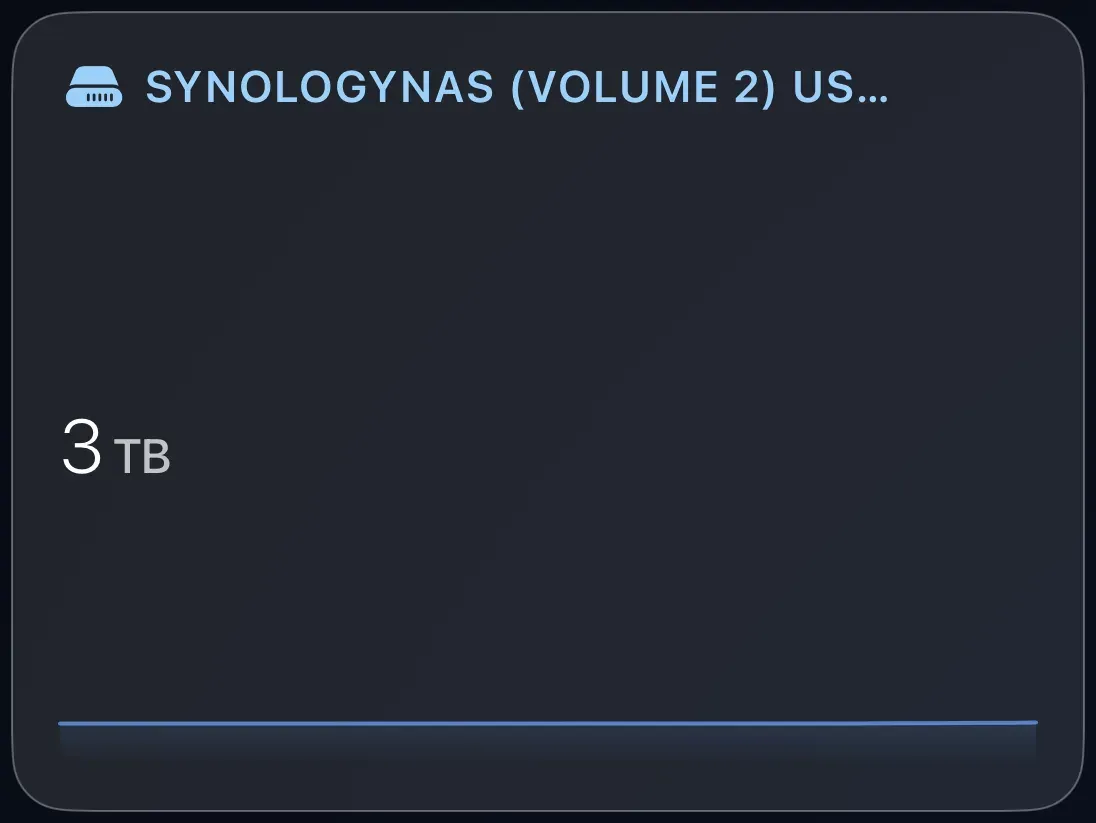
The amount used, the total, the free space and a bar showing the proportion, for one disk, volume or network drive that reports to Home Assistant.
Add the card
Every card is added the same way. If you have done this before, skip ahead.
- On the dashboard, move to a card you want to replace. Press and hold the center of the remote's pad for about a second. The card dims and a Modify button appears on it.
Hold the center of the pad on the card you want to change. - Press the center once to choose Modify. The Choose a card screen opens.

The Choose a card screen. The list down the left side narrows the cards by group. - On the left, choose Home, then move right and choose Storage. (You can also leave the list on All and scroll; it is in alphabetical order.)
- Pick the storage sensor. Only sensors that look like disk sizes are listed.
- Finish with the button at the foot of the setup screen, which is named for the card, such as Add Calendar Card. A card that needs no setup is added the moment you select it. You return to the dashboard with the new card in place.
Good to know
- Display only.
- Needs Home Assistant with a storage sensor: a Synology or QNAP integration, or the System Monitor integration for a computer. Apple Home has nothing of the kind.