Guides › Home cards
The Sensor card
FreeWorks with: Home Assistant, Apple HomeAbout 1 minute to set up
The current value from any sensor, temperature, humidity, power, a door open or closed, with a line showing how it has changed.
What it shows
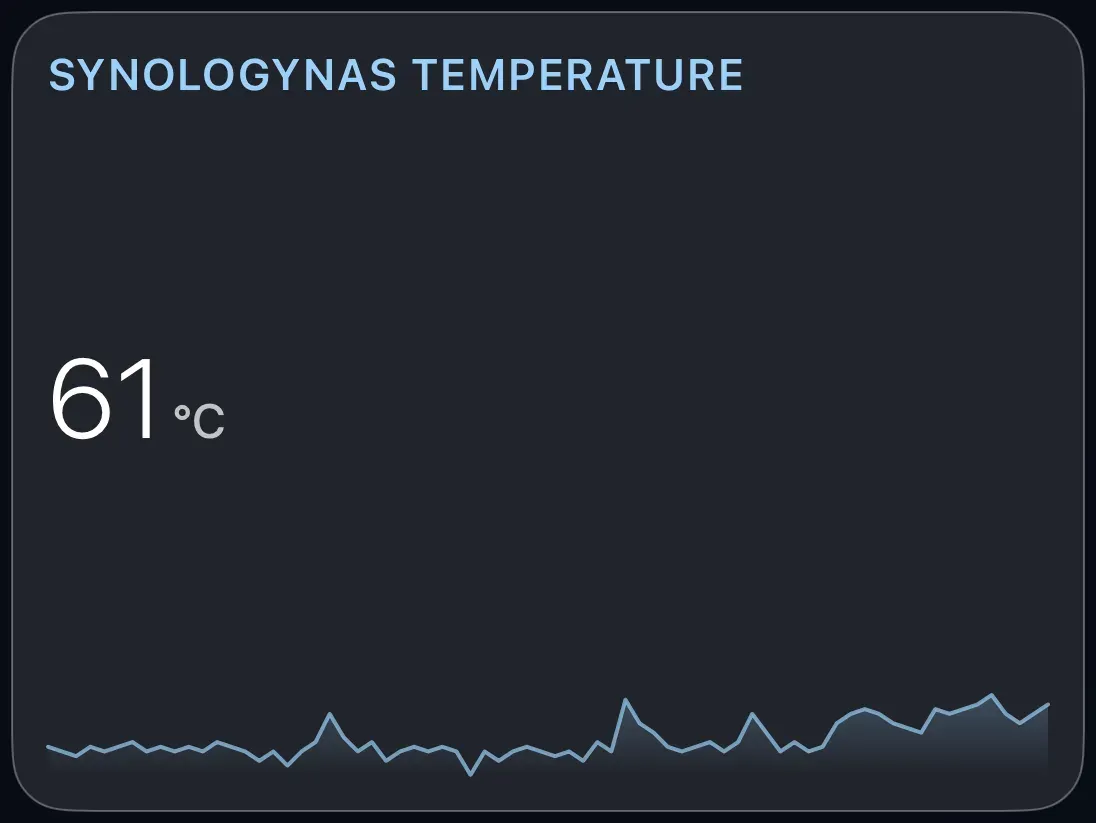
One reading in large type, with its unit, and a soft line underneath tracing how it has moved while Theatrium has been open. For on/off sensors, such as a door or motion sensor, it shows words instead: Open or Closed, Motion detected or Clear.
Add the card
Every card is added the same way. If you have done this before, skip ahead.
- On the dashboard, move to a card you want to replace. Press and hold the center of the remote's pad for about a second. The card dims and a Modify button appears on it.
Hold the center of the pad on the card you want to change. - Press the center once to choose Modify. The Choose a card screen opens.

The Choose a card screen. The list down the left side narrows the cards by group. - On the left, choose Home, then move right and choose Sensor. (You can also leave the list on All and scroll; it is in alphabetical order.)
- Every sensor your smart home knows is listed. There can be many; the search box at the top narrows it. Pick one.
- Finish with the button at the foot of the setup screen, which is named for the card, such as Add Calendar Card. A card that needs no setup is added the moment you select it. You return to the dashboard with the new card in place.
Good to know
- This is the all-purpose card. If there is no dedicated card for a thing you want to see, there is probably a sensor for it, and this card will show it.
- Add as many Sensor cards as you like, one reading each.
- The history line starts fresh each time Theatrium opens.