Guides › Your dashboard
Change a card
Swap any card on the dashboard for another one in under a minute, with a preview of exactly how it will look in that spot.
What this is
Every rectangle on your dashboard is a card, and every card can be swapped for a different one. The spot it sits in is called a panel. You choose the card, Theatrium asks any questions it needs (which lights, which calendar, which city), shows you a preview at the panel's real size, and puts it in place.
There are 51 cards to choose from, including Timers and Countdown, which are new. The six Plex cards appear once you have linked Plex. Nearly every card has its own guide on this site.
Step by step
- On the dashboard, move to the card you want to replace. Press and hold the center of the pad for about a second. The card dims a little and a Modify button appears on top of it.
Press and HOLD the center for a second - Press the center once to choose Modify. The Choose a card screen opens. The top-left corner names the panel you are changing, for example "WEATHER", and the small map at the bottom left shows which panel that is.
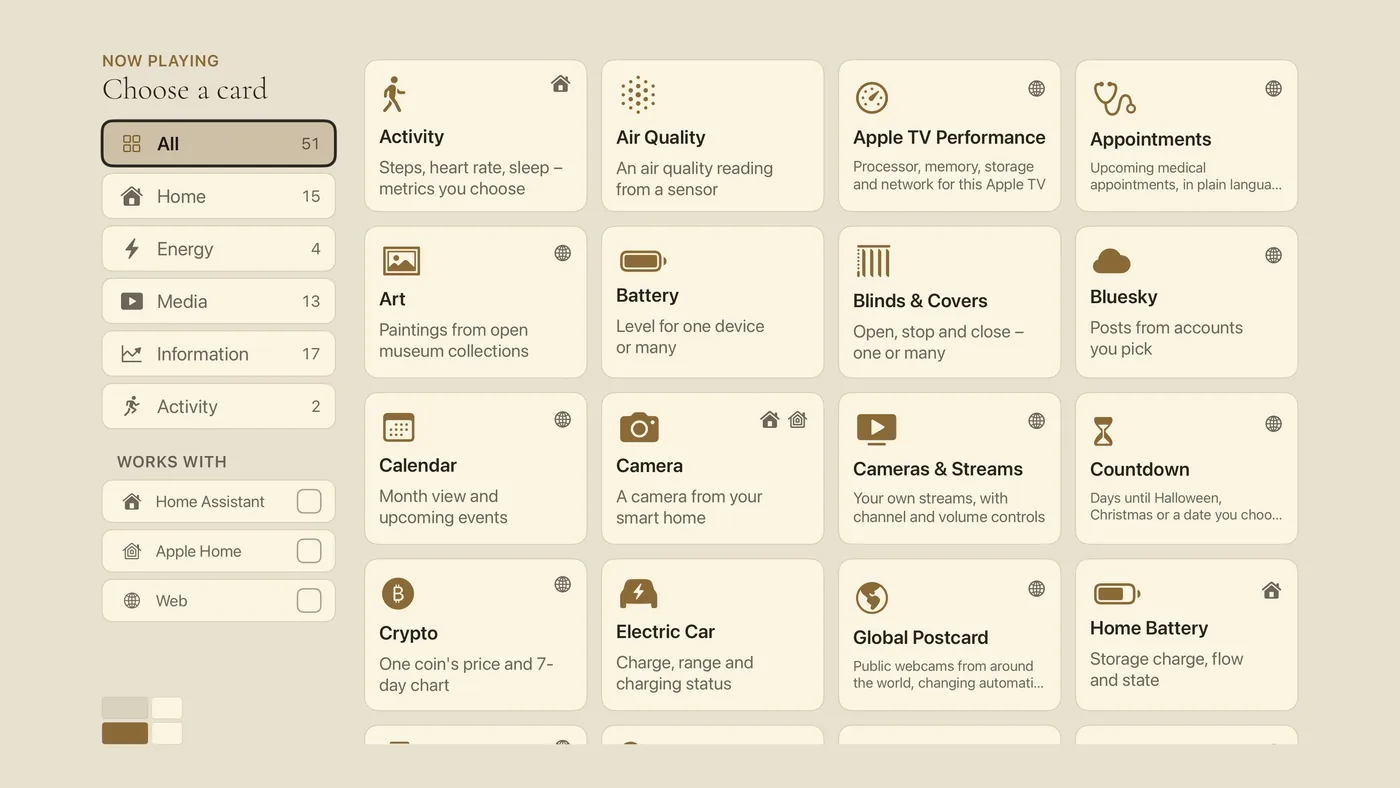
The Choose a card screen. Groups down the left, each with a count, and the Works with boxes below them. Cards on the right. The tiny map at the bottom left shows which panel you are filling. - Down the left side are groups: All, Home, Energy, Media, Information, Activity, each with a count of the cards in it. Move to one to narrow the list. Under Works with you can select Home Assistant, Apple Home or Web to see only the cards that work with what you have.
- Move right into the cards and highlight one. Small symbols in the corner of a tile tell you what it needs: a globe means the card needs no smart home, the Home Assistant and Apple Home marks (the same ones beside the Works with boxes) name the smart home a card works with, and a PRO mark means it needs Theatrium Pro. Press the center to choose it.
- The card's setup screen opens. Simple cards need nothing and go straight to a preview. Others ask a question, such as which lights to include or which town to show. Answer, and watch the preview on the right update.
- Choose Add to Dashboard. You are back on the dashboard with the new card in place.
Changing a card's settings later
Hold the center on the card again and choose Modify. The setup screen reopens with your earlier choices filled in. Change what you like and choose the button at the bottom, which now reads Save.
The other way in
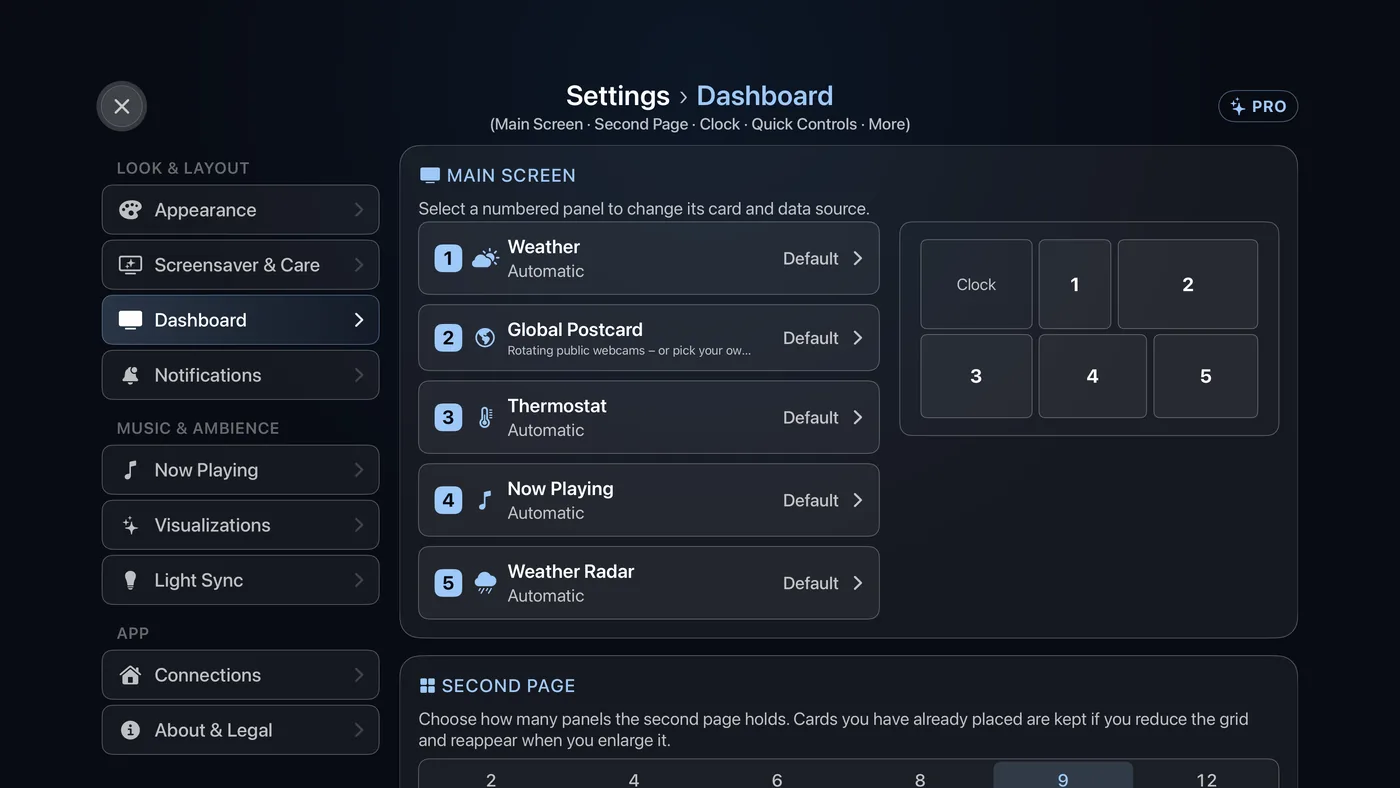
Settings › Dashboard › Main Screen lists every panel by number, with a small numbered map beside it. Select a row to change that panel. This view is handy when you want to see the whole layout at once, or when a card is hard to highlight.
Good to know
- Panels come in different shapes, and the chooser offers only the cards that fit the one you are filling. The small map at the bottom left of the chooser shows its shape. The clock has its own fixed place and is not a panel.
- A card that needs a smart home you do not have is still shown. If you pick it, the setup page tells you what it needs and offers Choose a Different Card.
- Nothing you do here changes your smart home. You are only choosing what the TV shows.