Guides › Your dashboard
Getting around the dashboard
The buttons along the top, how to open a card, how to reach the second page and the music room, and how to get back.
The screen at a glance
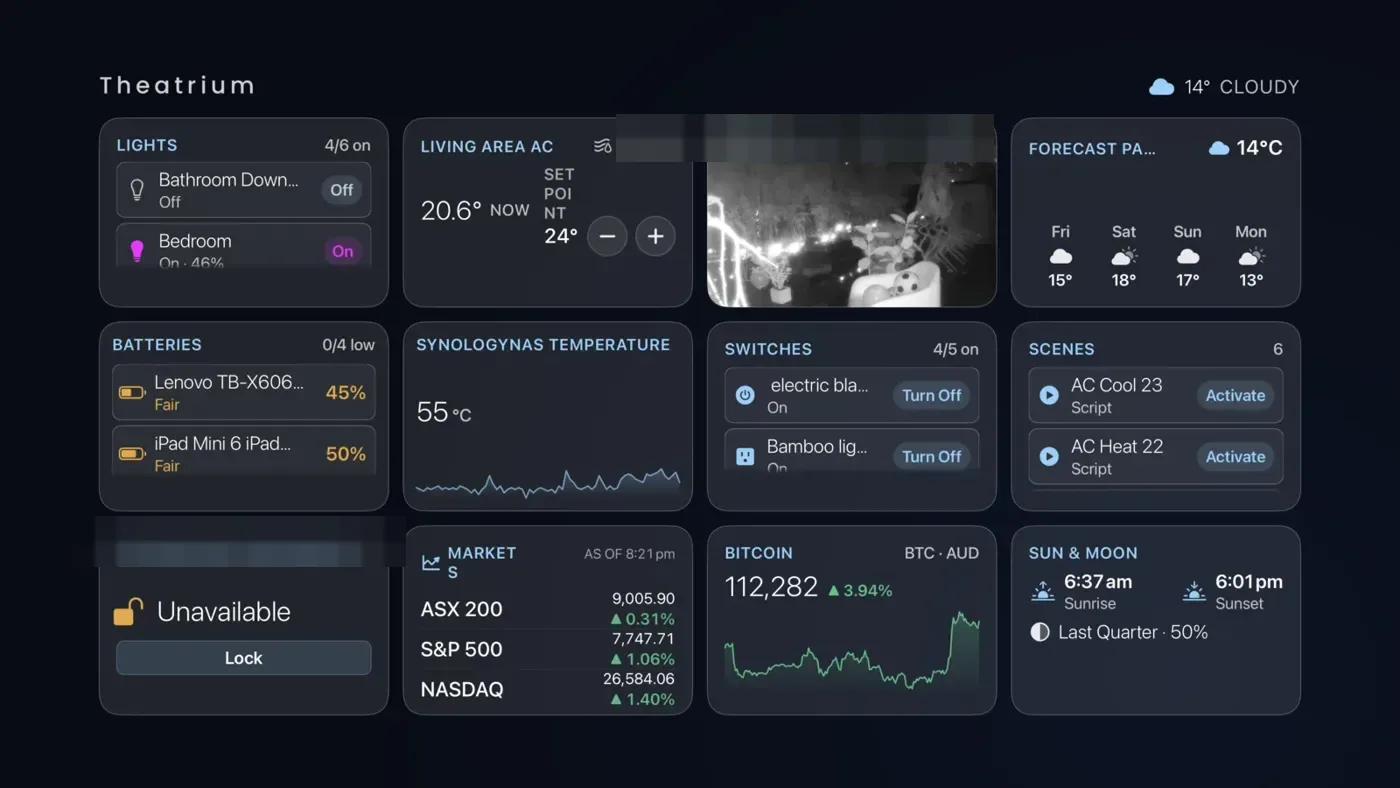
The dashboard is a grid of cards under a thin bar at the top. On the left of the bar is the Theatrium name (or your own title), and on the right a row of small round buttons. The buttons fade away when you have not touched the remote for a while, and the current weather takes their place; press any edge of the pad and the buttons come back. While you use the remote, faint lines at the left, bottom and right edges of the screen mark what is just off it: the Saved Dashboards drawer, the Quick Access bar and page two.
The buttons along the top
Move up to the top bar and along it. Each button shows a name when highlighted.
| Button | What it opens |
|---|---|
| Music note | Music Visualizers: the music room, with album art, moving visuals and room lights. See The music room. |
| Light bulb | Room Lights: turn light sync on or off and adjust it without leaving the dashboard. It shows when you have lights connected and music is playing, and stays while light sync is on. See Room Light Sync. |
| Half-filled circle | Light/Dark Mode: swaps the theme between its dark and light look. |
| Four squares | More Cards: the second dashboard page, with room for up to twelve more cards. Theatrium Pro; without it the button carries a small lock. See The second page. |
| Gear | Settings. |
Moving between cards
Most cards simply show information. Cards with controls, such as lights, the thermostat, locks and Now Playing, are entered: press the center of the pad once, and the highlight moves to the buttons inside the card. Move between them with the pad edges, press the center to use one, and press Back to leave the card.
The Quick Access bar
Press the bottom edge of the pad while on the bottom row of cards, and a strip appears at the foot of the screen with All Off and your favorite lights and scenes. It is the fastest way to turn the room off at night. See The Quick Access bar.
The second page
Press right past the last card on the top row, or choose the four-squares button, and the dashboard slides left to reveal page two. Press left past the first card, or Back, to return.
Saved dashboards
Press left past the first card in a row and a drawer slides in from the left edge, with your saved dashboards and a button to save the one you have. Press Back or right to close it. See Saved Dashboards.
Changing what is on the screen
Hold the center of the pad on any card and a Modify button appears. From there you can swap it for any other card. That is the subject of the next guide, Change a card.
Getting back from anywhere
Press Back. From the music room it returns to the dashboard. From Settings it closes Settings. From inside a card it steps out of the card. On the plain dashboard it clears the screen, and one more press leaves Theatrium for the Apple TV home screen. If a card has stopped responding, the gear in the top bar still opens Settings, and from Settings you can always get home.