Guides › Your dashboard
The second page
Theatrium Pro3 minute read
Up to twelve more panels one step to the right, for the cards you want but not all day.
What this is
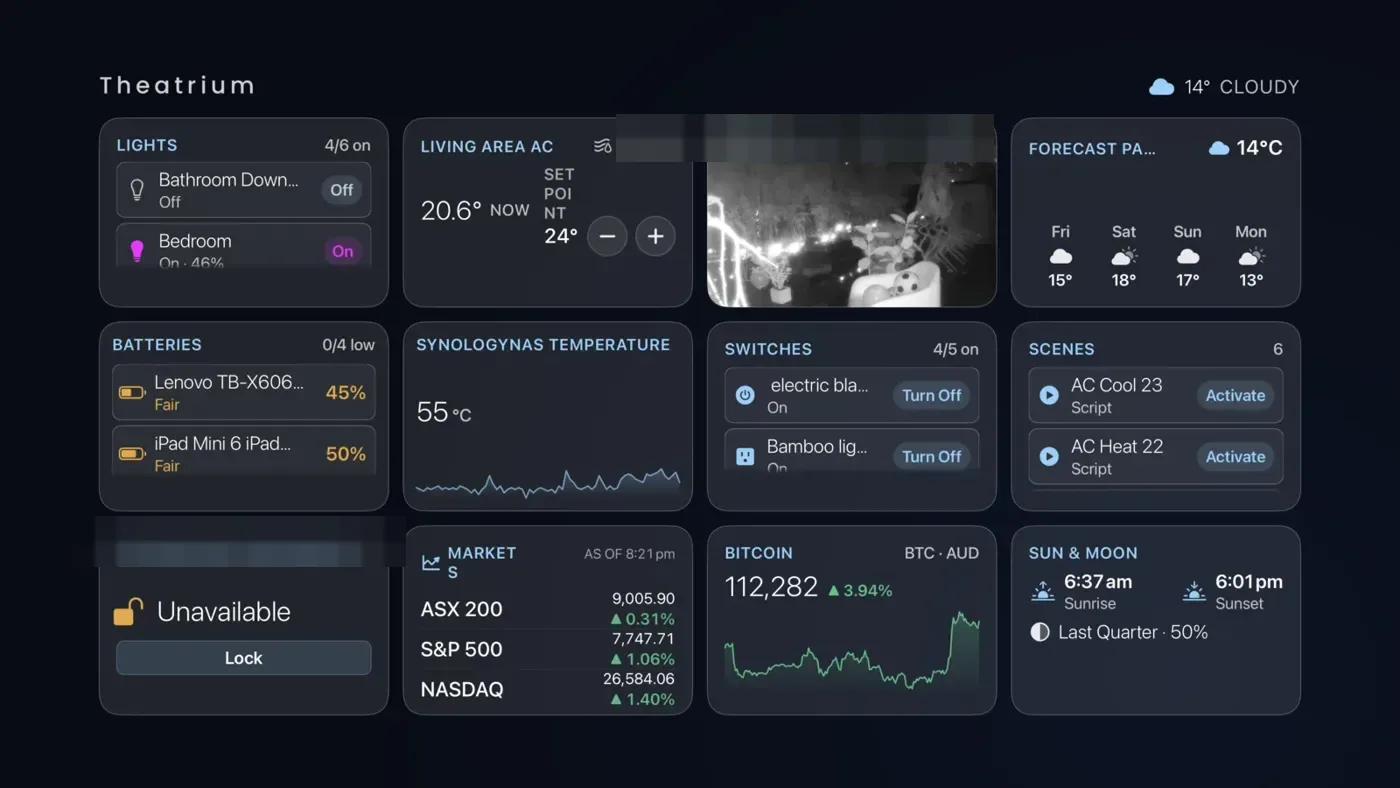
The main dashboard has a fixed number of panels, set by the theme. The second page adds a grid of up to twelve more, nine by default, in the same theme, one step to the right. It is the place for cards you like to check now and then: batteries, sensors, markets, the sun and moon.
Getting there and back
- Move to the top row of cards and press right until you are on the last one. Press right once more. The whole dashboard slides left and page two appears.
Press the RIGHT edge of the pad - Or move to the top bar and choose the four squares button, named More Cards.
- To return, press left past the first card, or press Back.
Press Back (the < button)
Filling it
- On page two, move to an empty panel. On a page with nothing on it, the first panel tells you to press and hold any panel to add a card.
- Press and hold the center of the pad. The Modify button appears; press the center again.
Press and HOLD the center for a second - Choose a card and answer its questions, just as on the main dashboard. See Change a card.
- To empty a panel again, choose Leave Empty, at the top right of the Choose a card screen.
How many panels
Settings › Dashboard › Second Page sets how many panels the page holds: 2, 4, 6, 8, 9 or 12, with 9 as the default. Shrink it and the cards you placed are kept; grow it again and they come back.