Guides › Information cards
The Clock card
The time and the date, in your theme’s own clock. It is the top left panel on Glass, Bento and Boardroom, and it can go in any panel.
What it shows
The time in large digits, drawn the way the theme you are using draws its clock, with a greeting above it and the date below. If you turn on world times, up to three other cities sit under the main time; Boardroom draws each as a small dial with its time and city. In a shorter panel the digits scale down and the card drops lines to keep the time readable: the greeting first, then the world times, then the date. With the Analog style, a wide panel puts the dial at the left with the greeting and the date beside it.
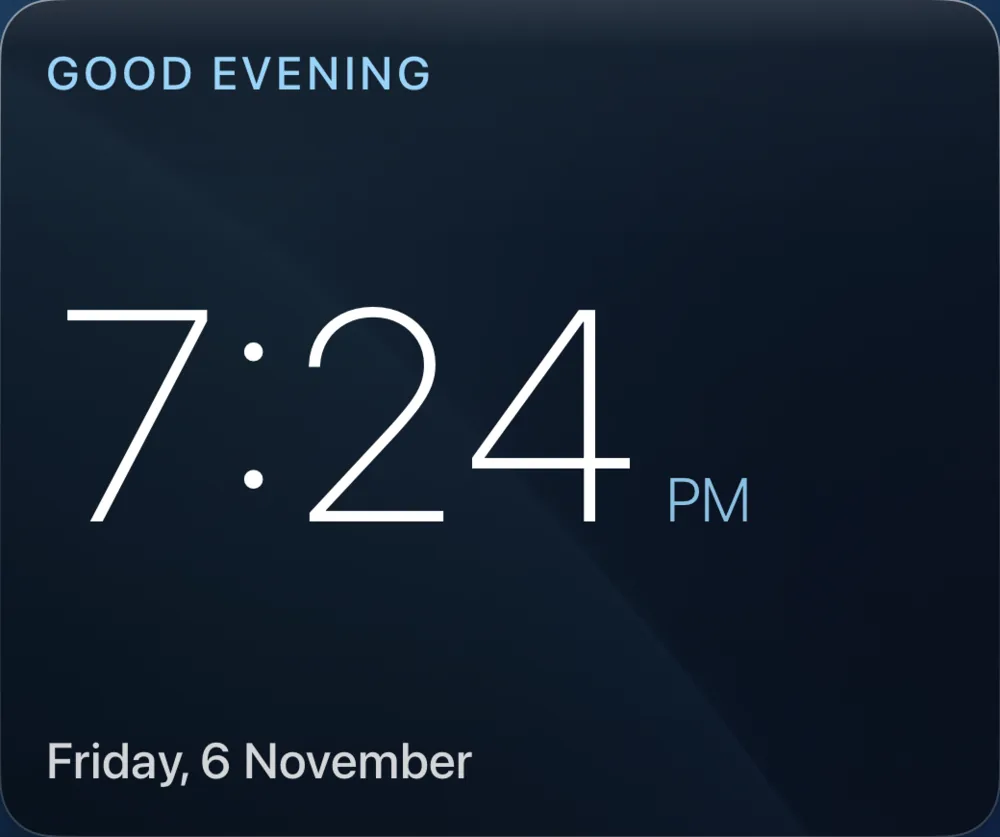
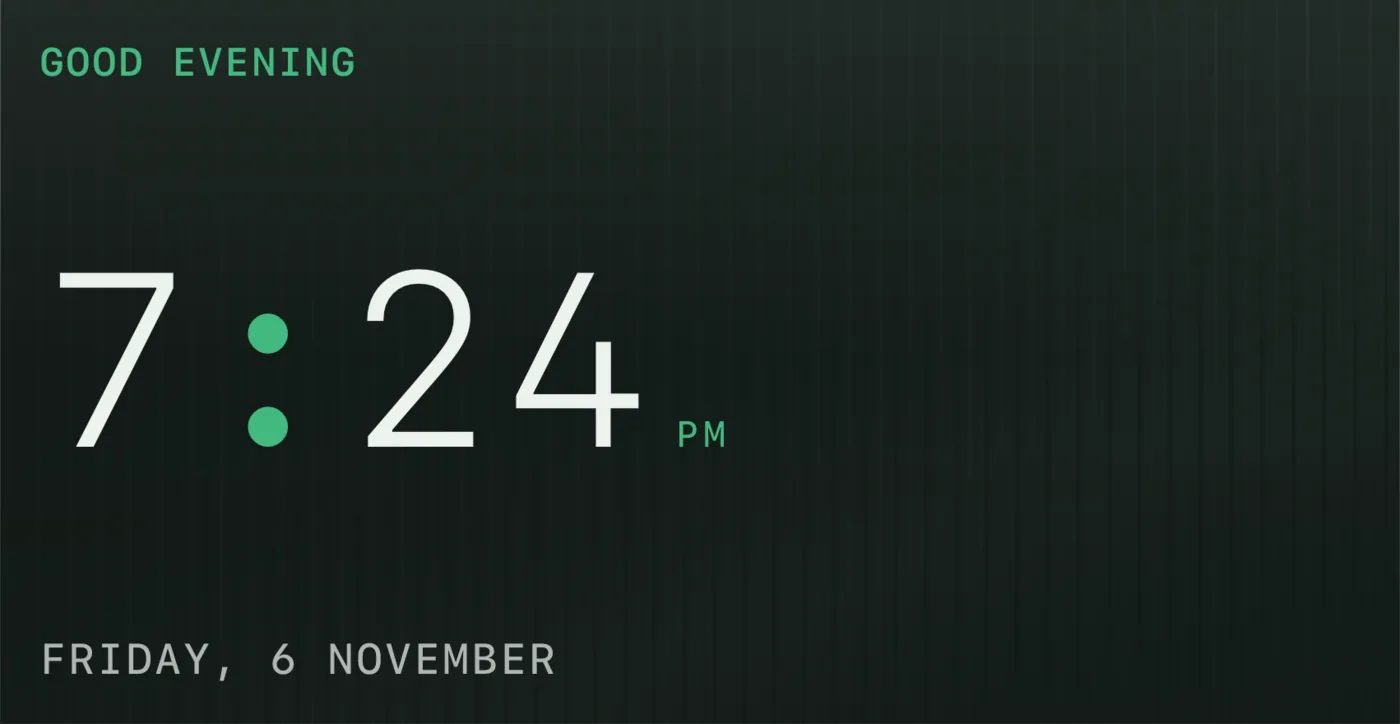
Where the clock is on each theme
| Theme | The clock |
|---|---|
| Glass, Bento, Boardroom | Panel 1, at the top left, is a Clock card. It starts as the theme’s own clock. You can put any other card in panel 1, and add a Clock card to any other panel. |
| Estate | The date and time are a fixed part of the page, so there is no clock panel to change. You can still add a Clock card to another panel or to the second page. |
| Classic | The time stays in the top bar. There is no clock panel, but you can add a Clock card to any panel. |
Add the card
Every card is added the same way. If you have done this before, skip ahead.
- On the dashboard, move to a card you want to replace. Press and hold the center of the remote's pad for about a second. The card dims and a Modify button appears on it.
Hold the center of the pad on the card you want to change. - Press the center once to choose Modify. The Choose a card screen opens.
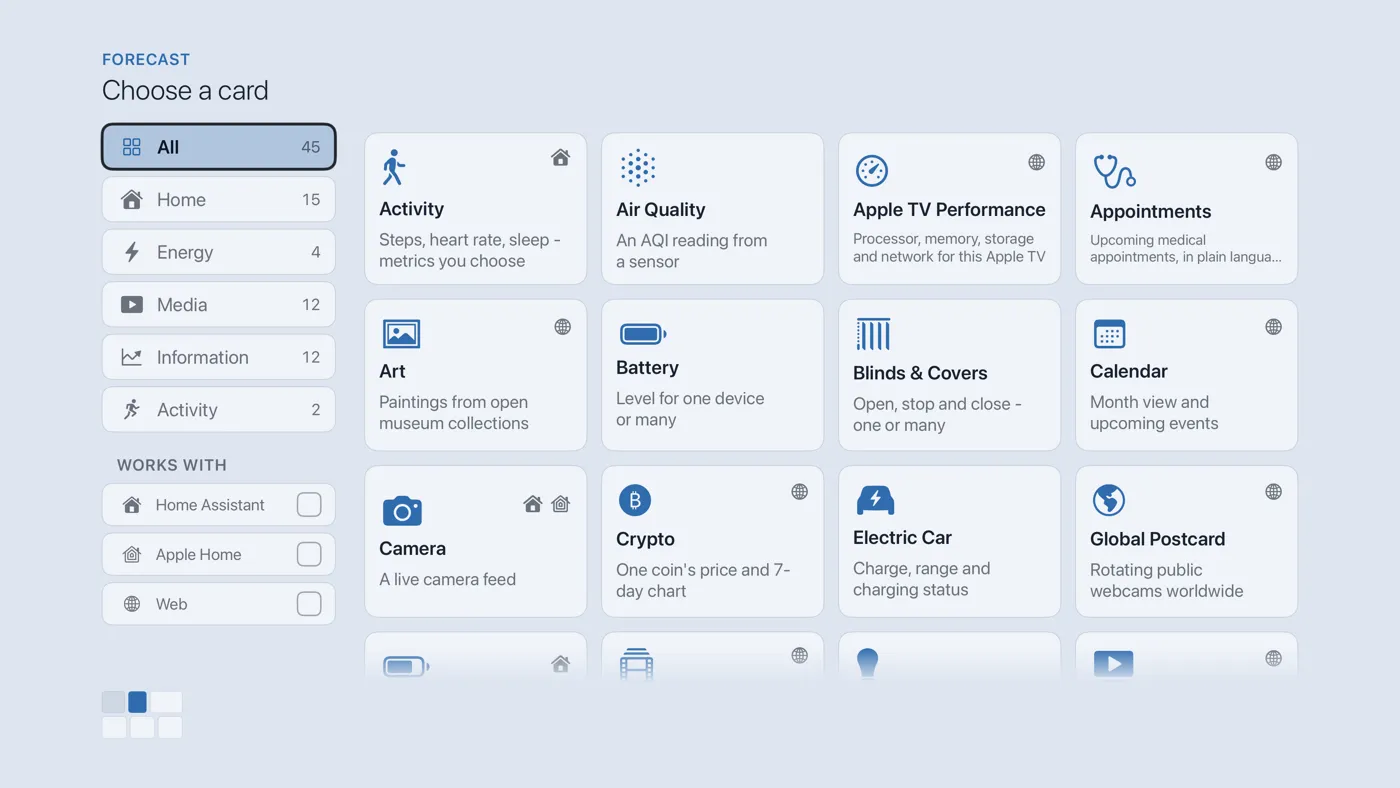
The Choose a card screen. The list down the left side narrows the cards by group. - On the left, choose Information, then move right and choose Clock. (You can also leave the list on All and scroll; it is in alphabetical order.)
- The Clock card needs no setup, so it is added the moment you select it. You return to the dashboard with the new card in place.
Bring back the theme’s own clock
If you have replaced the clock in panel 1, open that panel again and choose Clock, or choose Restore Stock Card at the top right of the picker. The panel returns to the theme’s own clock. The Clock card is free, so you can always put it back, on Glass as on any other theme.
Clock settings
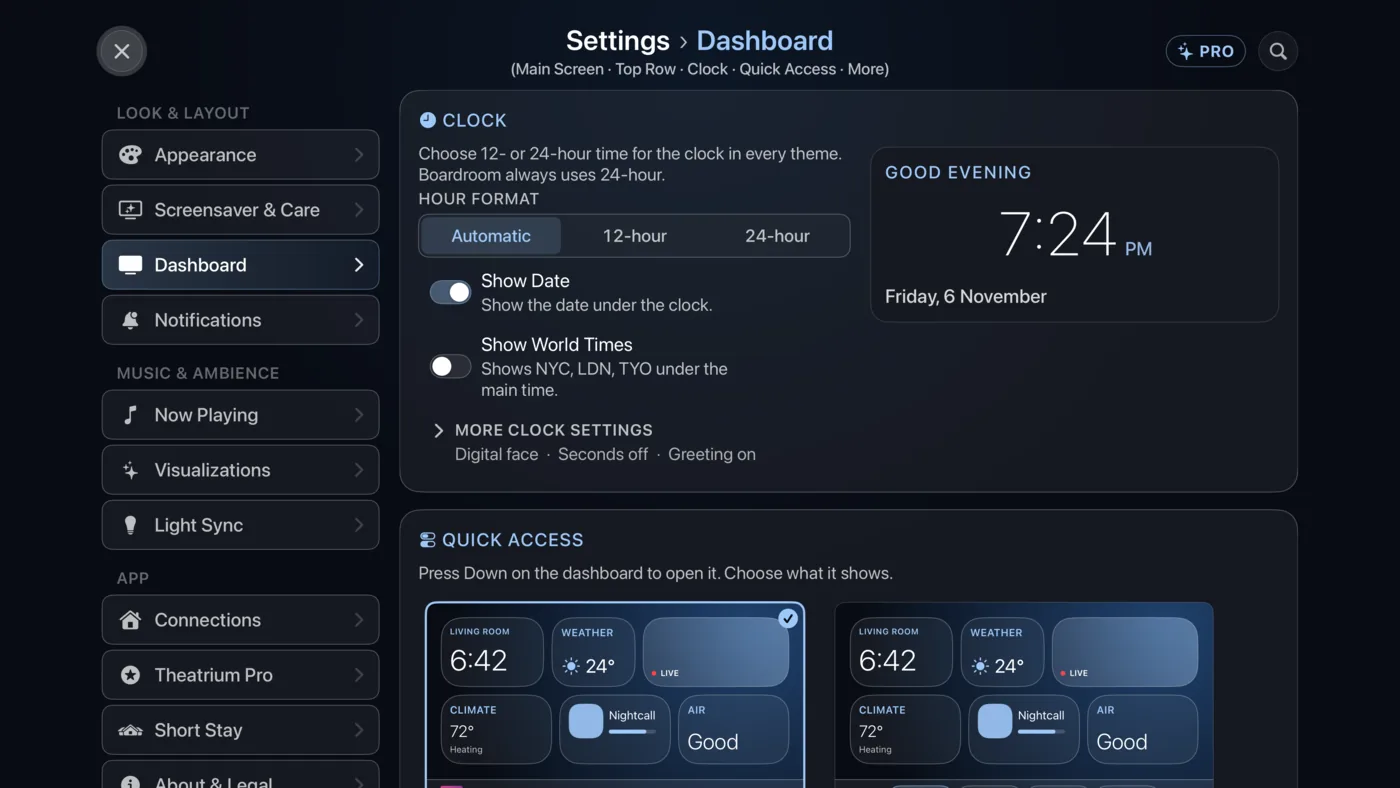
The card follows the clock settings in Settings › Dashboard › Clock, which also shape the clock on every dashboard:
- Hour Format: Automatic, 12-hour or 24-hour. Boardroom always shows 24-hour time, on its clock, its Top Row and its cards, and an analog clock has no hour format.
- Show Date and Show World Times.
- Behind More clock settings: Style (Digital or Analog), Show Seconds and Show Greeting, and the choice of cities.
Good to know
- Change the theme and every Clock card changes with it, because the card draws the clock of the theme on screen.
- There is nothing to press. The card shows the time and the date.