Guides › Your dashboard
Dashboard settings and the clock
Change any panel by number, set how many panels page two holds, shape the clock and the Quick Access bar, and put your own name at the top.
Where it is
Open Settings with the gear button in the top bar at the top right of the dashboard (press up to reach the top bar), then choose Dashboard. The main choices are in view; less-used ones sit behind closed rows named More clock settings, More quick control settings and More dashboard settings. Select a row to open it.
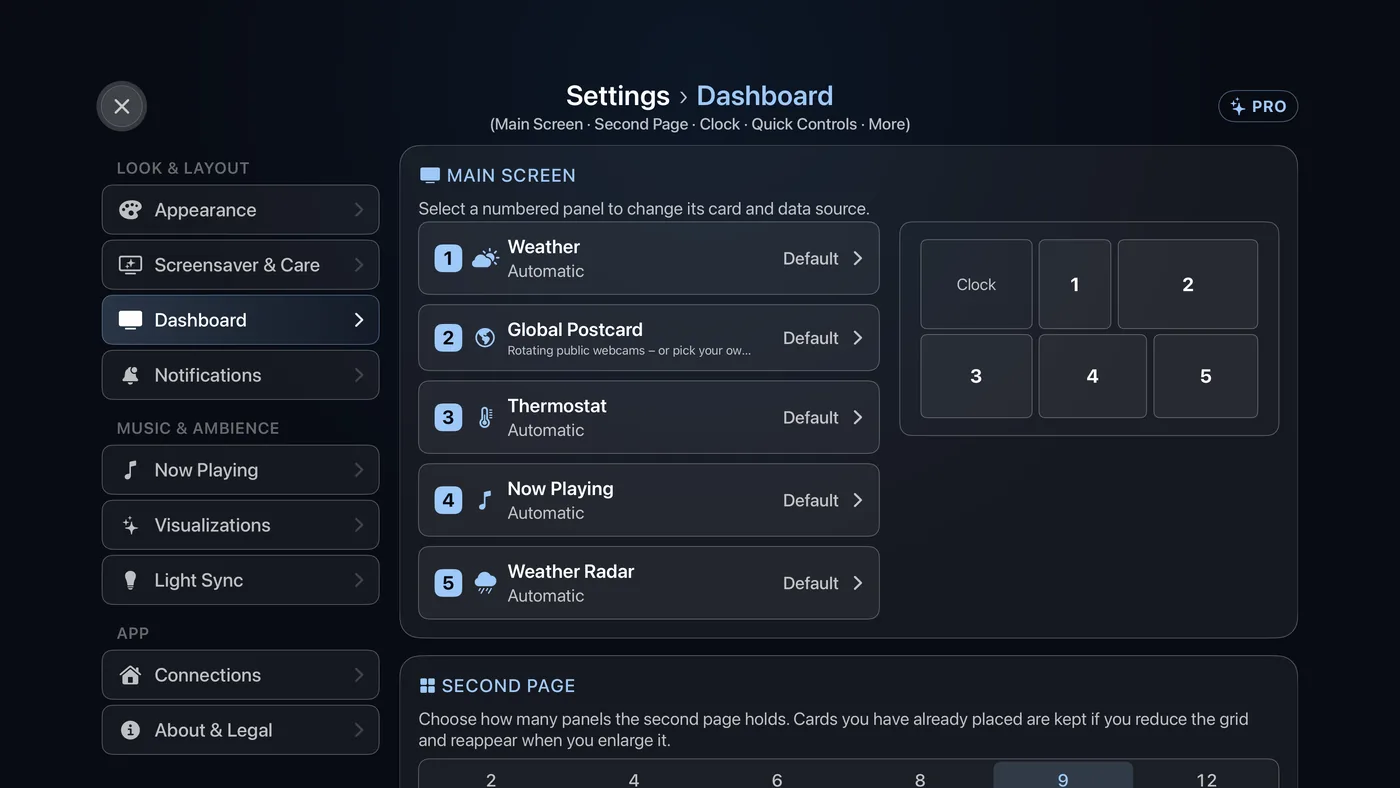
Main Screen
Every panel on the main dashboard, listed by number, with a small map beside it so you can see which is which. Select a row to change that card; the same Choose a card screen opens as when you hold the center on the dashboard. See Change a card.
Second Page
How many panels the second page holds: 2, 4, 6, 8, 9 or 12, with a line under the choice giving the grid, such as 3 columns by 3 rows. Cards you have placed are kept if you shrink the grid, and reappear when you grow it. See The second page.
Clock
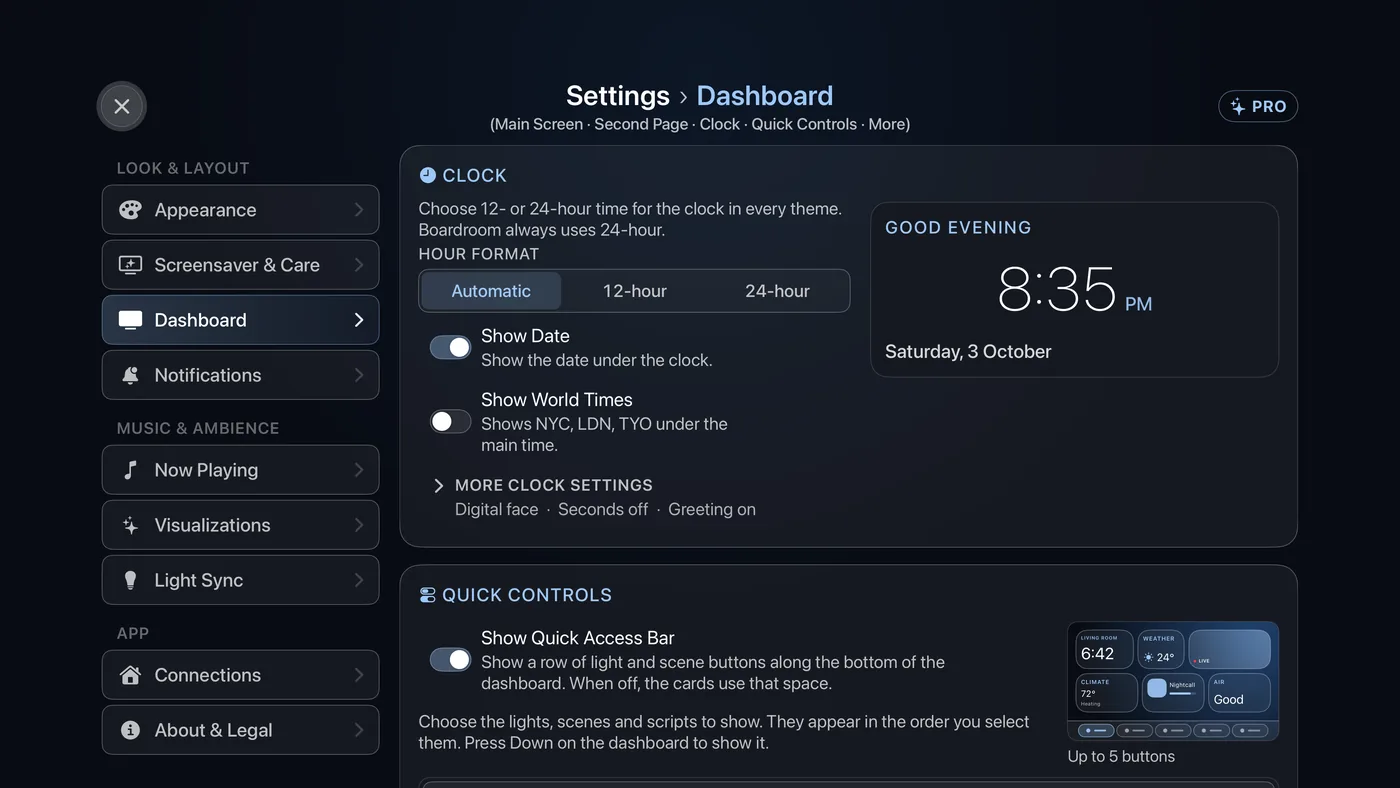
Three settings are in view:
- Hour Format: Automatic (follows the Apple TV's region), 12-hour or 24-hour. Boardroom stays 24-hour whatever you choose, and an analog clock has no hour format.
- Show Date: the date line under the clock.
- Show World Times: up to three cities under the main time. The row names the ones it will show.
The rest are behind More clock settings, which opens like this:
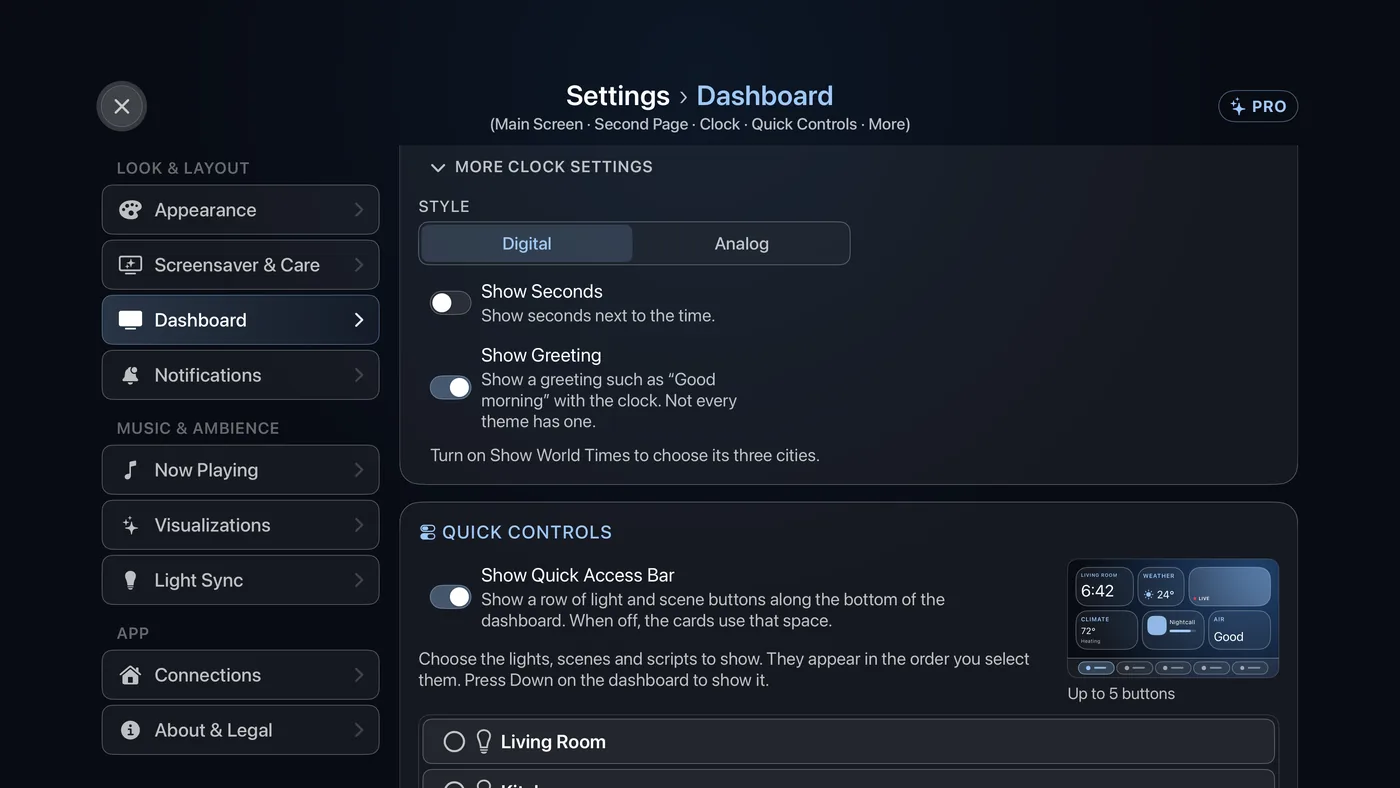
- Style: Digital or Analog.
- Show Seconds: a quiet seconds readout beside the time, or a ticking second hand on the analog face.
- Show Greeting: "Good morning" or "Good evening" with the clock, on themes that have one.
Choosing the cities
Until you choose, Theatrium suggests New York, London, Tokyo and Sydney, leaving out any that share your own time and showing the first three. To pick your own, turn on Show World Times, open More clock settings and select City 1, City 2 or City 3. A full-screen list of cities opens, grouped by region, with a check beside the one already in that slot. Choose a city and you are back on the clock settings.
- Once you choose, the row shows exactly your picks, in order, even a city on your own time.
- A city that is already in another slot swaps places with this one, so nothing shows twice.
- Leave Empty, at the top of the list, clears a slot you have filled. Use Suggested Cities goes back to the suggested row.
Quick Controls
The strip of lights, scenes and scripts along the bottom of the dashboard. Show Quick Access Bar turns it on or off, and a list below it lets you select what goes on it. More quick control settings, which appears while the bar is on, holds the Panel Style and the Maximum Quick Access Buttons. See The Quick Access bar.
More dashboard settings
- Dashboard Title: the name at the top left of every dashboard. Leave it blank for "Theatrium", or enter your family name, house name or company for a screen that is yours.
- Short Stay: the Guest welcome dashboard switch. Leave it off for a normal home dashboard. Turning it on adds a Short Stay section to Settings, where you set it up. It needs Theatrium Pro. See Short Stay.