Guides › Energy cards
The Electric Car card
Theatrium ProWorks with: Home Assistant, Apple Home, or a Tesla through TessieAbout 3 minutes to set up
Your car's charge, range and charging status, plus whether it is locked and the doors, windows and boot are shut.
What it shows
The car's battery percentage and range, whether it is charging or plugged in, and a list of its state: lock, charging, charger, windows, doors and boot. Which rows appear depends on what your car reports.
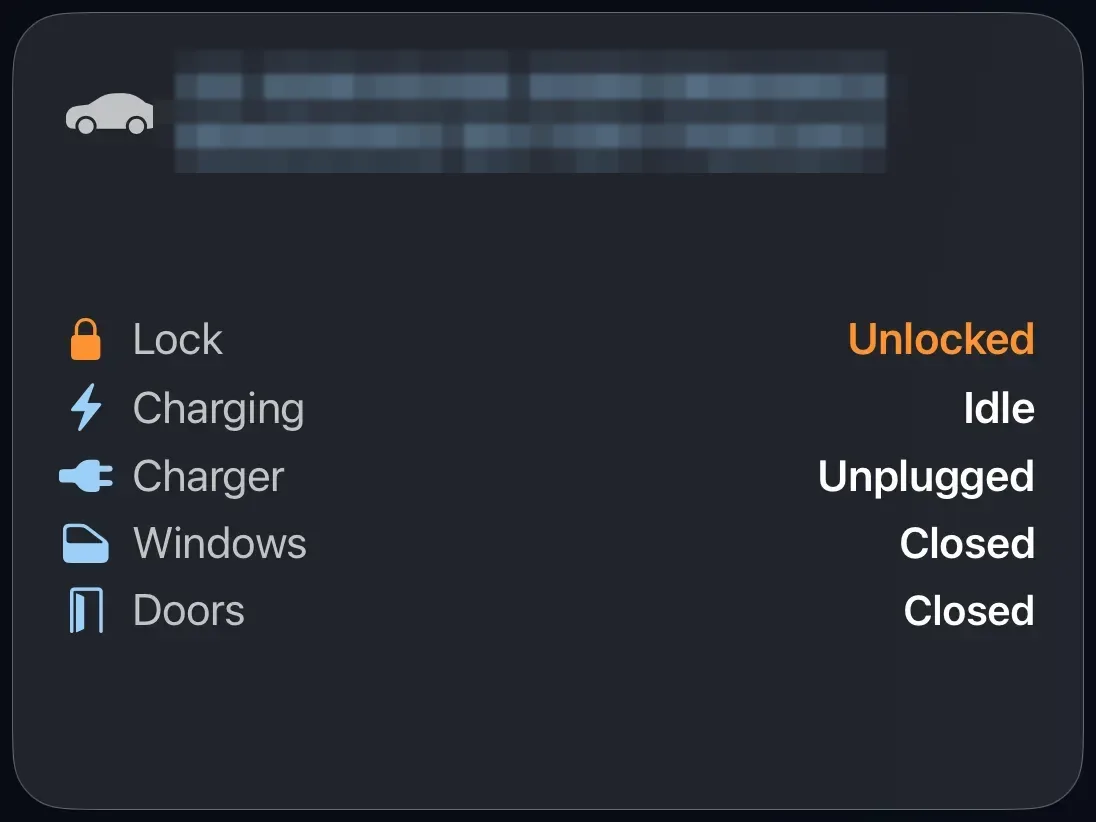
Two ways to connect a car
- Through your smart home. If your car's integration is in Home Assistant, or your car appears in Apple Home, Theatrium reads it from there.
- Tesla through Tessie. If you have a Tesla and a Tessie account, connect it under Settings › Connections › Vehicle (Tessie) by pasting your Tessie API token. This works on any Apple TV, even with no smart home, and shows a picture of your actual car in its own color.
Add the card
Every card is added the same way. If you have done this before, skip ahead.
- On the dashboard, move to a card you want to replace. Press and hold the center of the remote's pad for about a second. The card dims and a Modify button appears on it.
Hold the center of the pad on the card you want to change. - Press the center once to choose Modify. The Choose a card screen opens.

The Choose a card screen. The list down the left side narrows the cards by group. - On the left, choose Energy, then move right and choose Electric Car. (You can also leave the list on All and scroll; it is in alphabetical order.)
- The Choose your car's sensors screen lists a row for each thing the card can show: Battery, Range, Charging, Plugged in, Lock, Windows, Doors, Boot. Tick a row to show it. Each row is set to Auto, which finds the right sensor from the battery's own device; if Auto picks wrong, choose the row and pick the sensor yourself.
- Finish with the button at the foot of the setup screen, which is named for the card, such as Add Calendar Card. A card that needs no setup is added the moment you select it. You return to the dashboard with the new card in place.
Good to know
- Display only. Theatrium does not lock, unlock or start charging.
- Phones, watches and tablets are deliberately kept out of the car's sensor lists, so your iPhone's battery cannot be mistaken for the car's.
- The last row is called Boot or Trunk depending on your region.