Guides › Media cards
The Now Playing card
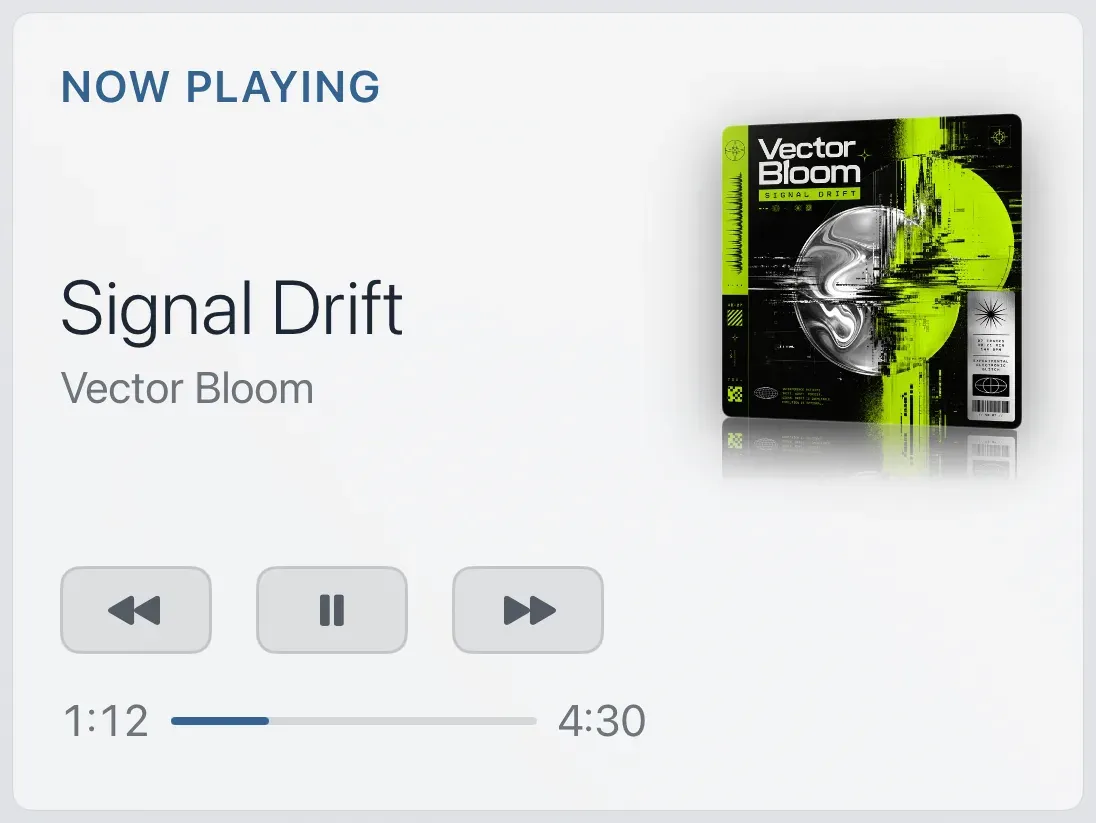
The song playing right now and its cover, with playback buttons where the source allows them, and two buttons that open album art and the visualizer. It follows whichever app or speaker the music comes from.
What it shows
The cover of the song that is playing, its title and artist, a progress line, and playback buttons: previous, pause or play, next. Beside them are two more, Album Art and Visualizer, which open the music room. On tall cards they sit on a row beneath. Sources that Theatrium cannot control from the TV, such as Last.fm, show just those two. On very small cards the two drop away before play and pause do. Where the music comes from is set once, in Settings › Now Playing, and this card follows it. See Where your music comes from.
Add the card
Every card is added the same way. If you have done this before, skip ahead.
- On the dashboard, move to a card you want to replace. Press and hold the center of the remote's pad for about a second. The card dims and a Modify button appears on it.
Hold the center of the pad on the card you want to change. - Press the center once to choose Modify. The Choose a card screen opens.
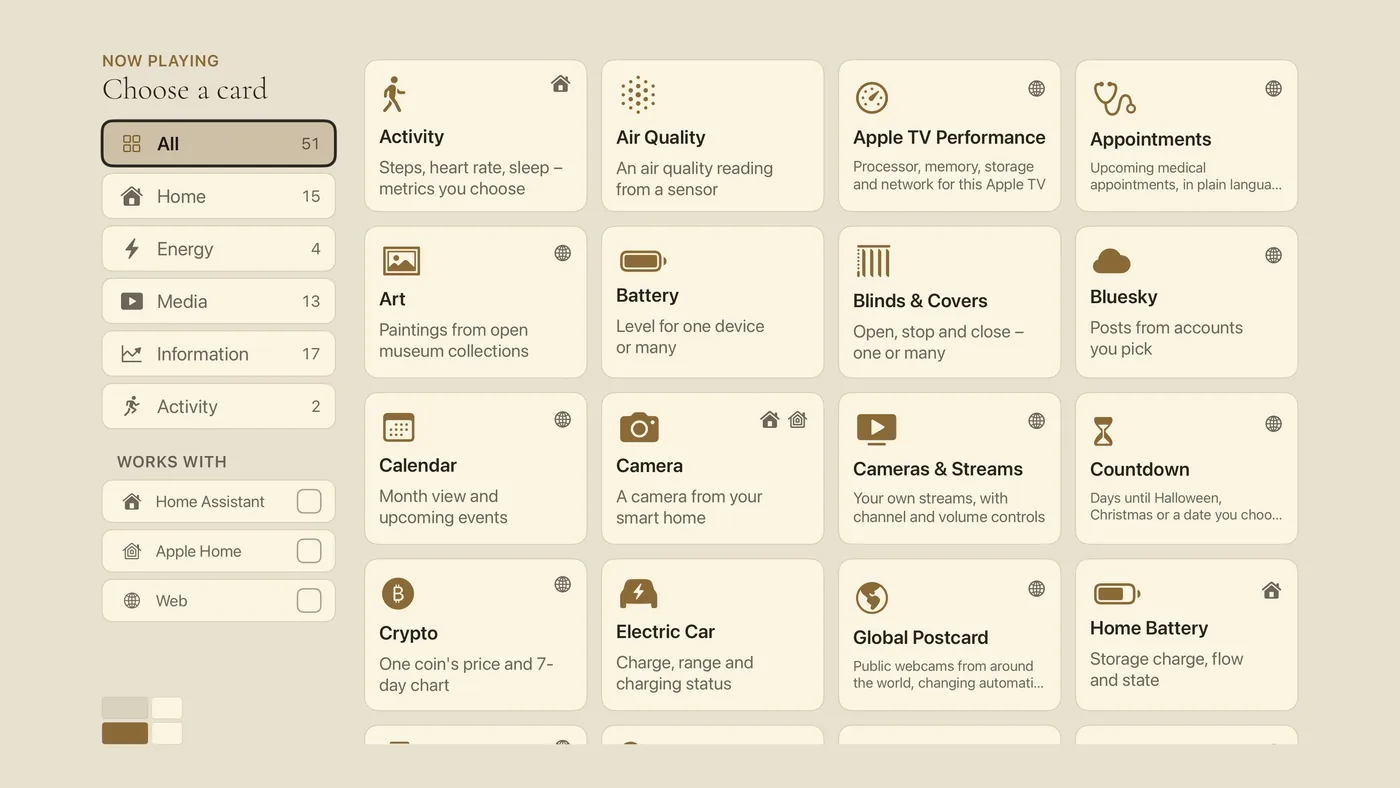
The Choose a card screen. The list down the left side narrows the cards by group. - On the left, choose Media, then move right and choose Now Playing. (You can also leave the list on All and scroll; it is in alphabetical order.)
- The setup screen, Where your music comes from, lists the sources. Choose one; it is the same choice as in Settings › Now Playing. On Home Assistant you can also choose which media player the card follows, or Automatic, which follows whichever one is playing. For any other source, the connection is set up in Settings › Now Playing.
- Finish with the Add to Dashboard button. You return to the dashboard with the new card in place.
Using it every day
- Move to the card and press the center to enter it. The first button is highlighted.
Press the center of the pad - Move left or right along the buttons — previous, pause or play, next, then Album Art and Visualizer — and press the center to use one. Album Art opens the music room on the album art view; Visualizer opens it straight on the moving visuals. Both appear while a song is playing.
- Press Back to leave the card. From the music room, Back returns you to the dashboard.