Guides › Energy cards
The Home Battery card
Theatrium ProWorks with: Home AssistantAbout 1 minute to set up
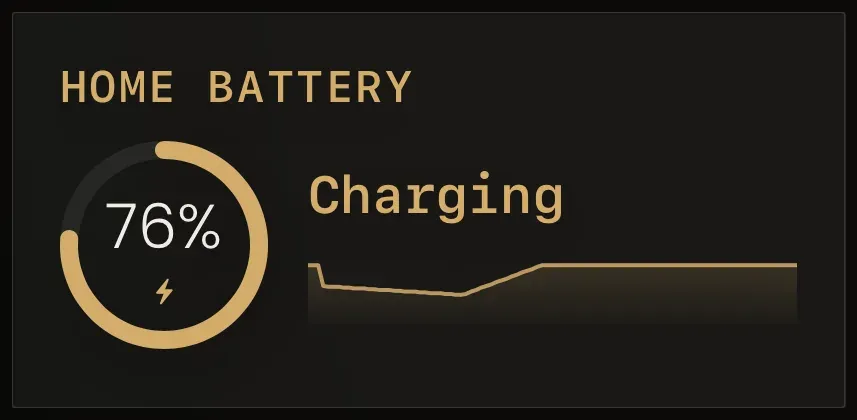
How full your home battery is, whether it is charging or delivering, and how much has gone in and out today.
What it shows
A ring showing the battery's charge as a percentage, the word Charging or Delivering, a small trace of the last while, and today's totals in and out.
Add the card
Every card is added the same way. If you have done this before, skip ahead.
- On the dashboard, move to a card you want to replace. Press and hold the center of the remote's pad for about a second. The card dims and a Modify button appears on it.
Hold the center of the pad on the card you want to change. - Press the center once to choose Modify. The Choose a card screen opens.

The Choose a card screen. The list down the left side narrows the cards by group. - On the left, choose Energy, then move right and choose Home Battery. (You can also leave the list on All and scroll; it is in alphabetical order.)
- Nothing to choose. Theatrium finds the battery's charge and power sensors in Home Assistant on its own.
- Finish with the button at the foot of the setup screen, which is named for the card, such as Add Calendar Card. A card that needs no setup is added the moment you select it. You return to the dashboard with the new card in place.
Good to know
- Display only. Pairs naturally with The Solar card.
- Needs Home Assistant with a home battery integration (Tesla Powerwall, sonnen, and others).