Guides › Energy cards
The Solar card
Theatrium ProWorks with: Home AssistantAbout 1 minute to set up
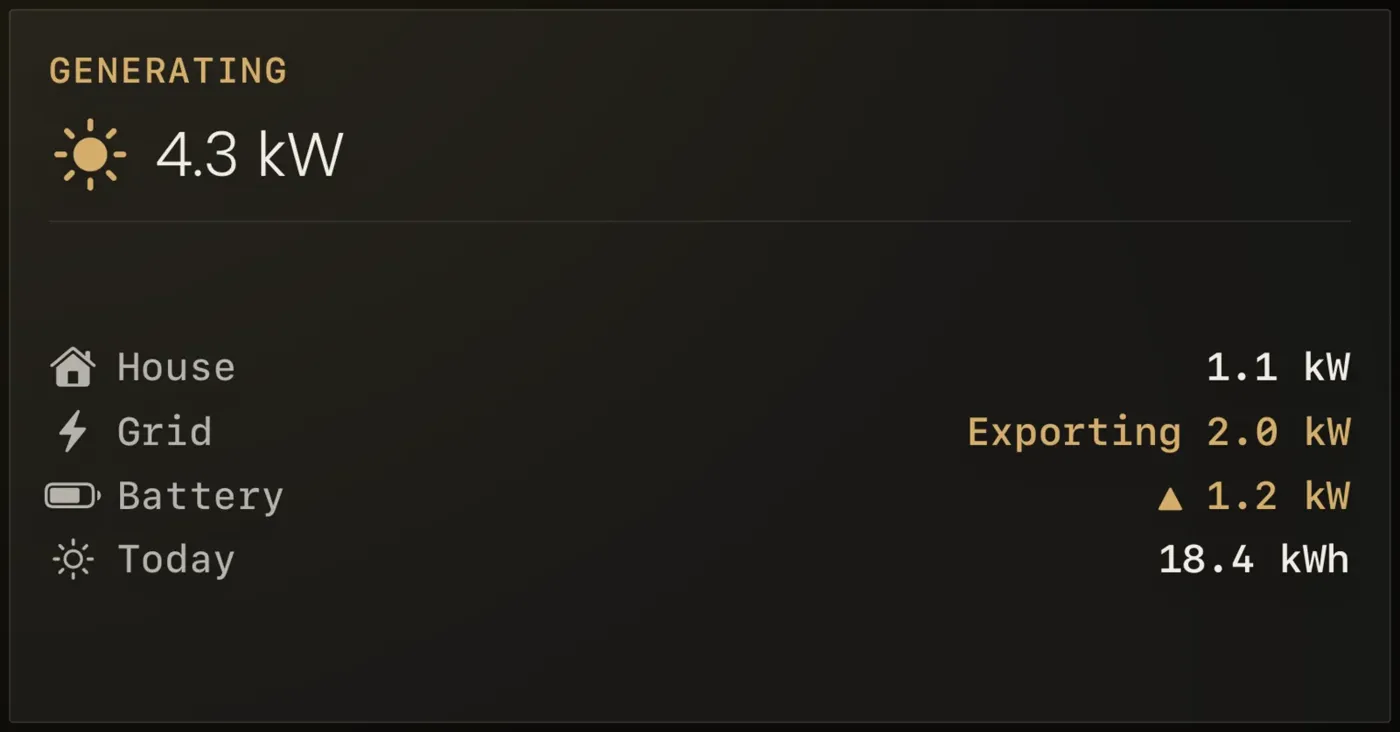
What your solar panels are making right now, what the house is using, what is going to or coming from the grid, and today's total.
What it shows
The power being generated this moment, in large type, then a short list: House (what you are using), Grid (importing or exporting, and how much), Battery if you have one, and Today (the energy made so far).
Add the card
Every card is added the same way. If you have done this before, skip ahead.
- On the dashboard, move to a card you want to replace. Press and hold the center of the remote's pad for about a second. The card dims and a Modify button appears on it.
Hold the center of the pad on the card you want to change. - Press the center once to choose Modify. The Choose a card screen opens.

The Choose a card screen. The list down the left side narrows the cards by group. - On the left, choose Energy, then move right and choose Solar. (You can also leave the list on All and scroll; it is in alphabetical order.)
- There is nothing to choose. Theatrium looks through Home Assistant for the solar, grid and house power sensors your inverter provides and uses them.
- Finish with the button at the foot of the setup screen, which is named for the card, such as Add Calendar Card. A card that needs no setup is added the moment you select it. You return to the dashboard with the new card in place.
Good to know
- Display only.
- Needs Home Assistant with an inverter or energy-meter integration (SolarEdge, Fronius, Enphase, Tesla and many others). Apple Home has no energy readings.
- At night the card reads "No production yet today" until the sun comes up.