Guides › Media cards
The Cameras & Streams card
Your own cameras and streams, on the dashboard: a nest camera, a ski slope, a beach cam, or a home camera through go2rtc. Add several and step between them like channels. New in 1.9; before then this was the Live Video card.
What it shows
Moving video from one stream at a time, filling the card, with the stream's name at the top left. If you add more than one, a small badge at the top right shows which channel you are on, such as 2 / 4, and LIVE when the stream is live. The card is silent until you ask for sound.
Unlike the Camera card, it does not need a smart home; it plays the links you give it. Accepted links are HLS (ending .m3u8), MJPEG and YouTube Live. Until you add a stream, the card plays a sample stream so you can see how it works.

Setting the streams
You can add streams when you put the card on the dashboard, or at any time in Settings. The list you set in Settings is the one every card plays unless a card has been given a list of its own on its setup screen.
- Open Settings (the gear at the top right of the dashboard) and choose Connections.
- Find Cameras & Streams and choose Add Streams (it reads Edit once you have some). The setup screen, Your cameras and streams, opens.
- Choose Add a stream. Give it a name if you like, then type or paste the link. RTSP links are not supported; a converter such as go2rtc can change them to a supported format. If your phone is nearby, tvOS offers to let you type the link there instead.
- Choose Test under a stream to see whether Theatrium can play it. A preview of the highlighted stream sits on the right. Move up, Move down and Remove arrange the list; you can keep up to twelve streams. Streams that go2rtc offers on your network appear under Found on your network, one press to add.
- Choose Save (it reads Save 3 streams when you have three), then press Back to return to the dashboard.
Add the card
Every card is added the same way. If you have done this before, skip ahead.
- On the dashboard, move to a card you want to replace. Press and hold the center of the remote's pad for about a second. The card dims and a Modify button appears on it.
Hold the center of the pad on the card you want to change. - Press the center once to choose Modify. The Choose a card screen opens.
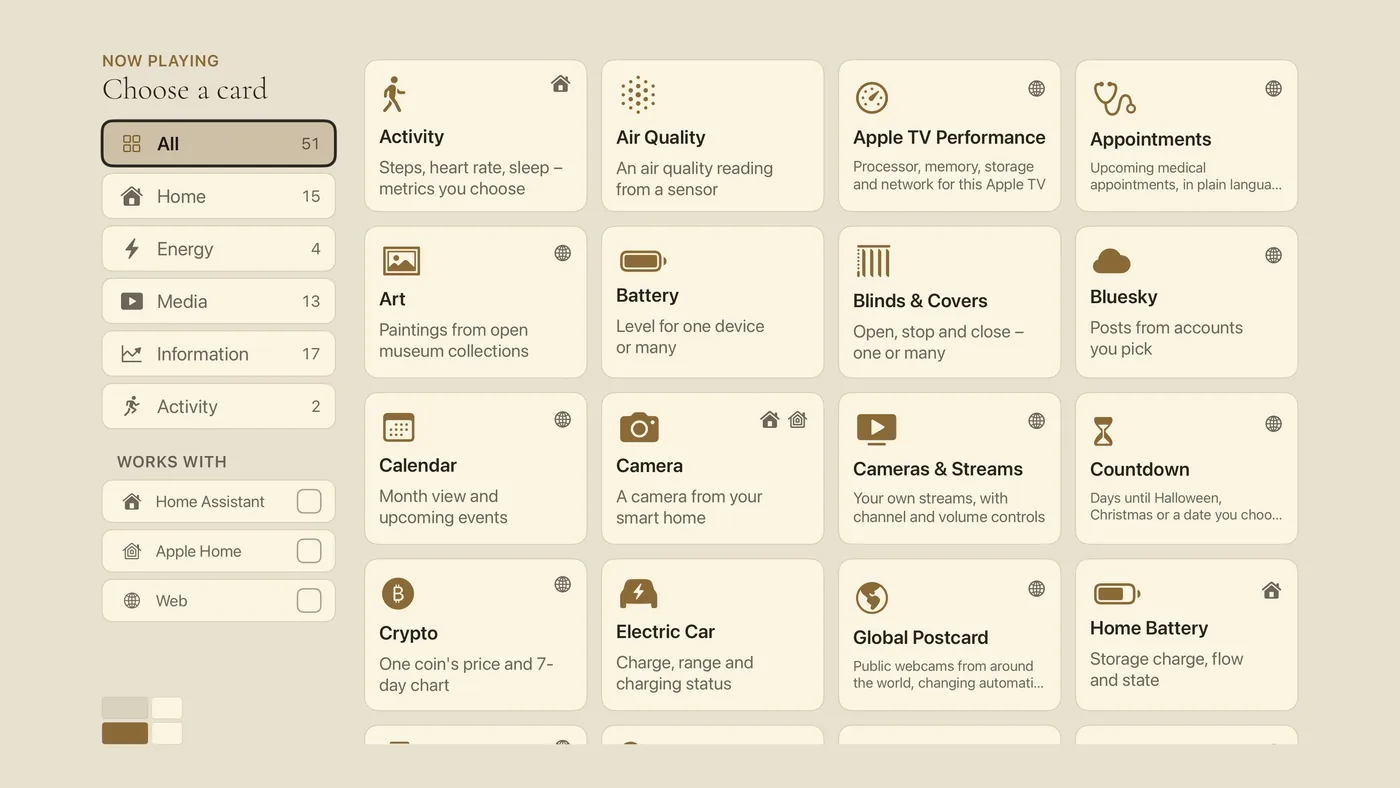
The Choose a card screen. The list down the left side narrows the cards by group. - On the left, choose Media, then move right and choose Cameras & Streams. (You can also leave the list on All and scroll; it is in alphabetical order.)
- The Your cameras and streams screen opens, starting from the streams you already have in Settings. Add or change streams as above.
- Finish with Save. You return to the dashboard with the new card in place.
Using it every day
- Move to the card and press the center to step inside. A row of buttons appears along the bottom: previous channel, pause or play, next channel, volume down, mute or unmute, volume up, and full screen.
- Use the channel buttons to step between your streams; after the last one it comes back round to the first. Theatrium remembers the channel you left it on.
- Choose the full screen button to fill the TV. Full screen plays with sound, and the controls fade after about ten seconds without a press; press any button to bring them back. Press Back to return to the card.
Good to know
- The buttons depend on the stream. Channel buttons need more than one stream. Pause works for HLS and MJPEG. Sound works for HLS and YouTube Live; an MJPEG camera has none.
- On a small card some buttons drop away so none are cut off: the channel buttons go first, then volume, then Pause. Full screen always stays.
- Streams can also be added and changed from the Theatrium app on your iPhone, under Settings › Accounts & Feeds.