Guides › Getting started
Meet Theatrium
What Theatrium is, what you need, and the handful of remote presses that run all of it.
What Theatrium is
Theatrium turns your Apple TV into a screen for your home. It shows the things you glance at anyway, the time, the weather, who is home, what music is playing, and lets you control the lights, heating and locks from the sofa. When music plays, it can fill the screen with moving pictures that follow the song and tint the room lights to match.
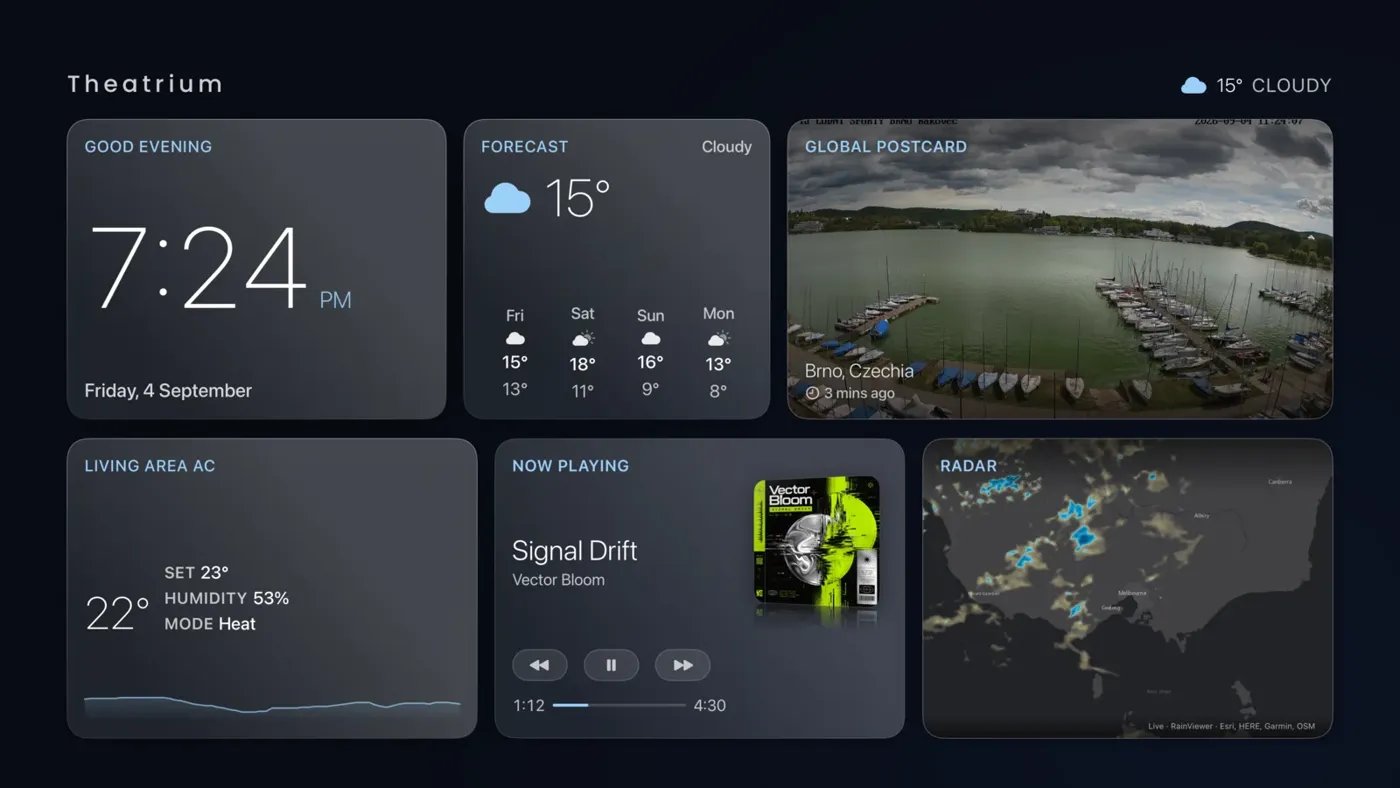
Three ideas cover almost everything in this app:
- Cards. Each rectangle on the screen is a card. Every card does one job, such as showing the weather or controlling one room's lights. You choose which cards you want and where they sit.
- Themes. The overall look, colors and layout. There are four themes. You can change theme any time without losing your cards.
- Music room. A separate screen for music: album art, moving visuals, and the room lights following along. You reach it with one button from the dashboard.
What you need
- An Apple TV (Apple TV HD or any Apple TV 4K) running tvOS 18 or later, with the Theatrium app installed from the App Store.
- The Apple TV remote. Everything in these guides is done with it. A phone is optional.
- Optionally, a smart home: Home Assistant or Apple Home. Without one, Theatrium still shows weather, news, calendars, webcams, markets and your music. See Using Theatrium with no smart home.
The remote, in plain words
The guides refer to five things on the remote. Here is what each means.
Free and Pro
Theatrium is free to use. Most cards, the Glass theme, every music source and the basic room-light sync are included. Theatrium Pro is a single purchase, not a subscription, that unlocks the other three themes, the full set of visuals, a second dashboard page, alerts on the TV, the specialist cards and the Halloween pack. Guides mark each feature Free or Theatrium Pro at the top so you know before you start. See Theatrium Pro.
Where to go next
If the app is not set up yet, start with First setup. If it is already running, Getting around the dashboard shows the buttons along the top and how to move between pages. Then pick any card from the index and follow its guide.