Guides › Information cards
The Precipitation card
Theatrium ProWorks with: Any Apple TVAbout 1 minute to set up
The chance of rain hour by hour, a labelled rainfall graph and a five-day outlook, for where you live.
What it shows
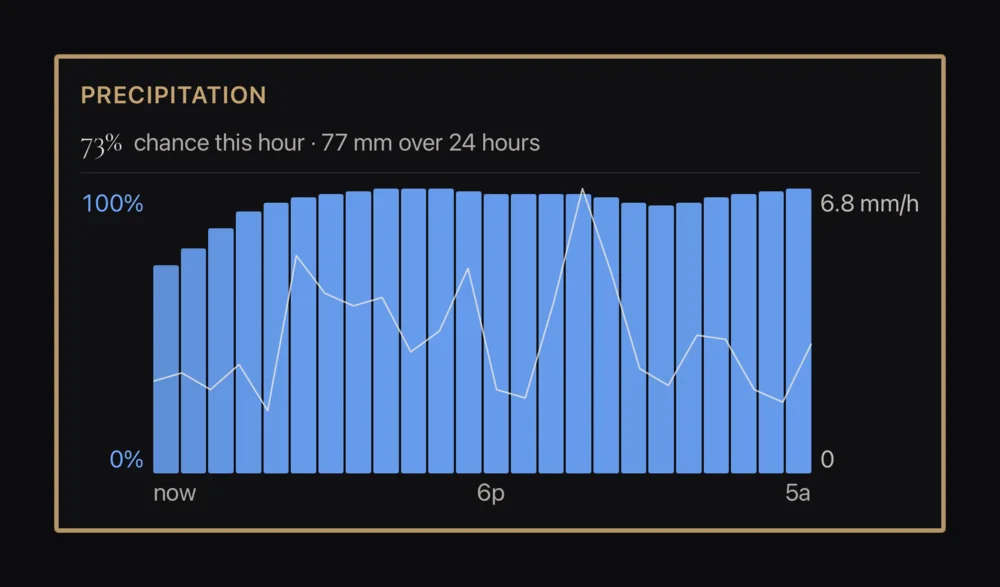
The chance of rain for the hours ahead as a row of bars, a line over them for how heavy it will be, and the total expected over the next day. Give it a taller tile and a five-day outlook joins the foot. On a small tile it keeps the graph and drops the labels rather than shrinking everything. It refreshes on its own every few minutes.
Add the card
Every card is added the same way. If you have done this before, skip ahead.
- On the dashboard, move to a card you want to replace. Press and hold the center of the remote's pad for about a second. The card dims and a Modify button appears on it.
Hold the center of the pad on the card you want to change. - Press the center once to choose Modify. The Choose a card screen opens.

The Choose a card screen. The list down the left side narrows the cards by group. - On the left, choose Information, then move right and choose Precipitation. (You can also leave the list on All and scroll; it is in alphabetical order.)
- Set it up: the card uses your own location by default, or pick a town for somewhere else. You can also choose whether to show the five-day outlook and the rainfall totals, so it suits the tile you give it.
- Finish with the button at the foot of the setup screen, which is named for the card, such as Add Calendar Card. A card that needs no setup is added the moment you select it. You return to the dashboard with the new card in place.
Good to know
- Display only. The forecast comes from your Home Assistant weather, or, when you don't use Home Assistant for weather, from Theatrium's own forecast for your location.
- If it shows the wrong place, set your location in Settings › Connections › Location.
- It shares its data with the Weather card, so the chance of rain in both always agrees.