Guides › Information cards
The Weather Radar card
FreeWorks with: Any Apple TVAbout 1 minute to set up
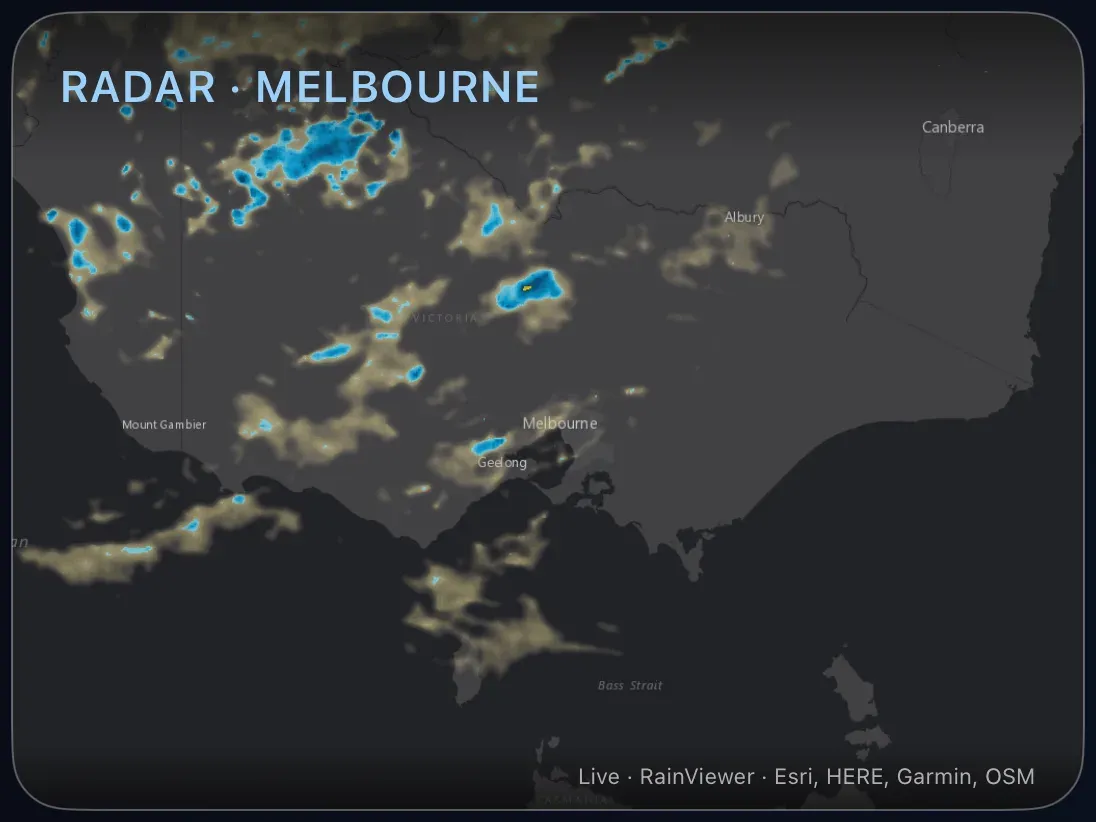
A live rain map centered on your home, so you can see the shower coming before it arrives.
What it shows
A map with rain drawn over it in color, refreshed every few minutes from the RainViewer service. Light rain is pale; heavy rain is bright.
Add the card
Every card is added the same way. If you have done this before, skip ahead.
- On the dashboard, move to a card you want to replace. Press and hold the center of the remote's pad for about a second. The card dims and a Modify button appears on it.
Hold the center of the pad on the card you want to change. - Press the center once to choose Modify. The Choose a card screen opens.

The Choose a card screen. The list down the left side narrows the cards by group. - On the left, choose Information, then move right and choose Weather Radar. (You can also leave the list on All and scroll; it is in alphabetical order.)
- Choose the area: leave it on your own location, or pick a town for a radar somewhere else, a holiday house, where the children live. Then choose how far the map reaches: Close, City, Region or Wide, each labelled with roughly how many kilometres or miles it spans.
- Finish with the button at the foot of the setup screen, which is named for the card, such as Add Calendar Card. A card that needs no setup is added the moment you select it. You return to the dashboard with the new card in place.
Good to know
- Display only. Add a second Radar card for a second place.
- If the map is centered on the wrong town, set your location in Settings › Connections › Location.
- "Radar · Location not set" means Theatrium does not yet know where you are. Pick a place in the card's setup, or set the location in Settings.