Guides › Home cards
The Thermostat card
FreeWorks with: Home Assistant, Apple HomeAbout 2 minutes to set up
See the room temperature, nudge the setting up or down, and change between heating, cooling and off.
What it shows
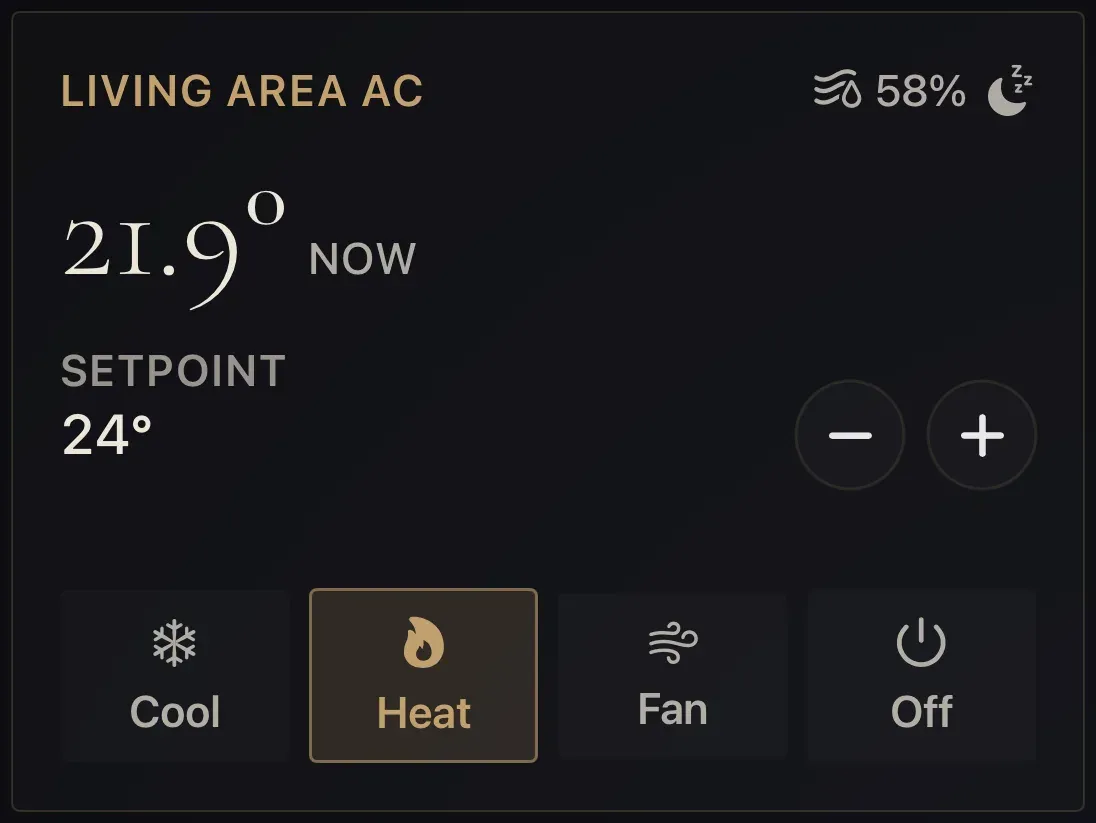
The current temperature in large type, the temperature the unit is set to, humidity where the unit reports it, and the mode it is in. Under that, either a row of mode buttons (Cool, Heat, Fan, Off and so on, depending on the unit) or a line showing how the temperature has moved.
Add the card
Every card is added the same way. If you have done this before, skip ahead.
- On the dashboard, move to a card you want to replace. Press and hold the center of the remote's pad for about a second. The card dims and a Modify button appears on it.
Hold the center of the pad on the card you want to change. - Press the center once to choose Modify. The Choose a card screen opens.

The Choose a card screen. The list down the left side narrows the cards by group. - On the left, choose Home, then move right and choose Thermostat. (You can also leave the list on All and scroll; it is in alphabetical order.)
- Pick the thermostat or air conditioner from the list. Then choose what to show under the temperature: Mode controls (the buttons) or a Temperature plot (the line).
- Finish with the button at the foot of the setup screen, which is named for the card, such as Add Calendar Card. A card that needs no setup is added the moment you select it. You return to the dashboard with the new card in place.
Using it every day
- Move to the card and press the center. The minus button is highlighted.
Press the center of the pad - Press the center on minus or plus to move the set temperature one step. The unit follows after a moment.
- Move down to the mode row and press the center on Cool, Heat, Fan or Off. The highlighted mode shows which is running.
- Press Back to leave the card.
Press Back (the < button)