Guides › Home cards
The Light card
FreeWorks with: Home Assistant, Apple HomeAbout 2 minutes to set up
Turn one light or a whole room on and off from the sofa, and set brightness and color on lights that allow it.
What it shows
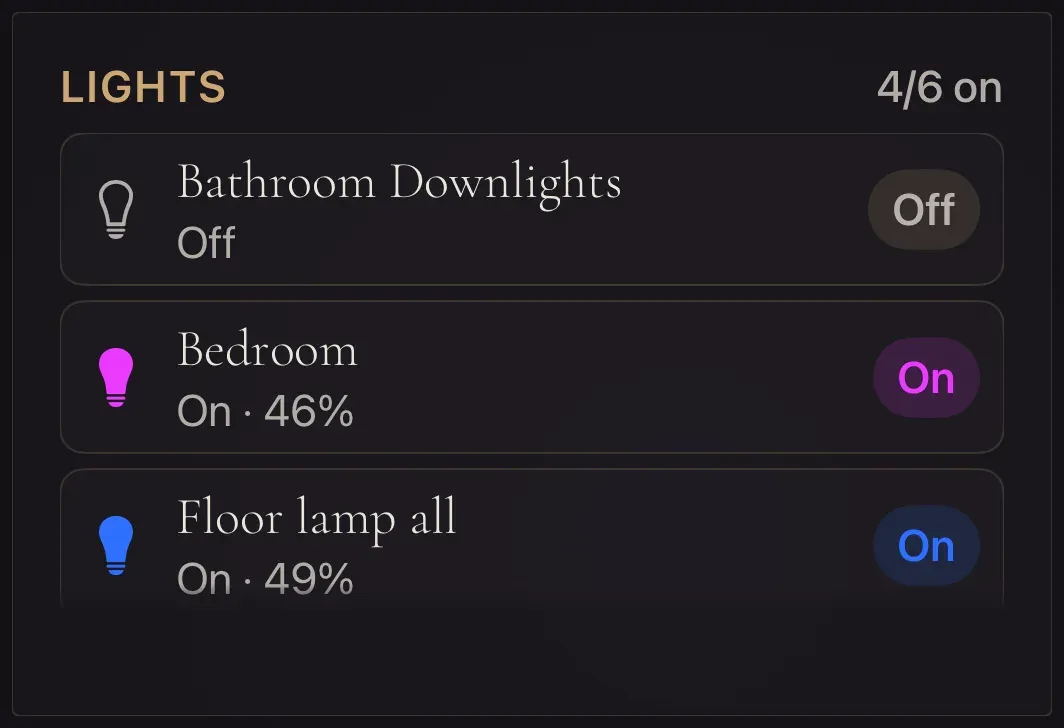
One light, or up to eight. With one light the card shows its name, whether it is on, and controls for brightness, white tone and color if the bulb can do those things. With several lights it becomes a list, each with an On or Off button, and a count in the corner such as "4/6 on".
Add the card
Every card is added the same way. If you have done this before, skip ahead.
- On the dashboard, move to a card you want to replace. Press and hold the center of the remote's pad for about a second. The card dims and a Modify button appears on it.
Hold the center of the pad on the card you want to change. - Press the center once to choose Modify. The Choose a card screen opens.
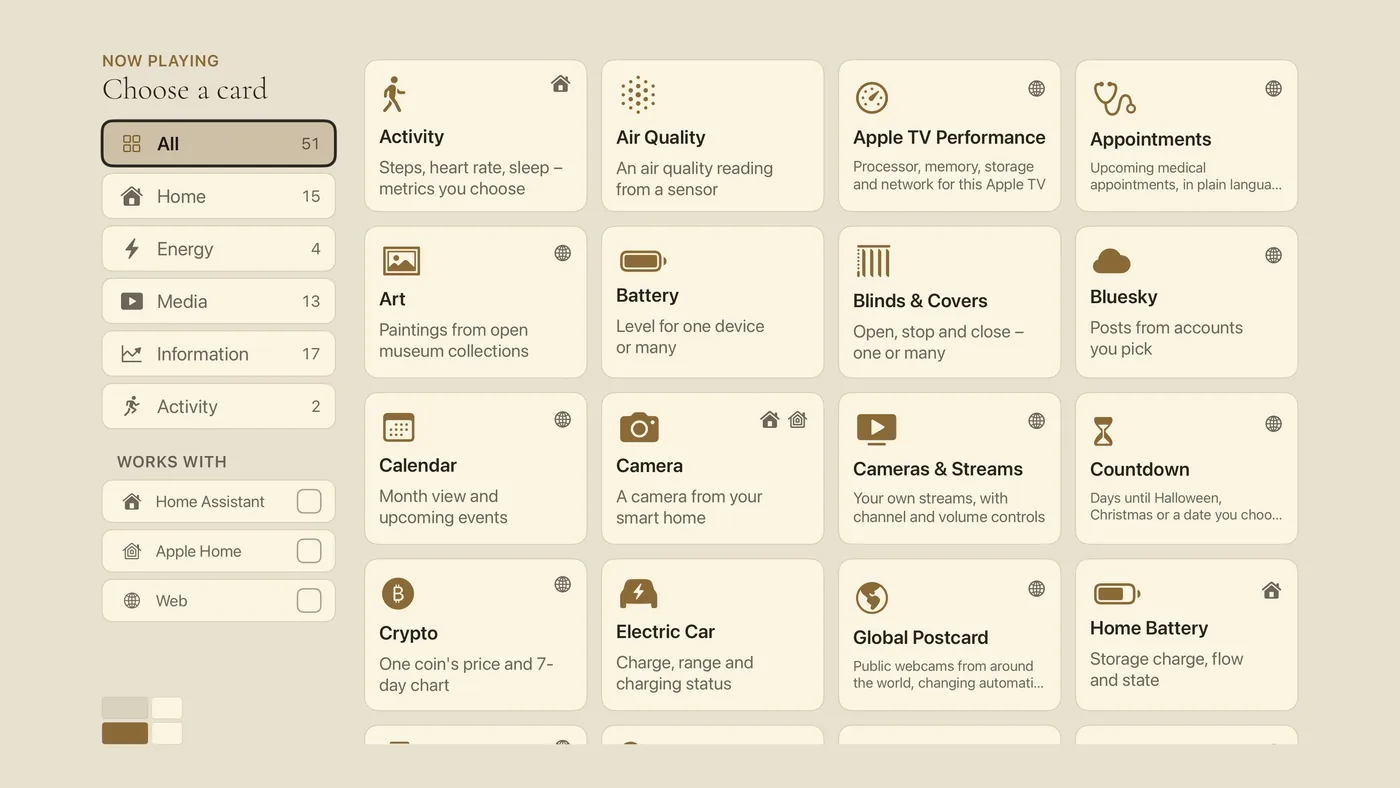
The Choose a card screen. The list down the left side narrows the cards by group. - On the left, choose Home, then move right and choose Light. (You can also leave the list on All and scroll; it is in alphabetical order.)
- A list of every light your smart home knows appears, headed Lights. Select between one and eight, in the order you want them. Rooms and light groups you already have are listed too, so selecting "Living Room" controls the whole room as one.
- Finish with the Done button at the top right. You return to the dashboard with the new card in place.
Using it every day
- Move to the Light card and press the center of the pad. You are now inside the card and the first light's button is highlighted.
Press the center of the pad - Move up and down between lights. Press the center on a light's On or Off button to switch it.
- With a single light that is on, extra rows appear under its name: Brightness (20% to 100%), White (Warm, Neutral, Cool) and, for color bulbs, a row of color swatches. Move to one and press the center.
- Press Back to leave the card.
Press Back (the < button)