Guides › Your screen
The Top Shelf
About 1 minute to set up
Put Theatrium in the top row of the Apple TV home screen and the shelf above it shows today's weather, your next appointment, what is playing and more, before you even open the app.
What this is
On the Apple TV home screen, whichever app sits highlighted in the top row gets a wide strip above it. Apple calls it the Top Shelf. Theatrium fills its strip with live tiles drawn in your theme's colors. Which tiles appear depends on what you use:
- A note when something at home needs a look: a door or window open, a lock undone, or lights still on late at night.
- The song that is playing.
- Your next appointment, from the calendar on your Appointments card, and what is on today, from your calendar.
- Today's weather: the high and low, and the days ahead when your weather source gives a forecast.
- Tiles from the cards on your dashboard: Global Postcard, Now Playing (the last song played), Sun & Moon (sunrise, sunset and daylight), Markets, Air Quality, Electric Car, Activity (your steps), Who's Home, Solar, Home Battery, Battery, Plex Top Charts, Plex Player, Art and Photo Album.
- A tile with your dashboard's name, which is always there.
The shelf holds up to eight tiles.
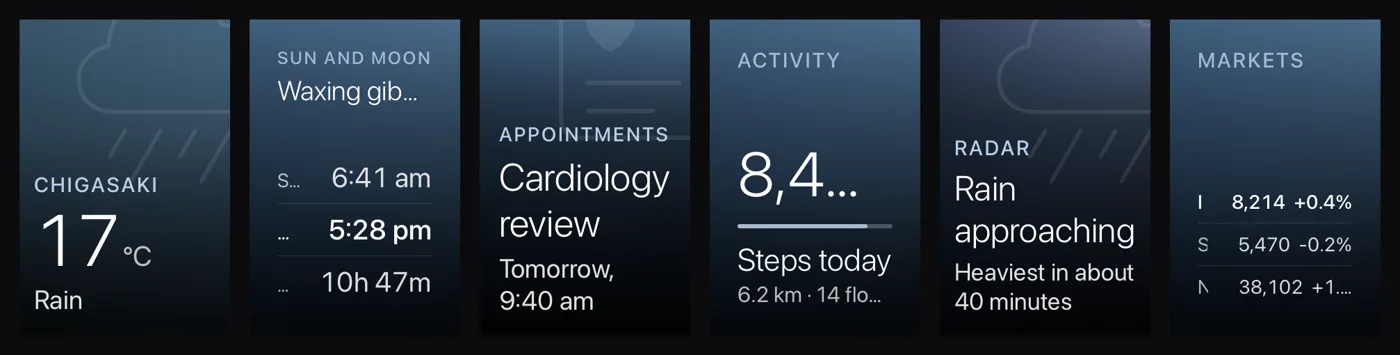
The tiles are a glance, not a control. Press one and Theatrium opens: the song tile opens the music visualizer, and the others open the dashboard.
Setting it up
- On the Apple TV home screen, move the highlight to the Theatrium icon. Press and hold the center of the pad until the icons start to wobble.
Hold the center on the Theatrium icon until the icons wobble. - Move the icon into the top row with the edges of the pad, then press the center to drop it there. Press Back if the icons are still wobbling.
- Highlight Theatrium. The shelf above it fills with tiles. Press the top edge of the pad to move up onto the shelf, then left and right to read along it.
Press up from the Theatrium icon to move onto the shelf. - Press the center on any tile to open Theatrium.
Good to know
- Nothing to set up inside Theatrium. A tile appears only when it has something true to show, so the song tile is there only while music plays and the agenda tile only when your calendar has something coming up.
- Theatrium redraws the tiles while it runs. Once you leave it, a tile stays until it is no longer true: a song and a note about the house for half an hour, today's weather and sun times until midnight, an appointment until it starts. A tile that no longer applies comes off the shelf by itself.
- If Theatrium has not run for twelve hours, the shelf shows two plain Theatrium tiles instead of old information. One opens the dashboard and the other the visualizer.
- The tiles follow your theme. Change the theme and the shelf changes with it the next time it refreshes.