Get Theatrium Music Visualizer
Download Theatrium Music Visualizer from the App Store on your Apple TV and open it.
Choose your music
Open Settings › Now Playing and pick a source. Apple Music needs no setup and shows whatever is playing. For Last.fm, enter your username. For Sonos, let it find the speakers on your network and pick your room. For Spotify (Premium needed), open Spotify on your phone and choose Theatrium Visualizer in its device list; the music then plays on your Apple TV.
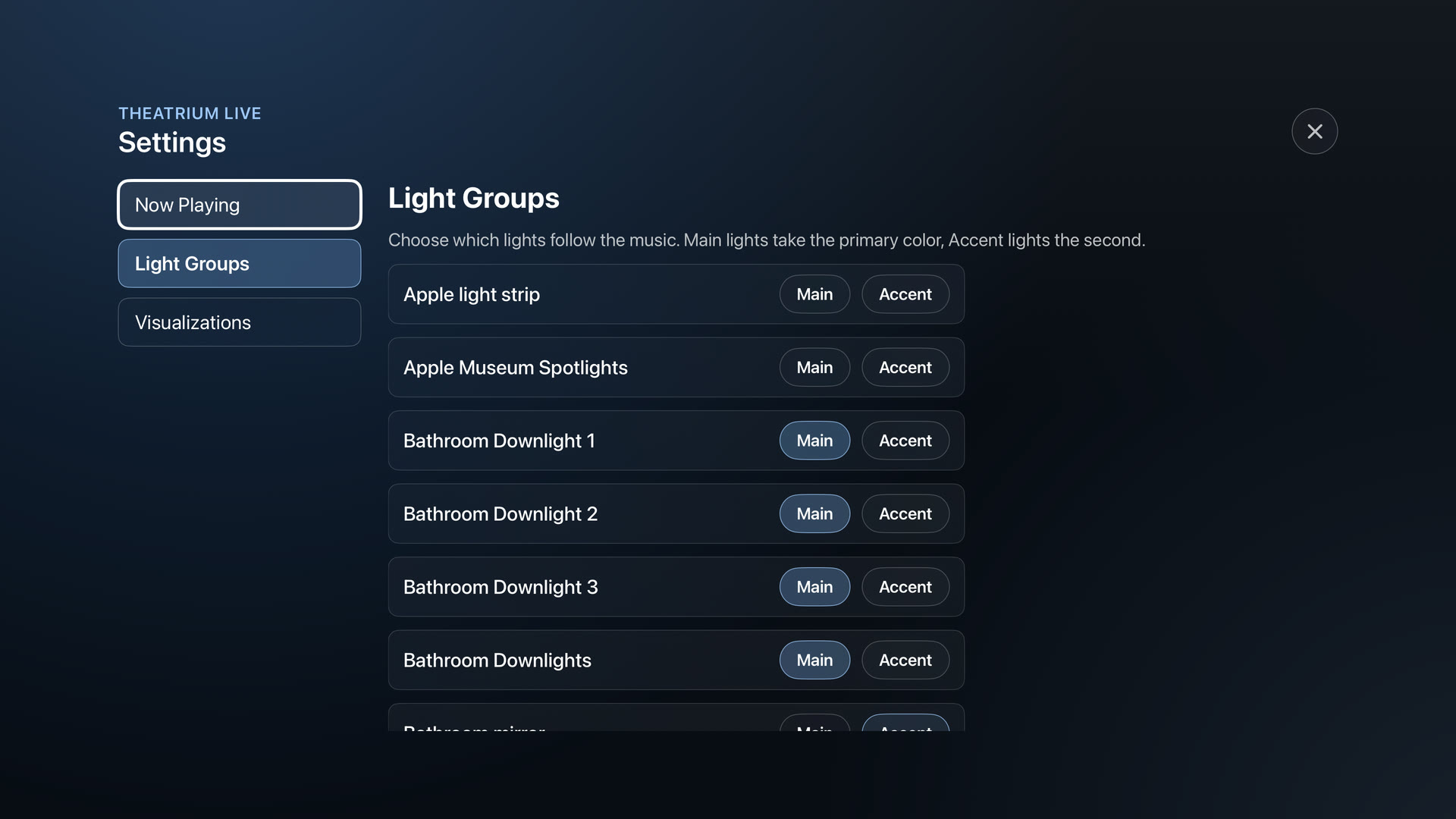
Add your lights
Open Settings › Light Groups and set each Apple Home light to Main or Accent. Main lights take the first color, Accent lights the second. No connected lights? Skip this, the on-screen visuals stand on their own.
Pick your visuals
Open Settings › Visualizations and turn looks on or off. At least one stays on, and the ones you keep rotate as you play.
Play, then tune it on screen
Start the music and step into the full-screen visual. Press your remote to bring up the on-screen controls, then Adjust to set the color theme, Lighting Sync, brightness and color, or switch the visual. More on both below.