Guides › Music
Play your Apple Music
Your Apple Music library opens inside Theatrium, and the Siri Remote’s Play/Pause button plays, pauses and skips from the dashboard, Quick Access and the music room.
What it is
Theatrium can open your Apple Music library on this Apple TV and play from it, so you choose music without leaving Theatrium. The track and cover appear on the Now Playing card, in the music room and in the visualizer, and Light Sync keeps running while you choose. Playback needs an Apple Music subscription on the Apple Account of the profile you are using.
Starting music here is the most reliable way to show its title and cover. When music starts in Apple’s own Music app, newer versions of tvOS can keep the track from Theatrium, so the card may show music playing without naming it.
Open your library
- Open Settings › Now Playing and choose Apple Music under Now Playing Source.
- Open the library from any of these places: Full Screen, in the music area of Quick Access; the Apple Music button on the Now Playing card, or the card’s cover; the library button in the music room; or Open Apple Music Library in Settings › Now Playing.
- The first time, choose Connect Apple Music and allow access when the Apple TV asks.
- Browse Playlists, Albums, Artists and Songs, or choose Search to search all of Apple Music. An album or a playlist opens its tracks: play from any row, or choose Play or Shuffle. An artist opens their albums.
- Choose Done to return. When you open the library again, it picks up where you left it, for as long as Theatrium stays open.
From the dashboard
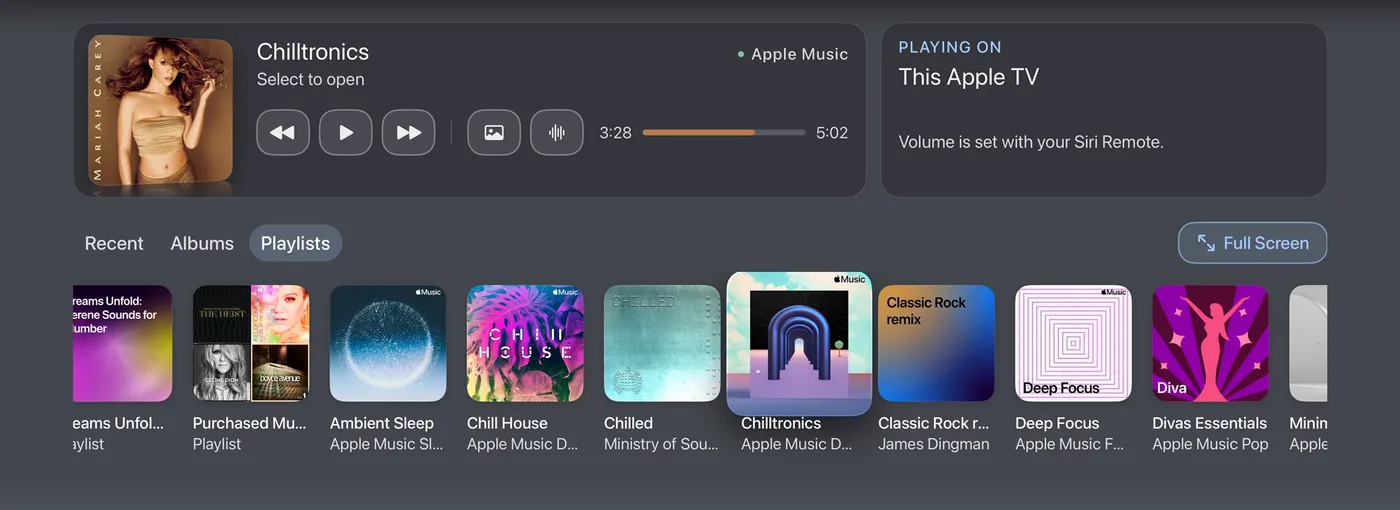
With Apple Music as the source, the music area in Quick Access carries a shelf of your library under the player. Its tabs are Recent, Albums and Playlists. Select a cover to open it, or press Play/Pause while it is highlighted to start it at once. See Quick Access.
The Siri Remote
With Apple Music as the source, the Play/Pause button works on the dashboard, in the music area of Quick Access, and in album art and the visualizer.
| Press | What it does |
|---|---|
| Once | Plays or pauses. |
| Twice | The next track. |
| Three times | The previous track. |
- In album art and the visualizer, with the buttons faded, press the left or right edge of the pad for the previous or next track.
- In the library, one press starts whatever is highlighted, and plays or pauses when nothing new is highlighted. Two and three presses skip as above.
- While a film or live TV is playing full screen, Play/Pause belongs to the video. While Plex music is playing, it belongs to Plex.
- When the screen has dimmed or a screensaver is showing, the first press wakes the screen and does not change the music.