Guides › Music
Where your music comes from
Tell Theatrium which app or speaker you listen with, and the TV follows along with cover art, visuals and room lights. With Spotify, the TV can play the music as well.
How it works
You keep playing music the way you always have, on your phone, a speaker, the Apple TV's own Apple Music app. Theatrium watches what is playing and shows it: the cover on the Now Playing card, the big album art in the music room, the visuals, the room lights. Spotify is the one exception. Choose it and Theatrium appears as a speaker in Spotify, and the music plays through your TV. Every music source is free in Theatrium.
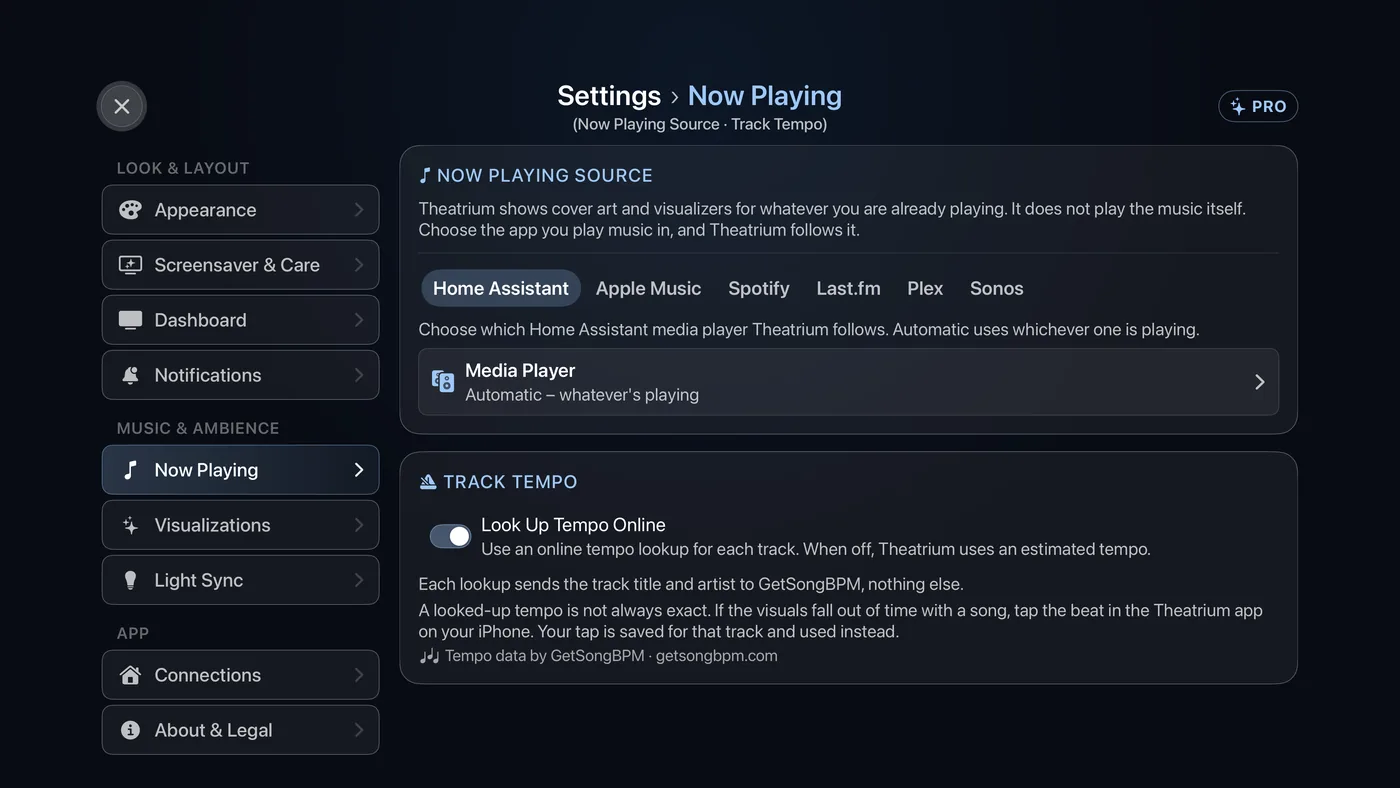
Choosing a source
- Open Settings (the gear at the top right of the dashboard) and choose Now Playing.
- Under Now Playing Source, choose the one that matches how you listen: Home Assistant (only when Home Assistant is your smart home), Apple Music, Spotify, Last.fm, Plex or Sonos. The table below helps.
- Follow the short steps that appear for that source. They are also written out below.
- Press Back. Play something, and the Now Playing card fills in.
| You listen with… | Choose | What to do |
|---|---|---|
| The Apple Music app on this Apple TV | Apple Music | Nothing more. Needs an Apple Music subscription on this Apple TV's Apple ID. |
| Spotify Premium: on this TV, or on your phone, a speaker or in the car | Spotify | Theatrium appears as a speaker in Spotify. In the Spotify app, tap the speaker icon and choose it once. Step by step. |
| Spotify Free | Last.fm | Spotify's own route needs Premium. Make a free Last.fm account, connect Spotify to it, and type your Last.fm username here. Step by step. |
| Apple Music on your Mac, iPhone or iPad, including to a HomePod | Last.fm | Make a free Last.fm account and install a scrobbler app on the device that plays the music, so it reports each song to Last.fm. Type your Last.fm username here. Step by step. |
| Any other app that scrobbles to Last.fm | Last.fm | Make a free Last.fm account, turn on scrobbling in that app, type your Last.fm username here. |
| Plexamp or another Plex music player | Plex | Sign in to Plex with the code on screen. Theatrium mirrors what Plexamp plays. |
| Sonos speakers | Sonos | Choose Find My Speakers, then pick a room. |
| A speaker or player in Home Assistant | Home Assistant | Pick the media player, or Automatic to follow whichever is playing. |
Setting up Spotify
Spotify is the one source where the music plays through your TV. Choose it and Theatrium appears in the Spotify app's speaker list as “Theatrium –” followed by the name of your TV, for example “Theatrium – Bedroom”. Until the TV has a name of its own, it appears as plain “Theatrium”. Pick it there and what you send to it plays through the TV. The cards and the visualizer show the track straight from Spotify. It needs Spotify Premium.
- On the TV, open Settings › Now Playing and choose Spotify under Now Playing Source. The first time, a short explainer opens.
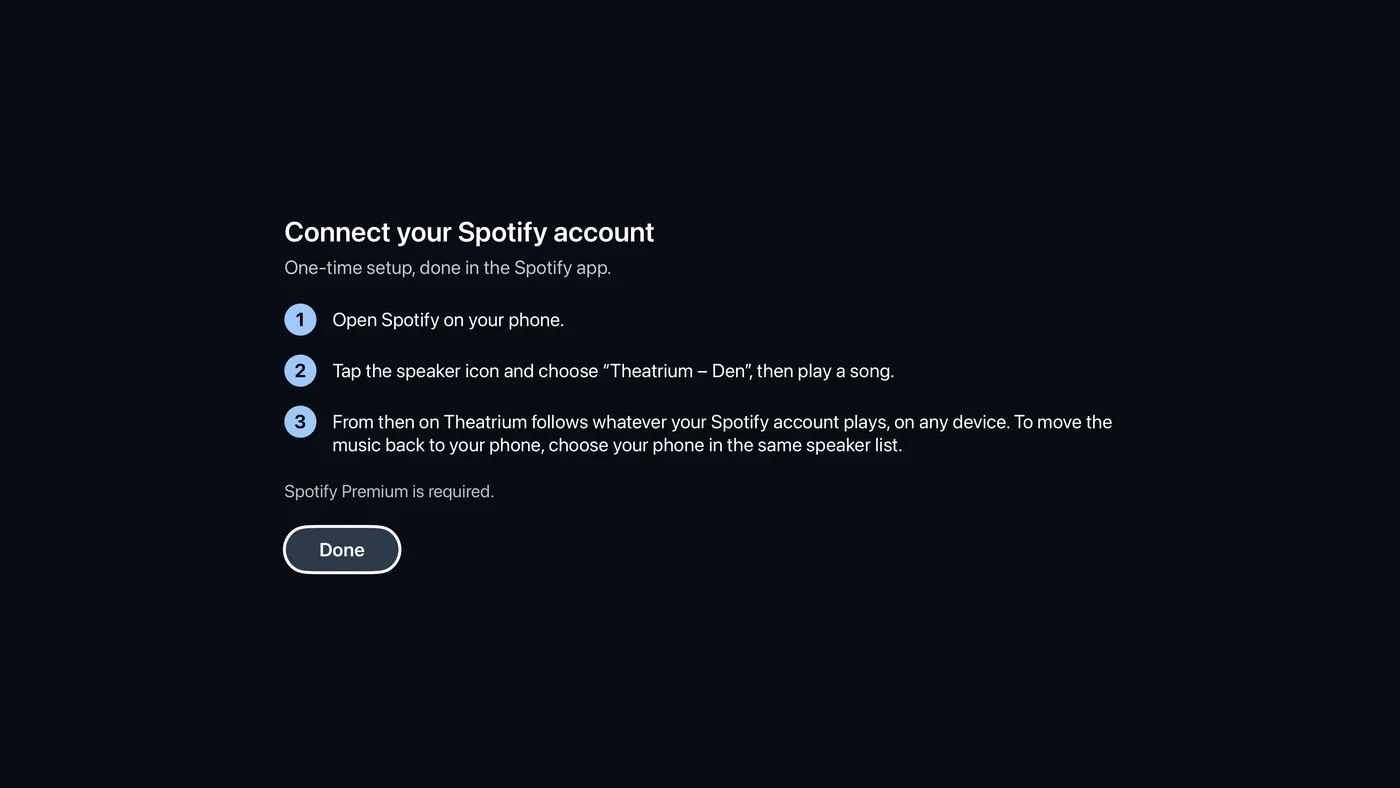
The first-time explainer. It opens once, and again only if the connection is lost. - If your Apple TV is still named just “Apple TV”, the explainer asks you to name it, so two TVs do not both appear as “Theatrium”. Type a name such as Bedroom. You can change it later under Speaker name in Spotify in Settings › Now Playing.
- On your phone, open Spotify, tap the speaker icon, choose the speaker named in the explainer, and play a song.
- The TV starts playing. Back in Settings › Now Playing, the line under the source reads “Connected to your Spotify account.”
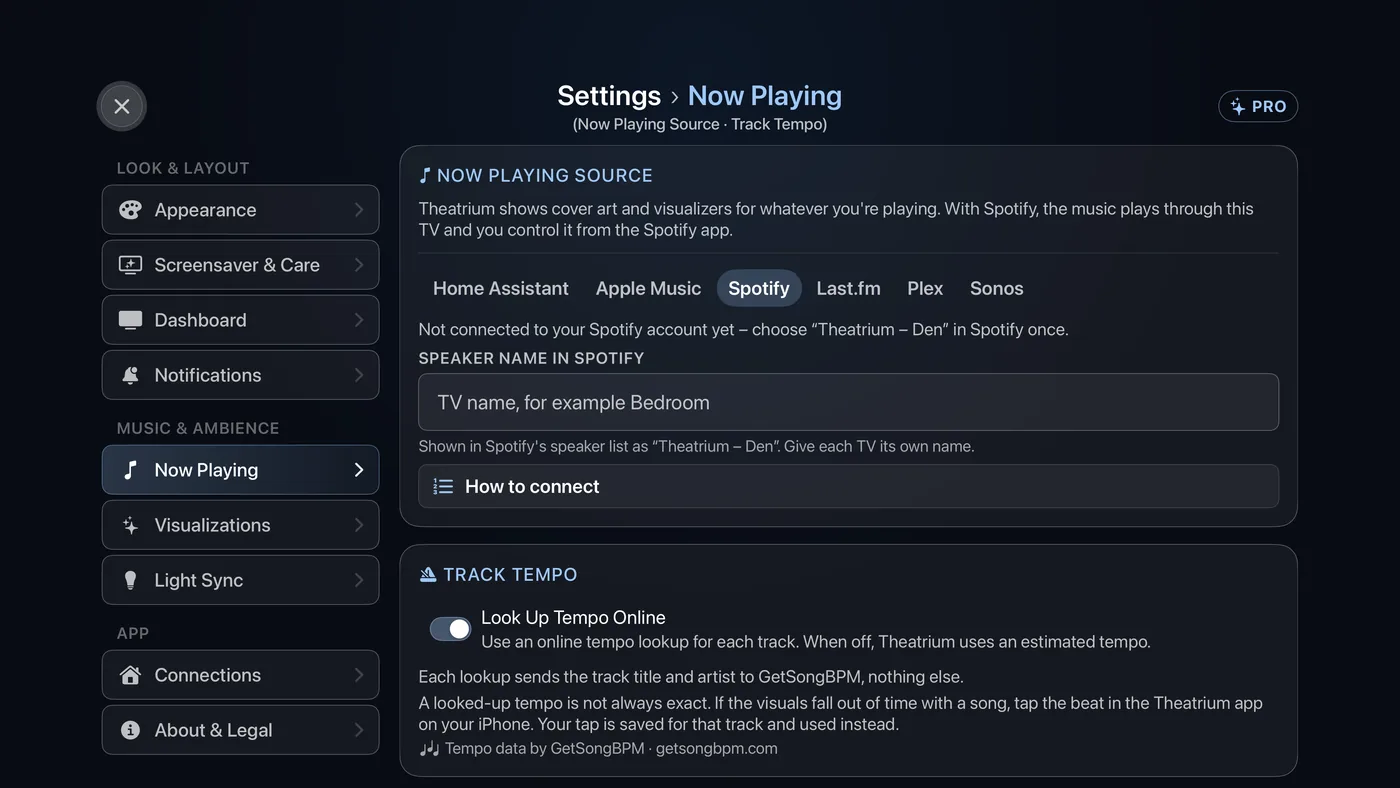
With Spotify chosen, Settings shows whether the TV is connected, the speaker name, and How to connect until it is.
This is done once. From then on Theatrium follows whatever your Spotify account plays, on any device. When the music plays on this TV, play, pause and skip work from the Spotify app and from the Now Playing card. When your account plays somewhere else, on your phone, a speaker or in the car, the cards and the visualizer still show the track, labelled with where it is playing, but the buttons for pausing and skipping stay on that device. To bring the music to the TV, choose the TV in Spotify's speaker list; to send it back, choose your phone in the same list.
Setting up Last.fm (for Spotify Free and most other apps)
Last.fm is a free service that keeps a list of what you play, called “scrobbling”. Theatrium reads that list. It is the way to show Spotify Free, and most apps that do not have a route of their own. It also works with Spotify Premium, though Spotify’s own route above is better for that: it is quicker and adds playback buttons.
- On your phone or computer, go to last.fm and create a free account. Remember the username.
- On last.fm, open Settings › Applications and connect Spotify. Apple Music has no connection there; it needs a scrobbler app on the device that plays it, as described in When Now Playing doesn’t show your music. In the Spotify app, make sure scrobbling to Last.fm is switched on.
- On the TV, in Settings › Now Playing, choose Last.fm, type your Last.fm username, and choose Save username. It is your profile name, not your email address. Check username confirms that the account exists and shows the last song it played.
- Play a song. Within a few seconds the TV shows it.
Last.fm reports what you play rather than controlling it, so a few seconds of lag is normal and the Now Playing card shows no play, pause or skip buttons for this source. It shows the Album Art and Visualizer buttons instead.
Setting up Apple Music on this Apple TV
Choose Apple Music. The Now Playing card reads "Select to open Apple Music"; pressing it opens the Apple TV's Apple Music app. Start something there, then come back to Theatrium from the home screen. The visuals and light sync follow. This shows music playing on this Apple TV only; for Apple Music on your phone, use Last.fm.
Setting up Plex
Choose Plex and follow the sign-in: a code appears on the TV, and you scan it with your phone, or open plex.tv/link on your phone and enter the code. Theatrium then mirrors whatever Plexamp, or any Plex player on your account, is playing. The audio keeps coming from that device; the TV shows it and drives the visualizer. If you have already linked a Plex server for the media cards, this is the same sign-in.
Setting up Sonos
Choose Sonos, then Find My Speakers. Theatrium searches your network and lists the rooms it finds; pick one. No Sonos account is needed and nothing leaves the house.
If the beat looks wrong
The visuals move to the song's tempo, which Theatrium looks up online from the track's title and artist. Online tempos are not always exact. If the visuals drift off the beat of a song, tap along in the Theatrium app on your iPhone (part of Theatrium Pro); your tap is saved for that track and used instead. The Look Up Tempo Online switch is under Settings › Now Playing › Track Tempo. With it off, nothing about what you play leaves your Apple TV and the visuals use a steady estimated tempo. To make the visuals move at half or double the pace of the song, see How the visualizer keeps time.
More Now Playing settings
Settings › Now Playing keeps the key controls in view. A closed row named More Now Playing settings appears only when it has something to hold: the Colors choice, From the album or Halloween, while Halloween Mode is on, and a field for adding a Sonos speaker by its IP address.