Guides › Music
The music room and the visualizer
Big album art, moving pictures that follow the song, and the room lights joining in. One button from the dashboard.
What it is
The music room is a separate screen for when music is playing. It has two views. Album art fills the screen with the cover of the song, washed in its colors, with the song's progress. Visuals replaces the cover with a moving picture, a lava lamp, an aurora, ribbons of light, that follows the track and its tempo. The visuals do not listen through a microphone; they read the song's tempo and the colors of its cover. Both views belong to one place: the album art screen is the front door, and the visualizer is a step further in.
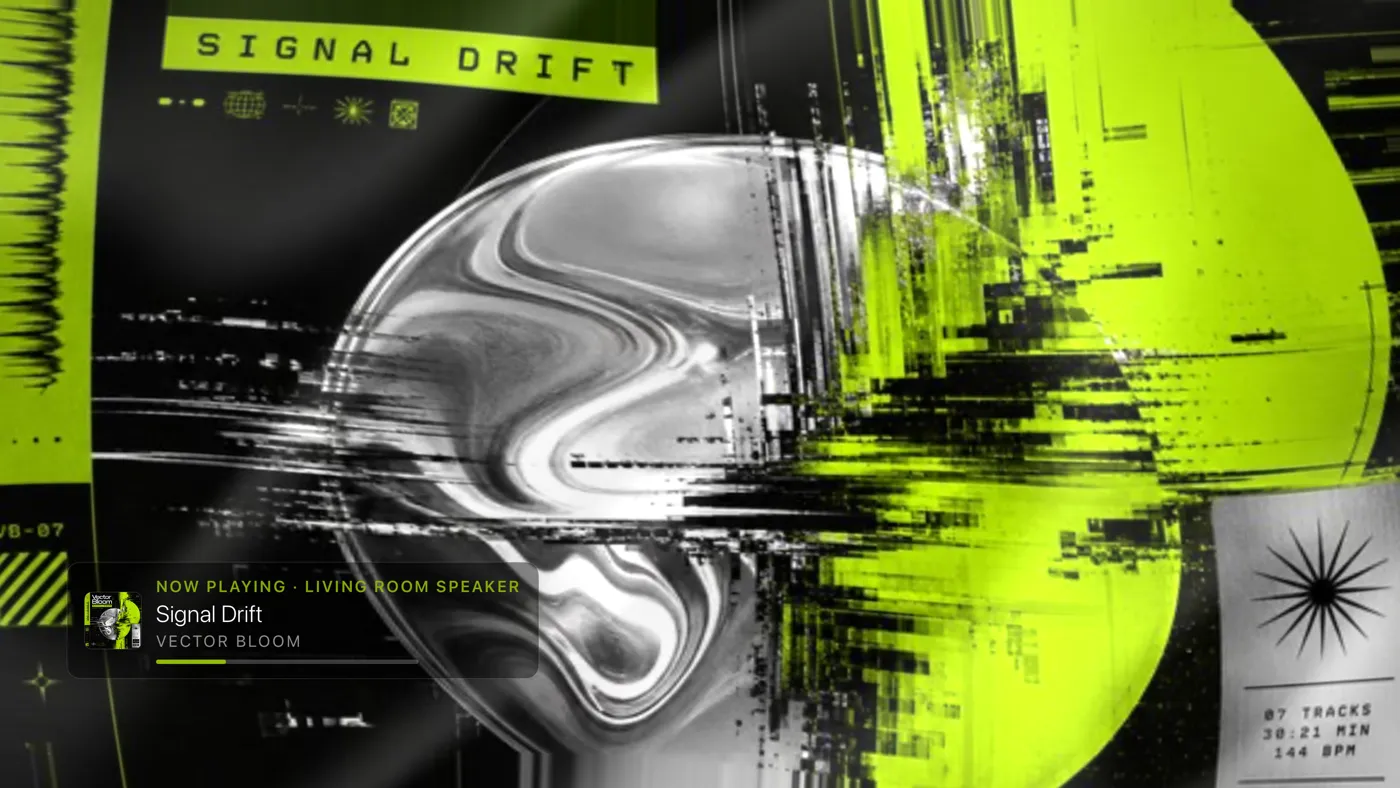
Getting in
- Play something on your music source (see Where your music comes from).
- On the dashboard, move up to the top bar and choose the music note button, named Music Visualizers. The album art view opens.
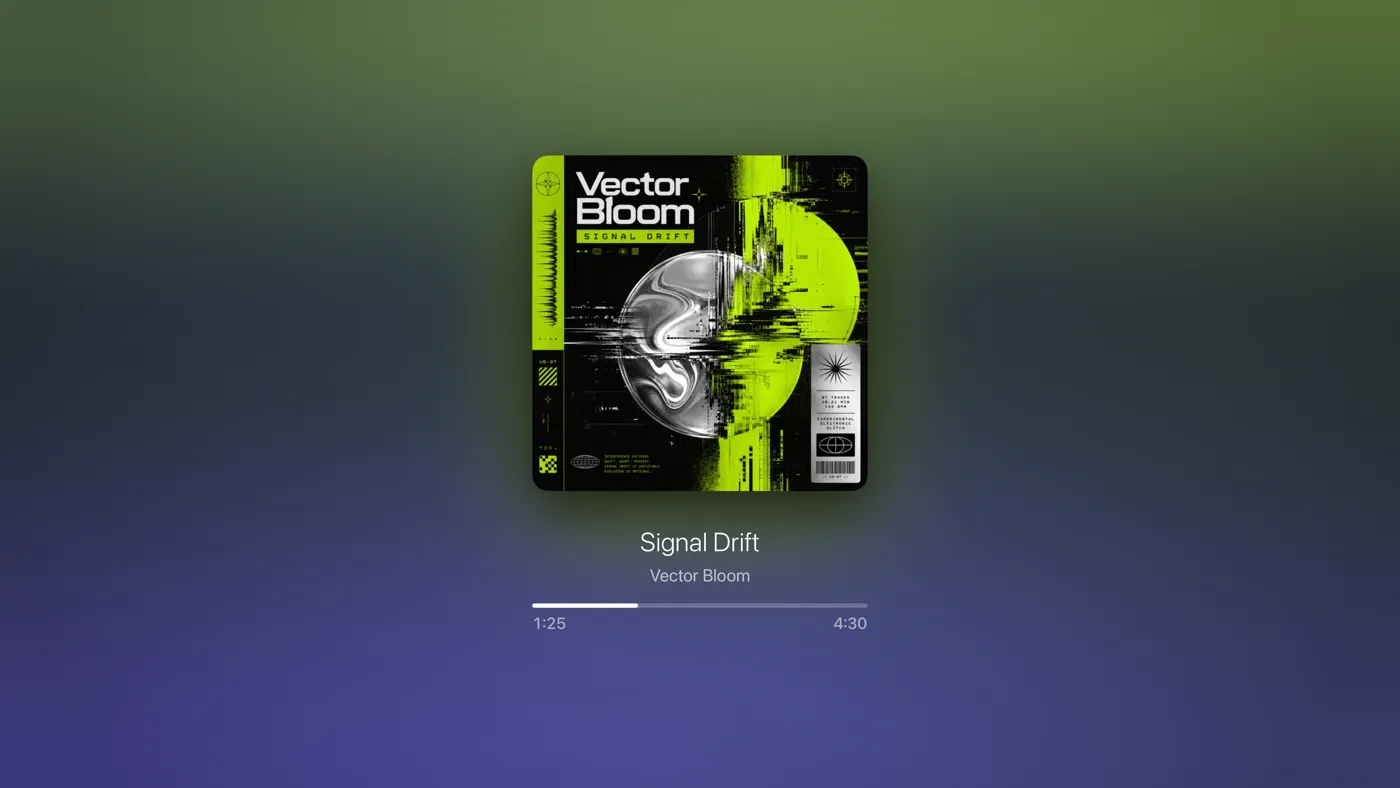
The album art view. The song fills the screen. The round buttons in the corners fade away after a few seconds, and any press on the remote brings them back.
There are two quicker ways in from the dashboard.
- The Now Playing card has two buttons beside its playback buttons: Album Art opens this screen, and Visualizer goes straight to the moving visuals. They appear while a song is playing. See The Now Playing card.
- Pressing Select on a Music Visualizer card opens the visualizer full screen, on the visual the card was showing.
The buttons
Round buttons sit in the top corners of each screen; each shows its name when highlighted. After about ten seconds without a button press they fade away, and any press on the remote brings them back.
On the album art view
| Button | What it does |
|---|---|
| Left arrow | Back to the dashboard |
| Waveform | Visualizer: opens the moving visuals |
| Circle with an i | Track Info: shows or hides a small panel with the song's BPM and, when light sync is on, the two colors being sent to your lights |
| Light bulb | The Room Lights panel: turn light sync on or off, choose where the colors come from, and set brightness, color strength and Party mode. It appears when you have lights set up. |
On the visualizer
| Button | What it does |
|---|---|
| Left arrow | Back to the album art view |
| Sliders | Visuals: opens the Visual Styles menu |
| Light bulb | The Room Lights panel, as above, when you have lights set up |
| Arrows out | Full screen: hide the controls for a clean view |
Choosing a visual
- From the album art view, choose the waveform button. The visualizer starts with the current style.
- Choose the sliders button to open the Visual Styles menu. Under Cycle, choose how long each style holds before the next one: 30s, 1m or Full song, which is the default. Tempo sets whether the visuals move at Half Time, In Time or Double Time; In Time, with the beat of the song, is the default. Colors chooses between Album Art, which paints each visual in the colors of the cover, and Visual's Own, which keeps the colors it was designed with. Show turns the Info Panel on, and Skip moves to the Previous or Next style. Choose Done to close it.
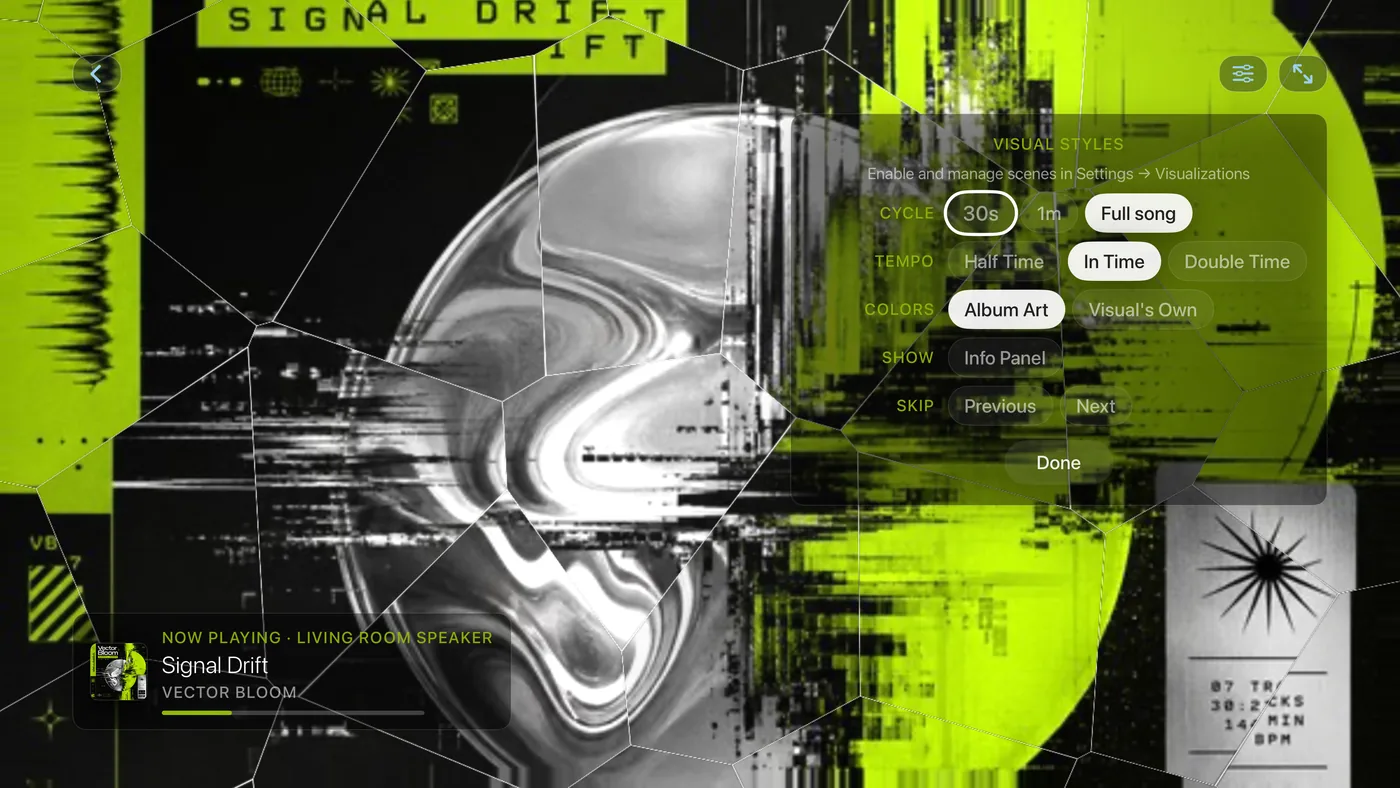
The Visual Styles menu. Tempo and Colors are new in 1.9. - In full-screen view, or after the controls have faded, swipe up or down on the remote's pad to step through the styles without opening the menu.
Swipe up or down to change the visual while in full-screen view.
Which visuals the cycle and the Skip buttons draw from is set in Settings › Visualizations, where you select the ones you like. See The visuals, one by one. The same page holds the Visualizer Engine, and under More visualizer settings the Info Panel, Tempo and Colors choices. The Tempo and Colors rows appear only with the Live engine, not Video Loops. For more on tempo, see How the visualizer keeps time.
Reading the corner
The Info Panel is off until you turn it on, from the Show row of the Visual Styles menu or in Settings › Visualizations › More visualizer settings › Visual Info Panel. In the bottom right it then shows the visual's name, the song's BPM (beats per minute) and the time signature it is reading. Two color swatches show the pair of colors chosen for the song, the ones your Main and Accent lights follow when light sync is on.
Getting out
Press Back. From full-screen view it brings the controls back first. Press it again to step back to the album art view, and once more for the dashboard. If you went straight into the visualizer from the Now Playing card or a Music Visualizer card, Back returns to the dashboard directly.