Guides › Information cards
The Meeting Room card
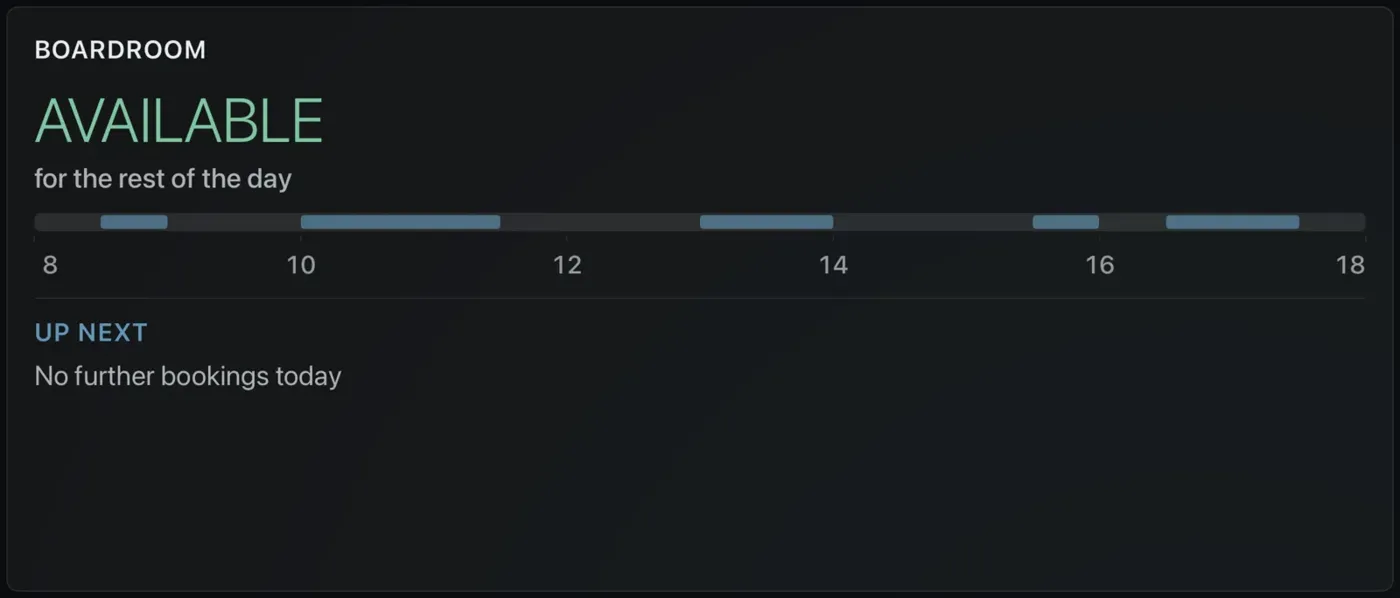
An availability board for a meeting room: AVAILABLE or IN USE, what is on now, when it ends, and what is next.
What it shows
The room's name, a large AVAILABLE or IN USE, the current booking and when it ends ("ends in 45 min · then free"), a strip of the working day from 8 am to 6 pm with bookings drawn as blocks and a marker for now, and an UP NEXT list. On a day with no bookings it reads Available "for the rest of the day".
It was built for a screen on a meeting-room wall, and it is the centerpiece of the Boardroom theme, but it fits any wide or tall panel on any theme.
Before you start
Bookings come from a calendar's .ics address, the same kind as The Calendar card uses. A meeting room usually has a calendar of its own. Get its address:
- Google Calendar: the room calendar's settings › Integrate calendar › Secret address in iCal format.
- Microsoft 365 / Outlook: the room calendar › Shared calendars › Publish a calendar › ICS link.
- Apple iCloud: share the calendar as a public calendar; change
webcal://tohttps://. - Home Assistant: no link needed; the card reads Home Assistant's calendars if no address is set.
Only timed bookings count. All-day entries are ignored.
Add the card
Every card is added the same way. If you have done this before, skip ahead.
- On the dashboard, move to a card you want to replace. Press and hold the center of the remote's pad for about a second. The card dims and a Modify button appears on it.
Hold the center of the pad on the card you want to change. - Press the center once to choose Modify. The Choose a card screen opens.

The Choose a card screen. The list down the left side narrows the cards by group. - On the left, choose Information, then move right and choose Meeting Room. (You can also leave the list on All and scroll; it is in alphabetical order.)
- Name the room, and choose its bookings: type the room's name (blank means "Boardroom") and paste the room calendar's
.icsaddress. Leave the address blank and the card uses the calendar from Settings › Connections, or your Home Assistant calendars. - Finish with the button at the foot of the setup screen, which is named for the card, such as Add Calendar Card. A card that needs no setup is added the moment you select it. You return to the dashboard with the new card in place.
Good to know
- Display only. Times follow the Apple TV's clock and time zone; the strip is fixed to 8 am to 6 pm.
- Each Meeting Room card can have its own calendar, so two rooms can sit on one dashboard.
- A calendar that cannot be reached leaves the board empty rather than showing somebody else's meetings.