Guides › Home cards
The Camera card
FreeWorks with: Home Assistant, Apple HomeAbout 1 minute to set up
A live picture from one of your cameras, right on the dashboard.
What it shows
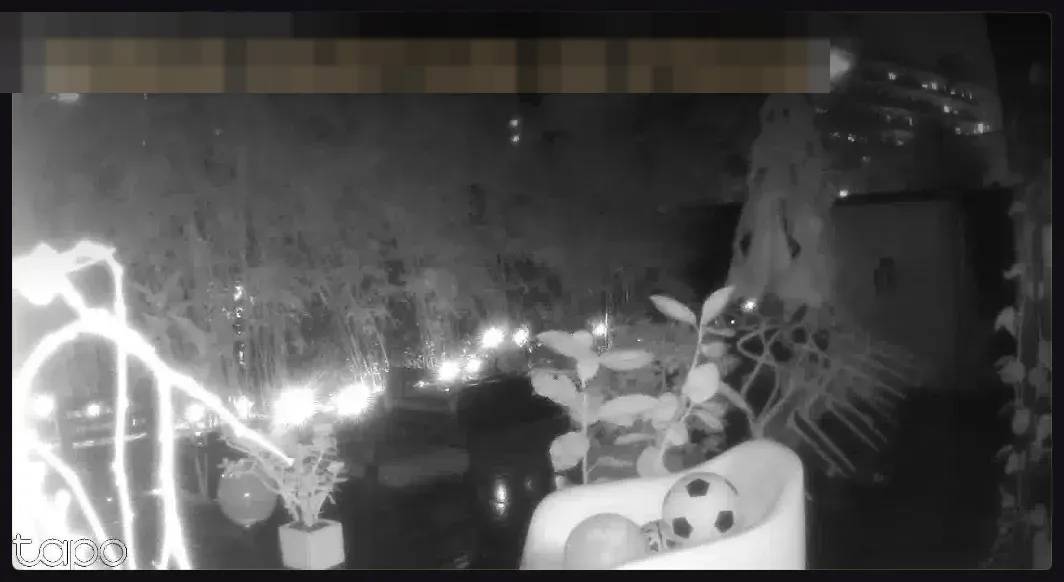
A live view from one camera, refreshed continuously, with the camera's name across the top. There is nothing to press; it is a window you glance at.
Add the card
Every card is added the same way. If you have done this before, skip ahead.
- On the dashboard, move to a card you want to replace. Press and hold the center of the remote's pad for about a second. The card dims and a Modify button appears on it.
Hold the center of the pad on the card you want to change. - Press the center once to choose Modify. The Choose a card screen opens.
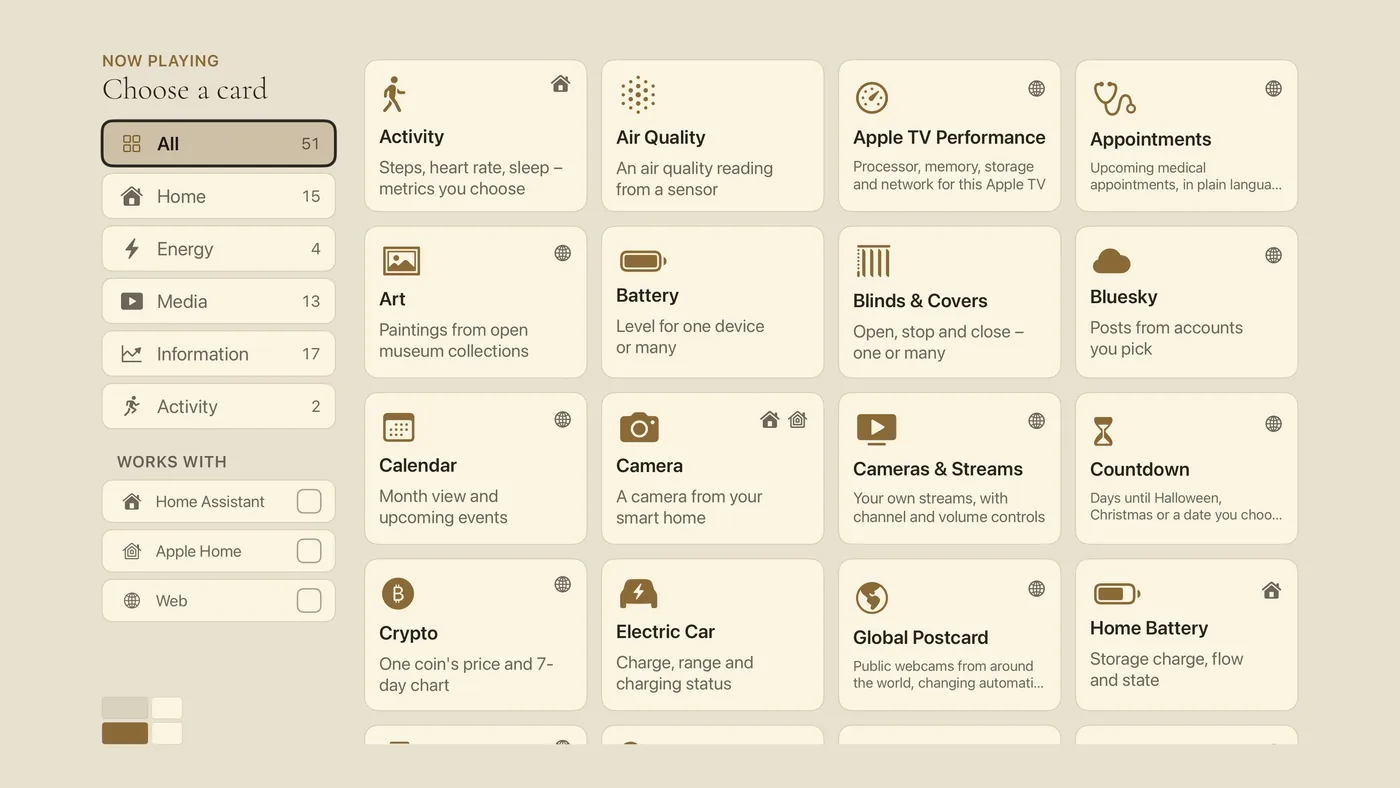
The Choose a card screen. The list down the left side narrows the cards by group. - On the left, choose Home, then move right and choose Camera. (You can also leave the list on All and scroll; it is in alphabetical order.)
- On Add a device, select one camera from the list. The card is added as soon as you choose, and you return to the dashboard with it in place. For a second camera, add a second Camera card.
Good to know
- A camera needs a wide or large panel to be worth looking at. Choose a bigger panel for it, or put it on the second page where every panel is the same size.
- On Apple Home, this Apple TV (or a HomePod) needs to be a Home Hub for camera streams to work. See Connect Apple Home.
- A doorbell camera can also pop up over the screen when someone presses the bell. See Alerts on your TV.