Guides › Energy cards
The Energy Flow card
Where today’s electricity came from and where it went: solar, the grid, a battery and your home, drawn from Home Assistant’s Energy dashboard.
What it shows
Circles joined by lines, with today’s totals in kilowatt-hours. With solar, a grid and a battery, solar sits at the top and the grid, your home and the battery along the bottom. The card draws the sources your Energy dashboard has, and a line only where energy moved today, with an arrowhead for the direction. The home’s circle gives what the house used. The grid and the battery each show two figures: a down arrow for energy coming in (taken from the grid, put into the battery) and an up arrow for energy going out (sent to the grid, drawn from the battery).
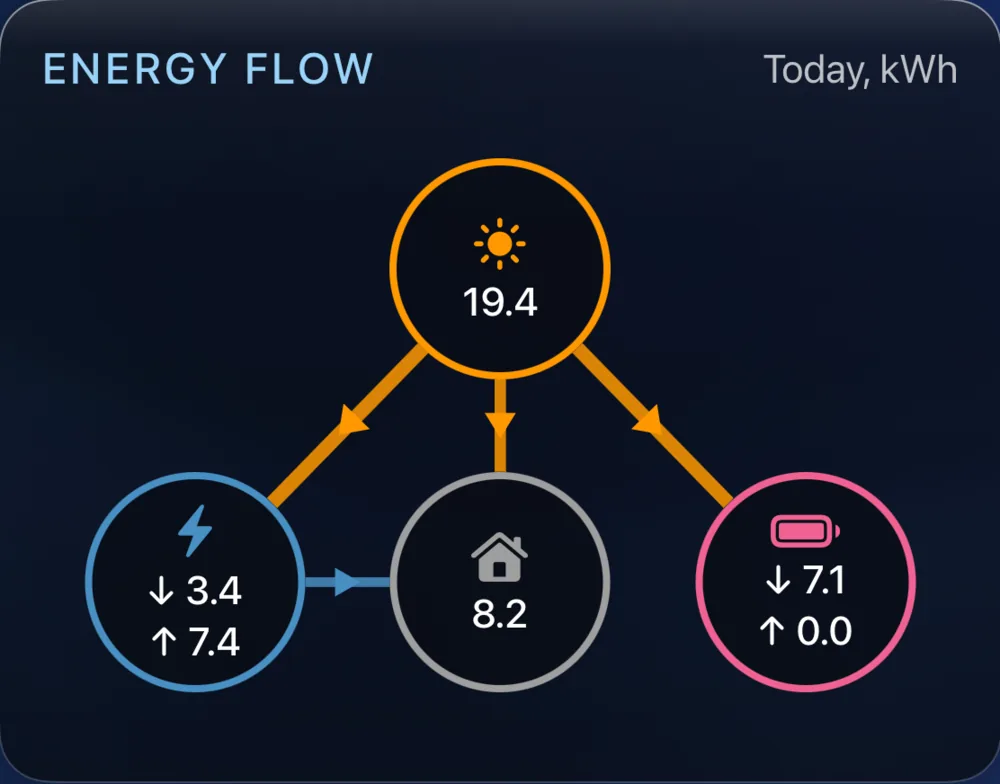
In a roomy panel the card adds the day’s hours as bars, beside the diagram or under it, colored by where the home’s energy came from, with a legend headed Used at home. The legend counts only what each source gave the home, while the circles count each source’s whole day, so a source can show a larger figure in its circle than in the legend. A small panel shows the diagram alone, and the smallest panels do not offer the card.
Add the card
Every card is added the same way. If you have done this before, skip ahead.
- On the dashboard, move to a card you want to replace. Press and hold the center of the remote's pad for about a second. The card dims and a Modify button appears on it.
Hold the center of the pad on the card you want to change. - Press the center once to choose Modify. The Choose a card screen opens.
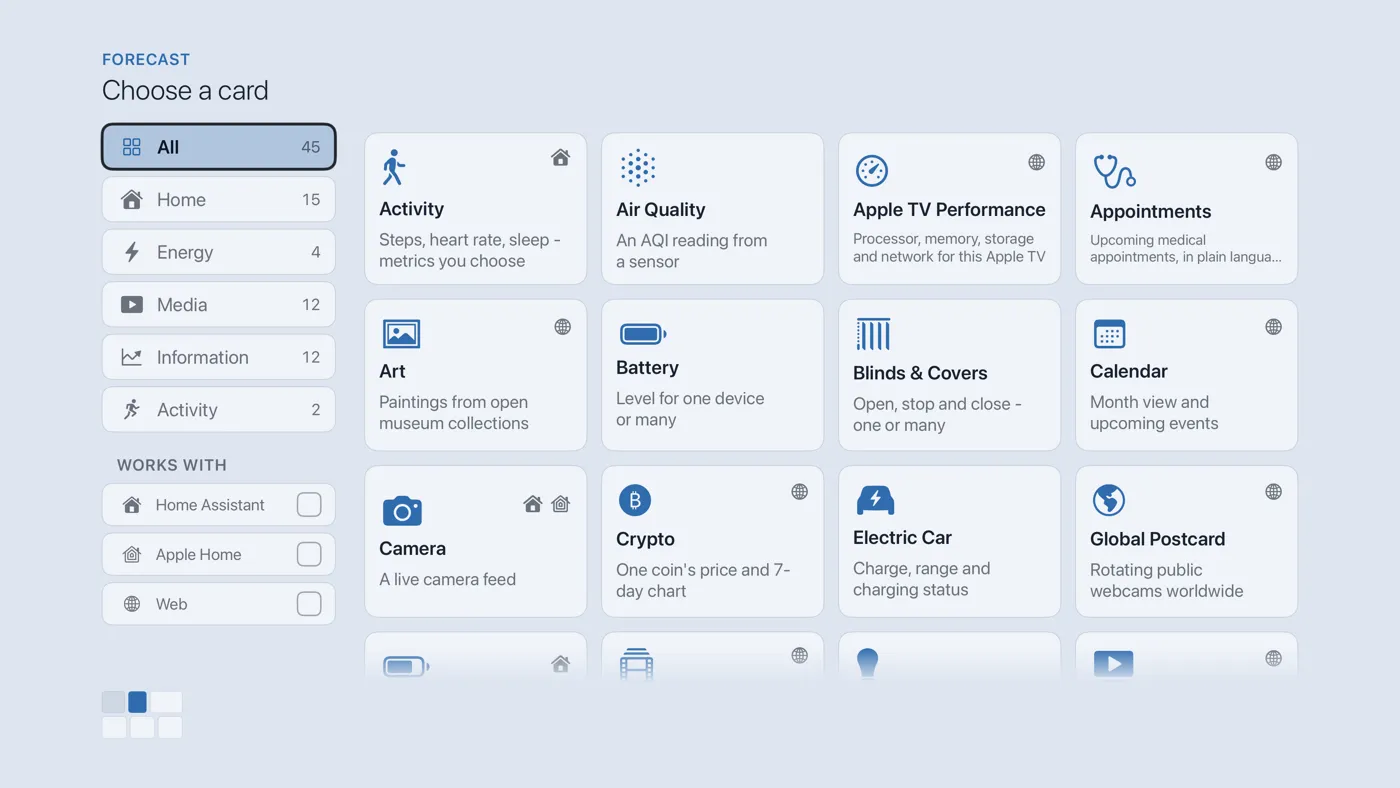
The Choose a card screen. The list down the left side narrows the cards by group. - On the left, choose Energy, then move right and choose Energy Flow. (You can also leave the list on All and scroll; it is in alphabetical order.)
- The card needs no setup in Theatrium, so it is added the moment you select it. You return to the dashboard with the new card in place.
What it needs
- Theatrium connected to Home Assistant. The card reads the Energy dashboard’s own settings, so the sources you have chosen there are the ones it draws.
- Theatrium Pro.
Good to know
- Display only. The card reads your energy figures and never changes anything in Home Assistant.
- It reads again every 15 minutes while its page is on screen, and just after midnight, so Today never shows yesterday.