Guides › Music
How the visualizer keeps time
The visuals move with the song's tempo, and when Theatrium plays the music itself, with the sound too. Here is where the tempo comes from, why it is sometimes a little off, and what you can do about it.
Reading the song, and hearing it
Theatrium never uses a microphone, and an Apple TV cannot hear what other apps or speakers are playing. So for most music – Apple Music, a Home Assistant speaker, or Plex and Last.fm playing on another device – Theatrium works out the song's tempo, its beats per minute, from the track's title and artist, and every visual, the album art screen and the screensaver all move to that same number.
Spotify played on this Apple TV is different. When you choose the Apple TV in Spotify’s speaker list (Premium required), Theatrium plays the music itself, so it can hear it. The tempo then comes from the sound, and the visuals follow the music as well as the beat: faster as a song gets busier, calmer in quiet passages, growing through a build and opening out at the drop. Listening never adds a flash on the beat, and each visual keeps its own design. The visuals, one by one lists what else each visual does when it can hear the music. This needs the Live engine; Video Loops play fixed clips.
Where the tempo comes from
In Settings › Now Playing › Track Tempo, the Look Up Tempo Online switch decides it. It is free for everyone, on or off:
- On (the default): Theatrium looks up the song's real, measured tempo from GetSongBPM, an online tempo database. This sends only the track's title and artist — nothing else about your home leaves the Apple TV.
- Off: nothing is sent anywhere. The visuals fall back to a steady built-in estimate for that song instead.
When a song isn't found
Well-known, commercially released tracks usually come back with an exact tempo. A song GetSongBPM has never heard of — something obscure, self-released, or a home recording — falls back to the same built-in estimate used when lookup is off: a steady, moderate tempo picked just for that song, so it always looks the same way rather than changing every time it plays.
Half time or double time: the Tempo row
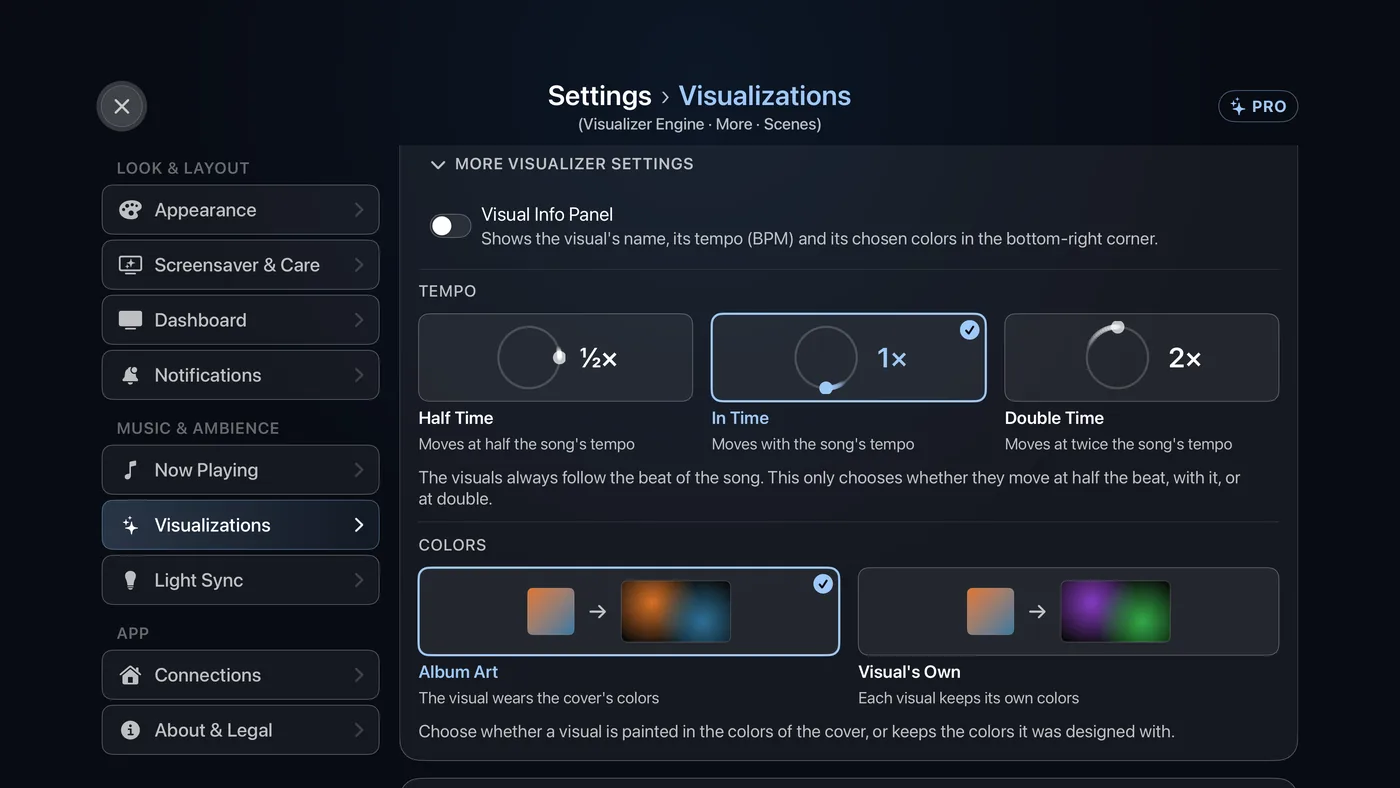
The visuals always follow the beat of the song. The Tempo row only chooses whether they move at half that pace, with it, or at double. It is right there on screen, no phone needed:
- In the music room, open the visualizer and choose the sliders button to open the Visual Styles menu.
- Under Tempo, choose Half Time, In Time or Double Time. In Time is the default: the visuals move with the song. Every visual then moves at half or twice that pace, until you set it back.
Tempo applies for as long as you leave it set, across every song, not just the one playing when you changed it. The same choice is in Settings › Visualizations › More visualizer settings, where each of the three is a picture: highlight one and press Select. The row sits beside Colors, which chooses between Album Art and Visual's Own colors and does not change the timing. Tempo and Colors only appear when Visualizer Engine is set to Live (see below) — Video Loops plays fixed clips that can't be sped up this way.
Correcting one song: tap the beat
An online tempo is not always exactly right. If one particular track feels a beat behind or ahead of the music, correct that song specifically from your phone:
- On your iPhone, open the Theatrium companion app (this needs Theatrium Pro), paired with this Apple TV, and go to the Visuals tab. With something playing, a Tempo panel shows the current BPM and where it came from — Looked up, Estimated, or You tapped this.
- Choose Tap the beat, then tap along with the song four or five times. Whatever rhythm you tap is what the visuals use for that song — tap twice as fast as the beat and the visuals move twice as fast.
- Choose Use this to save it. The correction belongs to that song specifically, and Theatrium remembers it the next time the track plays. Use the online tempo undoes a correction and goes back to the online value.
The scene changes the feel too
The same tempo can look calm in one scene and busy in another, because each visual has its own character. See The visuals, one by one for what each one looks like.
The same Visual Styles menu's Cycle row — 30s, 1m, or Full song — sets how often the visualizer moves on to the next style. That changes how often the style changes, not how fast any one scene moves; use the Tempo row for that instead. See The music room and the visualizer for how to reach the menu, and Settings › Visualizations to choose which visuals the cycle can pick from.
Smoother on an older Apple TV
In Settings › Visualizations › Visualizer Engine, Live draws every scene fresh on the Apple TV as the music plays, and is the normal choice. Video Loops (Theatrium Pro) plays ready-made video clips instead — downloaded once, then played back offline, and the option that needs the least processing power. If an older Apple TV struggles to draw the live scenes smoothly, this is the setting that helps, not a tempo setting. Until the clips finish downloading, Theatrium keeps using Live.

Reading the corner
Turn on Visual Info Panel (in Settings › Visualizations › More visualizer settings, or from the Show row of the Visual Styles menu) and a bottom-right panel shows the visual's name, the current BPM, the time signature it's reading, and the pair of colors chosen for the song. A small 2× next to the BPM means Tempo is set to Double Time, and ½× means Half Time, so the number on screen and the speed you're seeing agree with each other. With In Time, the default, there is no marker. While the visuals can hear the music, the panel also shows a Music and visuals chart: the song’s energy, and the visual speed that follows it.