Guides › Home cards
The Notifications card
Theatrium ProWorks with: Home Assistant, Apple HomeAbout 1 minute to set up
A running list of the alerts Theatrium has shown, motion, doorbell, and anything your automations send, so you can catch up on what you missed.
What it shows
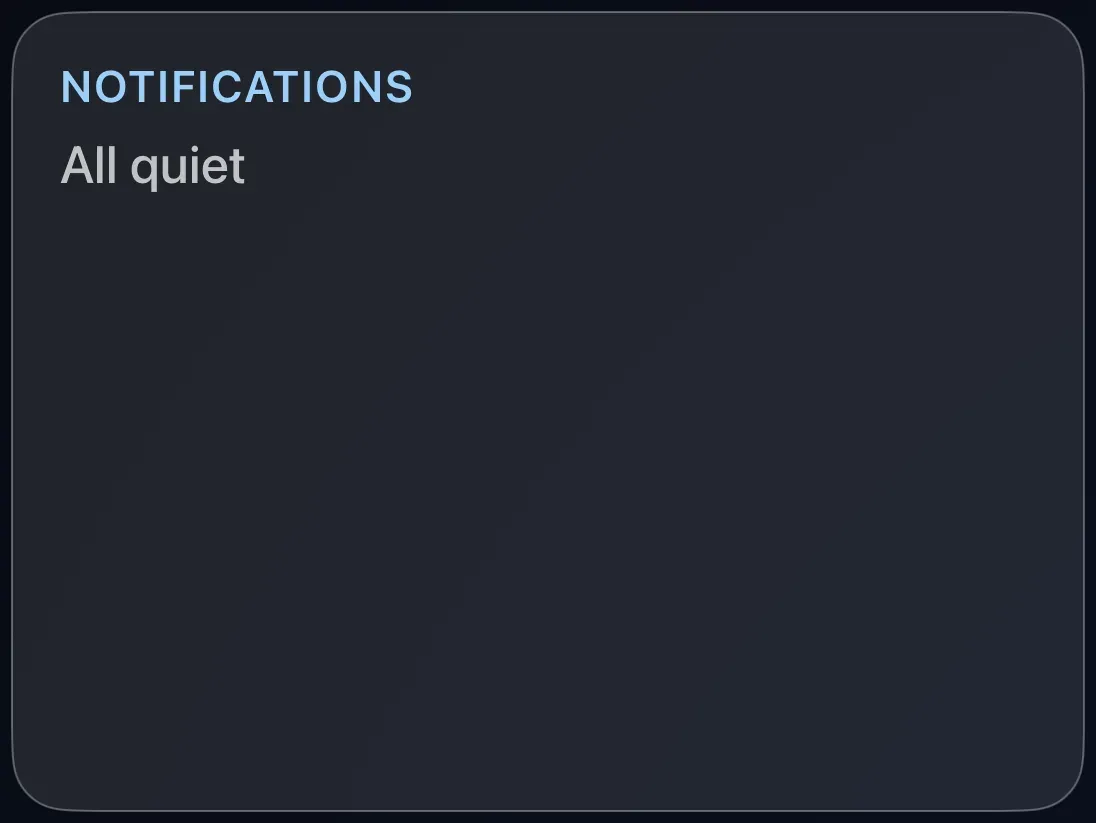
The most recent alerts, newest first, each with what happened, when, and a camera picture where there was one. When nothing has happened it simply reads All quiet.
Alerts also appear briefly as a pop-up over whatever is on screen. This card is the place they collect afterwards. See Alerts on your TV for setting up which sensors alert.
Add the card
Every card is added the same way. If you have done this before, skip ahead.
- On the dashboard, move to a card you want to replace. Press and hold the center of the remote's pad for about a second. The card dims and a Modify button appears on it.
Hold the center of the pad on the card you want to change. - Press the center once to choose Modify. The Choose a card screen opens.
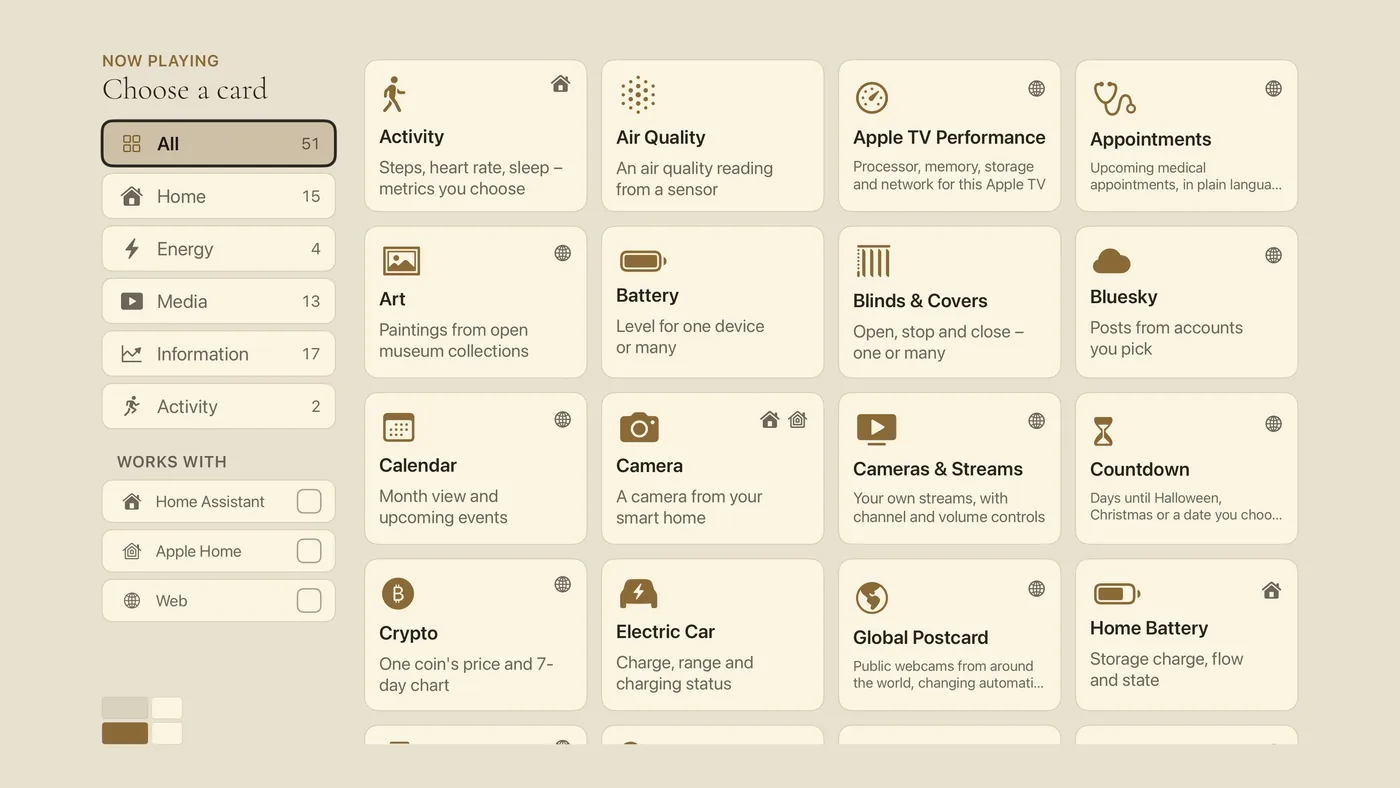
The Choose a card screen. The list down the left side narrows the cards by group. - On the left, choose Home, then move right and choose Notifications. (You can also leave the list on All and scroll; it is in alphabetical order.)
- The Notifications card has no setup screen of its own, so selecting it puts it straight on the dashboard. (Cards that need a choice from you, such as a light or a calendar, end with an add button instead.)
Good to know
- Theatrium receives alerts only while it is open. It cannot watch in the background; tvOS does not allow any app to.
- On Home Assistant, selecting a sensor in Settings › Notifications › Motion & Doorbells writes the automation for you. Any Home Assistant automation can also send an alert to the TV.
- On Apple Home, the card fills from the HomeKit sensors you select in Settings › Notifications › Motion & Doorbells.