Guides › Media cards
The Plex Player card
FreeWorks with: A Plex serverAbout 2 minutes to set up
Browse the films and shows on your Plex server as a shelf of posters, open a film's page, and play it on the TV.
What it shows
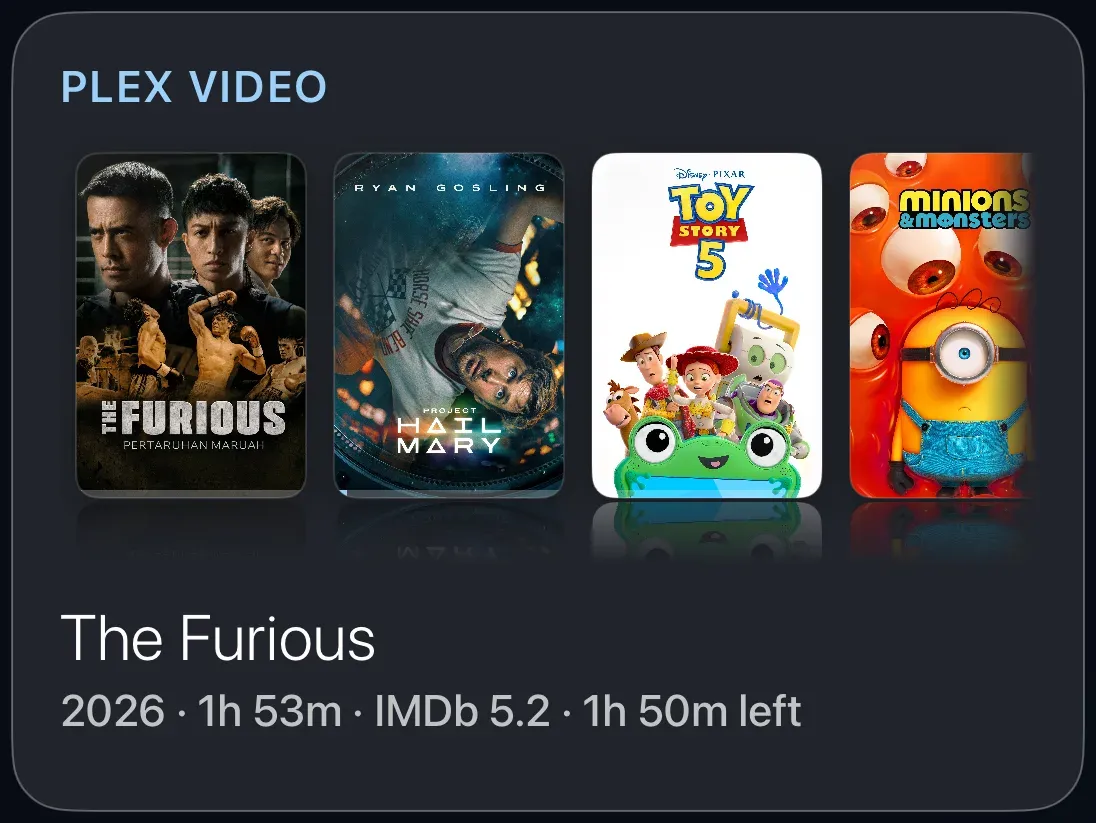
A row of posters from one of your Plex libraries or playlists, with the title and details of the highlighted item underneath. Choose one and its page opens, with the poster, summary and a Play button. Films play right there on the Apple TV.
Before you start
Link your Plex server once, in Settings › Connections › Media Server. See Connect your Plex server. The six Plex cards appear in the card chooser only after a server is linked.
Add the card
Every card is added the same way. If you have done this before, skip ahead.
- On the dashboard, move to a card you want to replace. Press and hold the center of the remote's pad for about a second. The card dims and a Modify button appears on it.
Hold the center of the pad on the card you want to change. - Press the center once to choose Modify. The Choose a card screen opens.

The Choose a card screen. The list down the left side narrows the cards by group. - On the left, choose Media, then move right and choose Plex Player. (You can also leave the list on All and scroll; it is in alphabetical order.)
- On Choose a library, pick what the card shows: one of your libraries (a film library shows films; a TV library lists series, and choosing a series shows its episodes), one of your Plex playlists, or Continue Watching across every library. The card's title follows your choice.
- Finish with the button at the foot of the setup screen, which is named for the card, such as Add Calendar Card. A card that needs no setup is added the moment you select it. You return to the dashboard with the new card in place.
Using it every day
- Move to the card and press the center to enter it. The first poster is highlighted.
Press the center of the pad - Move left and right along the shelf. The title and details under the shelf change as you go.
- Press the center on a poster. The film's page opens with its summary, running time and a Play button. For a series, you see its episodes first.
- Choose Play. The film fills the screen. Play/Pause on the remote pauses; Back stops and returns to the film page.
Press Play/Pause - Press Back again to return to the dashboard.