Guides › Media cards
The Music Visualizer card
Theatrium ProWorks with: Any Apple TVAbout 1 minute to set up
The same generative visuals as the full-screen music room, playing inside one card on your dashboard.
What it shows
A visualizer scene, sized to the card, moving to the tempo and colors of whatever is playing through the Music Room's source. Leave it cycling and it changes to a new scene every so often; pin one and it stays put. It works even with nothing playing — and in demo, with no smart home connected at all — since it needs nothing but the app itself. The visuals move to the song's tempo and album colors, never to the room's microphone or speaker output. Press Select on the card and the visualizer opens full screen, on the visual the card was showing.
Add the card
Every card is added the same way. If you have done this before, skip ahead.
- On the dashboard, move to a card you want to replace. Press and hold the center of the remote's pad for about a second. The card dims and a Modify button appears on it.
Hold the center of the pad on the card you want to change. - Press the center once to choose Modify. The Choose a card screen opens.
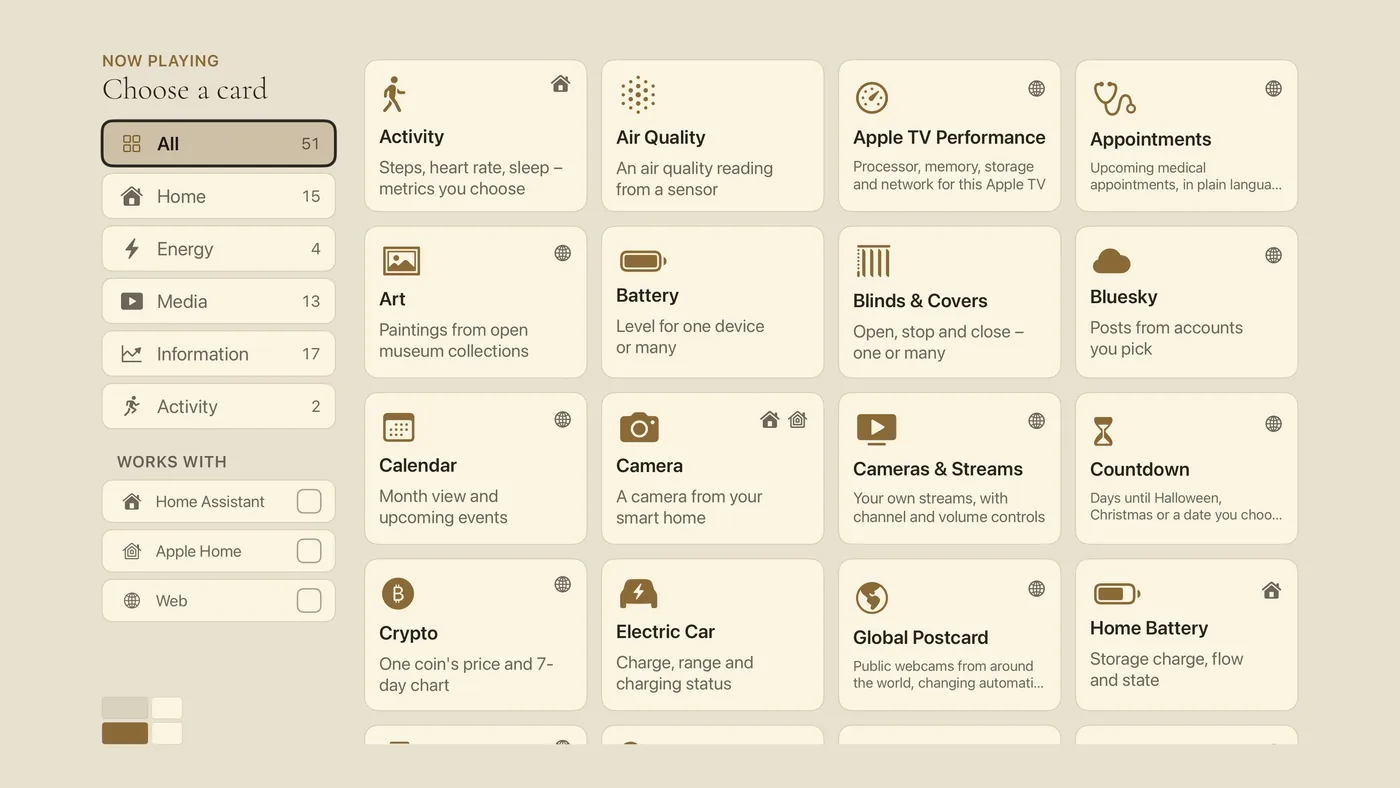
The Choose a card screen. The list down the left side narrows the cards by group. - On the left, choose Media, then move right and choose Music Visualizer. (You can also leave the list on All and scroll; it is in alphabetical order.)
- On Choose a visual, leave it on Cycle through all for a new visual every little while, or choose one scene under Or pick one to keep it on screen — highlighting a scene previews it live. If you leave it cycling, choose how often it changes under How often it changes: 30 seconds, 60 seconds, or Every track (changes when the song changes rather than on a timer). The scenes offered are the ones listed in Settings › Visualizations; the Halloween visuals appear only while Halloween Mode is on.
- Finish with the Add to Dashboard button. You return to the dashboard with the new card in place.
Good to know
- Nothing to press once it is set; the card runs on its own. To see it larger, move to the card and press Select: the visualizer opens full screen on the visual the card is showing. Press Back to return to the dashboard.
- To change the visual later, hold the center of the pad on the card, choose Modify, and open Choose a visual again.
- This is a card-sized version of the full-screen visualizer. For the immersive version, its full scene catalogue, and the Video Loops option for an older Apple TV, see The visuals, one by one and The Music Room.