Guides › Your dashboard
Themes
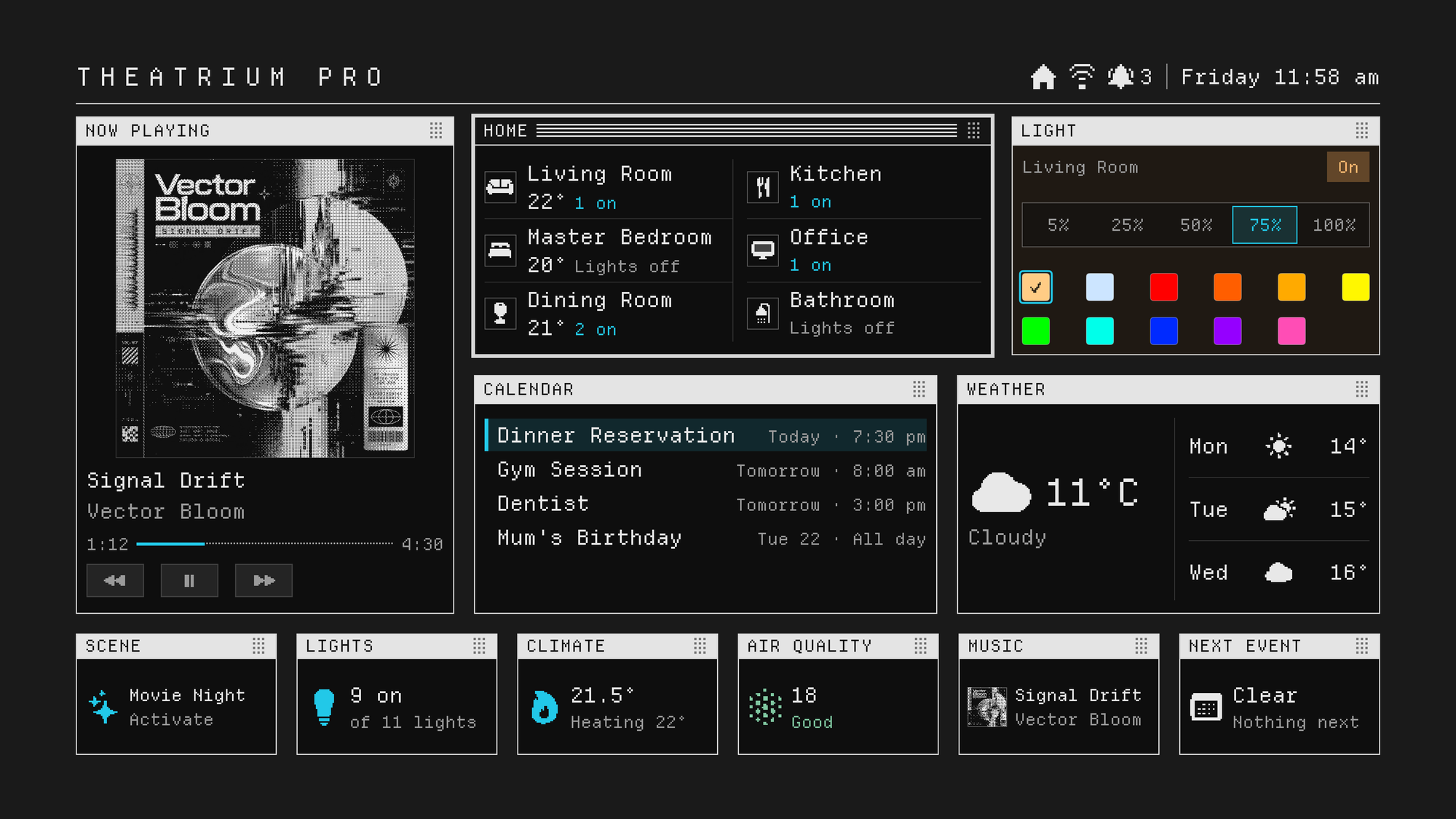
Five looks for the same dashboard. Glass is free; Estate, Bento, Boardroom and Classic come with Theatrium Pro. Every one has a light and a dark version, and any theme can wear any theme's colors.
What a theme is
A theme is the overall look of the dashboard: the colors, the type, the shape of the cards and how many panels fit on the screen. Your cards and settings stay the same whichever theme you pick, so you can switch freely.
The five themes
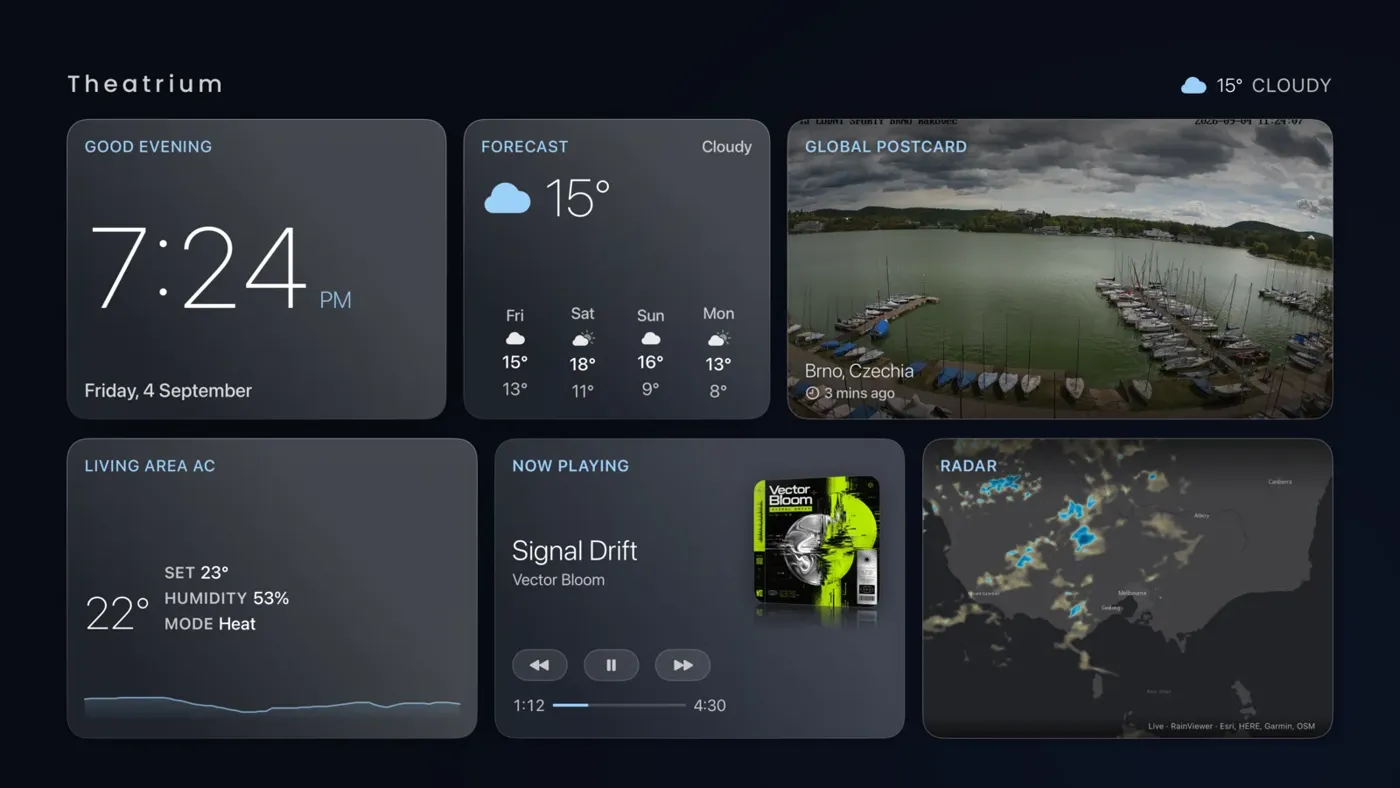
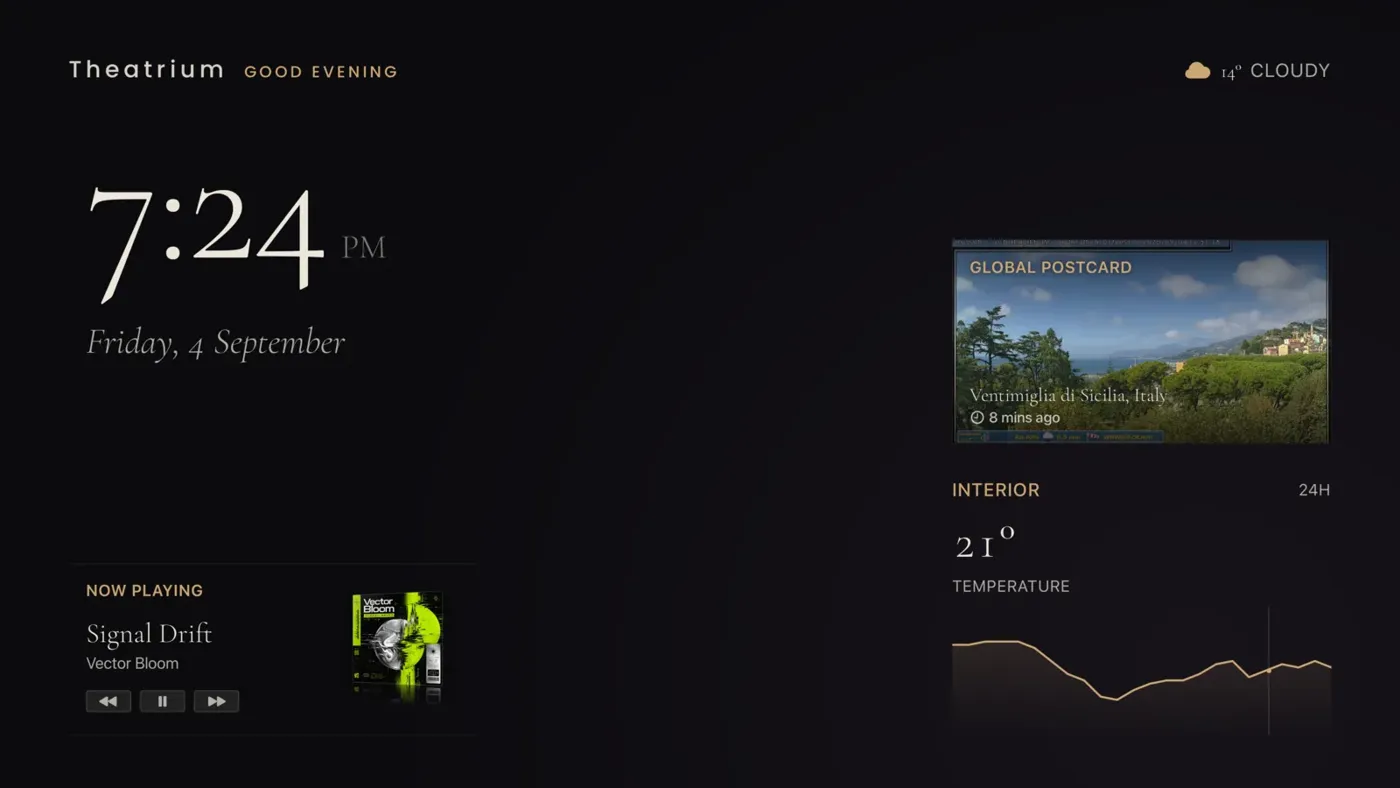
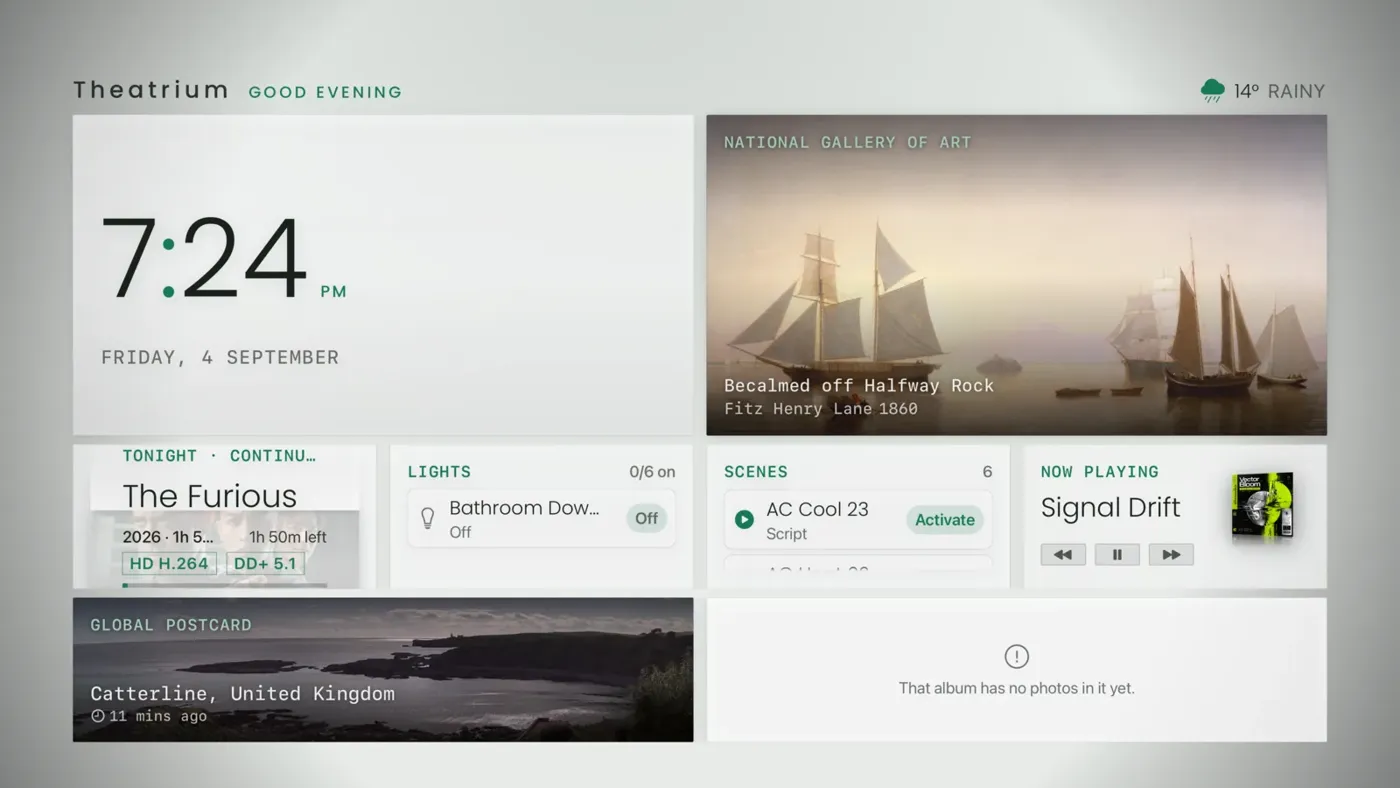
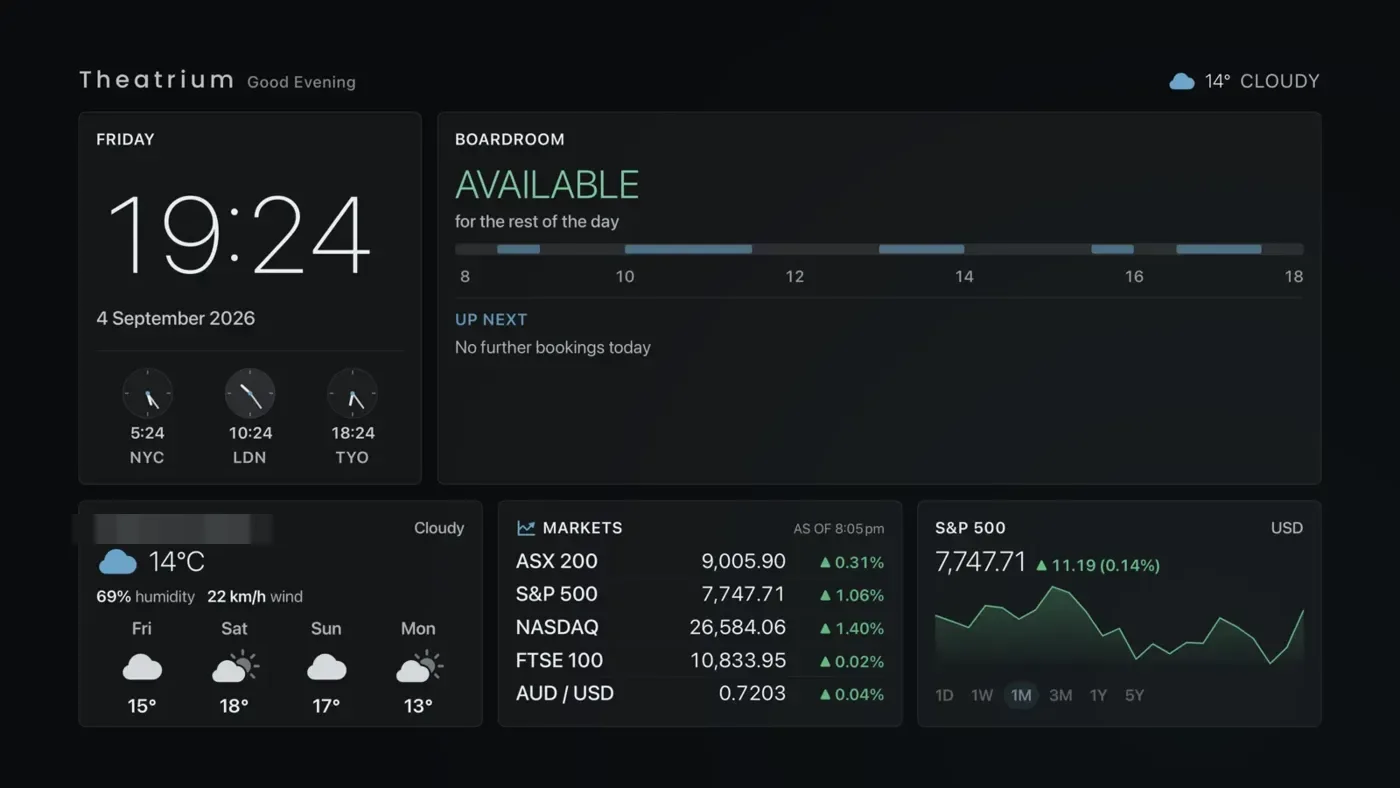
Changing theme
- Open Settings (the gear button in the top bar) and choose Appearance.
- The Theme card is at the top. Move along the row of theme names and press the center on one. The preview beside it updates at once.
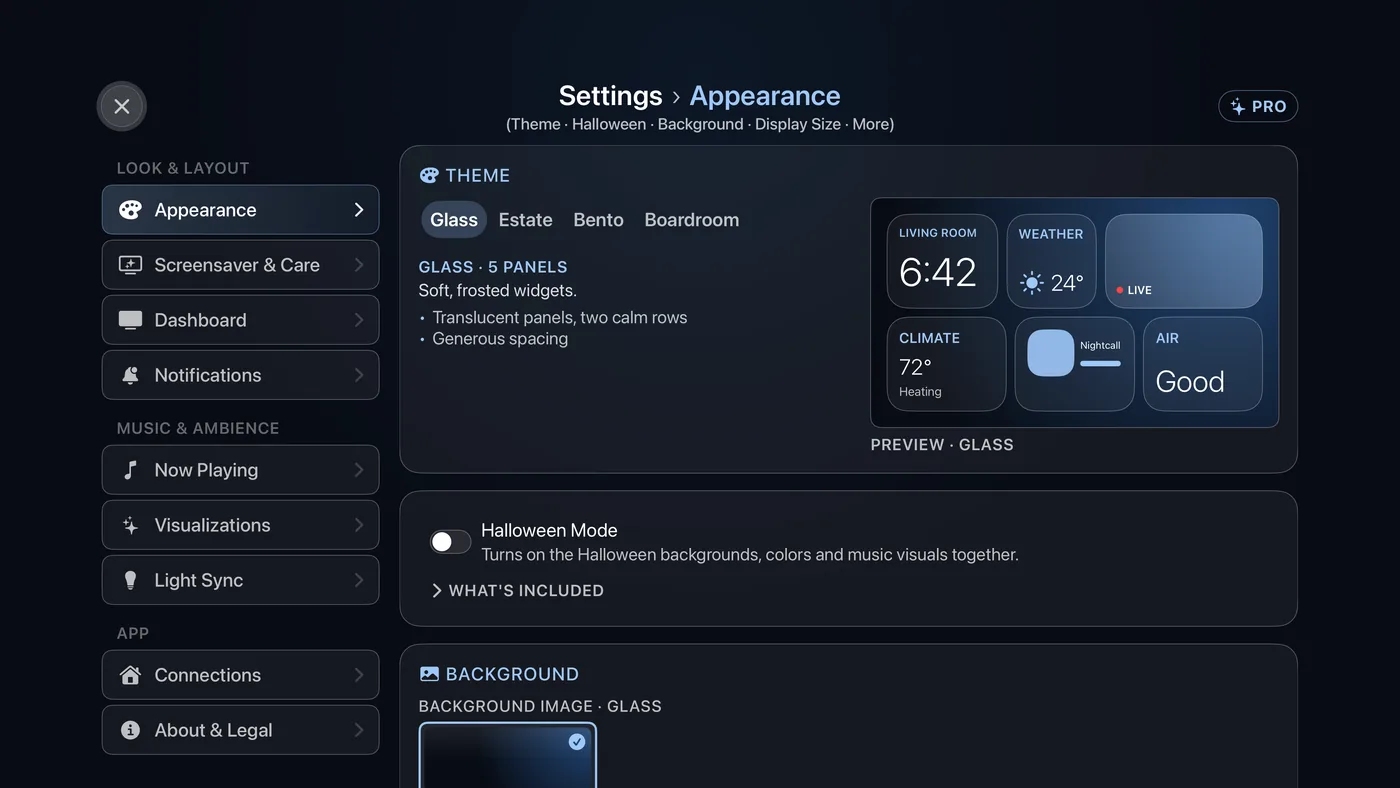
Settings › Appearance. The theme row is first; the preview beside it shows the layout and how many panels it has. - To change the colors, select More appearance settings, below Display Size, and look at Color Palette. Each picture shows your dashboard in that palette: Ice Blue, Antique Gold, Jade, Navy, Cyan, Rose or Gloss Black – each theme’s own color, plus two more. Choose one and the theme you have selected wears it.
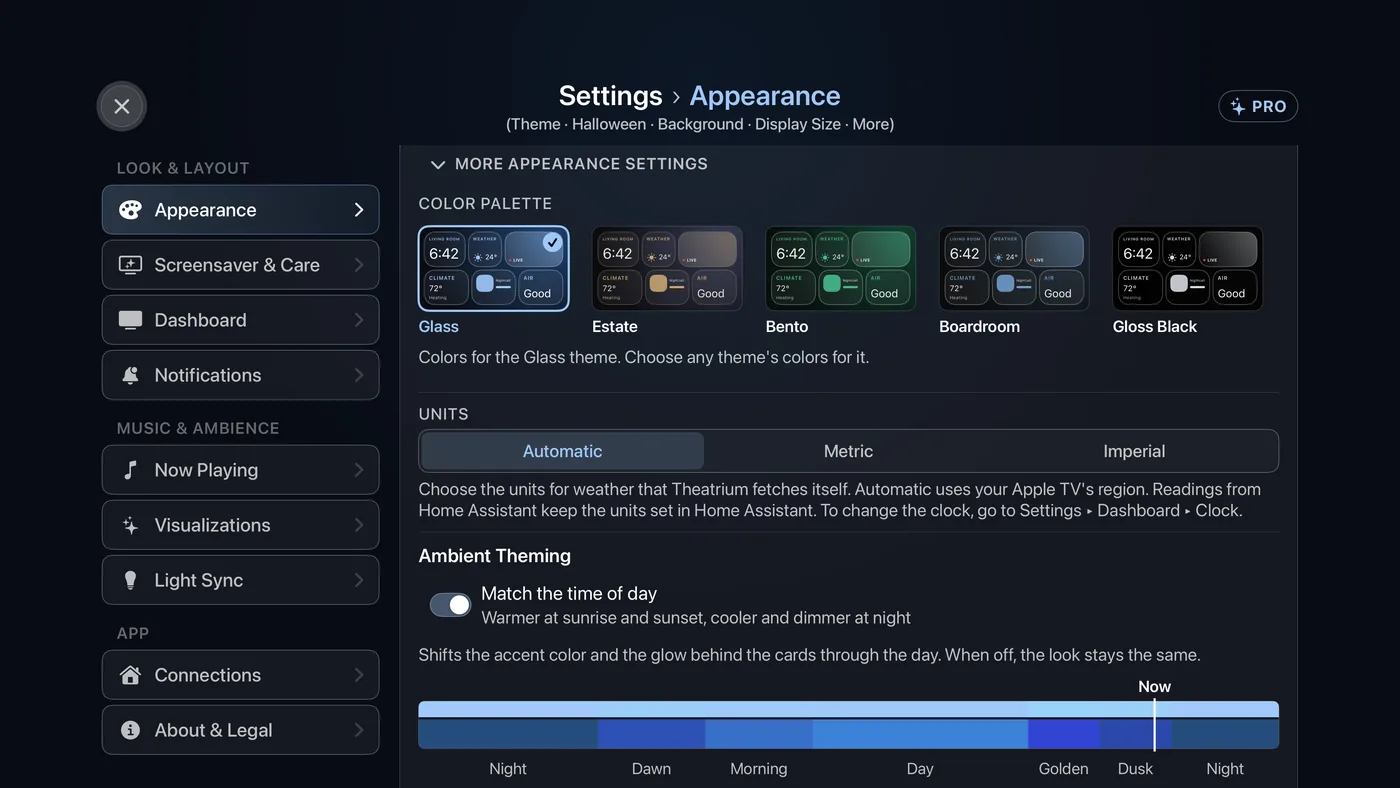
More appearance settings, open. Color Palette is the first group; Units and Ambient Theming follow. - Press Back to close Settings. The dashboard redraws in the new theme.
Light and dark
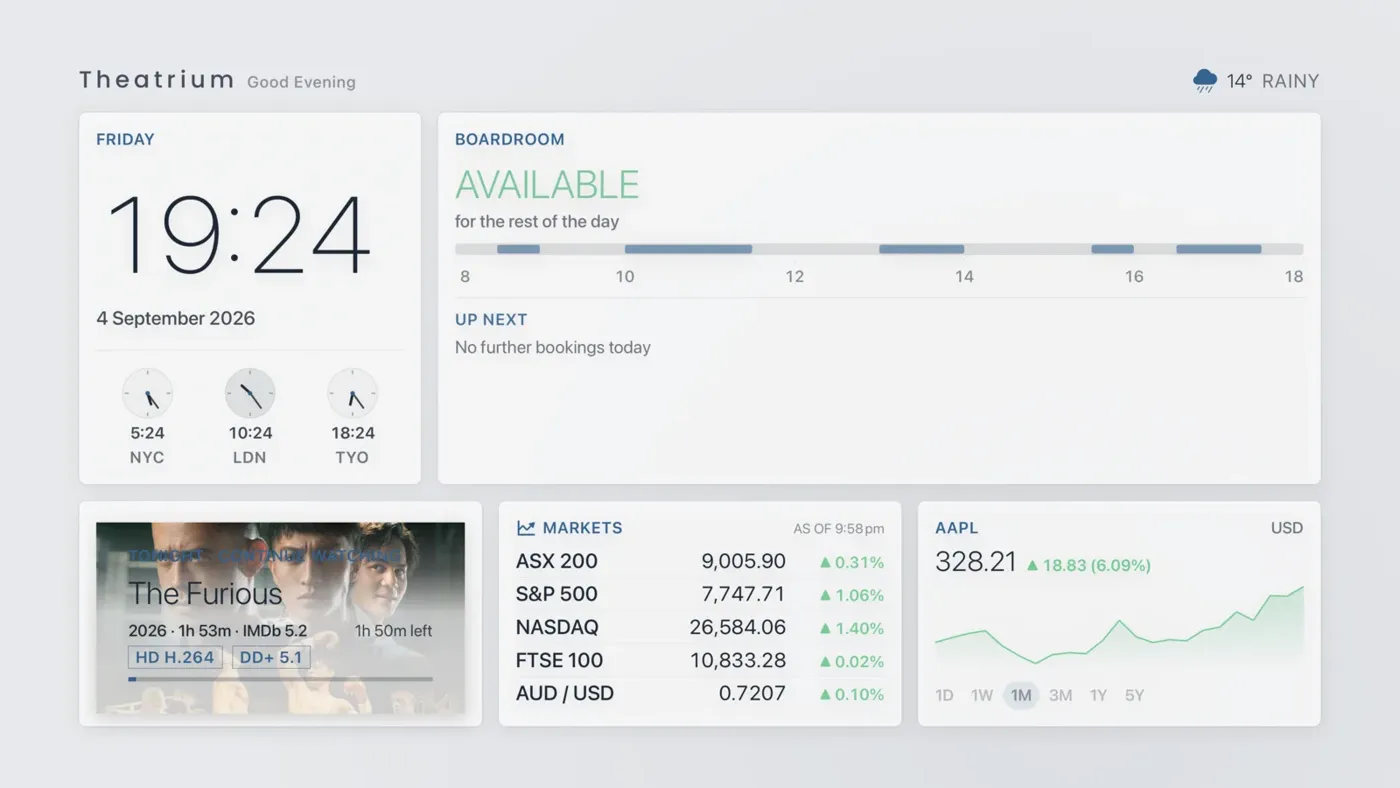
Every theme has a light version. On the dashboard, move to the top bar and choose the half-filled circle button, named Light/Dark Mode. Press it again to swap back.
Each theme remembers its own cards
Each theme has its own number of panels and its own memory of what you put in them. The first time you open a theme it starts with its standard set of cards. Change them as you like; when you switch to another theme and back, your choices are still there. The second page is shared: the same cards appear on it whichever theme you use.
Halloween Mode
A switch in Settings › Appearance puts the Halloween look on every theme at once: a Halloween background for each, the Pumpkin & Plum colors, and the Halloween music visuals. While it is on, Pumpkin & Plum joins the Color Palette choices. Turn it off and your own background, colors and visuals return. See Halloween Mode.