Guides › Your dashboard
Appearance settings
Your theme and background, bigger text, color palettes, your preferred units, and colors that follow the time of day.
Where it is
Open Settings with the gear button in the top bar at the top right of the dashboard (press up to reach the top bar), then choose Appearance, the first item. It is a single page you scroll down. The main choices are in view; the rest sit behind one closed row, More appearance settings, which opens when you select it.
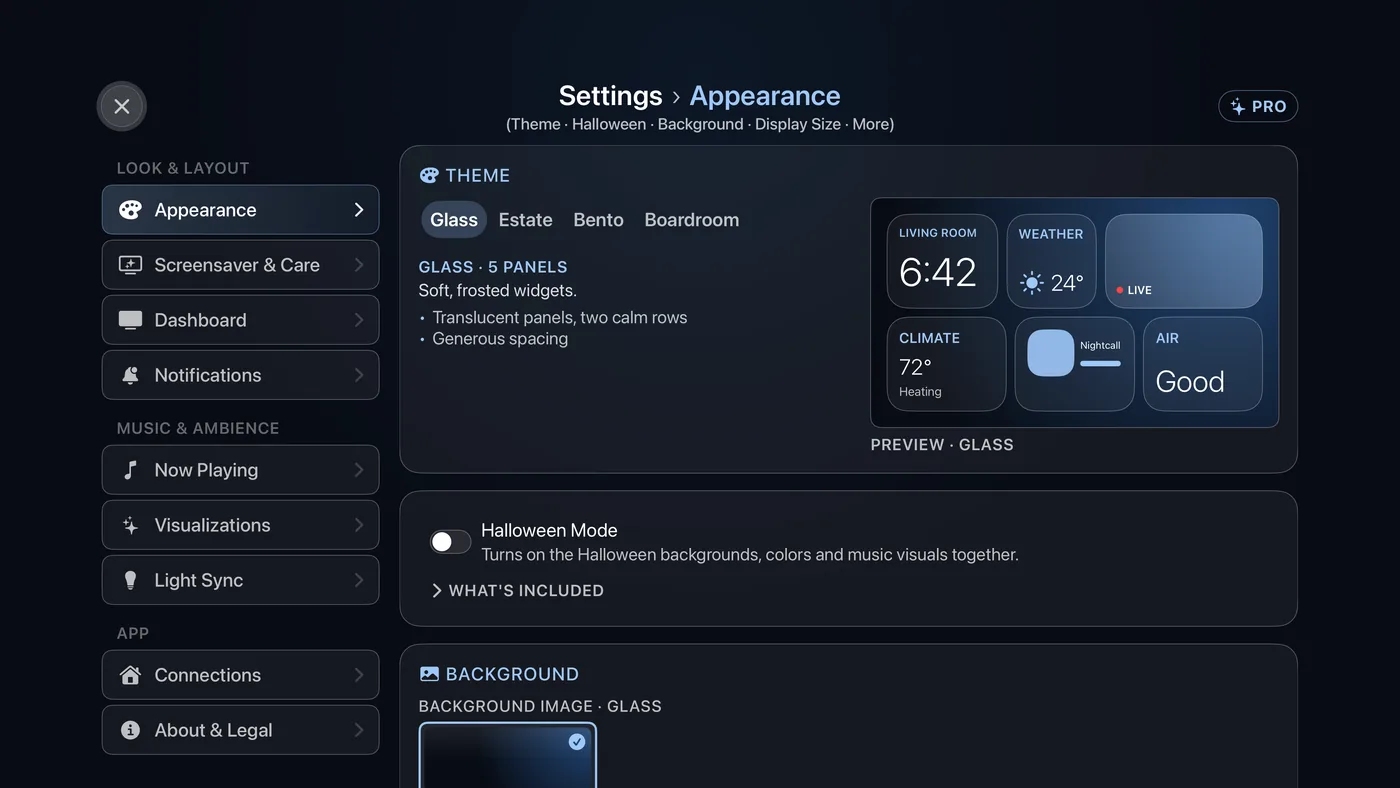
Theme
The top card. Glass, Estate, Bento or Boardroom: move along the row and the preview beside it shows each look and how many panels it has. See Themes.
Halloween Mode
One switch turns on the Halloween backgrounds, colors and music visuals together. Turn it off and your own choices come straight back. What's Included opens a list of everything the switch changes. In September and October the card sits right under Theme; the rest of the year it is at the bottom of the page. The pack is part of Theatrium Pro, with a free taster in October. See Halloween Mode.
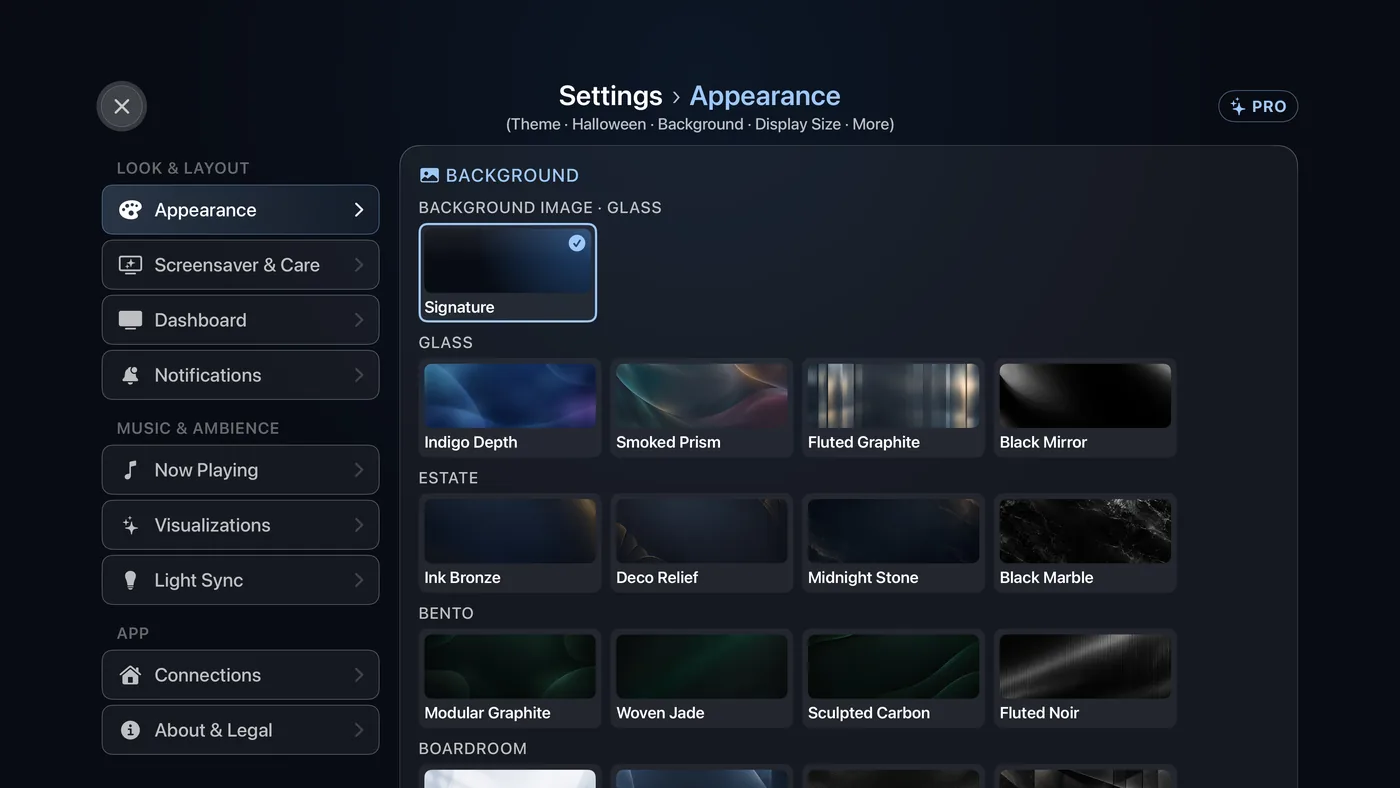
Background
Pick a background image for the dashboard and the second page — and a different one for each theme if you like. The pictures are grouped by theme. Theatrium keeps the cards clear and easy to read over it, so the picture sits behind your dashboard rather than competing with it. Choose Signature, the first tile, to go back to the theme's own plain background. Background images are part of Theatrium Pro.
Display Size
Two pictures of your dashboard show the choice: Standard, with more on each card, and Large, with bigger text and less on each card. The layout rearranges itself to fit, so pick the size you can read comfortably from your sofa and the cards will still fit.
More appearance settings
The closed row below Display Size. Its summary line names your palette, your units and which ambient tints are on. Select it to open three groups.
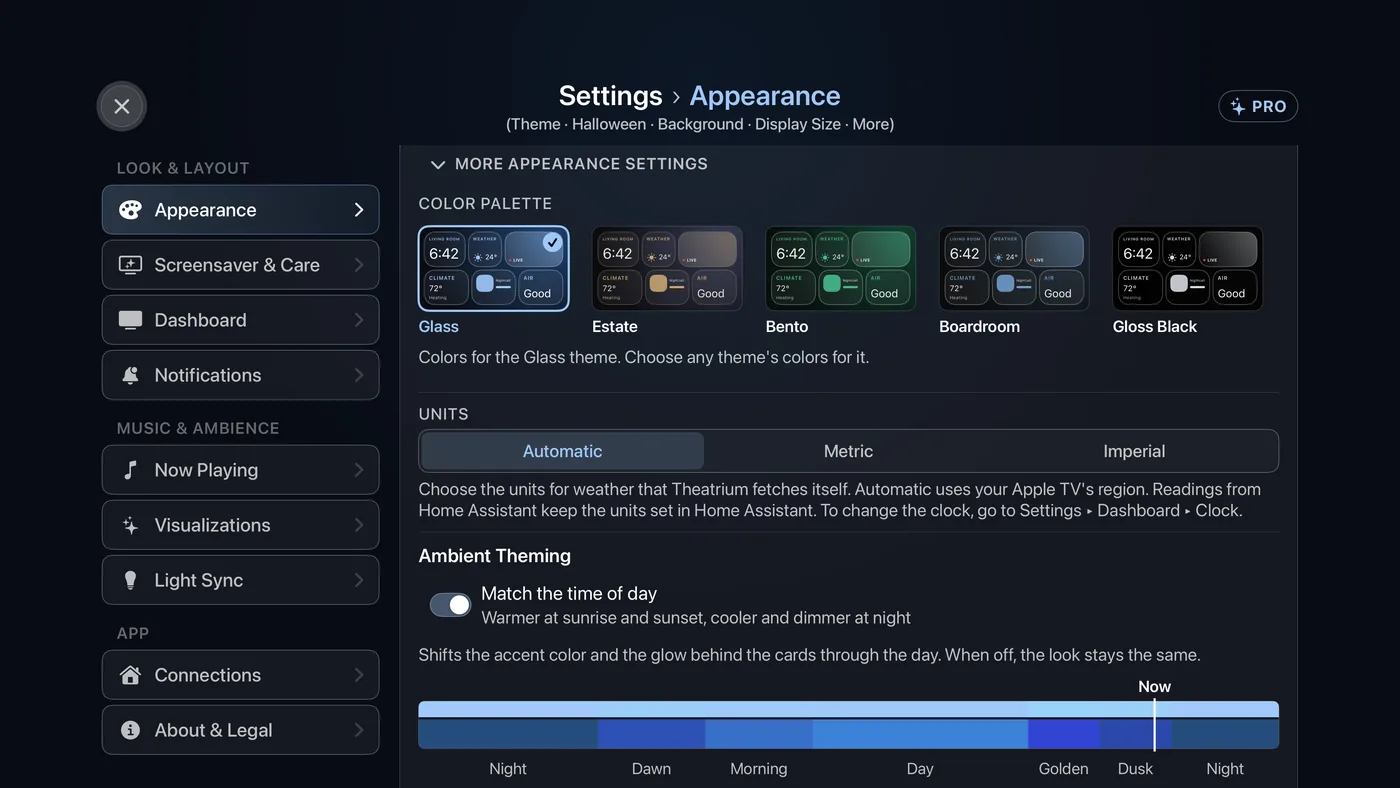
Color Palette
A picture of the dashboard in each palette: Glass, Estate, Bento, Boardroom and Gloss Black, with Pumpkin & Plum added while Halloween Mode is on. Any theme can wear any theme's colors; it keeps its own layout and type. Gloss Black and Pumpkin & Plum are part of Theatrium Pro.
Units
Choose Automatic, Metric (°C, km/h) or Imperial (°F, mph) for the weather Theatrium fetches itself. Automatic follows the Apple TV's region. Readings that come from Home Assistant keep whatever units Home Assistant uses. (The clock's 12- or 24-hour choice is under Settings › Dashboard › Clock.)
Ambient Theming
Match the time of day: the accent color and the glow behind the cards run a touch cooler in the morning and warmer in the evening, and a strip below the switch shows the day. Follow the season adds a tint for spring, summer, fall and winter, with a Hemisphere choice of Automatic, Northern or Southern. Follow the weather warms the screen in sunshine and cools it in rain and cloud. Turn them off for one constant look.
Screen dimming and Pixel Shift
These are no longer on this page. Dimming, Pixel Shift and the screensaver now sit together under Settings › Screensaver & Care. See Looking after your screen and Screensavers.