Guides › Getting started
Getting your lights ready for Theatrium
Which smart lights work, how to get them into Apple Home or Home Assistant, and how to name and group them so they are easy to use from the TV.
What Theatrium does with lights
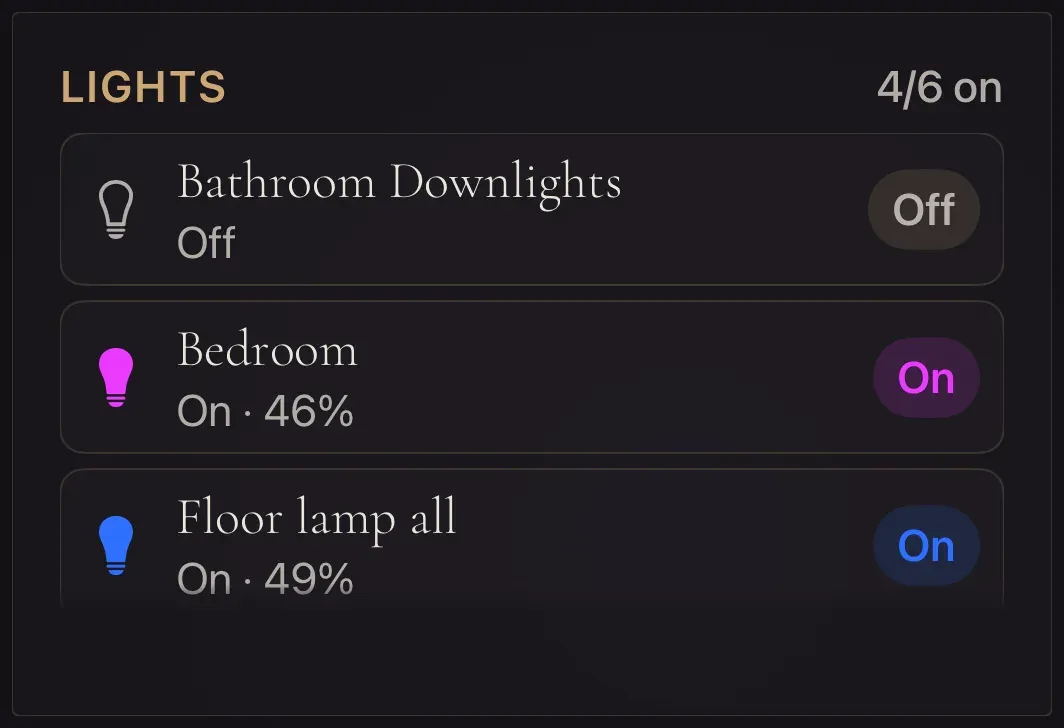
Once your lights are in Apple Home or Home Assistant, Theatrium can do three things with them: switch and dim them from the Light card, put your favorites on the Quick Access bar at the foot of the dashboard, and, while music plays, wash the room in the colors on screen with Room Light Sync. Theatrium does not talk to bulbs directly; it goes through your smart home, so the work here is getting the smart home right.
Which lights work
Any light your smart home can control. In practice:
| Kind of light | Works with | Notes |
|---|---|---|
| Philips Hue bulbs and strips, through the Hue Bridge | Apple Home and Home Assistant | The best choice for light sync: fast and smooth color changes. |
| Nanoleaf, LIFX, Eve, Meross and other "Works with Apple Home" bulbs | Apple Home and Home Assistant | Wi-Fi bulbs can be a little slower to follow the screen. |
| IKEA, Tuya, Shelly, Zigbee and Z-Wave bulbs | Home Assistant | Add them through their Home Assistant integration. |
| Smart plugs with an ordinary lamp | Both | On and off only. They appear on the Switch card rather than the Light card. |
For light sync you need color bulbs. White-only bulbs follow the brightness but not the color.
Step 1: get the lights into your smart home
Apple Home. Open the Home app on your iPhone, tap + and Add Accessory, and scan the code on the bulb or its box. Hue users: add the Hue Bridge once and every Hue light comes with it. Put each light in a room when asked.
Home Assistant. Open Home Assistant, go to Settings › Devices and Services, and add the integration for your bulbs (Philips Hue, LIFX, Zigbee, and so on). Home Assistant usually finds the bridge or bulbs on its own and offers them under Discovered.
Step 2: name them so they read well on a TV
The names you give lights are the names Theatrium shows, in big type, across the room. Short, plain names work best: "Kitchen", "Reading lamp", "Hall". A name like "Hue color lamp 3" tells nobody anything.
- Apple Home: in the Home app, press and hold a light, tap the gear, and change its name.
- Home Assistant: Settings › Devices and Services › Entities, choose the light, tap the gear, and change its name.
Step 3: make groups for whole rooms
A group lets one button switch a whole room, and lets you give a whole room to light sync in one selection instead of eight. Groups are a convenience, not a requirement: the light sync picker also lists individual bulbs.
- Apple Home: rooms already act as groups. In the Home app, make sure each light is in the right room. You can also make a group by holding a light, tapping the gear, and choosing Group with Other Accessories.
- Home Assistant: Settings › Devices and Services › Helpers › Create Helper › Group › Light group. Name it for the room and select its lights. It appears in Theatrium like any other light.
Step 4: connect Theatrium and check
- Make sure Theatrium is set to the smart home the lights are in: Settings › Connections shows "Using Home Assistant" or "Using Apple Home". To change it, open More connection settings on that page and select Switch….
- Add a Light card and select a few lights. If they are listed with the names you gave, everything is wired up.
- For light sync, open Settings › Light Sync and turn on Sync room lights with visuals. Under Which Lights, select the room's main lights under Main / Overhead and the lamps under Accent. Then open More Light Sync settings and run the light test (Test My Lights). Each light is sent a different color; the ones that change are ready. See Room Light Sync.