Guide · The Theatrium Appointments card Easy
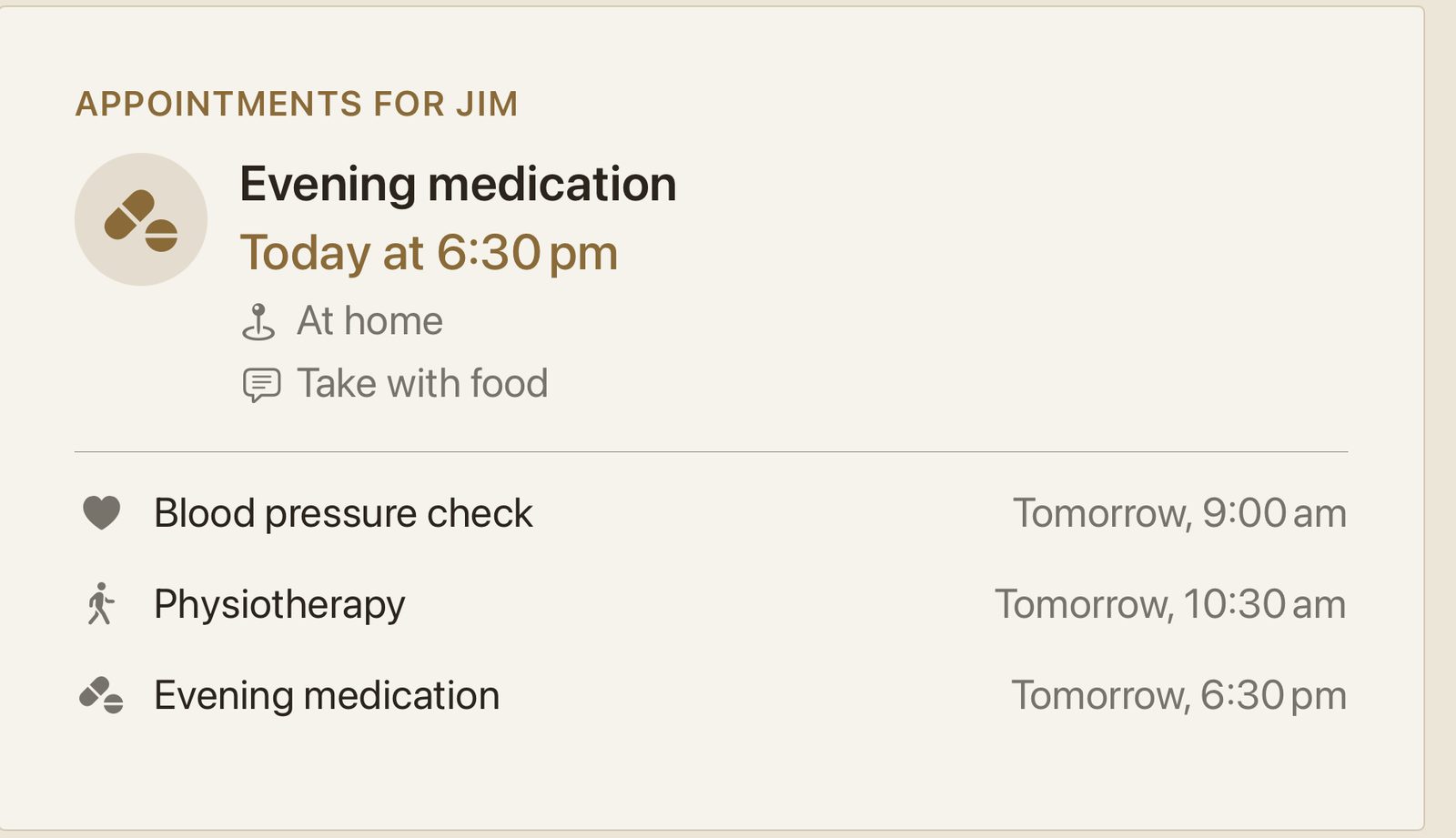
Appointments, easy to read from across the room
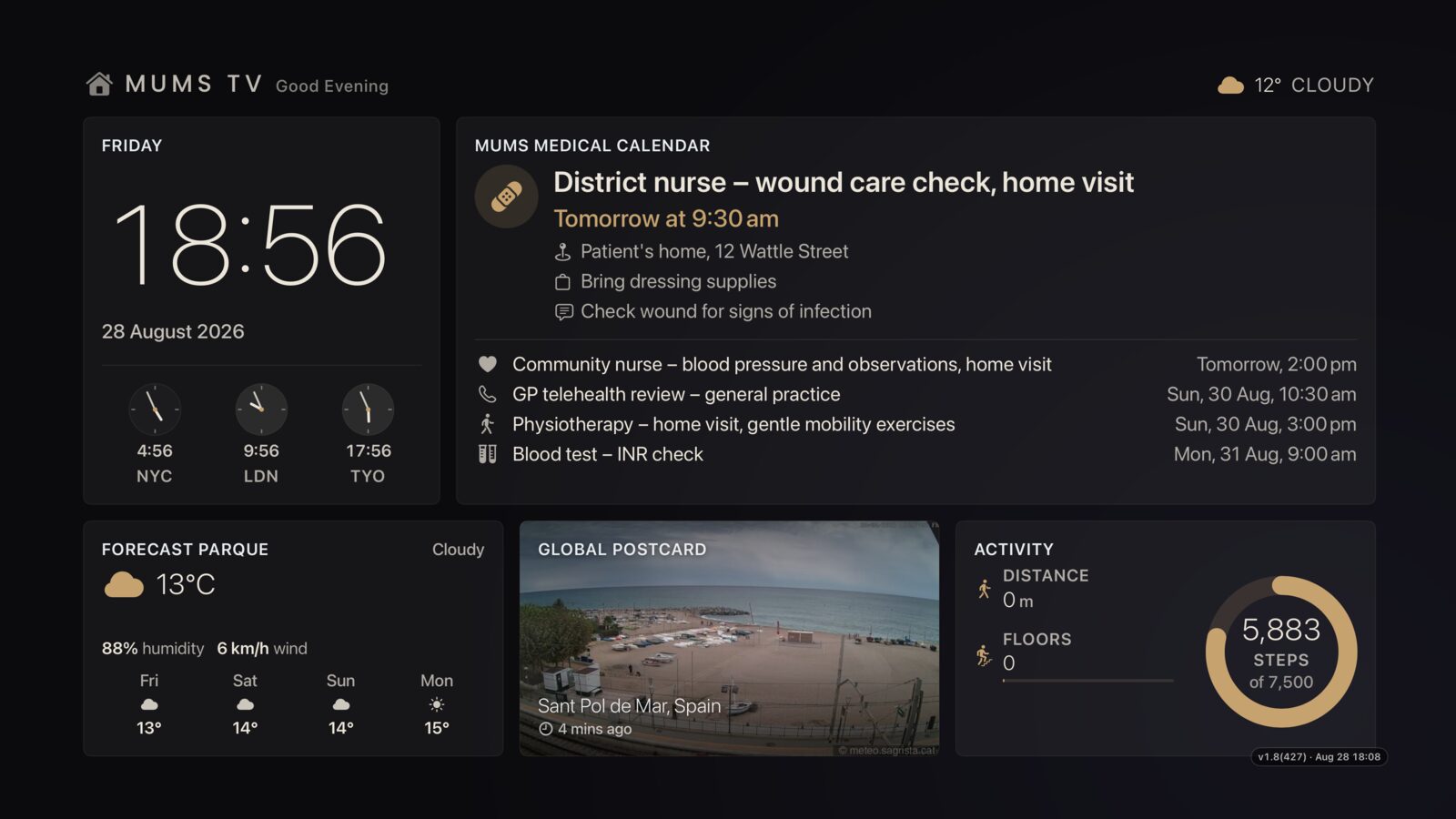
The Theatrium Appointments card puts what’s coming up on the television in large, plain language — what it is, when, where, and what to bring. It is set at a size meant to be read from an armchair rather than up close, and it says one appointment clearly instead of showing a busy list. It reads its own calendar, separate from the household one, so it can be shown without showing everything else.
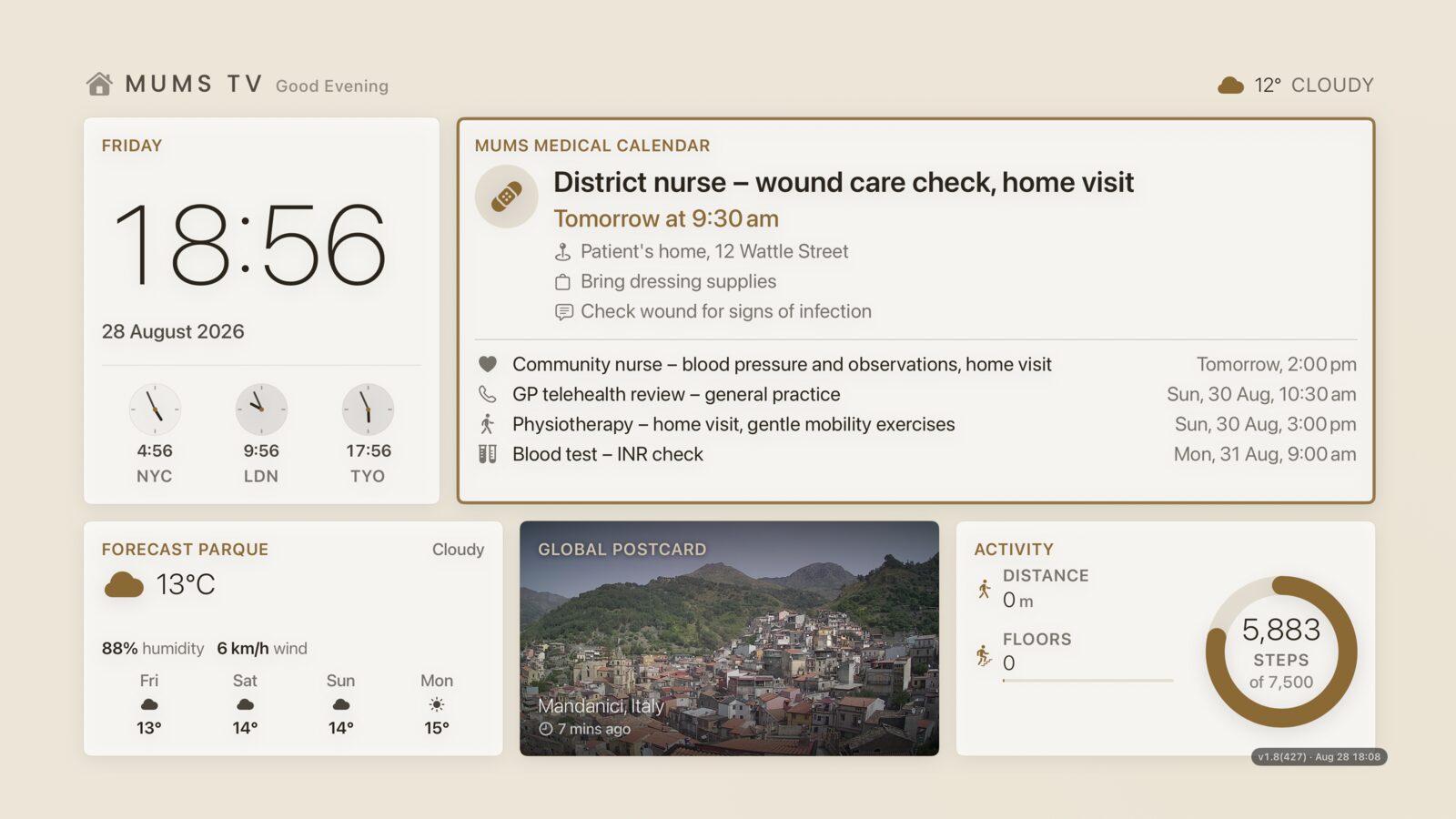
It does not have to be your calendar. A family member or carer can keep the appointments up to date from their own phone, anywhere — see step 6. There is nothing for the person at home to install or operate.
This is a display, not a reminder service. Theatrium shows what your calendar already says. It never sends alerts, never chases a missed appointment, and it is not medical advice. Keep whatever reminders you already rely on.
Make a calendar just for appointments
Create a new, separate calendar in Google Calendar, iCloud or Outlook and put only medical appointments in it. This matters for two reasons.
First, a television in a living room is seen by whoever is in the room. A separate calendar lets you show appointments on one screen and not another, and lets you turn the card off without touching the family calendar.
Second, the name you give the calendar becomes the heading on the card. Call it “Appointments for Jim” and that is what the TV says, unless you type a name of your own on the card’s setup screen. In a house with two people, that alone tells two cards apart.
Copy that calendar’s private link
Google Calendar — on a computer, hover the calendar in the left-hand list, click the three dots, choose Settings and sharing, scroll to Integrate calendar and copy the Secret address in iCal format. It ends in .ics. (Google’s instructions.)
Apple or iCloud — on iCloud.com open Calendar, click the share icon beside the calendar name and turn on Public Calendar. The link begins webcal://, which Theatrium accepts as it is. (Apple’s instructions.)
Outlook and anything else offering an .ics subscription link works the same way.
Add the card and paste the link
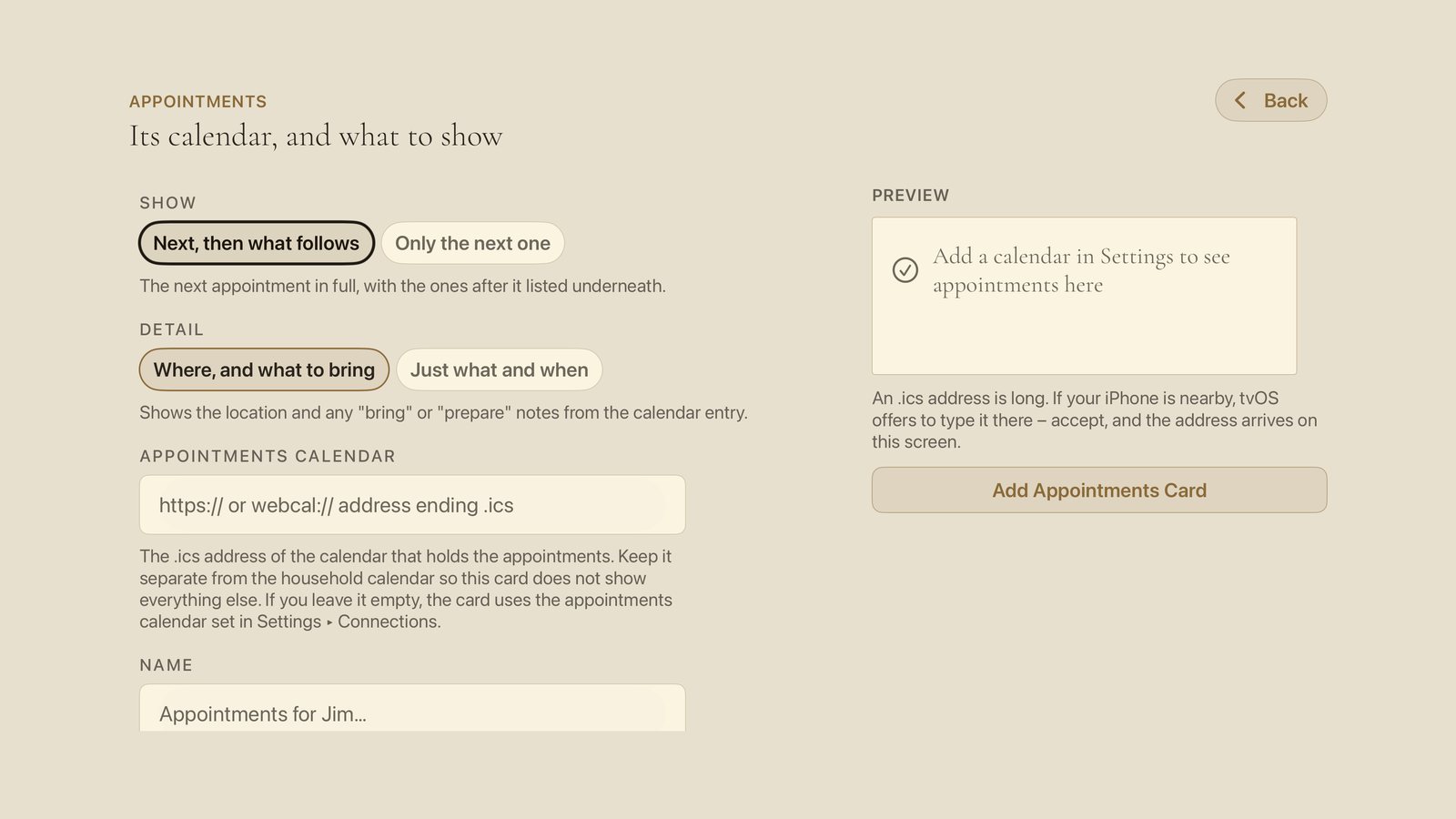
On the dashboard, press and hold a panel to change it and choose Appointments. The setup screen, Its calendar, and what to show, has an Appointments calendar box: paste your link there. The Appointments card needs Theatrium Pro.
Don’t type the link with the remote. These addresses are long and easy to mistype. Email or AirDrop it to yourself, then use the iPhone keyboard prompt that tvOS offers when you select the box. The Theatrium app on your iPhone can also send it: under Settings › Accounts & Feeds › Calendars, paste it into Appointments link.
To use one appointments calendar for every Appointments card, set it once in Settings › Connections › More connection settings, under Appointments. A card with a link of its own uses that one instead.
Choose how much it shows
The same screen has two more settings, Show and Detail. Choose Add Appointments Card to finish.
Next, then what follows shows the next appointment in full with the rest listed underneath. Only the next one shows a single appointment as large as the card allows — the better answer for someone who finds a list hard to take in.
Where, and what to bring shows the location and any notes. Just what and when leaves them off. Choose that if the screen is somewhere visitors see it.
Write appointments so the card can help
No special format is required — an appointment typed the ordinary way works, it just shows less. If you want the card to say more, use fields your calendar already has.
- Title — what it is, plainly: Dentist, Dr Patel – heart clinic. This is also what picks the icon.
- Location — where to go, including the floor or ward: Cabrini Hospital, level 3, clinic B.
- Notes — optional lines the card reads:
Bring: your medication list
Prepare: nothing to eat after 8am
Note: park in the visitors’ car park
Anything else in the notes is shown as it is, so nothing you write is lost.
Someone else can keep it up to date, from anywhere
Whoever manages the appointments does not have to be in the house. A son or daughter in another city, or a carer between visits, adds an appointment in their own calendar app on their own phone, and it appears on the television at home.
Share the appointments calendar with them the ordinary way — in Google Calendar, Settings and sharing › Share with specific people, with permission to make changes to events. It then sits alongside their own calendars, on whatever phone or computer they already use.
Nothing changes at the other end. There is no app for the person at home to open, nothing to press, and no account for them to remember. The appointment is simply there the next time they glance at the screen.
Two things worth knowing if you set it up this way:
- The television can only read. Nobody at home can move or delete an appointment by accident, and the card never writes anything back to the calendar.
- Give it a few minutes. Calendar providers refresh shared links on their own schedule, so something added from a phone is not on the TV the same second. If you are on the phone to someone and want them to see it now, expect a short wait.
It also means the calendar is the single place the appointments live. Whoever books them writes them down once, and the person at home, the carer and anyone else sharing it are all reading the same thing.
Icons are chosen from the title
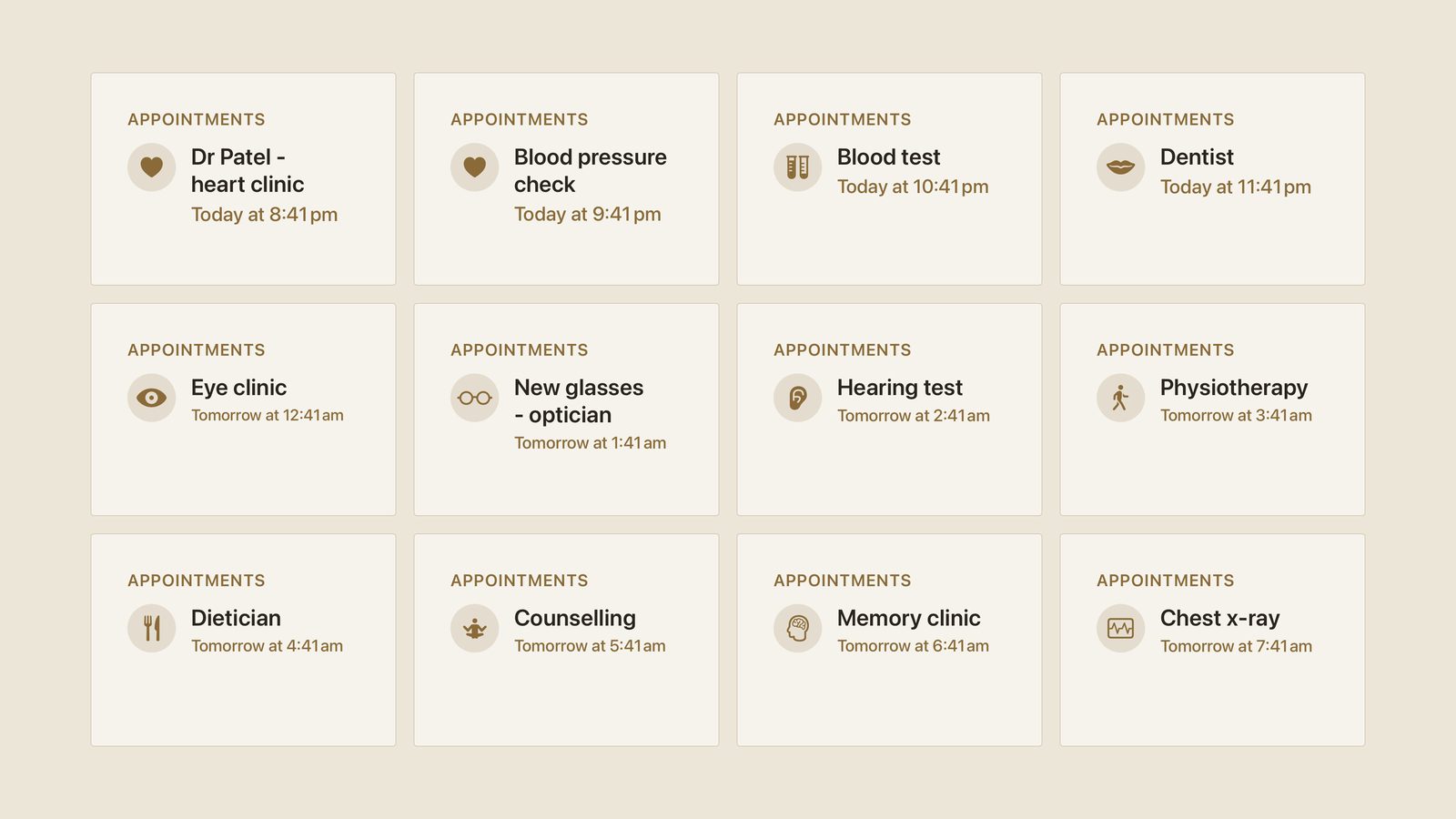
Theatrium reads the title and chooses a matching icon — a heart for a cardiology appointment, a tooth-and-mouth for the dentist, a walking figure for physiotherapy, a phone for a telephone appointment. Nothing to set up, and an appointment it doesn’t recognize simply gets a plain calendar icon rather than anything clinical.
Good to know
- It’s read-only, by design. Theatrium displays appointments and nothing more. It cannot create, change or delete anything in your calendar, and it never contacts a clinic.
- Not a reminder, and not advice. The card shows what the calendar says, when the TV is on and someone is looking. It is not an alerting system and nothing on it should be treated as medical advice.
- Treat the private link like a password. Anyone who has it can read that calendar — which, for this one, means somebody’s appointments. Don’t post it anywhere public. Google lets you reset the address if it ever leaks, which instantly kills the old one.
- Think about who sees the screen. A television is a public surface in most homes. The Just what and when setting exists for exactly this, and a separate calendar means the card can be removed without disturbing anything else.
- One card per person. Two calendars, two cards, each named after the person it belongs to.
- New appointments take a moment. Calendar providers refresh these shared links on their own schedule, so something added on a phone can take a few minutes to reach the TV. That’s the provider’s timing, not the app’s.
- Nothing goes through us. Your Apple TV fetches the calendar directly. Theatrium has no server in the middle — see the privacy page.
This guide is general information, provided “as is” with no warranty of any kind. It describes independent third-party software that Theatrium does not control, and the steps involve installing software and changing settings on your own equipment — back up first and proceed at your own risk. Read the full disclaimer.