Guide · Calendar Easy
Put your calendar on the TV
Theatrium can show your Google, Apple or Outlook calendar on the dashboard — today's agenda beside your lights, weather and photos. You copy one private link from your calendar and paste it in. There's no account to create, no password to hand over, and Theatrium can only read: it can never add, change or delete an event.
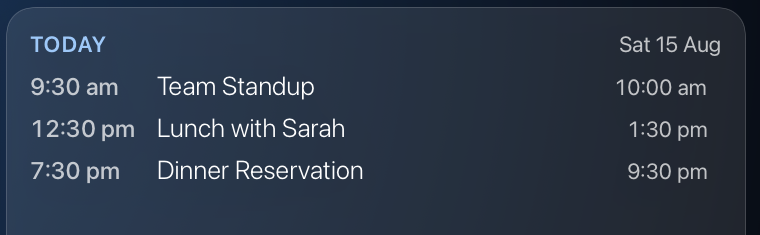
 TheatriumToday's agenda on screen
Already use Home Assistant? You may not need any of this. Leave the calendar box empty and Theatrium shows the calendars Home Assistant already knows about. This guide is for connecting a calendar directly — which is the only route in Apple Home mode.
Google Calendar: copy the secret link
Do this on a computer — the phone app doesn't show the setting.
Open Google Calendar, hover the calendar you want in the left-hand list, click the three dots and choose Settings and sharing. Scroll to Integrate calendar and copy the Secret address in iCal format. It's a long address ending in .ics.
Official instructions: Google's guide to syncing your calendar elsewhere.
Apple or iCloud Calendar: share the calendar
On iCloud.com, open Calendar, click the share icon next to the calendar name, and turn on Public Calendar. Copy the link it gives you — it begins with webcal://, which Theatrium accepts exactly as it is.
You can do the same on a Mac: right-click the calendar, choose Share Calendar, select Public Calendar, then copy the link.
Official instructions: Apple's guide to sharing an iCloud calendar.
Paste it into Theatrium
On the Apple TV, open Settings › Connections, find the Calendar card and paste your link into its field. As soon as you do, Theatrium checks it and confirms right in the box whether it connected — showing the calendar’s name and its next few events, or a plain note if it couldn’t read the link. The usual cause of a failure is pasting the calendar’s web‑page address instead of its .ics or webcal:// subscription link.

Don't type it with the remote. These links are long and easy to mistype. AirDrop or email the link to yourself, then use the iPhone keyboard prompt that appears when you select the field on the Apple TV. Or use the free Theatrium app on your iPhone: open Settings › Accounts & Feeds, paste the link under Calendars and choose Send to Theatrium.
Add the calendar card
Back on the dashboard, put a Calendar card in any slot. In its setup, choose a layout: Month + Up Next for the month at a glance plus what’s coming, or Today for just today’s events and their times. If Home Assistant is connected, the card also lists its calendars; turn on one, or several to merge them onto the card in time order. Choose Add Calendar Card to finish. Theatrium re‑checks your calendars every few minutes while the card is on screen, so new events appear on their own.
Good to know
- Treat the secret link like a password. Anyone who has it can read that calendar. Don't post it anywhere public. If it ever leaks, Google Calendar lets you reset the address, which instantly kills the old one — then paste the new link into Theatrium.
- It's read-only, by design. Theatrium displays your events and nothing more. It cannot create, edit or delete anything in your calendar.
- Several calendars? The link in Settings is the calendar every Calendar card shows by default. To give one card a different calendar, open its setup, choose the row under Or, a calendar link, name it and paste that calendar’s link — work, family and trash day can then sit side by side, each in its own card.
- Outlook and other services work too. Anything that offers an .ics or webcal:// subscription link will work the same way.
- New events take a moment. Theatrium re‑checks your calendars every few minutes, but the calendar providers also refresh these shared links on their own schedule, so a brand‑new event can still take a few minutes to reach the TV — that part is the provider’s timing, not the app’s.
- Nothing goes through us. Your Apple TV fetches the calendar directly from Google or Apple. Theatrium has no server in the middle — see the privacy page.
This guide is general information, provided “as is” with no warranty of any kind. It describes independent third-party software that Theatrium does not control, and the steps involve installing software and changing settings on your own equipment — back up first and proceed at your own risk. Read the full disclaimer.