Easy
Turn the TV into a welcome screen for your guests
Short Stay is for a holiday let or a guest room. The television greets whoever is staying by name, shows their dates and the local weather, and answers the questions you get asked twice a week: the Wi-Fi, the door code, parking, trash day, check-out time, and a house guide in your own words. It works with any Apple TV and takes about fifteen minutes to set up. You can set it up and preview it for free; showing it to guests is part of Theatrium Pro — not a separate purchase.
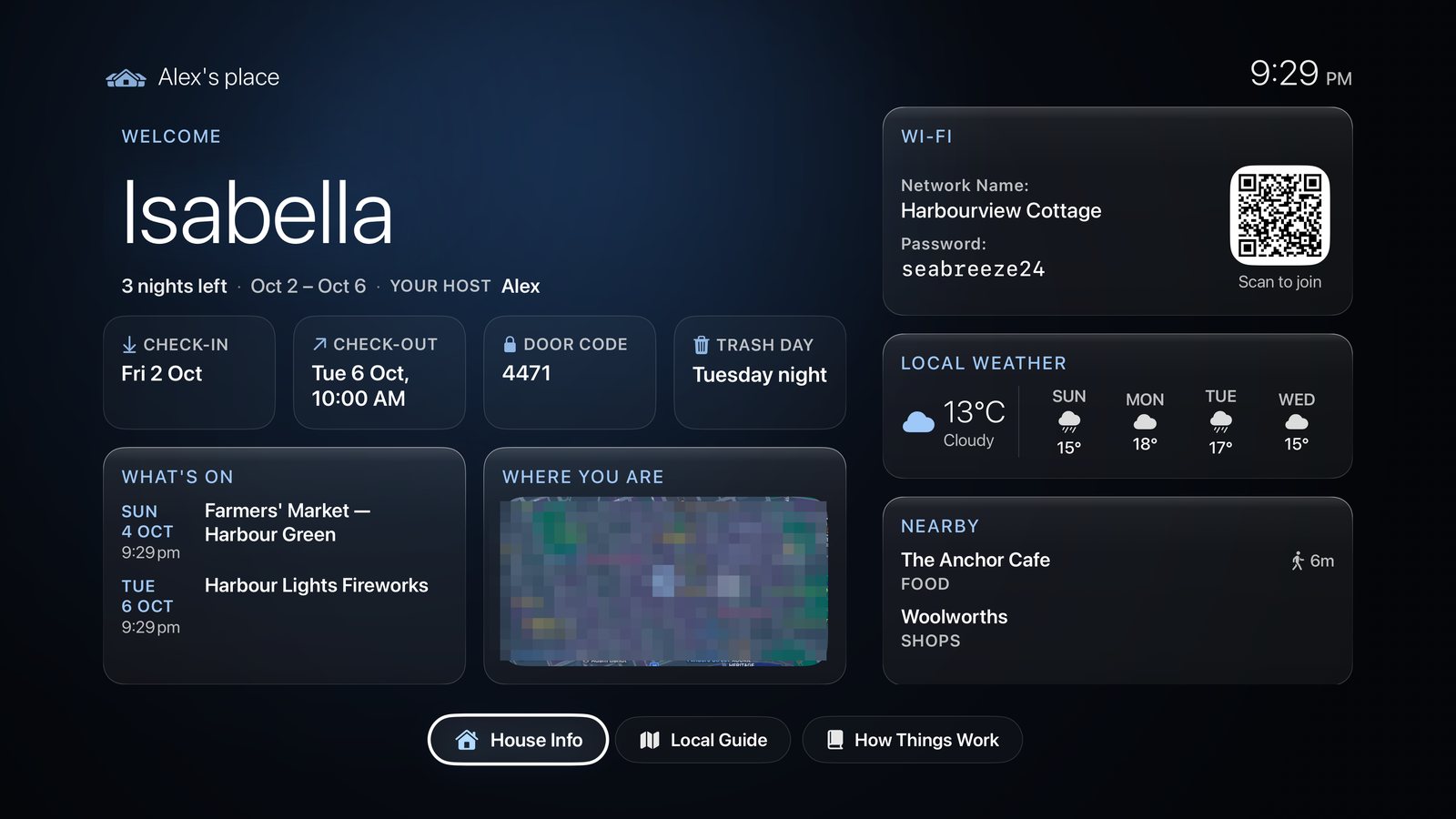
What guests never see. Your own dashboards, your settings, your lights and your other homes all stay hidden. A short PIN keeps guests on this screen and out of everything else. Fill anything in, leave anything blank, and only the tiles you use appear.
Setting it up
Most of the typing is quicker on your phone. The free Theatrium app for iPhone and iPad fills the same fields, and everything can also be done on the TV with the remote.
Turn on Short Stay
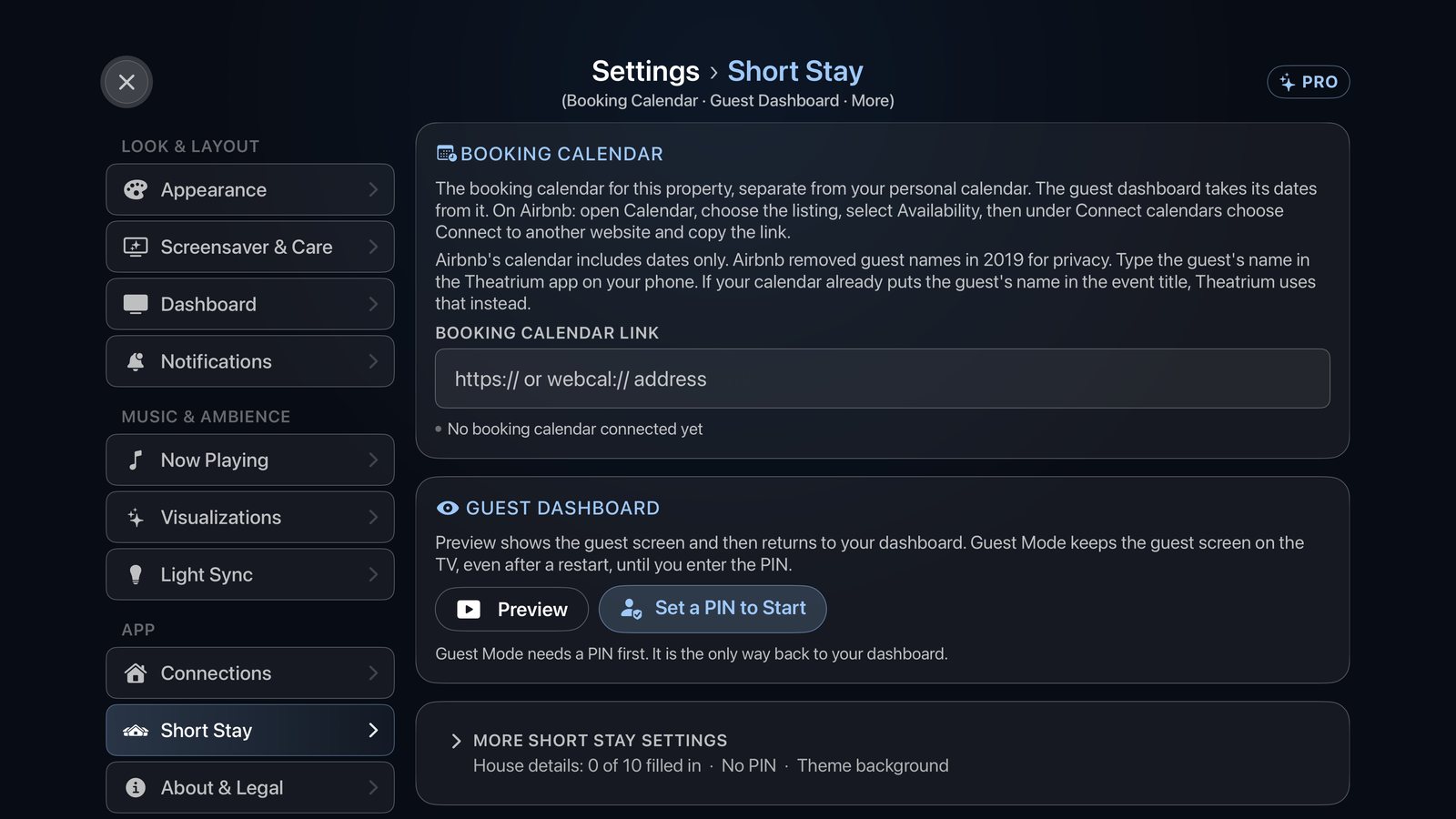
Short Stay is opt-in, so a normal home dashboard never shows any of its chrome by accident. On the Apple TV, open Settings › Dashboard › More dashboard settings and switch on Guest welcome dashboard, under Short Stay. This adds a Short Stay section to the Settings list, where the rest of this guide happens. Setting it up and previewing it are free. If you do not have Theatrium Pro yet, the section says what Pro adds — Guest Mode, the Guest Welcome screensaver and the Apple TV Home Screen tile — and has an Unlock with Theatrium Pro button.
Connect your booking calendar
This drives the guest name and dates on screen. Under Booking Calendar, paste your property's calendar export into the Booking calendar link field. On Airbnb: open Calendar, pick the listing, choose Availability, and under Connect calendars select Connect to another website and copy the link. Vrbo, Booking.com and a plain calendar of your own work the same way.
Optionally add a second calendar of local events, the markets and festivals on while guests are here, under More Short Stay settings › Local Events Calendar. This is usually a calendar you already keep and share.
About guest names. Airbnb's export carries dates only, not the guest's name, which they removed for privacy in 2019. Type the name for each stay in the Theatrium phone app. If your feed comes from a channel manager, or from your own calendar, and the event title already holds the name, Short Stay reads it from there.
Add the property
Open More Short Stay settings. In Property, enter the property name, your name as host, an optional host phone number and the address. The address sets the map, the weather, travel times and sunrise on the guest screen, so it is worth getting right.
Fill in the house info
Still in More Short Stay settings, open House Info and enter the Wi-Fi network name and password, the door code, parking, trash day, check-out time and any house rules. The guest screen turns the Wi-Fi into a code guests can scan to join, so nobody has to type it. Leave the door code or trash day blank and its tile is simply hidden.
Add your house guide too, in the Theatrium phone app: how the shower works, where the heating dial is, where the spare blankets live, and the places you would send a friend to nearby. Guests open it from How Things Work.
Set a guest access PIN
In More Short Stay settings › Guest Access PIN, choose Set PIN and enter four to six digits. While the guest screen is showing, this keeps guests out of Settings, your other dashboards and the card editor. You use the same PIN to return to your own dashboard.
Choose the background
In More Short Stay settings › Guest Screen Background, pick Theme, which borrows your dashboard’s own soft glow, or one of four quiet color washes: Midnight, Slate, Sand or Forest. Each is a soft fade from top to bottom, dark enough to keep the text easy to read across the room.
Add photos of the property
Photos are chosen on your phone, never on the TV. Open the Short Stay tab in the Theatrium app (it appears once Short Stay is switched on in the app’s Settings), find Guest Screen Background and choose Choose Photos…. You can send up to ten, in any shape: each photo fills its frame and the edges are cropped. The shorter side needs to be at least 720 pixels, so use the original rather than a copy from a message. On the guest screen they turn, one every few seconds, in a card called The Place. Choosing again replaces the photos already there.
Before each guest arrives
Once the details are in, starting a stay takes a few seconds.
Preview the screen
Open Settings › Short Stay › Guest Dashboard and choose Preview. It shows what the guest will see, then returns to your dashboard so you can fix anything. Preview is free and needs no PIN.
Start Guest Mode
Choose Start Guest Mode. If you have not set a PIN yet it reads Set a PIN to Start and takes you to the PIN pad first. The TV holds the guest screen, even through a power cut or a restart, until the PIN is entered. That is what makes it safe to leave running for a whole stay. Guest Mode needs Theatrium Pro.
Come back to your own dashboard
When the stay ends, press Back on the guest screen and enter your PIN. You are returned to your normal Theatrium dashboard, with all your own cards and settings as you left them.
Good to know
- The phone app is faster. The free Theatrium app for iPhone and iPad fills the same fields, and it is the place to type each guest's name for an Airbnb stay. See the phone app guide.
- Hide the settings you do not need. Simplify My Settings, under More Short Stay settings, tucks away the options a host does not need: your own music, Light Sync, visualizations and home alerts. Show All Settings at the foot of the list brings them back.
- The PIN has a limit. It cannot stop a guest pressing the Apple TV's Home button and leaving the app, because tvOS gives no app that power. For a fully locked-down TV, look into tvOS guided access on the device itself.
- Showing it to guests is part of Theatrium Pro. Short Stay is not sold separately. You can set everything up and preview it without Pro; Guest Mode, the Guest Welcome screensaver and the Apple TV Home Screen tile need the same Theatrium Pro purchase that unlocks the rest of Pro.
- Full reference. Every field and control is listed on the Short Stay manual page.
This guide is general information, provided “as is” with no warranty of any kind. It describes settings you change on your own equipment, so proceed at your own risk. Read the full disclaimer.