Guide · Timers Easy
Timers
Kitchen and household timers on the dashboard. Start one from the couch or from your iPhone, and see your Home Assistant timers beside them — including the ones that start running on their own. New in 1.9.
What you need
- Theatrium 1.9 on your Apple TV, and companion app 1.4 on your iPhone if you want to start timers from your phone. The Timers card arrives with these versions; earlier ones do not have it.
- Nothing else for timers of your own. They run on the TV itself, so the card needs no Home Assistant, no Apple Home and no internet connection.
- For Home Assistant timers — Home Assistant, with at least one timer helper. In Home Assistant, a timer helper is added under Settings › Devices & services › Helpers. Theatrium reads the timers it finds there.
Using the card
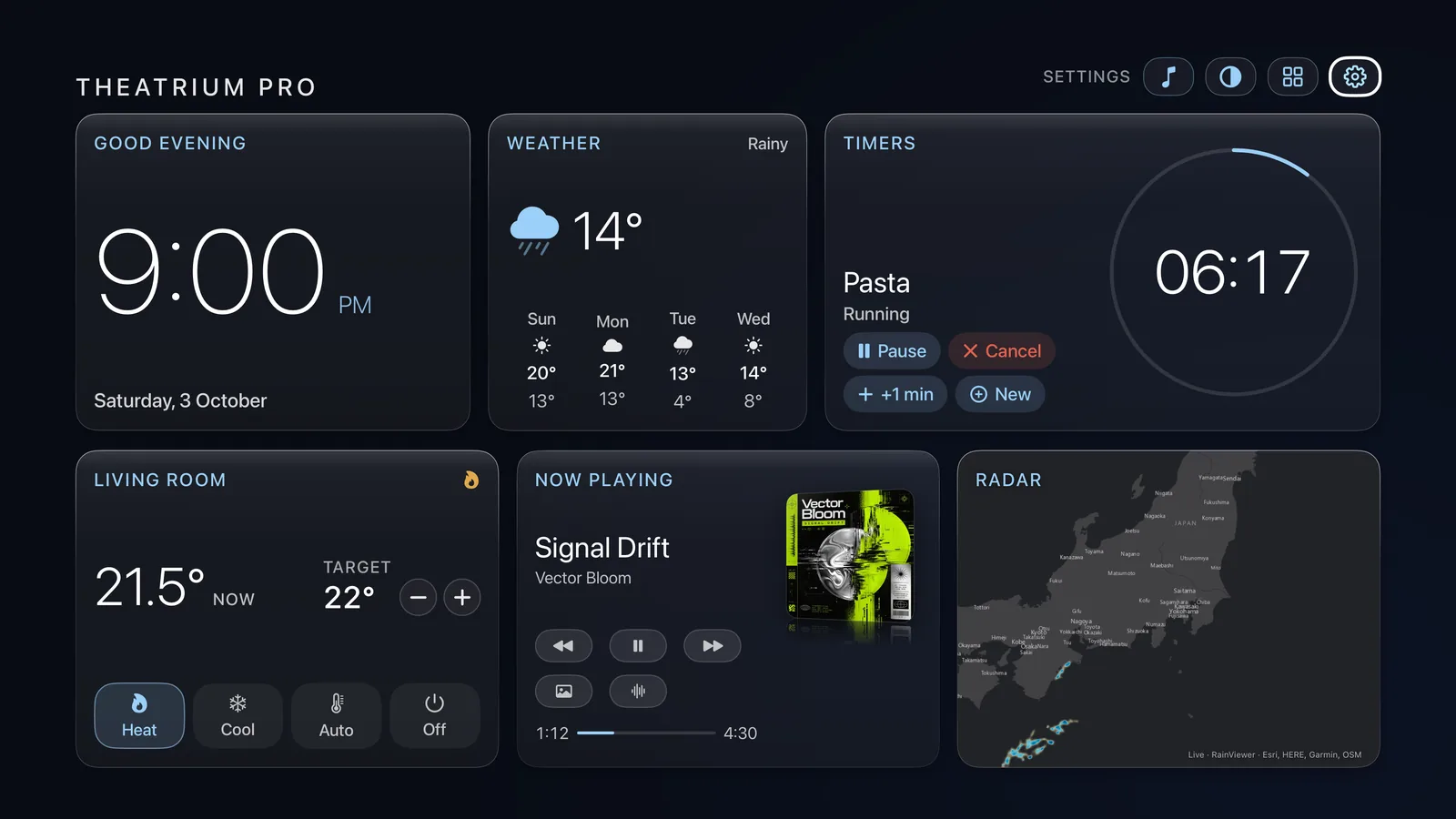
Like every card with controls, the Timers card is one stop on the dashboard. Select it to step in; the rest of the screen dims and its buttons become live. Menu steps back out.
Start a timer on the TV
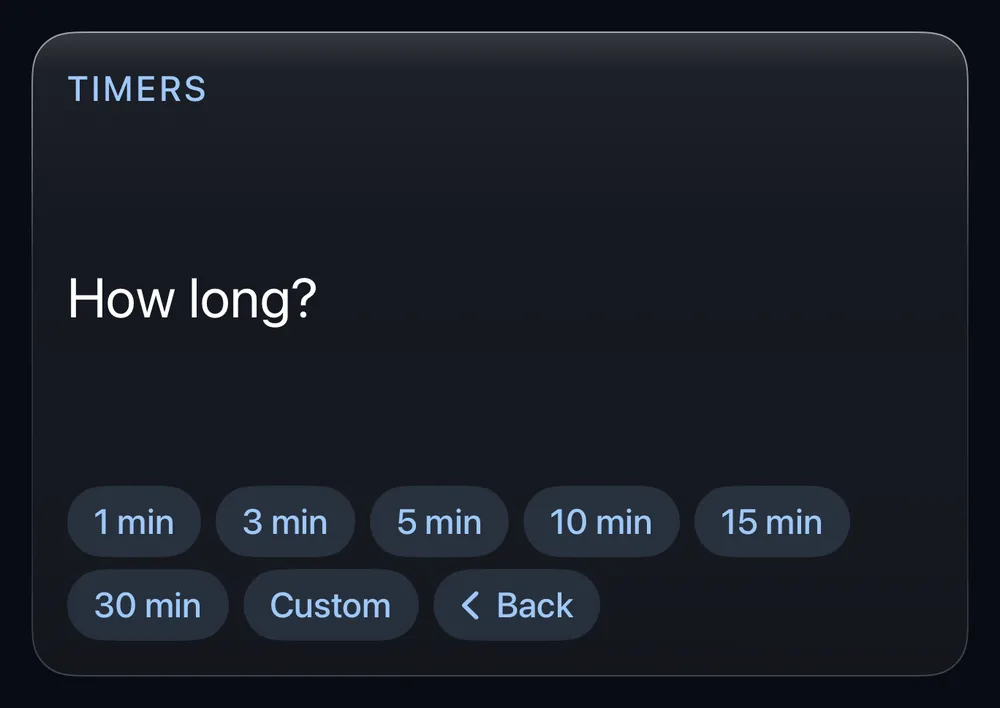
Step into the card and choose a length: 1, 3, 5, 10, 15 or 30 minutes. The timer starts at once. For any other length, choose Custom, set the minutes with the −10, −5, −1, +1, +5 and +10 buttons, and choose Start. A timer can run for up to 99 hours.
A timer started on the TV is named for its length, such as “5 min”. To give one a name of its own, start it from your iPhone.
Pause, add a minute or cancel
With a timer on the card, the buttons beneath it change with its state. A running timer offers Pause, Cancel and +1 min. A paused one offers Resume, +1 min and Cancel. New returns you to the lengths to start another.
On a small tile the card leads with one button and keeps the rest close: press and hold Select on it for Cancel and +1 min. Nothing is dropped for lack of room.
Several at once
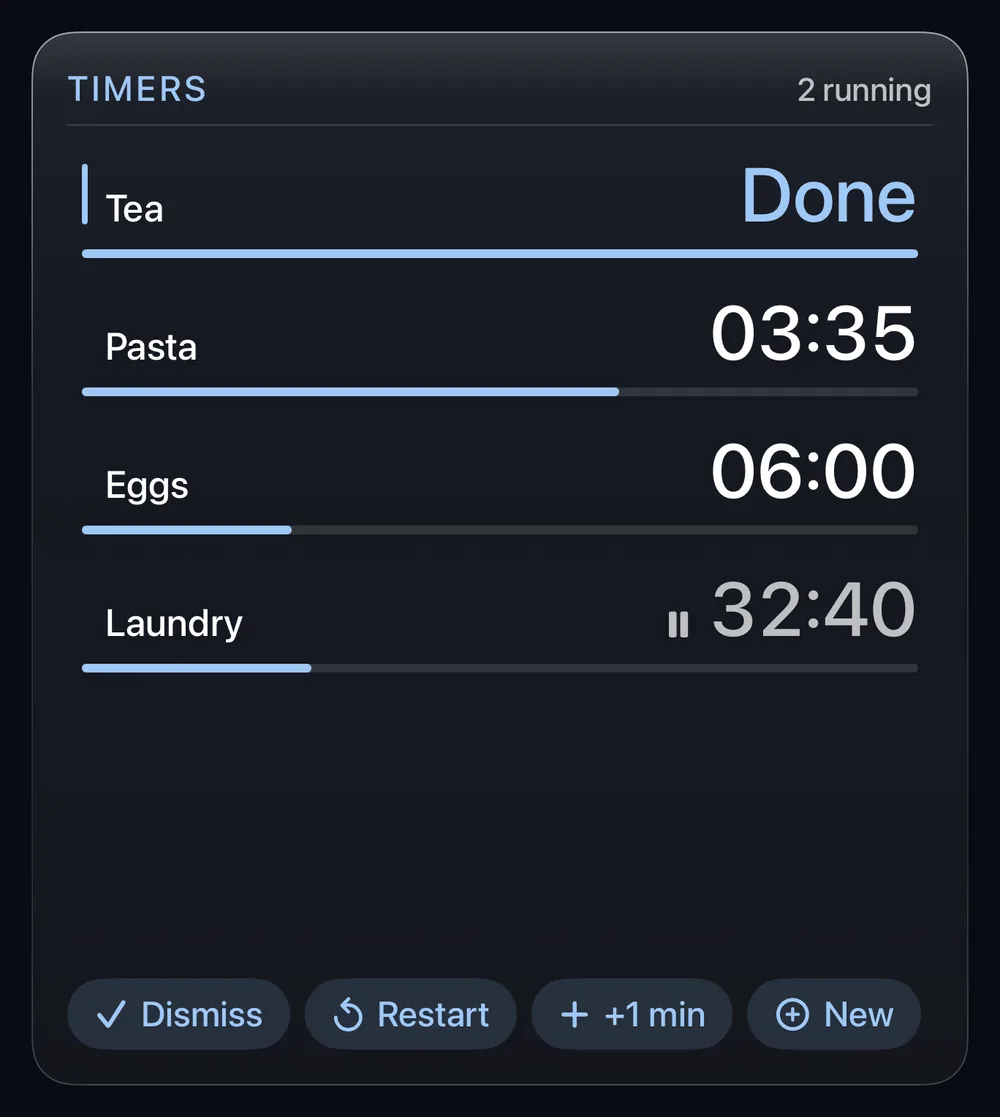
With Theatrium Pro, you can run several of your own timers together; the TV runs up to twelve at once. The card shows them as a list, and a line such as “+2 more” says how many are out of sight on a small tile. Step into the card and move down the list to reach the rest.
Starting timers from your iPhone
The timer runs on the TV; your phone only sends the order.
Open Timers in the companion app
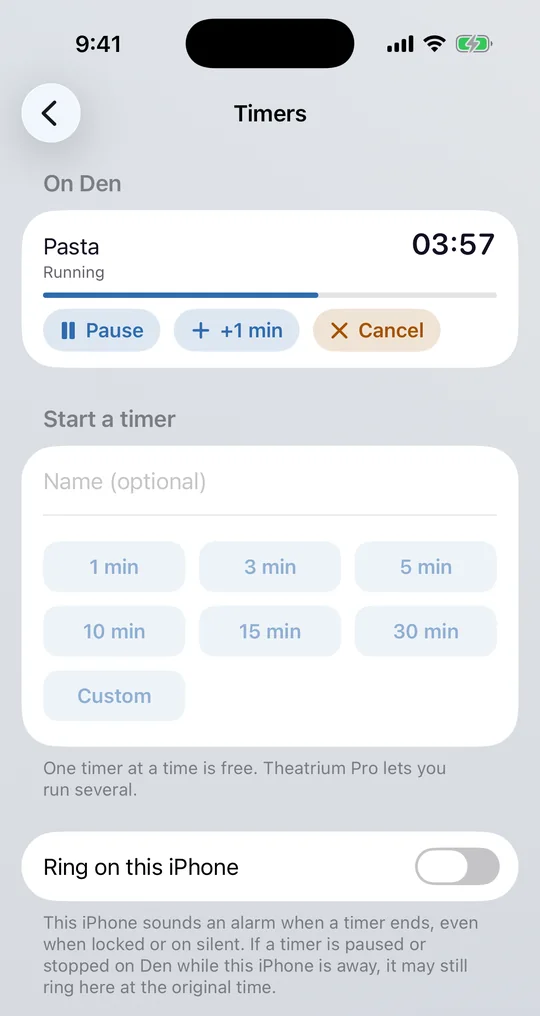
With your Apple TV connected, open Settings › Timers in the Theatrium companion app. The screen lists the timers on your TV, each with Pause, +1 min and Cancel, or Resume, Dismiss, Restart and Start as the state allows.
Start one
Under Start a timer, type a name if you like, then choose a length or Custom. The timer runs on the TV and appears on its Timers card within a moment.
Have the phone ring when it ends
Turn on Ring on this iPhone at the foot of the same screen. It is off until you turn it on. On iOS 26 and later, the iPhone sounds an alarm when a timer ends, even when it is locked or on silent. On earlier versions it shows a notification with a sound, which Silent mode and Focus can quiet. iOS asks permission the first time.
The phone books the alarm for the moment the timer is due. The link to the TV closes when the app goes to the background, so if you pause or stop a timer on the TV while your phone is away, it may still ring at the original time. The screen says so.
Adding the card
About a minute.
Add a Timers card
On the dashboard, move to the card you want to replace and hold the center of the pad for about a second. Choose Modify, then open Information and pick Timers. A Timers card can go on the second page as well.
Choose which timers to show
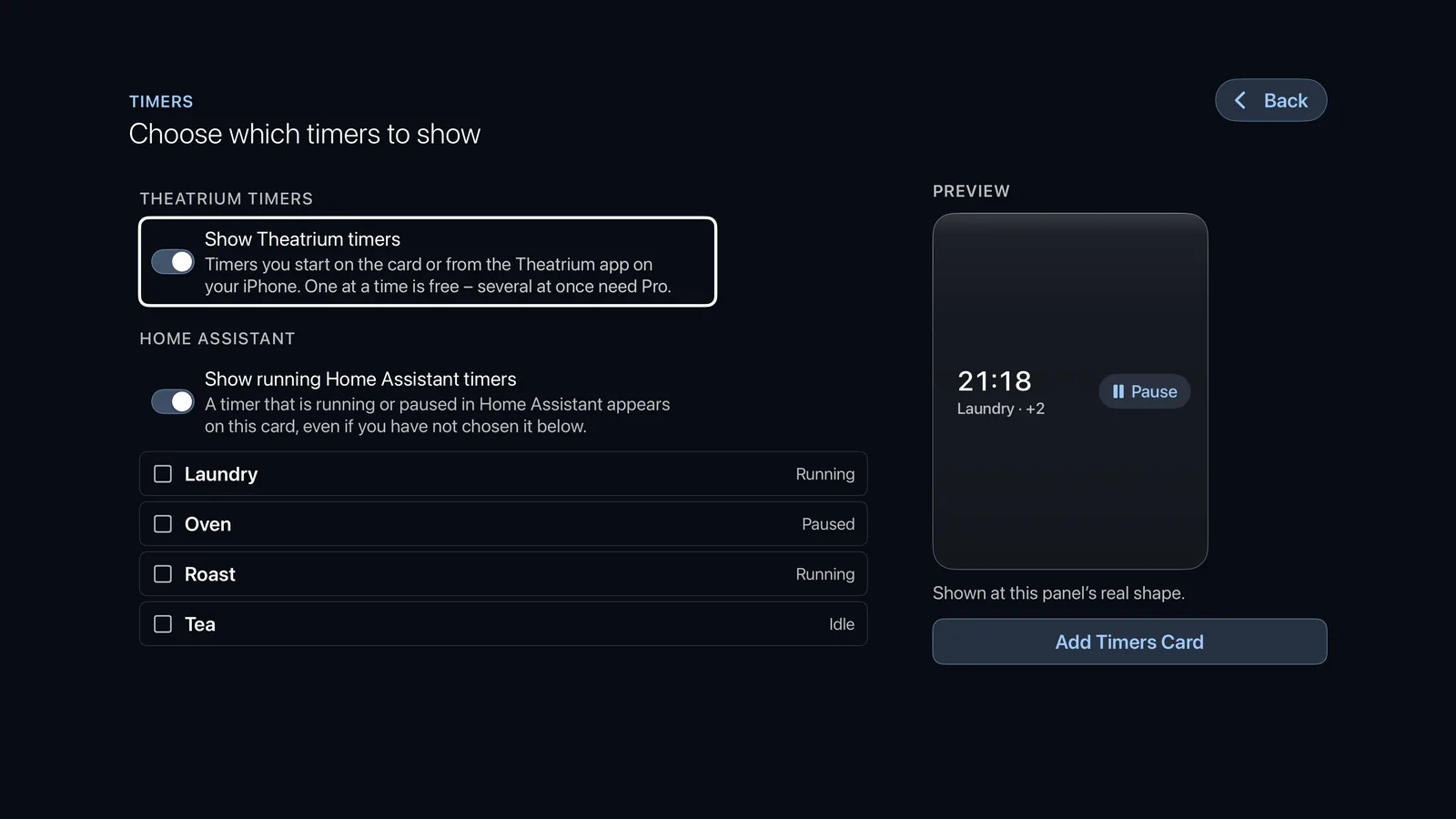
The setup screen opens on Choose which timers to show. Under Theatrium timers, Show Theatrium timers is the switch for timers you start on the card or from your iPhone. With no smart home connected, that is all the card shows, and the screen says so rather than offering a switch.
With Home Assistant connected, a Home Assistant section follows. It lists the timer helpers Theatrium found, each marked Running, Paused or Idle. Select the ones you want on the card; they stay there even when idle, so you can start them from the TV. A preview on the right shows the card at the real shape of its panel.
Finish
Choose Add Timers Card. A card needs something to show, so if Theatrium timers are off and no Home Assistant timer is selected, the button stays unavailable and the screen tells you why.
Home Assistant timers
Two ways onto the card, and one thing that cannot be shown.
Timers you pick
Any timer helper you select in setup shows on the card whatever its state. You can start, pause, resume and cancel it from the TV or from the iPhone, and add a minute to one that is running. Theatrium counts it down from its finish time, so the figure stays smooth between updates, and checks with Home Assistant the moment it reaches zero.
Timers that appear on their own
With Show running Home Assistant timers on — it is on by default — a timer that is running or paused in Home Assistant appears on the card even if you did not select it. An automation that starts a laundry timer needs no change on the TV. These timers are shown only while a Timers card is on screen, so they are not on the second page until you go there. They are not sent to the iPhone app. Idle timers do not appear this way; select them in setup if you want them.
If you would rather the card show only the timers you chose, turn the switch off in the card’s setup.
What cannot be shown
Timers set with a voice assistant in Home Assistant cannot be shown. Theatrium reads timer helpers, and a voice-assistant timer is not one.
When a timer ends
Calm by design. Nothing flashes or pulses.
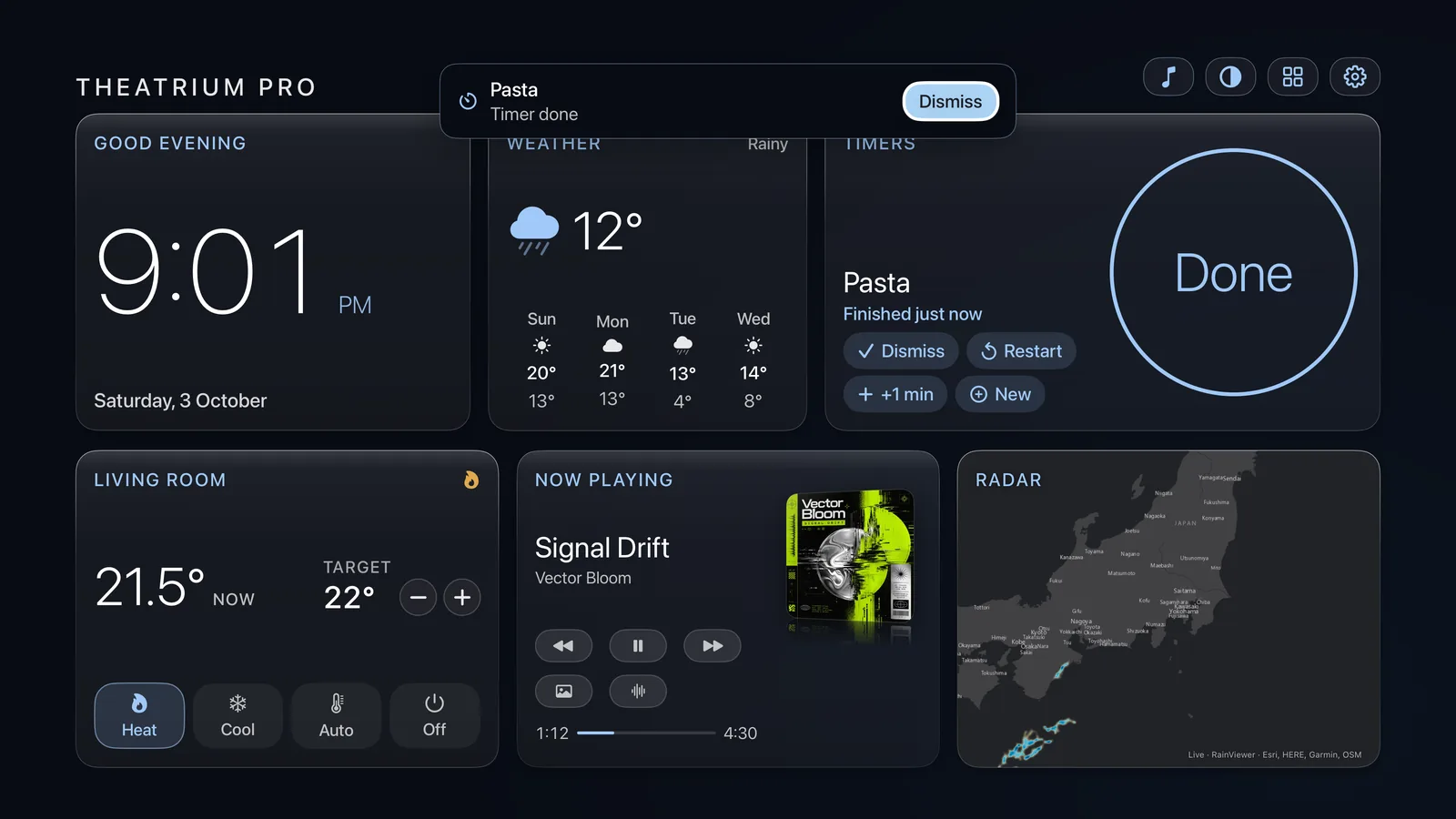
The card says Done
The card shows Done with how long ago the timer finished, and offers Dismiss, Restart and +1 min. A finished timer clears itself away after half an hour.
A banner tells you wherever you are
A banner fades in across the top of the screen with the timer’s name, Timer done and a Dismiss button. It shows over the dashboard, the second page and the music room, and stays until you dismiss it or a minute has passed. Dismiss also clears the finished timer. Menu only takes the banner down; the card keeps saying Done, in case you were out of the room. If a camera alert is on screen at the same moment, the timer banner waits its turn.
If Theatrium was closed
Your own timers are kept as a finish time on that TV. If the TV was off or Theatrium was closed when a timer ran out, the card shows it as Done, with the time it was due, the next time you open Theatrium. The banner and the sound on your iPhone are what tell you in the moment, so turn on Ring on this iPhone if you will be away from the screen. tvOS does not let any app sound an alert while it is closed.
Free and Pro
- Free — the Timers card, with one of Theatrium’s own timers counting at a time. A paused timer still counts as the one.
- Theatrium Pro — several of Theatrium’s own timers at once.
- Always free — Home Assistant timers, however many. They belong to your smart home, not to Theatrium.
Starting a second timer without Pro opens the Pro screen. Cancel or finish the first to start another.
If something doesn’t look right
- “No timers to show.” The card has nothing to display yet. Step in and choose a length, or choose a Home Assistant timer in the card’s setup.
- Starting a timer opens the Pro screen. One of Theatrium’s own timers at a time is free. Cancel the one running, or unlock Pro for several.
- “Twelve timers are already running.” That is the most the TV runs at once. Stop one to start another.
- A Home Assistant timer is missing. Check that it is a timer helper rather than a voice-assistant timer, that it is running or paused (or selected in setup, if it is idle), and that Show running Home Assistant timers is on if you rely on it appearing by itself.
- The iPhone says “Connect to… to see and start its timers.” The phone is not connected to the TV. Open the app with the TV on and Theatrium running.
- “Timers need a newer version of Theatrium.” Update Theatrium on the Apple TV, then come back to the screen.
- The phone rang for a timer I stopped. The phone books its alarm for the original finish time and can only hear about a change while it is connected. Stop the timer with the phone in range, or turn Ring on this iPhone off.
Good to know
- Your own timers are stored on that Apple TV only. Another Apple TV does not see them.
- Timers count from a finish time, never from a ticking number, so a TV that restarts mid-countdown picks up exactly where the clock stood.
- The card follows your theme. On Bento, the ring becomes a bar of ten blocks.
This guide is general information, provided “as is” with no warranty of any kind. It describes independent third-party software that Theatrium does not control, and the steps involve installing software and changing settings on your own equipment — back up first and proceed at your own risk. Read the full disclaimer.