Guide · To-Do Easy
To-Do List
A checklist on your dashboard, ticked off from the couch. Theatrium shows a Home Assistant to-do list, or a Reminders list synced from your iPhone or iPad — and keeps the tick marks in step both ways, TV to list and list to TV.
What you need
- Theatrium Pro — the To-Do List card is a Pro card. A card you already added keeps showing even if Pro isn’t active; adding a new one is what asks for it.
- One list to point it at — a Home Assistant to-do list (the built-in Shopping List, a Local To-do List helper, or any integration that creates a
todo.entity), or a Reminders list on your iPhone or iPad. - For a Reminders list — the free Theatrium companion app, paired with this Apple TV. The Apple TV cannot read Reminders itself; the phone is what makes that possible.
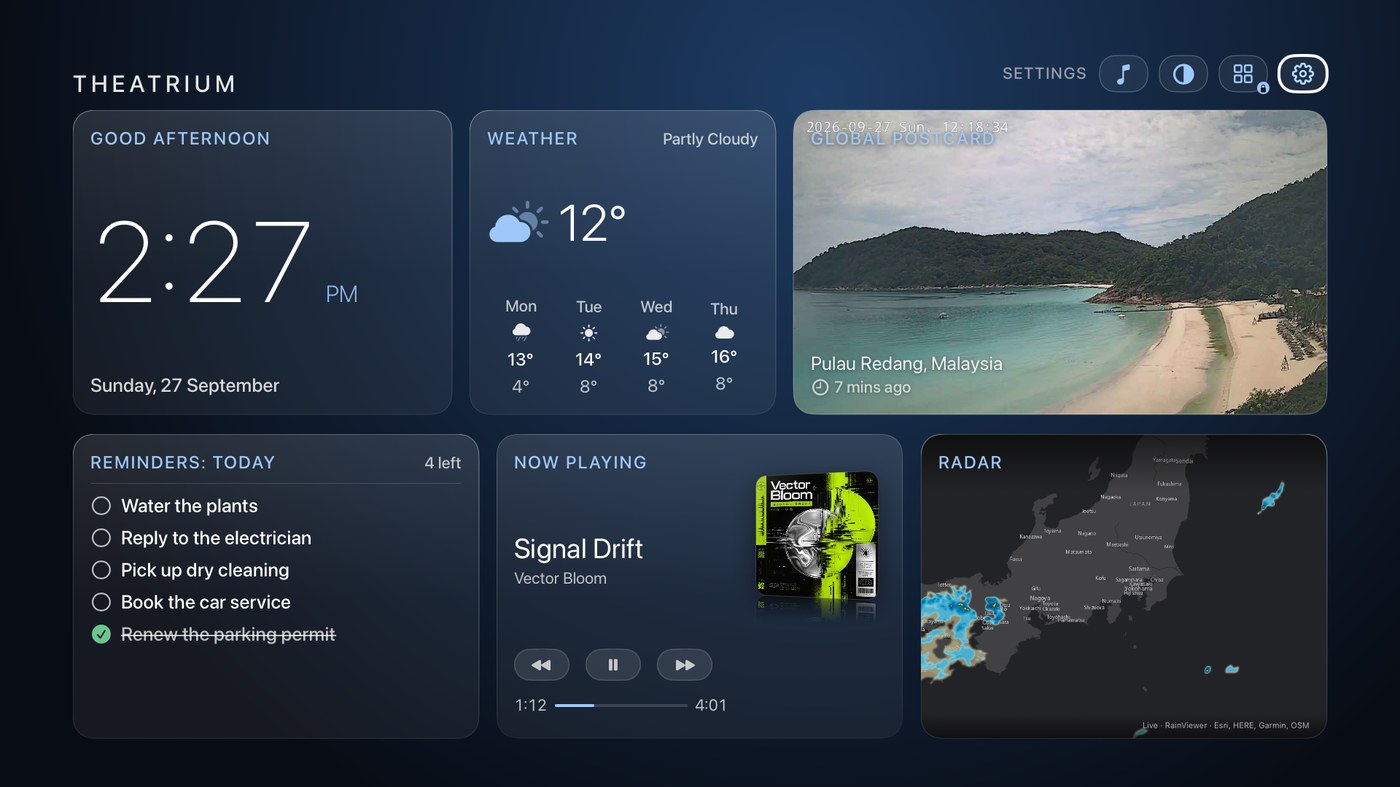
Two places the list can come from
Each card points at exactly one list, from exactly one of these:
A Home Assistant to-do list
If Home Assistant is your backend, Theatrium reads any todo. list it exposes directly — no automation or companion app needed. Ticking an item on the TV writes it straight back to Home Assistant, and the list refreshes on its own every few minutes, or the moment you come back to that dashboard page.
Your Reminders, via the companion app
tvOS has no way to read Reminders on its own. The free Theatrium companion app on your iPhone or iPad does the reading instead, and sends the list to the TV over the same paired connection you already use to control it. This is the only route on Apple Home or a TV with no smart-home backend at all — and it works just as well alongside Home Assistant, for a personal list Home Assistant has never heard of.
Adding the card
Takes about a minute once you know which list you want.
Add a To-Do List card
On the TV, open the gear in the corner, choose the dashboard you want it on, and add a card. Pick To-Do List. If Theatrium Pro isn’t unlocked yet, this is where it offers it — the card only appears once Pro is active.
Choose where the list comes from
The setup screen opens on Where the list comes from. If Home Assistant is connected, you get two pills — Your Reminders and Home Assistant — and can pick either. On Apple Home, or with no smart home connected, there is only Reminders, and the screen says so plainly rather than offering a source that has nothing to show.
Choosing Home Assistant opens a List section below the pills: tap it to pick from the todo. entities Home Assistant already has. If none show up, add one in Home Assistant first — the screen suggests using Your Reminders instead in the meantime.
For a Reminders list, set up the companion once
On your iPhone or iPad, open the Theatrium companion app, go to Settings › To-Do List, and choose Allow Reminders Access. iOS asks permission the first time — allow it, then pick a list under Choose a list. A green checkmark shows which one is syncing; tap it again to turn it off.
The list updates on the TV whenever the companion app is open, or immediately if you press Sync Now while the phone is connected to this Apple TV.
Decide whether ticked-off items should still show
Back on the TV, the Completed Items switch decides it: on (the default) shows finished items struck through below the open ones; off drops them so the card is only ever what’s left to do. Press Add To-Do Card to finish.
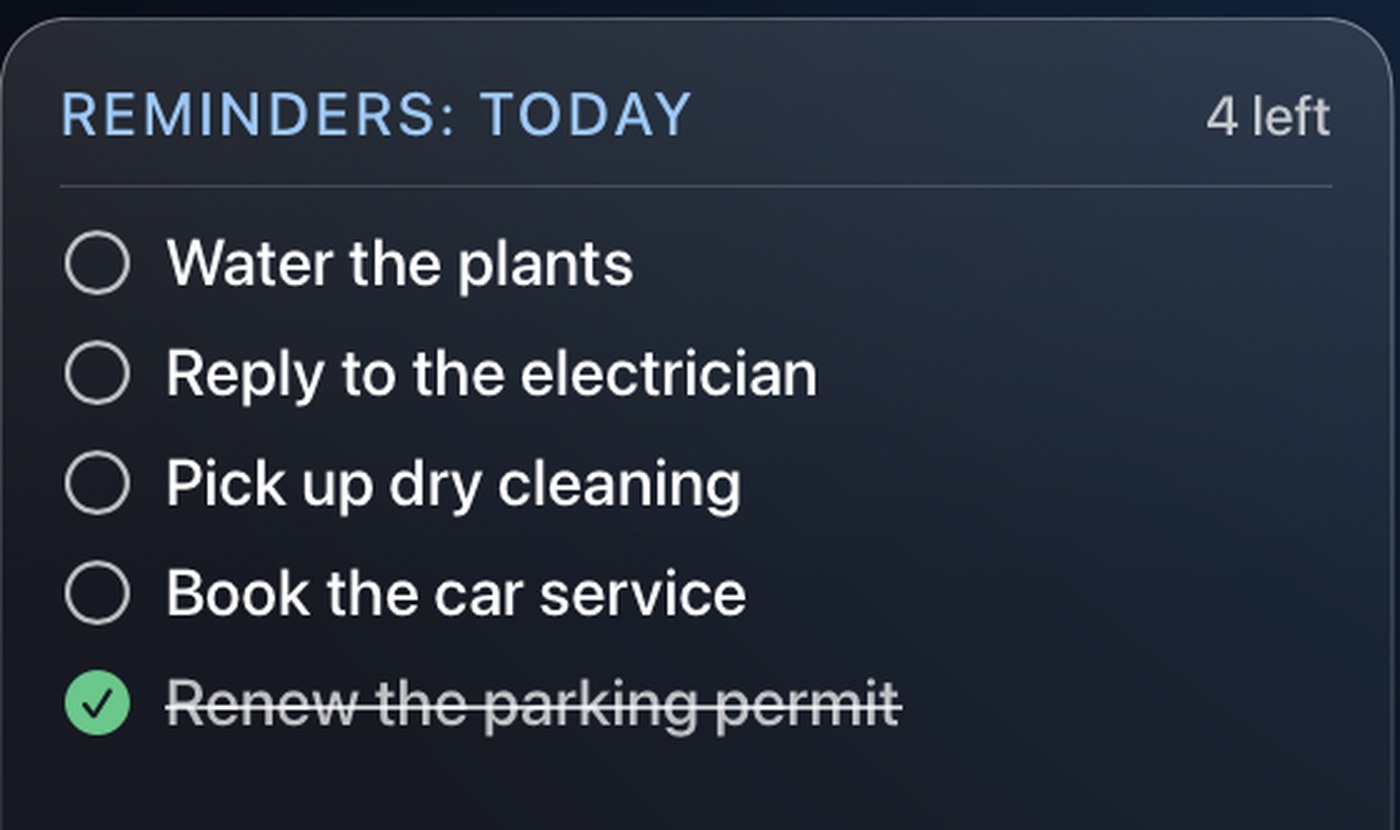
Ticking items off, from either device
Select an item on the TV to tick it done (or back to open) — the change shows at once, then writes back to wherever the list lives: todo.update_item for a Home Assistant list, or a message to the paired phone for a Reminders list, which updates Reminders and sends the list back. If Home Assistant refuses the change, the TV puts the tick back rather than show something the list doesn’t agree with.
The list always leads with what’s open; a wide enough card also shows when each item is due — Today, Tomorrow, a weekday, or a short date, with anything overdue called out. Enter the card and it scrolls as you move down it, so a long list is never hidden behind a “+N more”. You can tick items off from the TV, but not add new ones there — add those in Home Assistant or Reminders, and they appear next time the list refreshes.
Keeping a Reminders list in sync when you’re not holding the phone
With the companion app open and connected, every change — a tick made on the TV or in Reminders — reaches the other device right away. In the background, iOS occasionally wakes the companion just long enough to relay any TV ticks into Reminders and refresh the TV’s copy; for that, Background App Refresh needs to be turned on for the app in iOS Settings. It isn’t instant — iOS decides when to grant the window, not Theatrium. A tick made on the TV while the phone is out of reach is held for up to a day and delivered the next time the phone connects, so it is never simply lost.
If something doesn’t look right
- “No list selected.” Home Assistant is chosen as the source but no list has been picked yet — open the card’s setup and choose one.
- “Couldn’t reach Home Assistant.” The list couldn’t be fetched just now. Check the Home Assistant connection in Settings.
- “No reminders synced yet.” Reminders is the source, but the companion hasn’t pushed this list to the TV yet — open the companion app with a list chosen, or press Sync Now, while it’s connected to this Apple TV.
- “All caught up.” Not an error — every item is done, or Completed Items is switched off and there is nothing open left to show.
- A tick in Reminders or Home Assistant isn’t on the TV yet. A Home Assistant list refreshes on its own timer, or the moment you revisit that dashboard page. A Reminders list needs the companion app open and connected, or a background refresh window — with Background App Refresh on.
- To-Do List isn’t offered when adding a card. It needs Theatrium Pro. A To-Do card added earlier keeps working even if Pro lapses later — only adding a new one is gated.
Good to know
- One list per card, in one direction of the pill — add a second To-Do card to show a second list alongside the first.
- Theatrium only reads titles, due dates and done state. It won’t show notes, sub-tasks or priorities, and it can’t rename or delete anything in Reminders or Home Assistant — ticking an item is the only change it ever makes.
This guide is general information, provided “as is” with no warranty of any kind. It describes independent third-party software that Theatrium does not control, and the steps involve installing software and changing settings on your own equipment — back up first and proceed at your own risk. Read the full disclaimer.