Guide · Countdown Easy
Countdown
How long until Halloween, Christmas, a birthday or the start of a trip — on the dashboard, as a ring that closes towards the day or a row of moons that fade one each morning. Seven everyday holidays are built in. Your own dates, and birthdays from Contacts, are added on your iPhone. New in 1.9.
What you need
- Theatrium 1.9 on your Apple TV, and companion app 1.4 on your iPhone if you want your own events. The Countdown card arrives with these versions; earlier ones do not have it.
- Nothing else for the built-in holidays. They are worked out on the TV itself, so the card needs no Home Assistant, no Apple Home and no internet connection to count to Christmas.
- The free Theatrium companion app, paired with this Apple TV, for your own events. Custom dates and birthdays are entered on the phone and sent across to the TV.
What the card shows
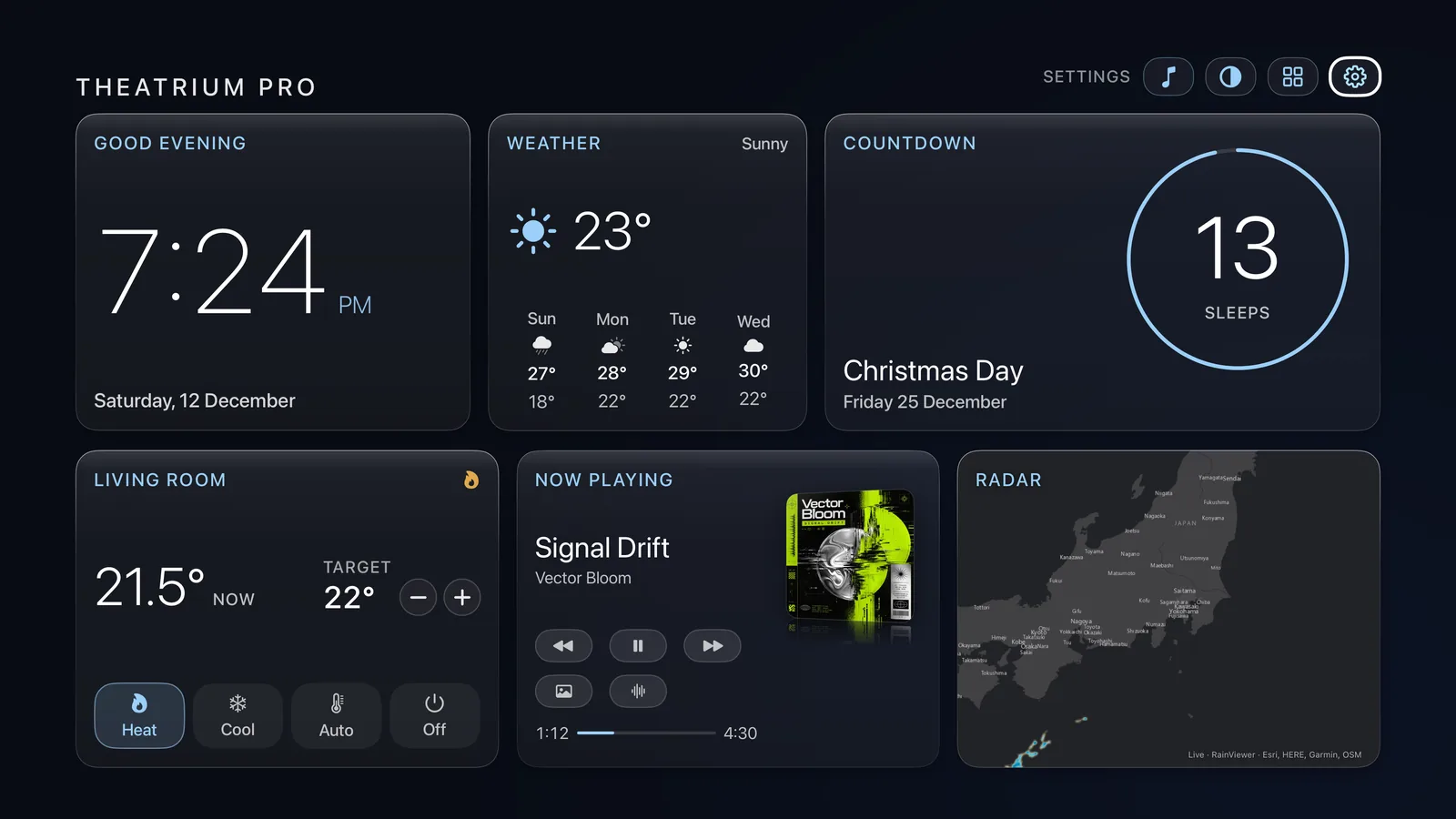
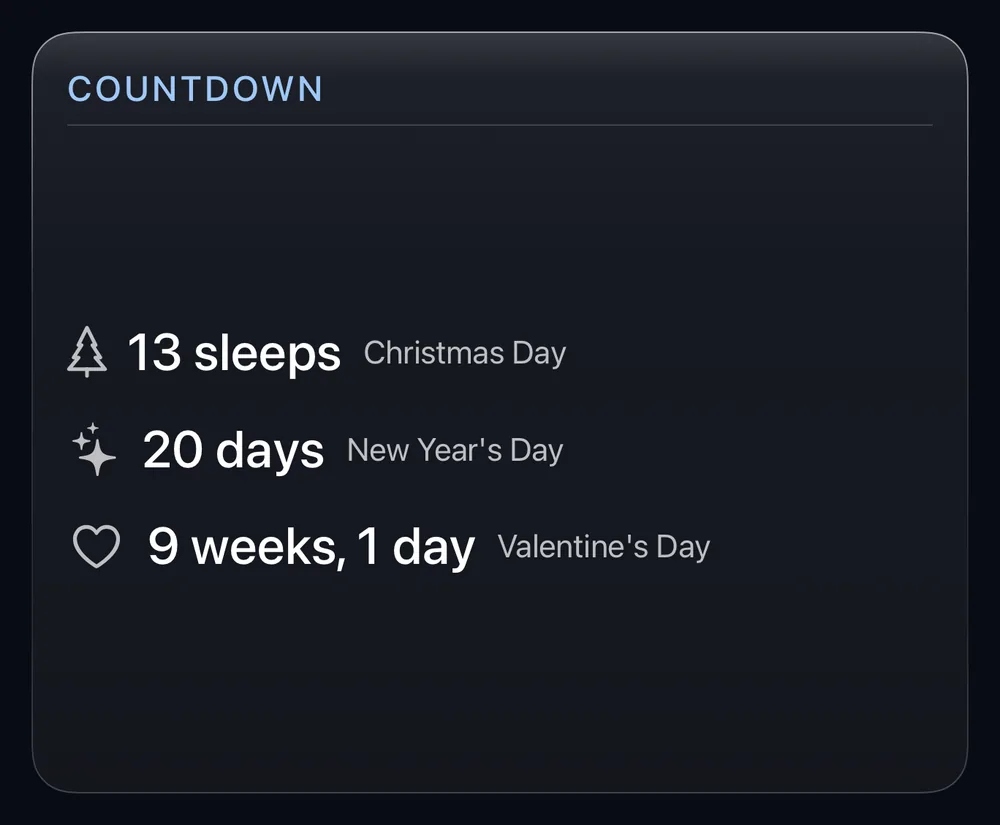
One event, large and legible from across the room — or the next few, listed soonest first.
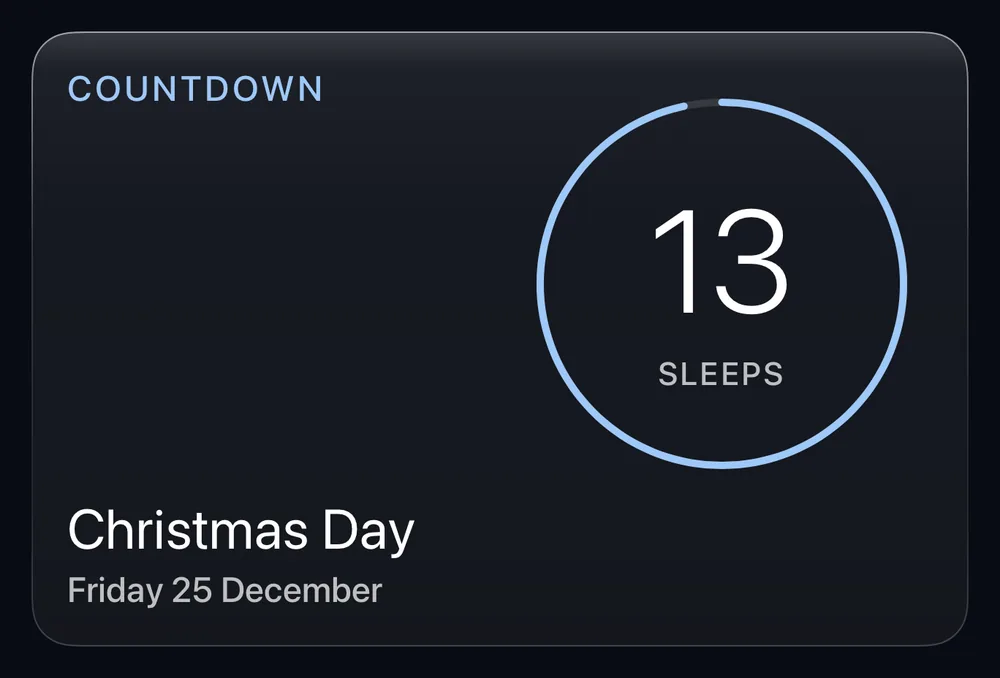
Ring
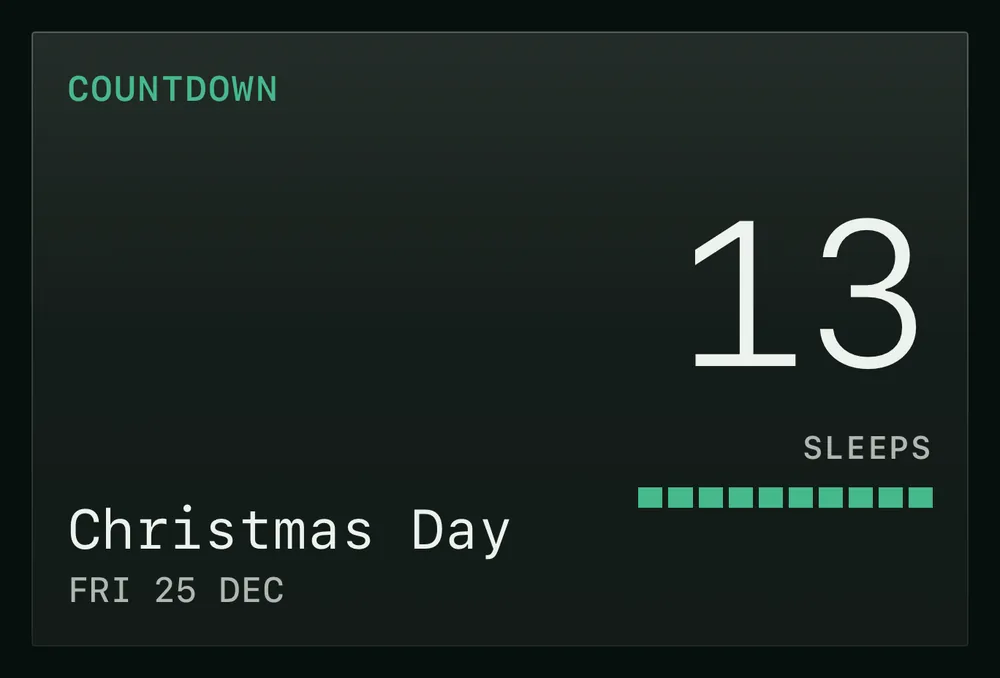
A ring that fills from the day the countdown began to the day itself, with the figure in the middle — “12 sleeps”, “3 weeks, 2 days”. On the day, the ring closes and the figure becomes Today. On the Bento theme the ring is replaced by the figure over a bar of ten blocks that fill in the same way.
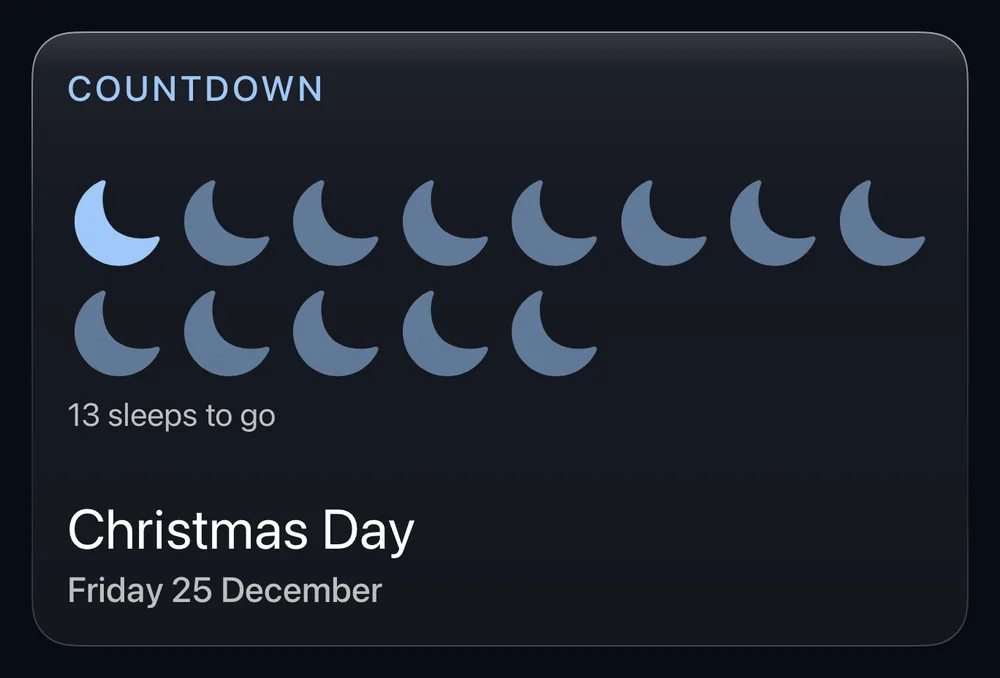
Moons
One small moon for every sleep still to come, and one fewer each morning. Past 30 sleeps there is a moon for each remaining week instead, and the card says so in words, so a long wait never turns into a wall of moons.
Size and shape
A small tile shows the next event as a figure and its unit, with the name beneath. A wider or taller tile has room for the full picture and the date under the name — “Saturday 31 October”, or “SAT 31 OCT” on Bento. When a tile is tight, the card drops the name first, then the picture, and keeps the figure to the last. Each theme sets the figure in its own typeface.
Adding the card
A minute on the TV, once you know which date you want.
Add a Countdown card
On the dashboard, move to the card you want to replace and hold the center of the pad for about a second. Choose Modify, then open Information and pick Countdown — the hourglass.
Choose what to count down to
The setup screen opens on Events: the seven built-in holidays and anything you have added on your iPhone, soonest first, each with the time remaining beside it. Select one to count to it. Leave all of them unselected and the card simply follows the next built-in holiday on the calendar.
Pick a unit
Under Unit, choose how the wait is told:
- Auto — the default. Sleeps when it is two weeks away or less, days up to 60, then weeks and days.
- Days — a plain day count.
- Weeks — whole weeks and the days left over, such as “3 weeks, 2 days”.
- Sleeps — the nights still to sleep. The evening before is “1 sleep”.
Choose the style and the icon
Style is Ring or Moons, and both are free. Icon is off by default; turn on Show icon to place a small symbol beside the event name. Theatrium picks one from the name — a cake for a birthday, a pumpkin for Halloween, an airplane for a trip, a graduation cap for end of term — and uses a calendar when nothing matches. You can choose a different one on the phone.
A live preview beside the settings shows the card at its real shape on your dashboard. Press Add Countdown Card to finish.
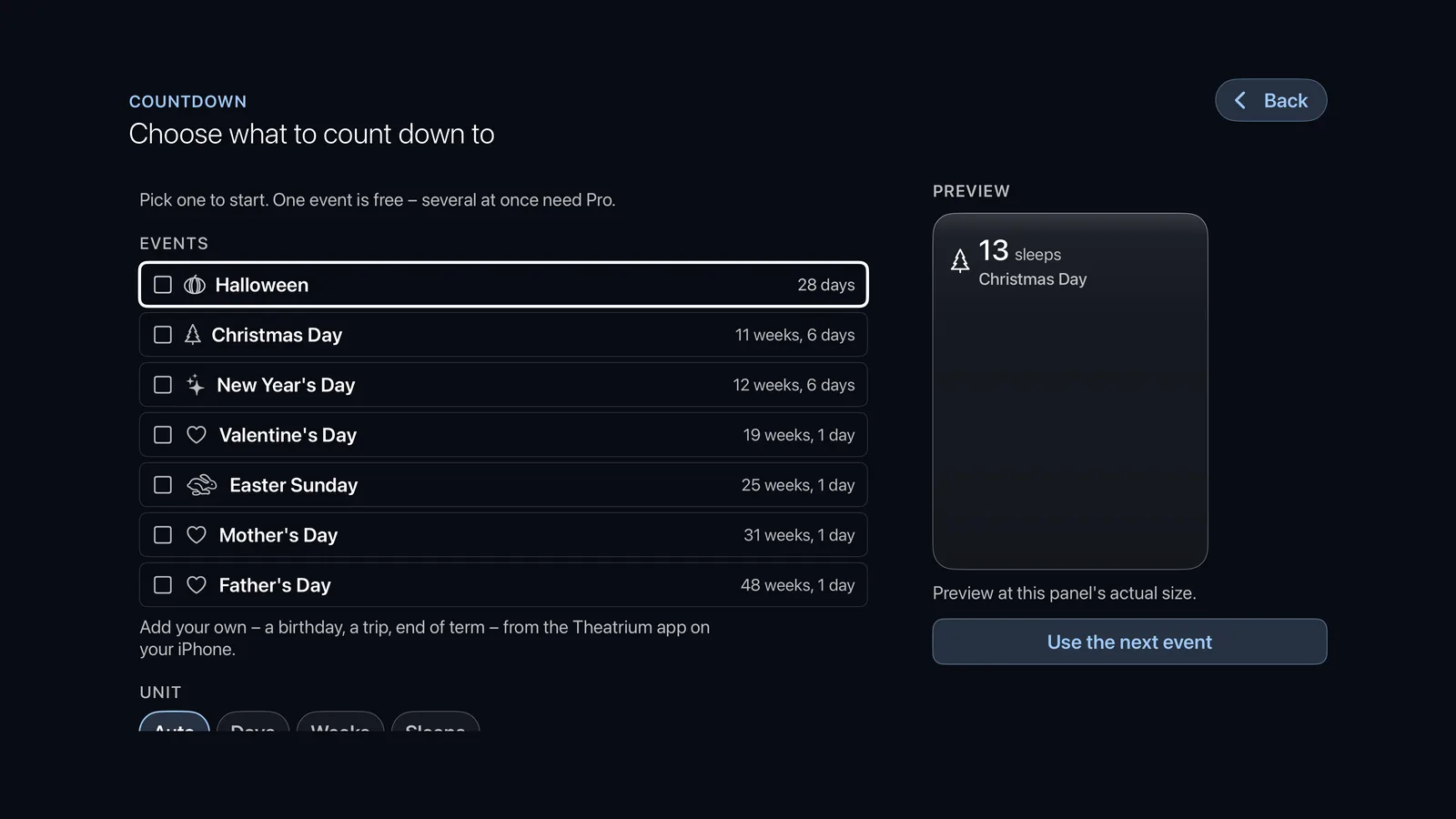
The built-in holidays
Seven, calculated afresh each year, so they are right without any upkeep.
- New Year’s Day — 1 January.
- Valentine’s Day — 14 February.
- Easter Sunday — worked out for each year.
- Mother’s Day — the second Sunday of May in Australia, New Zealand, the United States and Canada; Mothering Sunday, three weeks before Easter, in the United Kingdom and Ireland.
- Father’s Day — the first Sunday of September in Australia and New Zealand; the third Sunday of June in the United States, Canada, the United Kingdom and Ireland.
- Halloween — 31 October. It pairs with the Halloween pack.
- Christmas Day — 25 December.
Mother’s Day and Father’s Day follow the region set on your Apple TV; any other region uses the United States and Canada dates. Festivals that follow other calendars — Hanukkah, Passover, Eid, Lunar New Year — are not built in. You add them yourself, below, and Theatrium works out each year’s date.
Adding your own events
Birthdays, trips, the last day of term. Entered on your iPhone; shown on the TV.
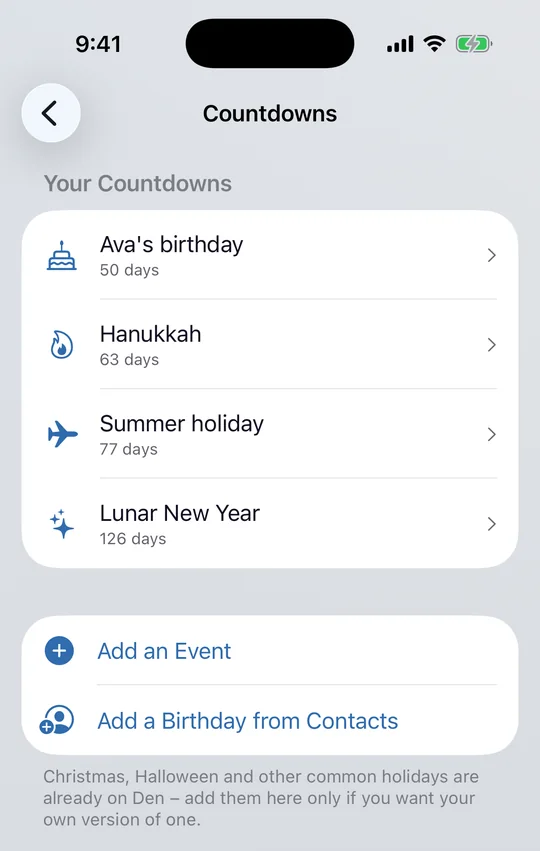
Open Countdowns on your iPhone
In the Theatrium companion app, open Settings › Countdowns. With your Apple TV connected, everything you add here appears in the card’s Events list on the TV.
Add an event
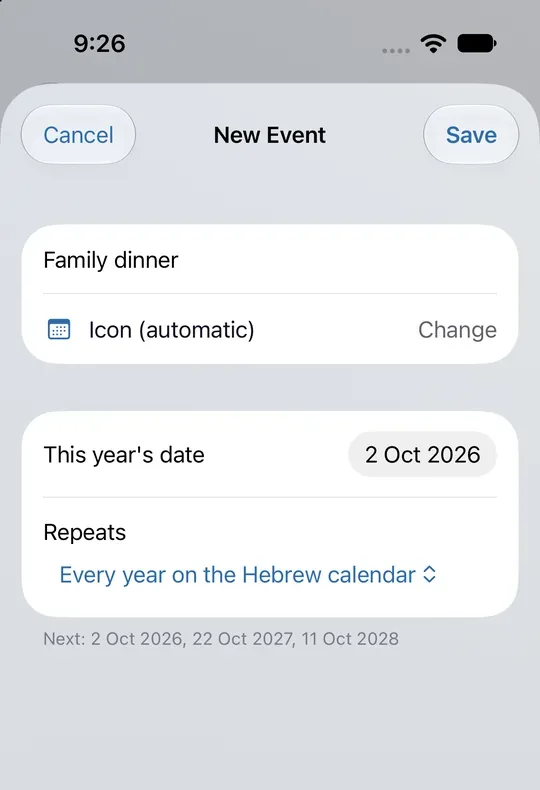
Choose Add an Event and give it a name. The icon is chosen for you, and Change lets you pick another. Then set the date and how it repeats:
- Never — a one-off, such as a trip. It shows Today on the day, then drops off the list.
- Every year — for birthdays and anniversaries. It rolls on to next year by itself.
- Every year on the Hebrew, Islamic or Chinese calendar — for festivals that move against the usual calendar. Enter this year’s date, and Theatrium keeps to the same day on that calendar each year after.
For a calendar-based repeat, the screen lists the next three dates before you save, so you can check it is right.
Add a birthday from Contacts
Choose Add a Birthday from Contacts and pick the person. Their name and birthday fill in, and it repeats every year. If the person has no birthday saved in Contacts, the app says so and nothing is added; add one in Contacts and try again.
Your birthdays stay between your devices
For a birthday, Theatrium keeps the person’s name and birthday and nothing else from their contact card. Those two details travel from your iPhone to your Apple TV over the same paired connection used for Reminders and photos, and are stored on those two devices. Removing a birthday from Theatrium does not remove it from Contacts. On a first use, iOS may ask for access to Contacts; you can decline, and everything else in the app carries on.
On the day, and after it
On the day itself the card reads Today, and the ring is closed. Repeating events then roll on to the next year without any attention. A one-off event goes quiet after its day and is kept in the phone’s list, marked Past, until you delete it. The card changes over at midnight, local time, without needing to be reopened.
Free and Pro
- Free — one Countdown card, counting to one event of your choice, built in or your own, as a ring or as moons, in any unit.
- Theatrium Pro — several events on one card, which then lists the next three, soonest first; and several Countdown cards on your dashboards at once.
If Pro lapses, a card you set up earlier keeps working; it shows its first event until Pro is active again.
If something doesn’t look right
- “No events chosen yet.” The card has no event to count to. Open its setup and select one.
- An event added on the phone is not on the TV. The phone sends its list whenever it connects, and again after every change. Open the companion app with your Apple TV connected and it appears within moments.
- Countdown is not offered when adding a card. It needs Theatrium 1.9. A second Countdown card, or more than one event on a card, needs Pro.
- The count is a day out from what you expected. A countdown counts midnights. The evening before an event is “1 sleep” or “1 day”, and the day itself is “Today”.
This guide is general information, provided “as is” with no warranty of any kind. It describes independent third-party software that Theatrium does not control, and the steps involve installing software and changing settings on your own equipment — back up first and proceed at your own risk. Read the full disclaimer.