Guide · Custom Alerts Intermediate
Show any Home Assistant automation on your TV
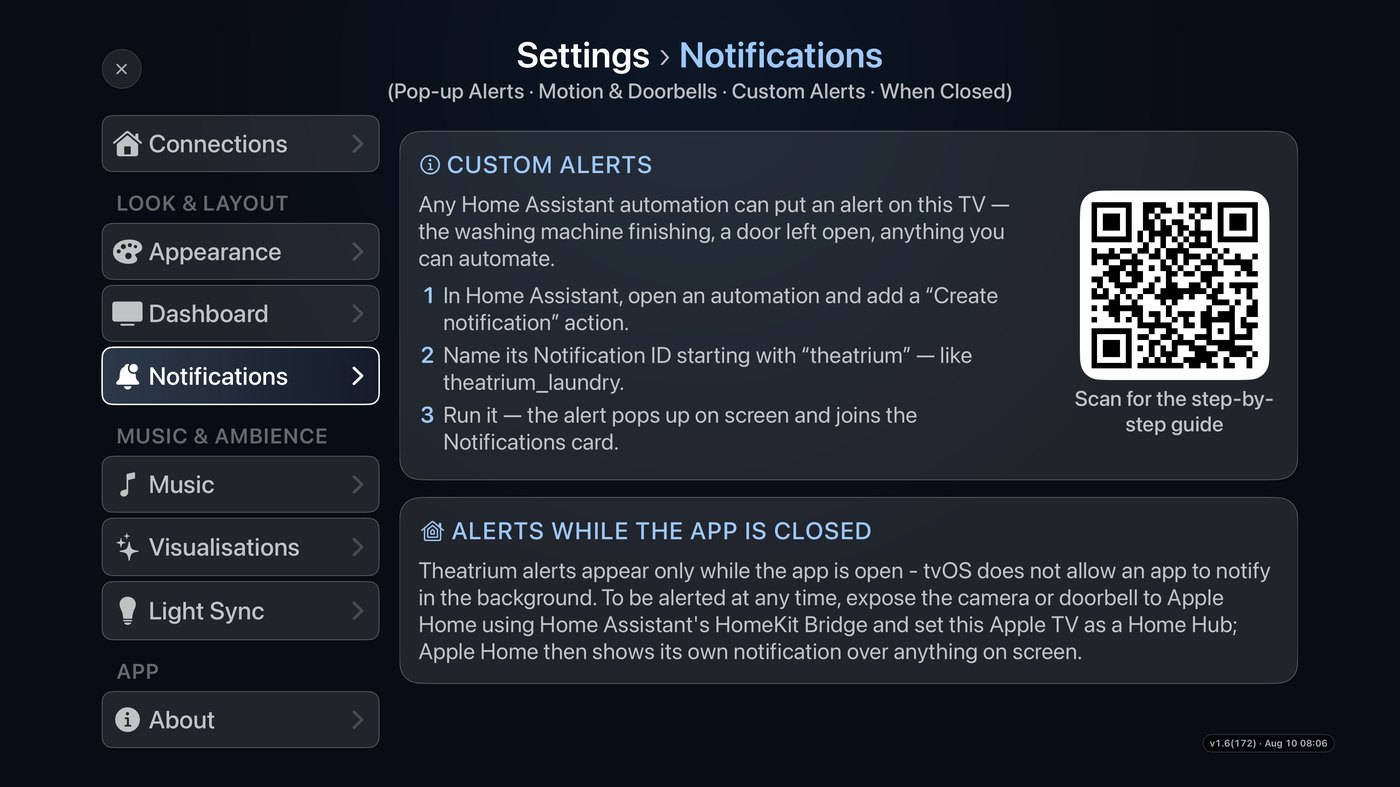
Theatrium can surface alerts from any Home Assistant automation — the washing machine finishing, a door left open, the mail arriving — as a pop-up banner on the TV and a running list on the Notifications card. One naming convention is all it takes. Takes about two minutes per automation.
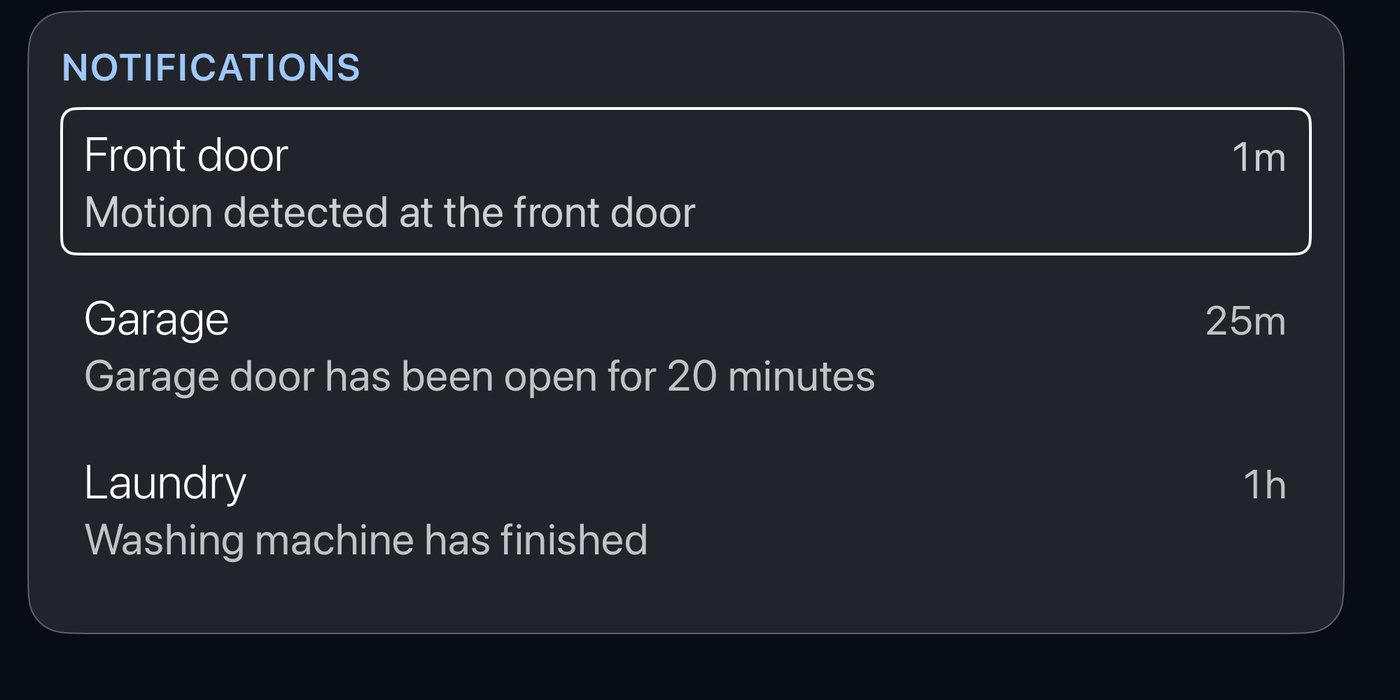
The banner pops up over whatever is on screen, then joins the Notifications card.
Cameras and doorbells don't need any of this. Theatrium sets those up automatically — tick the sensor in Settings › Notifications › Motion & Doorbells and the automation is written for you, camera picture included. This guide is for custom notifications: everything else you'd like on the TV.
Open your automation in Home Assistant
In Home Assistant, go to Settings › Automations & scenes and open the automation you want on the TV — or create a new one with any trigger you like. Everything below happens in the automation's actions.
Add a “Create a persistent notification” action
Add an action and search for Create a persistent notification (the service is persistent_notification.create). Give it a title and a message — that's exactly what the TV will show.
The one rule: set the Notification ID to a name starting with theatrium. Only notifications named this way reach the TV — Home Assistant's own housekeeping stays on your phone where it belongs.
alias: Washing machine finished
triggers:
  - trigger: state
    entity_id: binary_sensor.washer_running
    from: "on"
    to: "off"
actions:
  - action: persistent_notification.create
    data:
      title: Laundry
      message: The washing machine has finished.
      notification_id: theatrium_laundry
In the visual editor that's three fields; the YAML above is the whole thing if you prefer to paste. Use a different notification_id per alert type (theatrium_garage, theatrium_mailbox, …) — a new alert with the same ID replaces the previous one instead of stacking.
That's it — run it
Run the automation (or trigger it for real). With Theatrium open on the TV, the alert appears as a banner and joins the Notifications card. Selecting an alert on the TV dismisses it in Home Assistant too — both stay in sync.
How long banners stay on screen is yours to set in Settings › Notifications › On-Screen Time — brief, 30 seconds, a minute, or until dismissed.
Optional: attach camera snapshots
Alerts whose ID starts with theatrium_motion_ can show a short burst of camera stills with the banner. Before the notification action, have the automation save snapshots to Home Assistant's public www folder using this exact naming — theatrium_<name>_1.jpg, _2.jpg, _3.jpg — where <name> matches the ID:
actions:
  - repeat:
      count: 3
      sequence:
        - action: camera.snapshot
          target:
            entity_id: camera.front_door
          data:
            filename: /config/www/theatrium_front_door_{{ repeat.index }}.jpg
        - delay: "00:00:01"
  - action: persistent_notification.create
    data:
      title: Front door
      message: Motion at the front door.
      notification_id: theatrium_motion_front_door
Shortcut: for cameras and doorbells you don't need to build this by hand — Theatrium's Motion & Doorbells setup (Settings › Notifications) creates the whole automation, snapshots included, automatically.
Good to know
- Alerts appear while Theatrium is open. Apple TV doesn't let apps notify in the background — when the TV is on another app or asleep, Theatrium's alerts don't show. For anytime notifications over whatever's on screen, expose the camera or doorbell to Apple Home via Home Assistant's HomeKit Bridge and set the Apple TV as a Home Hub; the Alerts While The App Is Closed section in the app walks through it.
- Delivery is best-effort and not guaranteed — don't rely on it for safety-critical alerts.
- Custom Alerts need a Home Assistant connection and Theatrium Pro, available on the App Store as an in-app purchase.
This guide is general information, provided “as is” with no warranty of any kind. It describes independent third-party software that Theatrium does not control, and the steps involve installing software and changing settings on your own equipment — back up first and proceed at your own risk. Read the full disclaimer.