Guide · Notifications Easy
Turn on Theatrium's notifications
Theatrium can put a pop-up alert on the TV, and keep a running list on its own Notifications card, for motion, doorbells, and anything else Home Assistant or Apple Home can tell it about. This guide covers turning it on, choosing what alerts you get, and setting up your own custom alerts from Home Assistant. Notifications is part of Theatrium Pro.
Part of Theatrium Pro. The pop-up alert, the Notifications card, and the automatic Motion & Doorbells setup below are all one Pro capability, available on the App Store as an in-app purchase. There is no separate free tier for it — until Pro is unlocked, Settings › Notifications shows a single “See Theatrium Pro” card in place of the controls on this page.
Turn on Pop-up Alerts
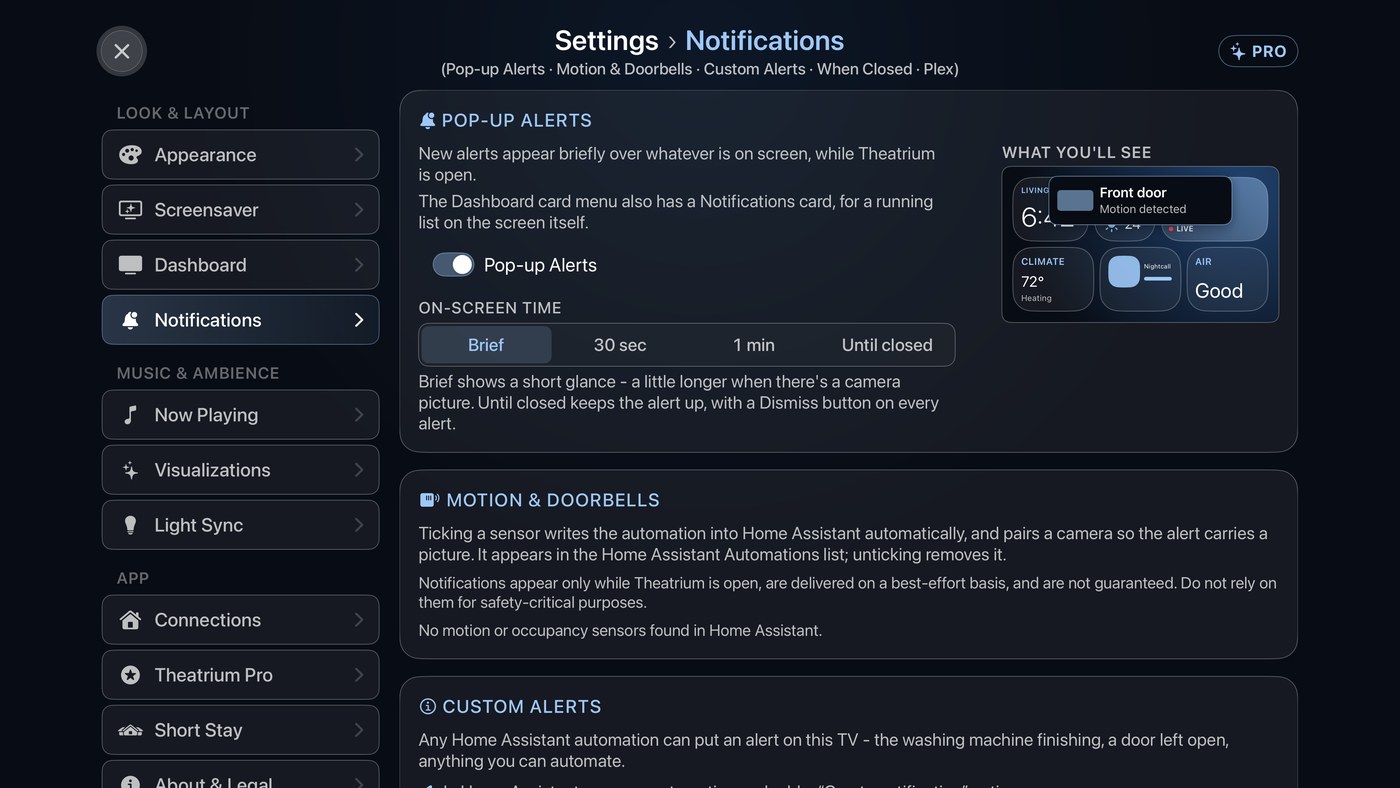
Go to Settings › Notifications and switch on Pop-up Alerts. New alerts then appear briefly over whatever is on screen, while Theatrium is open.
The first time you change this switch, Theatrium shows a one-time notice covering how alerts work and their limits — they only appear while Theatrium is open, and delivery is best-effort rather than guaranteed. Accept it once and you won’t see it again.
Choose how long each alert stays up
Still on that screen, set On-Screen Time: Brief is the default — a short glance, a little longer when the alert carries a camera picture. 30 sec and 1 min hold it longer before it clears itself. Until closed keeps every alert up until you dismiss it, and is the only mode that adds a Dismiss button to a plain text alert — in the timed modes, a text alert simply times out on its own.
Choose what alerts you get
Open Motion & Doorbells, further down the same screen. What you see there depends on how Theatrium is connected:
- Home Assistant. Tick a sensor and Theatrium writes the Home Assistant automation for you, pairing a camera if one matches so the alert carries a picture. It appears in Home Assistant’s own Automations list; untick it and Theatrium deletes the automation again. This needs a Home Assistant long-lived access token from an administrator account — see Troubleshooting below if it reports a permission error.
- Apple Home. Theatrium lists the sensors Apple Home can see — motion, contact (open/close), smoke, carbon monoxide, carbon dioxide and leak — plus cameras and video doorbells, and you turn on the ones you want Theatrium to alert on. Cameras and doorbells are off by default: tvOS already shows those itself as a picture-in-picture when this Apple TV is a Home Hub, so only turn one on if you’d rather Theatrium show it instead — otherwise you get both.
- Neither connected. If this Apple TV has no Home Assistant or Apple Home connected yet, there’s nothing to pick from — see the Apple Home or Home Assistant guides first.
Every alert also lands on the Notifications card
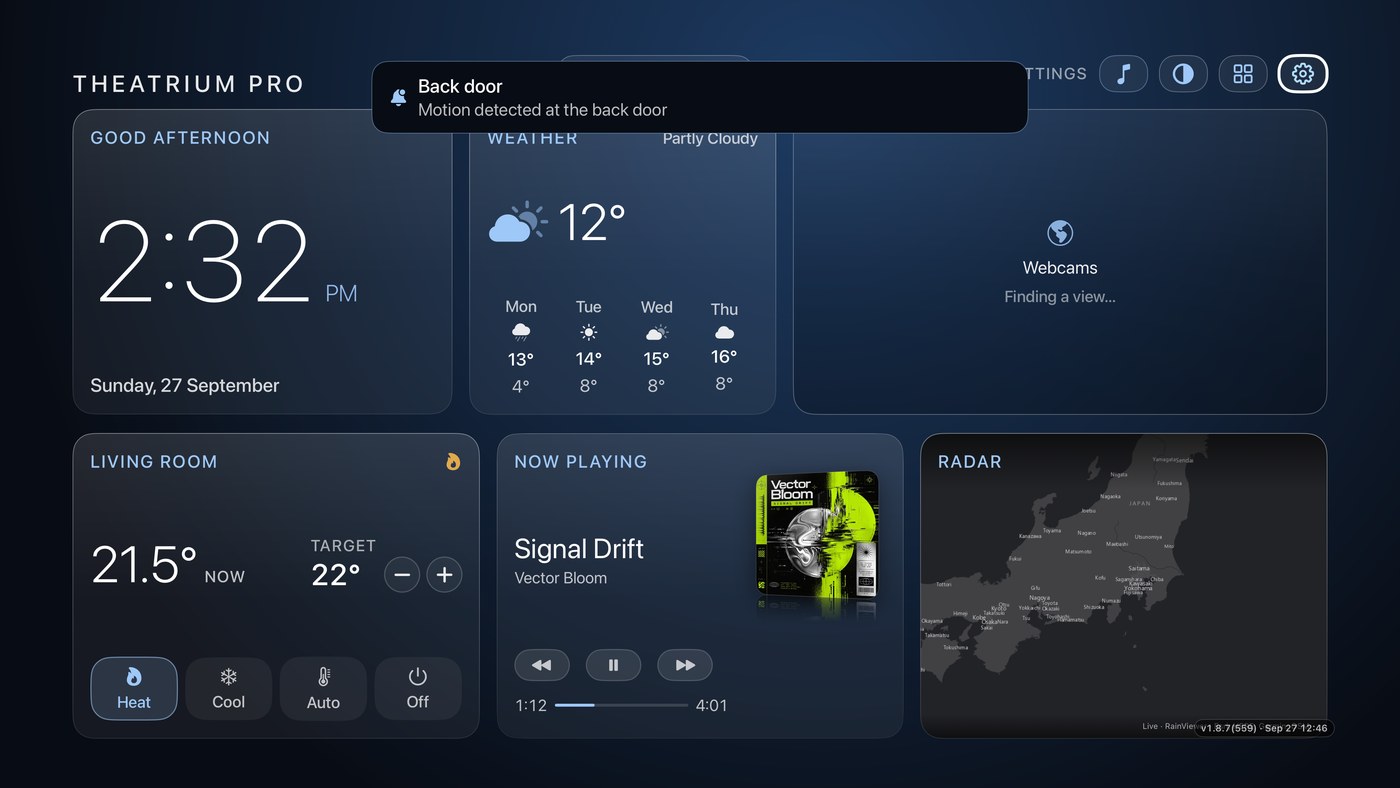
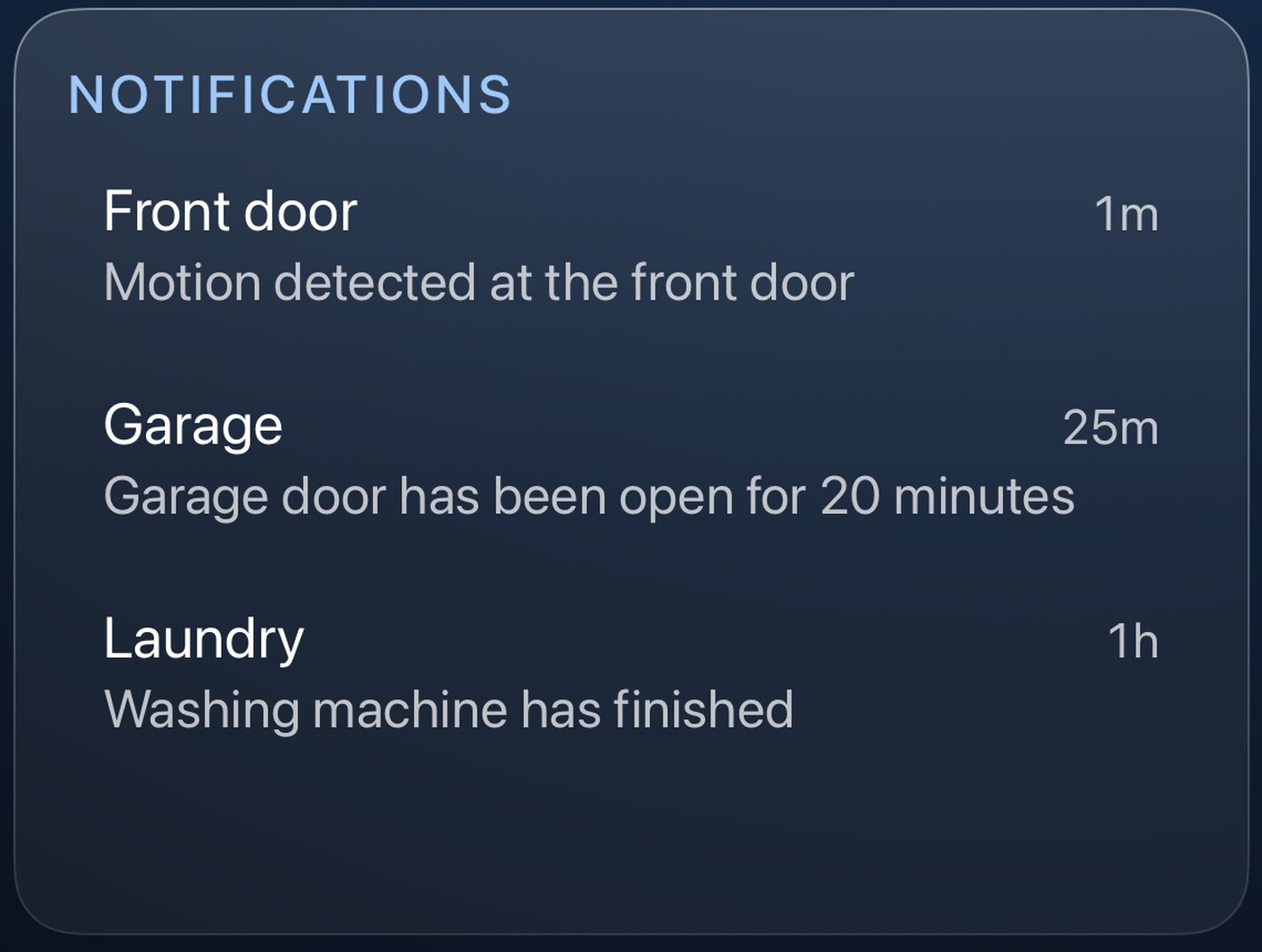
Add Notifications from the dashboard’s card menu, the same way as any other card (see Dashboard cards), for a running list on the screen itself — not just a pop-up that comes and goes. It shows the same alerts as the pop-up, newest first, however they arrived.
Custom alerts from any Home Assistant automation
Motion & Doorbells covers sensors Theatrium already knows about. For anything else — the washing machine finishing, a door left open, the mail arriving — Home Assistant can raise the alert itself.
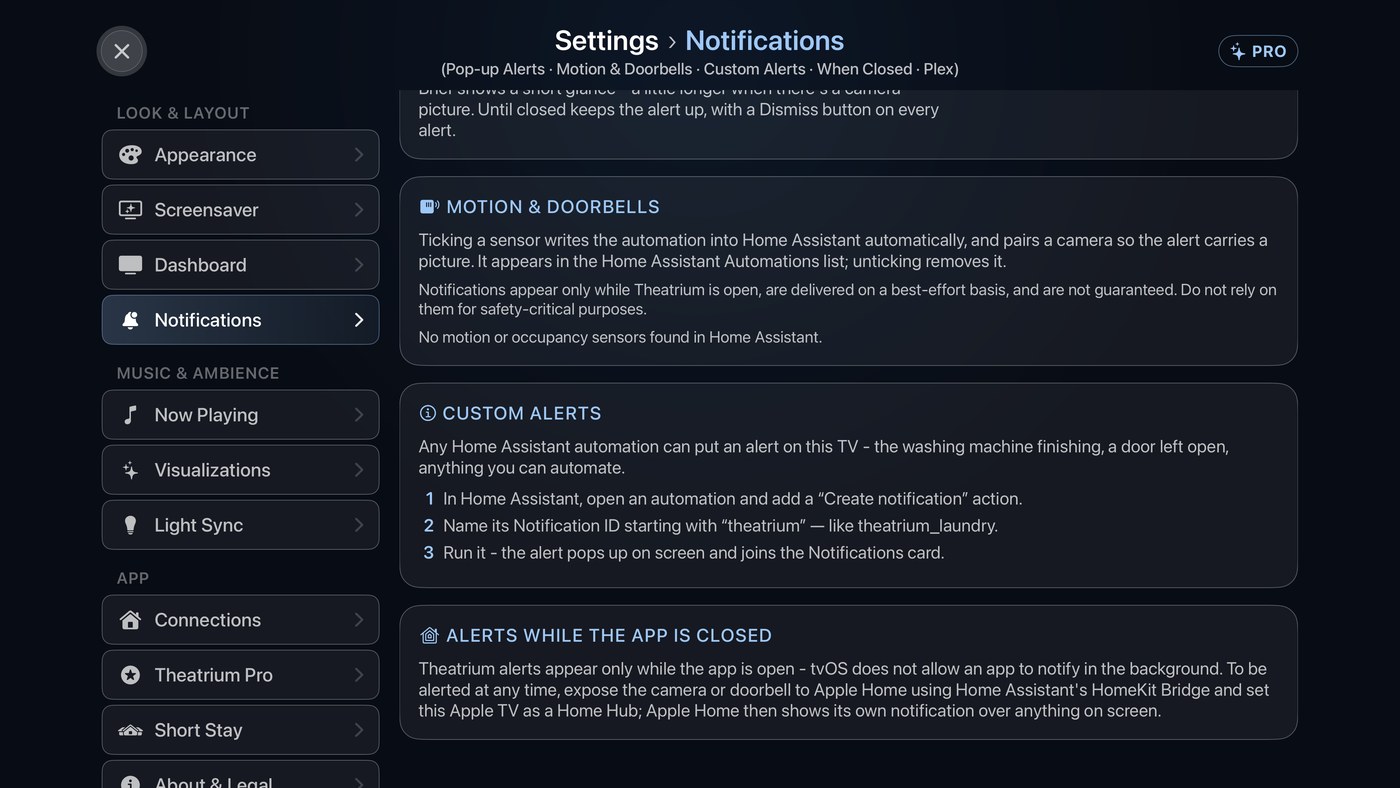
In the automation’s actions, add a Create notification action (the service is persistent_notification.create) and give it a Notification ID starting with theatrium — that prefix is what tells Theatrium the notification is meant for the TV, rather than Home Assistant’s own housekeeping:
alias: Mail arrived
triggers:
  - trigger: state
    entity_id: binary_sensor.mailbox
    to: "on"
actions:
  - action: persistent_notification.create
    data:
      title: Mailbox
      message: The mail has arrived.
      notification_id: theatrium_mailbox
Run the automation and the alert appears as a pop-up and on the Notifications card; selecting it on the TV dismisses it in Home Assistant too. For the full walkthrough — including attaching a burst of camera stills to an alert — see the Home Assistant alerts guide.
Being alerted when Theatrium isn’t open
Theatrium’s own alerts are foreground-only — tvOS doesn’t let any app show notifications in the background, so when Theatrium is closed, or the Apple TV is asleep or on another app, nothing from Theatrium appears.
For anytime alerts, use Apple’s own path instead: turn on notifications for the camera or doorbell in the Apple Home app and set this Apple TV as a Home Hub. If you connect through Home Assistant rather than Apple Home directly, expose the camera or doorbell to Apple Home first, using Home Assistant’s HomeKit Bridge. Apple Home then shows its own notification over anything on screen, whether or not Theatrium is open.
Also on this screen: Plex. Connect a Plex Media Server (see the Plex cards guide) and Settings › Notifications gains a Plex section — tell Theatrium when someone starts watching something, and when new films or episodes are added. Both are off until you turn them on, and, like every Theatrium alert, they only appear while the app is open.
Good to know
- Notifications is part of Theatrium Pro, available on the App Store as an in-app purchase — a free install shows no notification surface at all, not even a locked one, until Pro is unlocked.
- Delivery is best-effort and not guaranteed. Don’t rely on Theatrium for safety, security, medical or life-safety alerts, including smoke or carbon-monoxide detection — Theatrium is shown “as is”, at your own risk.
- “This Home Assistant token can’t manage automations.” Motion & Doorbells writes an automation on your behalf, which needs a long-lived access token from an administrator Home Assistant account. Create one from an admin user and reconnect.
- The Notifications card says “Waiting for Home Assistant.” That means it has never seen a notification with an ID starting
theatrium— check the automation actually ran, and that its Notification ID is spelled exactly that way. - “No sensors are set to alert yet” (Apple Home). Turn one on in Motion & Doorbells, above — and make sure the sensor is exposed to the Home app in the first place.
- “No motion or occupancy sensors found in Home Assistant.” Motion & Doorbells only lists binary sensors classed as motion or occupancy, and doorbell or motion event entities — a sensor classed differently in Home Assistant won’t appear there, though it can still raise a custom alert.
This guide is general information, provided “as is” with no warranty of any kind. It describes independent third-party software that Theatrium does not control, and the steps involve installing software and changing settings on your own equipment — back up first and proceed at your own risk. Read the full disclaimer.